Send a push notification
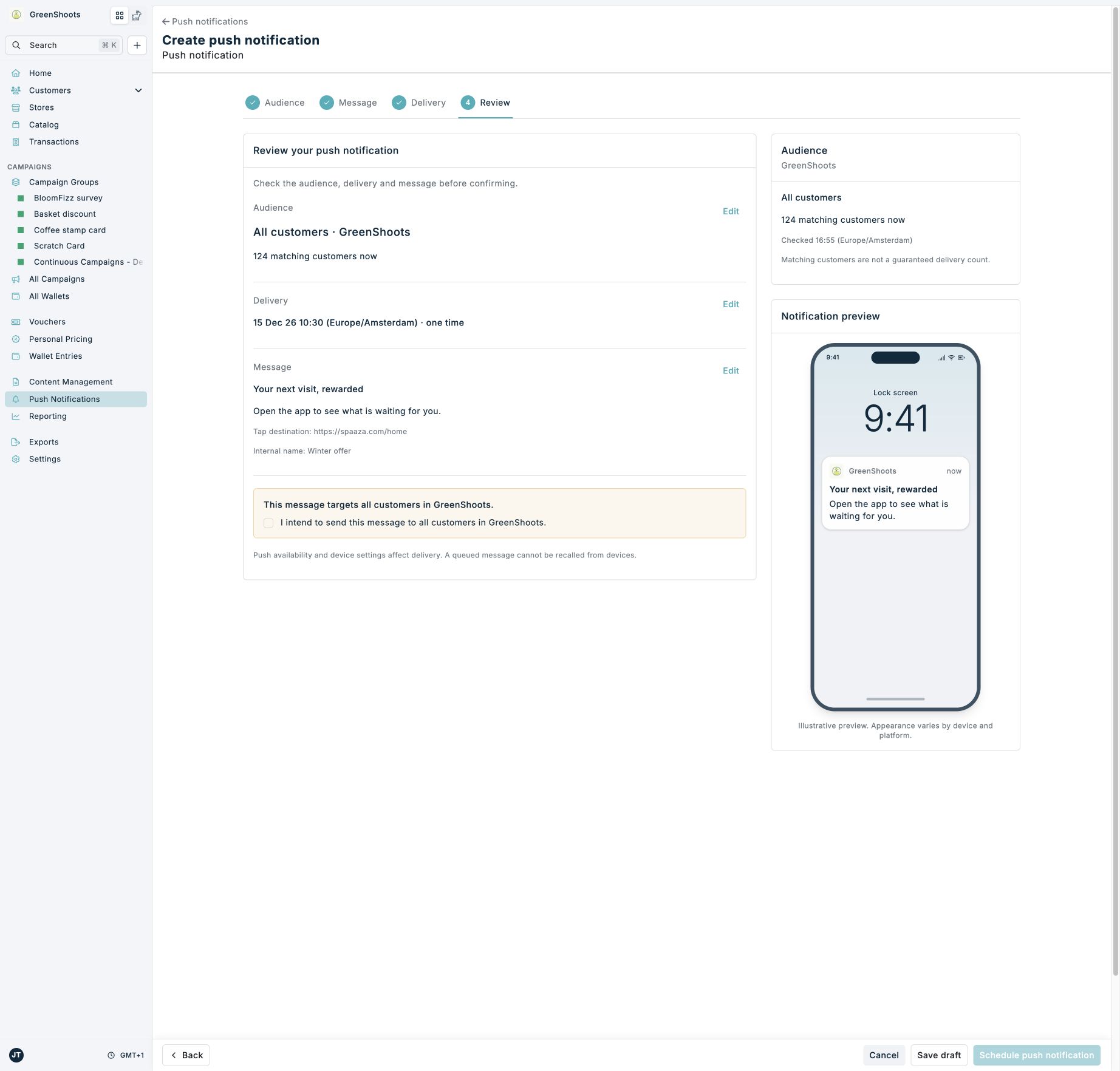
Use push notifications to send a message to customers through your app. Check the audience before you send or schedule a message.
Choose the audience in Console
- Open Push Notifications in Console.
- Click Create Notification.
- Select Customer segment, Upload customer list, or All customers.
- Complete the selected audience:
- For Customer segment, select a segment and check its rules.
- For Upload customer list, choose a CSV with username and id columns.
- For All customers, check the brand name in the warning.
- Click Continue.
No audience is selected for a new notification. Clearing a segment or removing a file does not select all customers.
Matching customers now shows the current audience size. This number is not a delivery count. Segment membership is evaluated when the notification runs. Customers can enter or leave a segment before delivery.
Customer CSV files must contain an email address and Spaaza customer ID for each row. Empty files, malformed rows, and duplicate customers are rejected. The maximum file size is 10 MB. File checks do not verify that accounts exist or can receive push notifications.
Write the message
- Enter an Internal name for your team.
- Enter the Notification title that customers will see.
- Enter the Message.
- Add an image if needed.
- Choose what opens when a customer taps the notification.
- Check the notification preview.
- Click Continue.
The audience summary stays visible while you write. Scroll inside the phone preview to inspect a long message. The preview can differ from the notification on a customer's device.
Choose delivery and review
- Select Send now or Schedule.
- For Schedule, choose a future date and time in the displayed timezone.
- Check Repeat delivery. Leave Do not repeat selected for a single message.
- Click Review notification.
- Check the audience, brand, delivery, message, and tap destination.
- Use Edit beside a section to change it.
- Click Review changes to return directly to review.
- For All customers, select the acknowledgement that confirms the audience.
- Click Send now or Schedule push notification.
Editing a section clears the all-customer acknowledgement. Confirm the audience again after reviewing your changes. A queued message cannot be recalled from customer devices.
Save a draft or reuse a message
Click Save draft after you complete the audience and message. A draft has no delivery schedule or repeat setting. Saving an existing scheduled notification as a draft removes its schedule.
Use Duplicate from a push notification's action menu to reuse its content. Choose the audience and delivery again for the copy. Running and completed notifications cannot be edited through this workflow.
If Console cannot confirm a save, check the push notification list before trying again. This helps prevent duplicate sends.
Edit or inspect an existing notification
Open a notification to see its Audience, Message, Delivery, and phone preview. The overview shows current audience rules and matching customers now for saved segments and all-customer audiences. The check time shows when the count was retrieved. Use Refresh count to check again, or Retry count if the check fails. This count is not a delivery total and does not reconstruct the recipients of a past send.
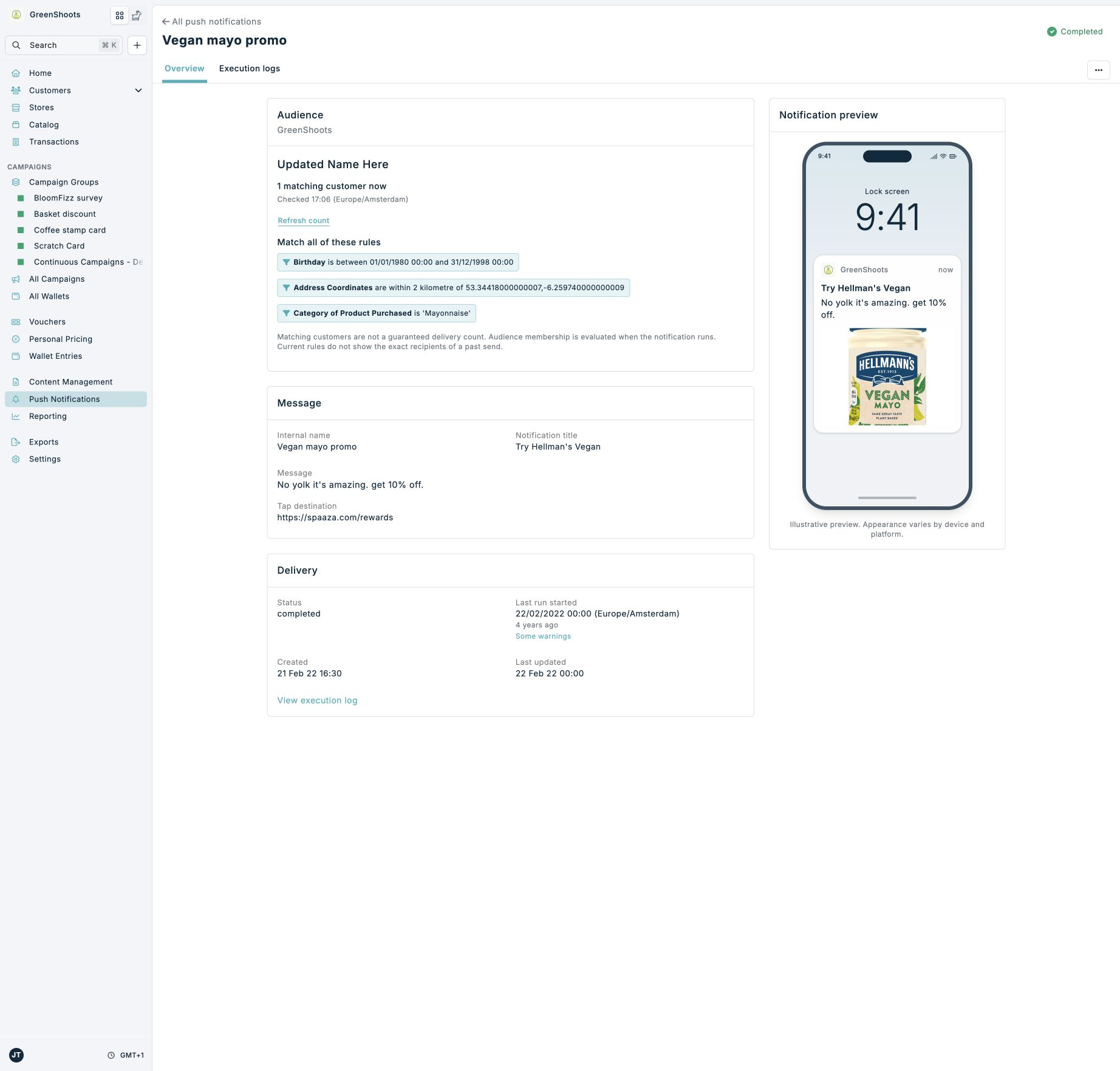
- Select Edit from the notification action menu.
- Check the saved settings on Review your push notification.
- Click Edit beside the section you want to change.
- Make your changes.
- Click Review changes.
- Click Save changes after checking the review.
A draft stays unscheduled when you save message changes without selecting delivery. For a scheduled notification, check the delivery time and audience before saving. All-customer sends require the acknowledgement again.
Use Edit audience, Edit message, or Edit delivery on the overview to open that section directly. Use Cancel in the fixed footer to leave the form. Console asks before discarding unsaved changes.
Expected result
Console confirms that the push notification is saved as a draft, queued, or scheduled. The push notification list shows its audience and delivery status.
If something looks different
- If a segment is unavailable or changed, choose the audience again and review the notification.
- If an upload fails, choose the file again. Continue stays disabled until validation and upload finish.
- If the audience count is unavailable, reselect the audience to retry the check.
- If the brand changes, return to Push Notifications and start again in the intended brand.
- If the save result is uncertain, check the list before retrying. Console blocks another submission from the same form.