Manage team members
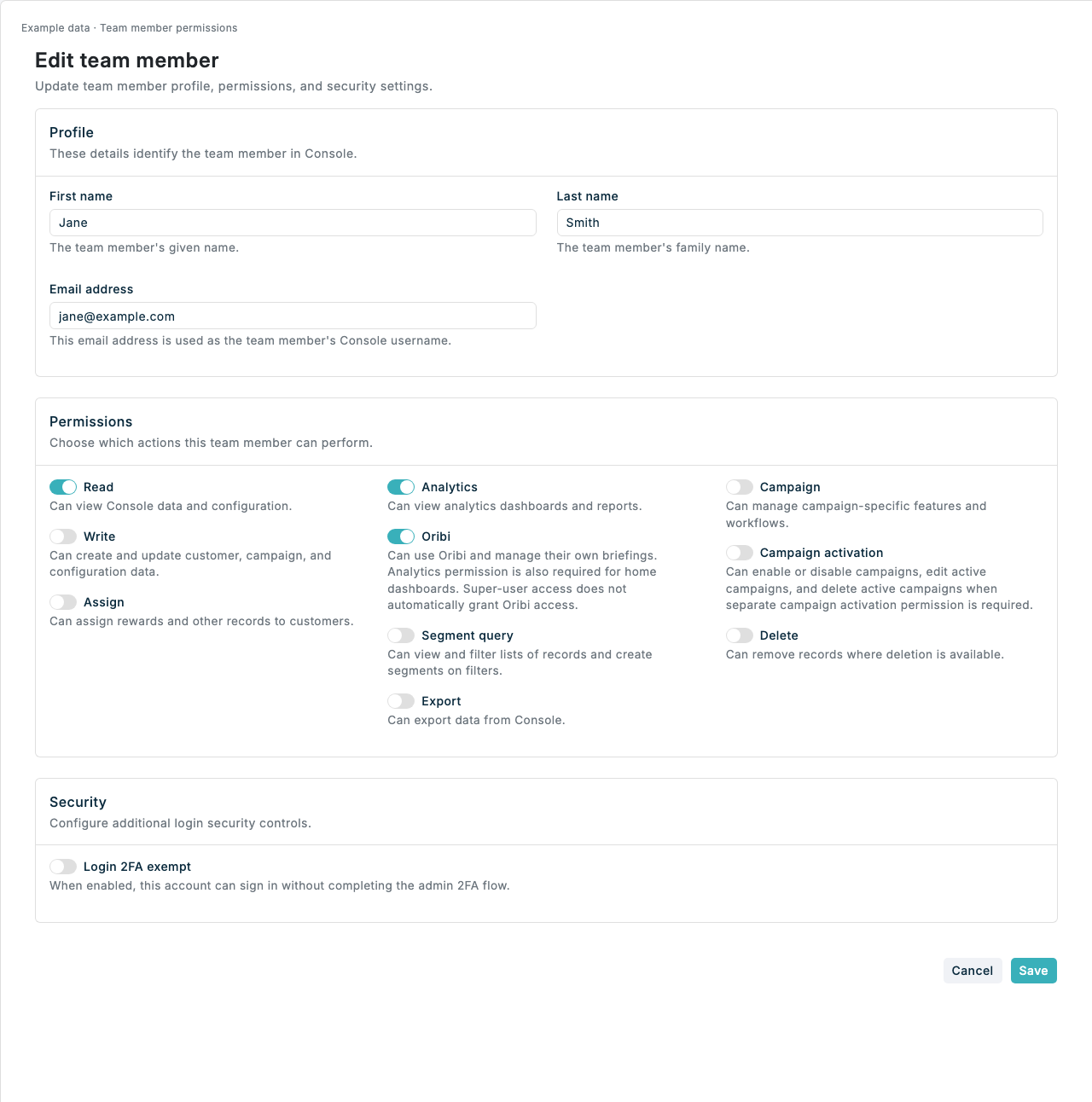
Super users can review team members and their permissions, add team members, or download the complete team-member list from Spaaza Console.
Expected result
- Confirm that the team-member table and CSV export show the Campaign activation and Oribi permissions.
- A team member can be added or edited with Campaign activation switched on or off.
- Campaign activation is marked Not enforced when the program does not require a separate campaign activation permission.
Manage team members in Console
- Open Settings in Spaaza Console.
- Under Team, click Manage team members.
- Use Filter by name or email to narrow the table.
- Click Add user to add a team member, or open the actions menu beside an existing team member and click Edit.
- In Permissions, switch Campaign activation on when the team member should be allowed to enable or disable campaigns, edit active campaigns, or delete active campaigns.
- Click Save.
To open an existing team member’s actions, hover over their row and click the Actions (three-dot) button at the visible right edge. You can also tab to the button with your keyboard; on touch devices it stays visible. Choose View, Edit, or Delete from the menu. You do not need to scroll across the permissions to reach it.
To download the complete list, return to Manage team members and click Export CSV. The export includes every team member regardless of the current name or email filter. It contains each team member's ID, name, email address, and permissions. For super users, it also includes whether each team member is exempt from two-factor authentication.
Grant Oribi access
- As a super user, first enable Oribi in General settings for the selected program.
- Open Settings → Manage team members and add a team member or choose Edit beside an existing member.
- Under Permissions, switch on Oribi. Also grant Analytics if the member needs a Home dashboard.
- Click Save and ask the member to refresh Console. Their Oribi permission is also shown in the member overview, table and CSV export.
Only super users can change Oribi permissions. You cannot change your own Oribi permission; ask another super user to do this. Super-user access alone does not grant Oribi access.
When the program is disabled for Oribi, the switch is disabled and marked Program disabled. Turning off Oribi in General settings revokes all team members’ Oribi grants. Re-enabling the program requires granting those permissions again.
If something looks different
- When Campaign activation is marked Not enforced, you can still save the permission, but it has no effect until a super user switches on Require a separate permission to activate campaigns in Program rules.
- If Manage team members is unavailable, confirm that you have super-user access for the selected program.