Create your Oribi home dashboard
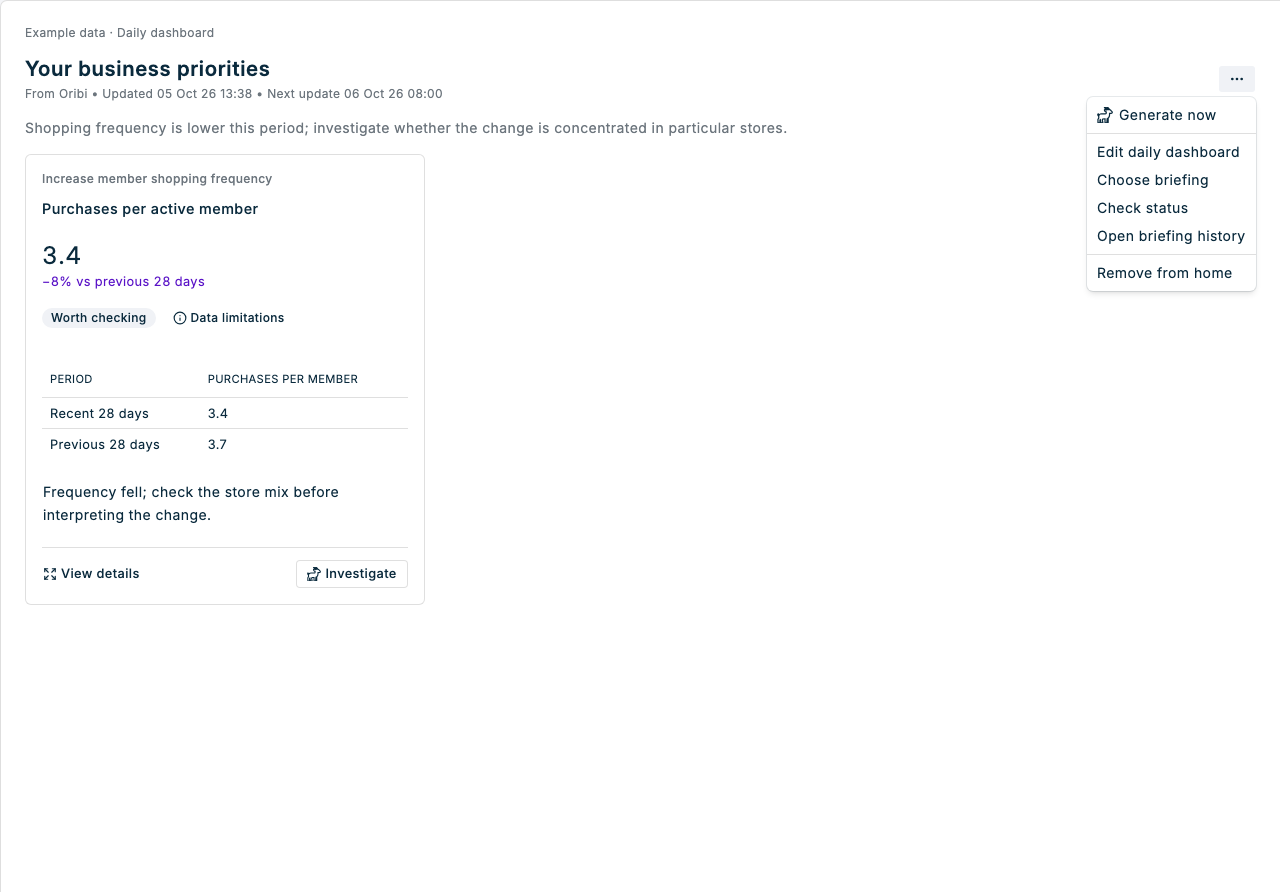
Generate a daily dashboard with charts or tables and suggested investigations based on your business goals. You can also generate a fresh dashboard on demand without changing the daily schedule.
You need Oribi and Analytics permissions for the current business. A super user must first enable Oribi in General settings, then grant your permissions in Manage team members. Refresh Console after your access is updated. Each dashboard briefing runs for its own user account. Your Home selection is saved for your user and business in the browser you are using.
Without Oribi permission, Home keeps the standard Today overview, Campaign Calendar and Dashboard. Recent signups and analytics remain subject to your existing permissions. The Oribi dashboard setup and settings are only available with both Oribi and Analytics permissions.
Set up your daily dashboard
- Open Home and find Your business priorities.
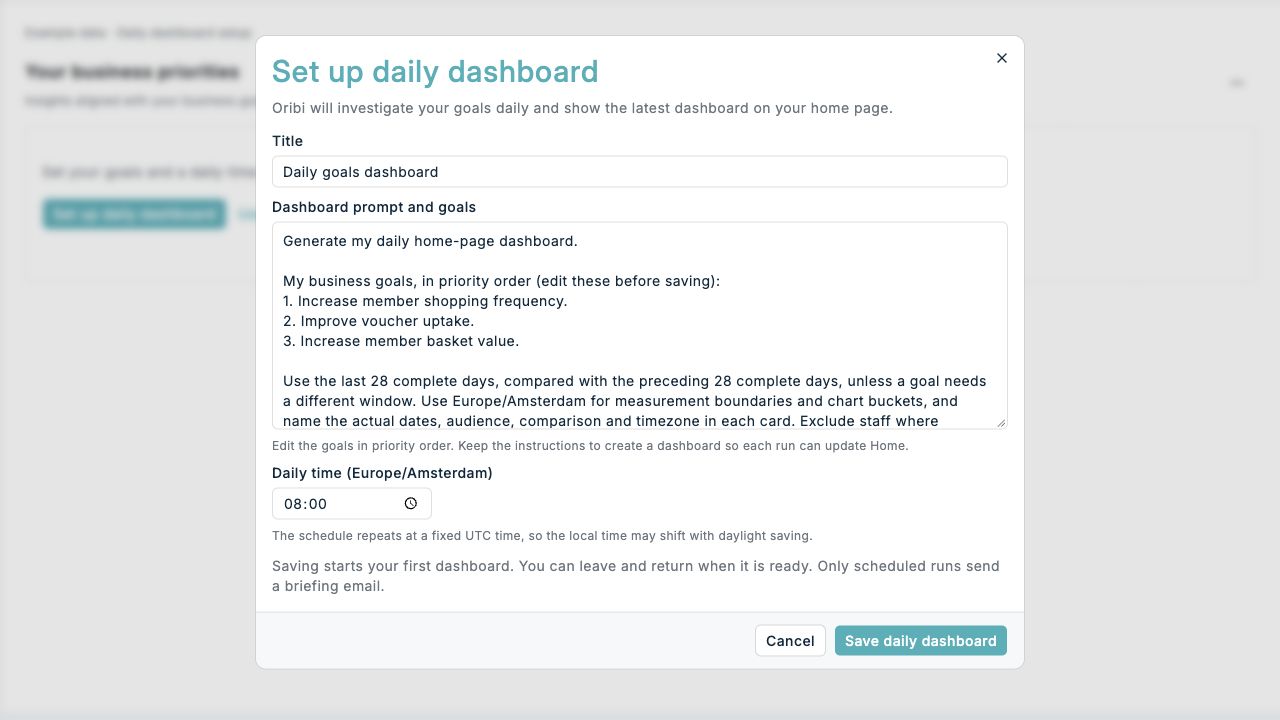
- Select Set up daily dashboard.
- Give it a recognisable Title.
- Edit Dashboard prompt and goals to describe your goals in priority order. Keep the instructions that ask Oribi to assemble a dashboard.
- Choose Daily time. The field identifies your reporting timezone.
- Select Save daily dashboard.
- Your first dashboard starts automatically. It appears on Home when generation finishes; you can refresh or close the page and return later.
Saving selects the new briefing for Home automatically and starts its first generation. Later dashboards run at your chosen daily time. Editing or selecting an existing briefing does not start an automatic run. The template starts with shopping frequency, voucher uptake and member basket value, and compares the last 28 complete days with the preceding 28 days. You can change the goals and analysis periods in the prompt. Measurement boundaries use your reporting timezone when you create the briefing. The daily schedule is separate.
The schedule repeats at a fixed UTC time, so its displayed local time may shift when daylight saving changes. Scheduled runs send the usual Oribi briefing email to the task's user. The automatic first dashboard and Generate now update Home without sending an email.
Return while your first dashboard is generating
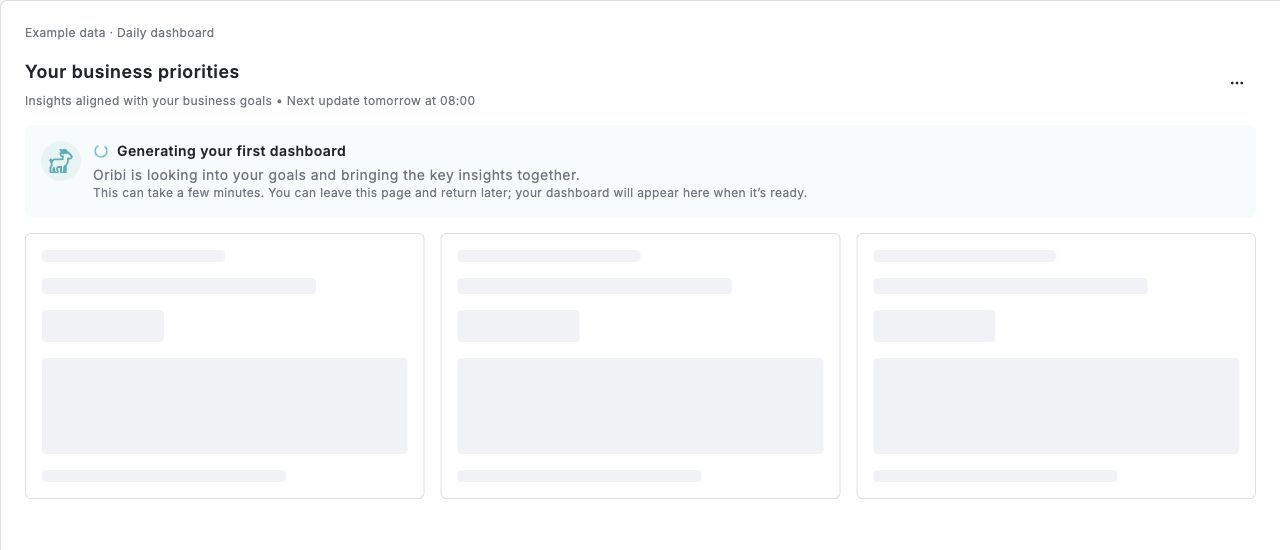
Home shows Generating your first dashboard, an activity indicator and placeholder cards while the first run is queued or active. Generation can take a few minutes. The dashboard replaces the placeholders when it is ready. You can leave the page and return later. Refreshing restores the generation status and does not start another run. If you refresh while saving, Home recovers that same setup and selects the saved briefing.
If the first generation fails, your daily schedule remains saved. Select Retry first dashboard to try again. A generation interrupted by an Oribi service restart is reported as failed so you can retry it. If Oribi finishes without a dashboard or needs your input, follow the link to briefing history to review the analysis or answer its question.
Generate a fresh dashboard now
- On Home, open Dashboard settings (the three-dot menu) beside Your business priorities and select Generate now.
- Keep Home open while Oribi starts. Once generation has started, you can return later. Generation can take a few minutes.
- Check the Updated time when the new result appears.
This asks Oribi to generate a dashboard using your signed-in account and the selected briefing’s saved prompt. The result appears in the same briefing history, and the daily schedule stays unchanged. The menu action is disabled while a known run is in progress. Home checks the task and loads its latest saved dashboard automatically; the previous dashboard stays visible while the new one is generated.
If the connection is interrupted, Home checks Oribi for the saved result without automatically starting another generation. Check status checks for a saved result immediately. Open Dashboard settings → Open briefing history to review the conversation. If Oribi needs an answer or approval, follow the link to briefing history to continue.
Use an existing briefing
- Open Dashboard settings (the three-dot menu) and select Choose briefing. With no dashboard selected, you can also select Use an existing briefing.
- Choose one of your own briefings whose prompt requests a dashboard.
- Open Dashboard settings → Generate now if it has not generated a dashboard yet.
You can also open a briefing under Oribi Briefings and select Actions → Use for my dashboard. Selecting another briefing replaces your current Home selection without deleting either task. Other users and businesses keep their own selections. A different browser requires its own selection.
Regular conversations can still contain dashboards, but Home now loads its dashboard from a briefing task. If you previously selected a conversation during testing, set up or select a briefing instead.
Review and manage your dashboard
- Scan the cards in goal priority order. New dashboards show a metric, value, comparison, short takeaway and evidence status. Worth checking indicates an uncertain signal; Limited evidence calls out small samples or unsuitable comparisons. Needs attention is reserved for a supported actionable problem, and On track requires a stated target.
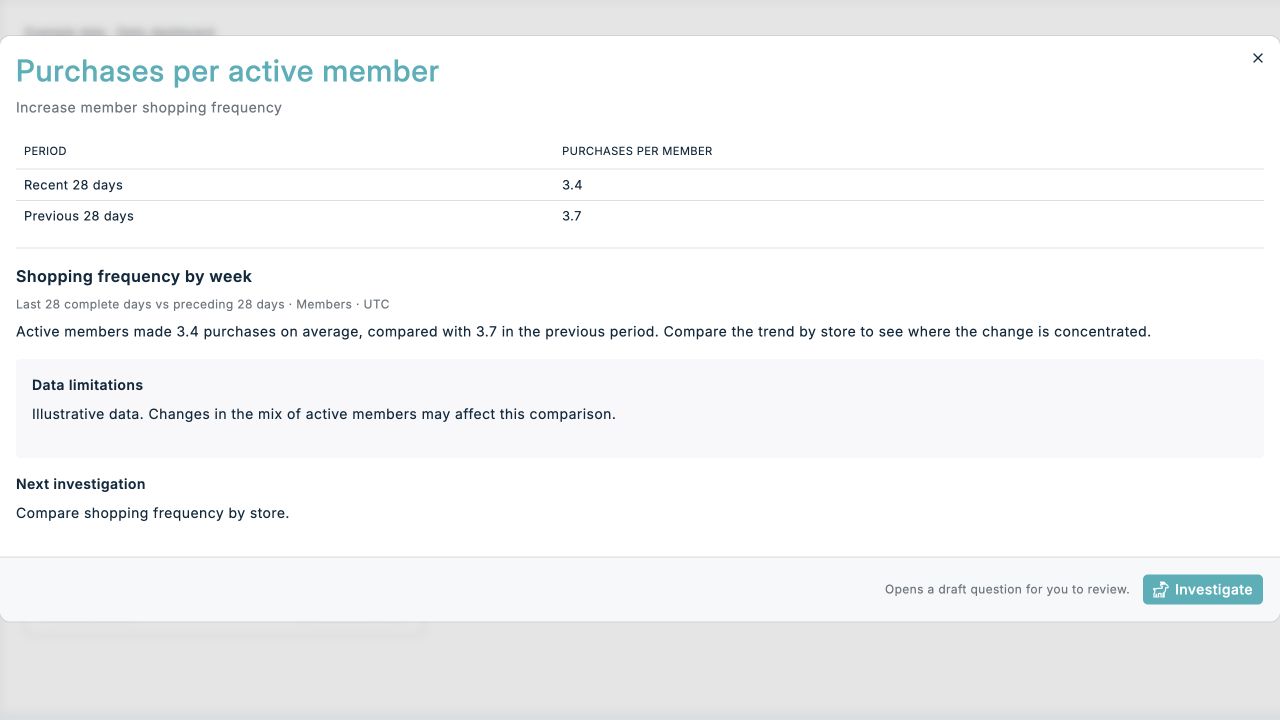
- Select View details or the short explanation on a card to open a large-view dialog. The explanation highlights on hover and can also be opened using the keyboard. The full chart or table appears first, followed by the finding, measurement periods, limitations and suggested investigation. Tables show up to three rows in the compact view; the dialog shows every row. Close the dialog with Close or the Escape key.
- Select Data limitations to open the dialog at the explanation of what affects the finding, such as a small sample or an unsuitable comparison. This replaces the generic data-caveat label on older dashboards.
- Select Investigate to open the source conversation with a question prepared in the message box. Review or edit it, then send it yourself. Opening the draft does not run an investigation or execute a business action.
- The header combines Updated and Next update in one line, using your reporting timezone. Runs due today or tomorrow use those labels. Check Updated before acting on the result. This is a saved snapshot, and opening Home does not generate a new analysis. Home checks for new results automatically. Dashboard settings → Check status checks immediately without generating another analysis.
- Open Dashboard settings → Open briefing history to review earlier runs and their analysis.
- Select Dashboard settings → Edit daily dashboard to change the goals or daily time. Updated goals apply to future scheduled and on-demand runs. Saving here makes the selected briefing daily.
- Select Dashboard settings → Remove from home, or Actions → Remove from my dashboard in the briefing, to clear the selection. This does not delete or stop the briefing.
- The Campaign Calendar and standard Dashboard are shown below the priority cards. Open Oribi → Briefings to review briefing history.
Previously saved dashboards use the compact layout too. Generate a new dashboard to receive the metric headlines and evidence statuses; older results retain their original analysis under View details.
Clear a failed setup and start again
If Home or the setup dialog says the schedule save could not be confirmed:
- Open Oribi → Briefings and check whether your dashboard briefing was saved. If it exists, use Actions → Use for my dashboard rather than creating another.
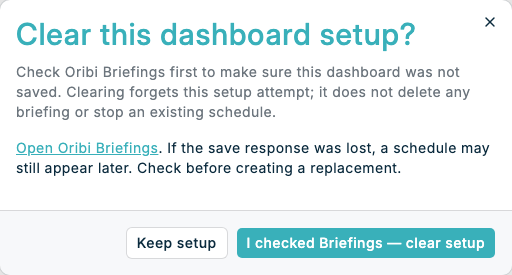
- If it was not saved, choose Clear setup and start again beside the error.
- Read the confirmation, then choose I checked Briefings — clear setup.
- Once the pending setup is cleared, choose Set up daily dashboard, review your goals and daily time, and save again.
Oribi checks your access and searches for a saved briefing before clearing. If a matching briefing exists, a save is still in progress, or the check fails, the setup stays in place and an explanation is shown. Clearing does not delete briefings, stop schedules, or start a replacement automatically. If a response was lost, a schedule may still appear later; check Briefings before saving a replacement.
To remove a successfully saved dashboard from Home, use Dashboard settings → Remove from home. Its briefing remains in Oribi Briefings and continues on its schedule until you delete it there.
If a dashboard is missing
- No dashboard has been generated: check that the prompt explicitly asks for a dashboard and that the briefing has run. An ordinary written briefing or a chart by itself does not become a home dashboard.
- Scheduled runs fail but Generate now works: contact Spaaza to check the credentials used by scheduled briefings. On-demand generation uses your signed-in account.
- A newer run failed or found no usable evidence: the previous valid dashboard remains available. Check its generation time and open the briefing history to review the newer run.
- The briefing is unavailable: choose another briefing if the selected one was deleted or you no longer have access.
- The server does not support home-page dashboards yet: contact Spaaza to check that the dashboard update is available for your environment.
- Use for my dashboard is missing: check that you have analytics permission and that the briefing was created with your user account.
For general scheduling and history navigation, see Oribi Briefings.