Create a Lucky Shopper campaign
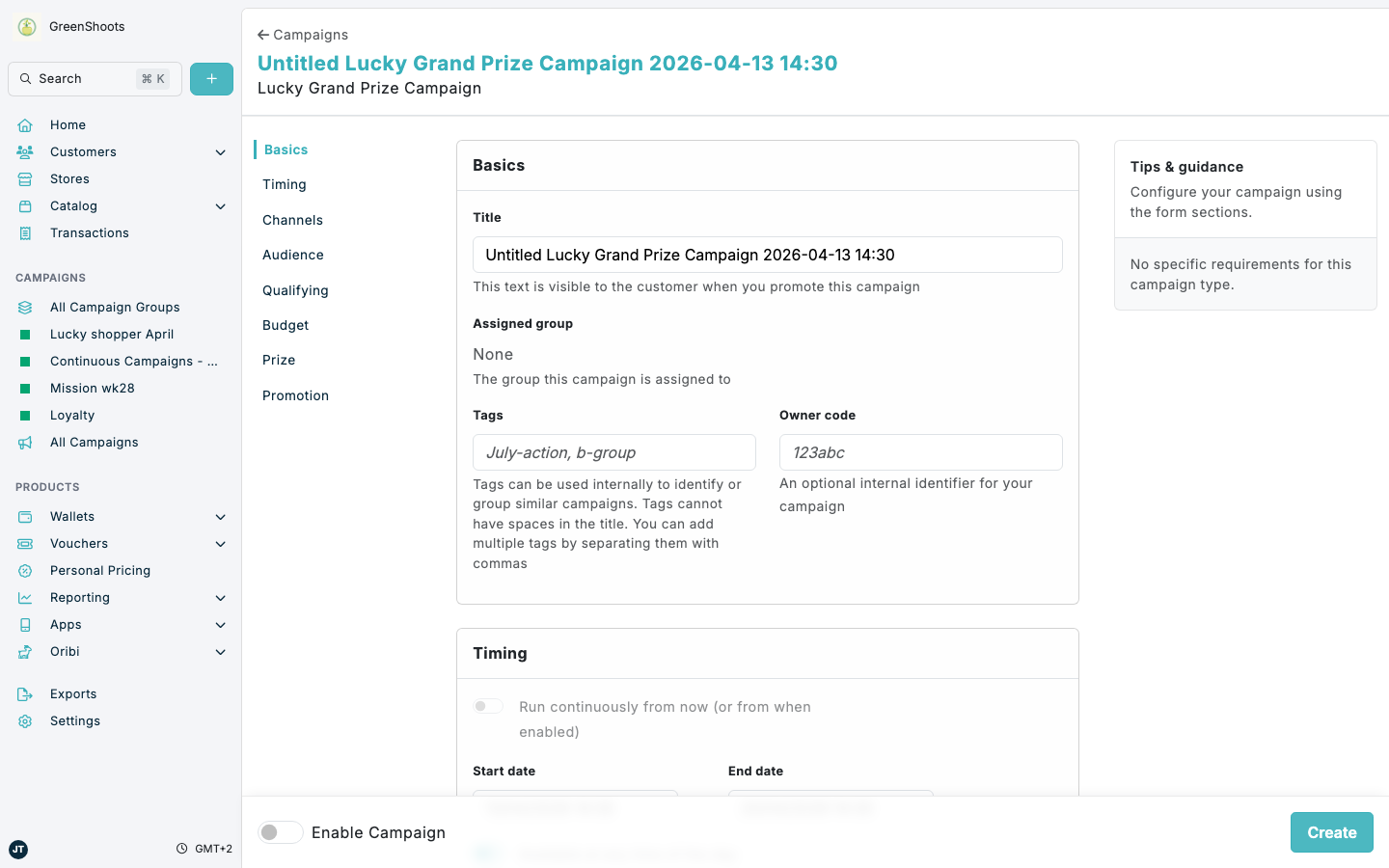
Use Lucky Shopper campaigns when you want to randomly reward customers who buy qualifying items. In Create a campaign, the Lucky Shopper section offers three campaign types:
- Lucky Free Item for a random free-item win
- Lucky Grand Prize for a random monetary prize
- Lucky Free Basket for a random free-basket win
All three Lucky Shopper types use the same overall campaign structure, with the main differences appearing in Prize settings.
Expected result
- You can review the Lucky Shopper campaign form before you create the campaign.
- You can configure the qualifying rules, budget, timing, and prize settings before you save.
- You can enable the campaign when it is ready to go live.
Create a Lucky Shopper campaign in Console
- Open Campaign groups.
- Open the campaign group where the Lucky Shopper campaign should live, or click Create a group and create a new campaign group first.
- In the campaign group, click Add campaign.
- Select Reward.
- In Lucky Shopper, choose one of the three campaign types: Lucky Free Item, Lucky Grand Prize, or Lucky Free Basket.
- In Basics, enter the Title and any internal identifiers you want to keep with the campaign.
- In Timing, set the campaign start and end dates. Lucky Shopper campaigns run within a defined date range rather than continuously.
- In Channel and store targeting, define where the campaign can apply.
- In Audience, add any included or excluded segments if the campaign should only apply to specific customers.
- In Qualifying baskets and items, define the products, basket conditions, and required matching items that make a customer eligible.
- In Budget, set the total budget available for the campaign.
- In Prize settings, configure the reward details for the campaign type you selected:
- Lucky Grand Prize includes The value of the monetary prize.
- Lucky Free Item includes Maximum number of items the
free itemvoucher can be spent on. - All three types include Voucher claimed by default, Win voucher text, and Transaction message.
- Turn on Enable Campaign when the setup is ready.
- Click Create.
If something looks different
- If you do not see the three Lucky Shopper options, make sure you opened Add campaign from a campaign group, selected Reward, and looked under Lucky Shopper.
- The exact controls in Prize settings depend on which Lucky Shopper type you selected.
- If you need to review campaign results after launch, use Lucky Shopper reporting.