How to create competitions
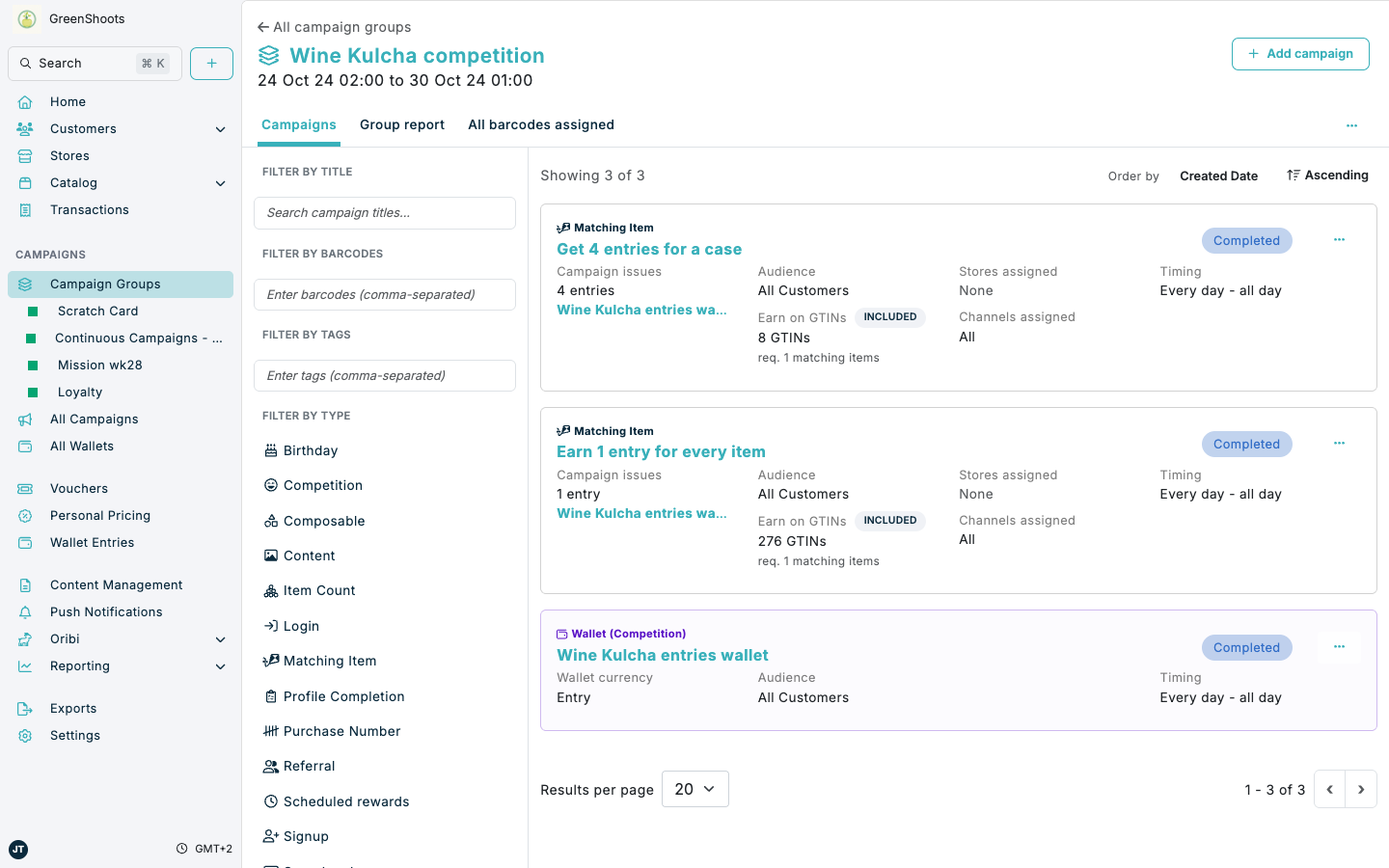
Competitions use a campaign group to hold the promotion, a competition wallet to store entries, and one or more campaigns that issue entries into that wallet.
Expected result
- You create or open a campaign group that contains the competition setup.
- You add a Competition Wallet campaign that stores every entry.
- You add one or more campaigns that issue entries into the competition wallet.
- You review performance at wallet level and at contributing-campaign level.
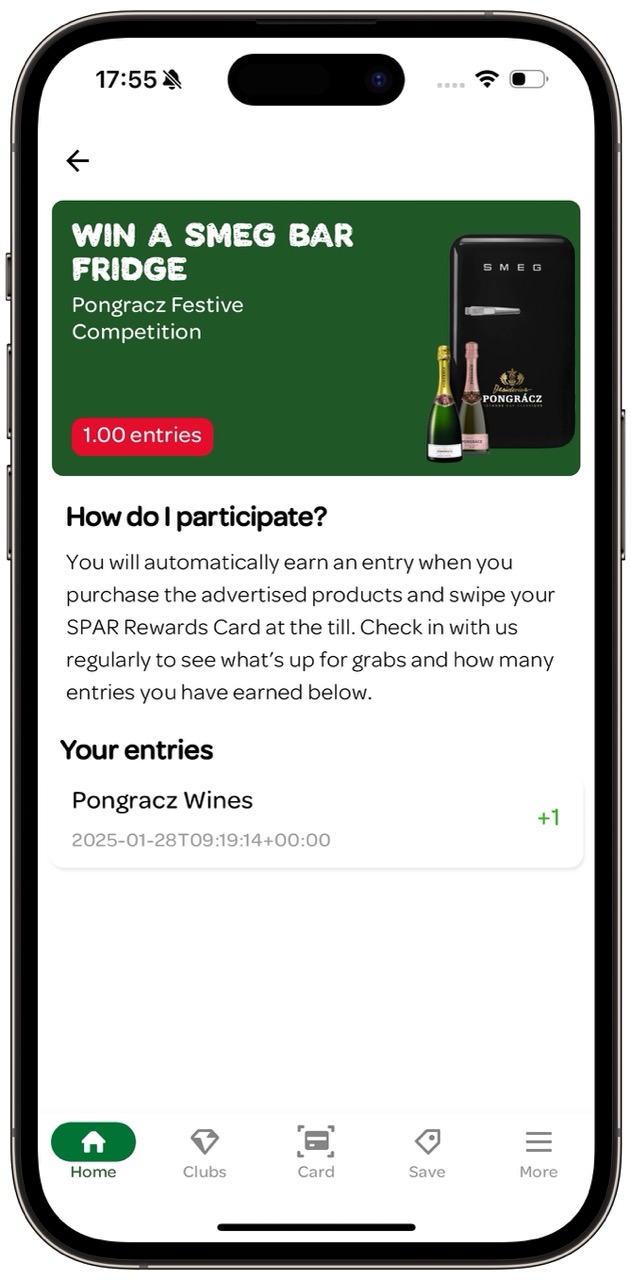
- If you use Content Management or Spaaza Embed Elements, customers can see the competition and their entry balance in app or web experiences.
- After the competition ends, you perform the draw and download the winner file for your competition records.
Example
Below is an example of how a competition can appear in a Spaaza app once the competition wallet is available to the customer and entries have been earned. This kind of customer-facing presentation can be managed with Content Management and shown in app or web journeys with Spaaza Embed Elements.
Prerequisites
- You can access Campaign groups, campaign forms, Wallets, campaign reporting, and Content Management in Spaaza Console.
- You know the competition period, prize rules, and any eligibility requirements.
- You know which customer actions should earn entries, such as a product purchase, signup, profile completion, or another campaign qualification.
- If the competition should only be available for a specific audience, create that audience first in Customer Segments.
- Prepare the terms, audit process, and any regulation documents required for the competition before launch.
Build this solution in Console
Step 1: Create or open the campaign group
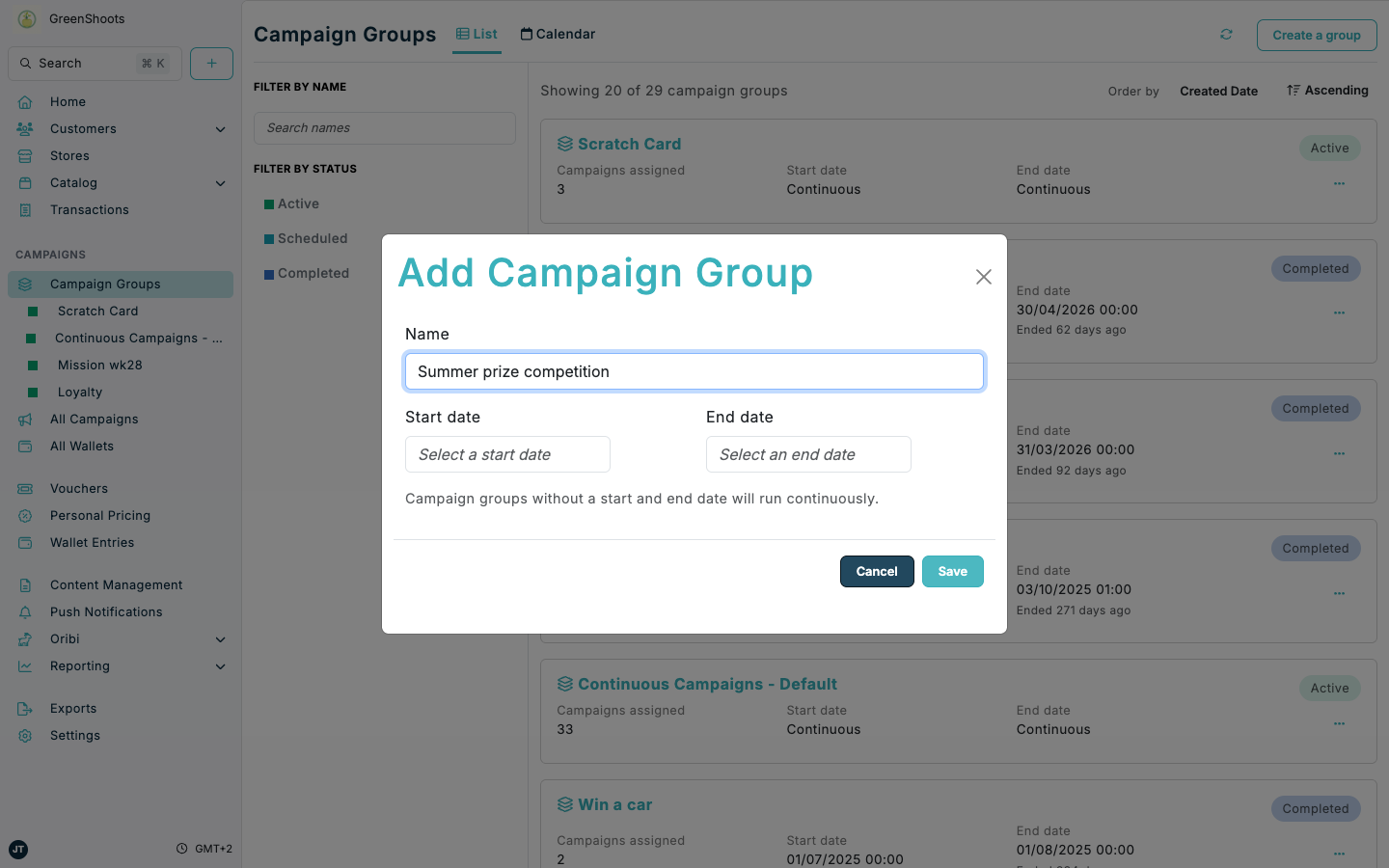
- Open the Campaign groups page.
- Click Create a group, or open an existing group if the competition already has one.
- In Add Campaign Group, enter the competition Name.
- Set Start date and End date for the competition period. If the competition has a defined closing moment, use the group end date to make the draw window clear.
- Click Save.
- Open the group and confirm it shows the Campaigns, Group report, and All barcodes assigned tabs.
Step 2: Add the competition wallet
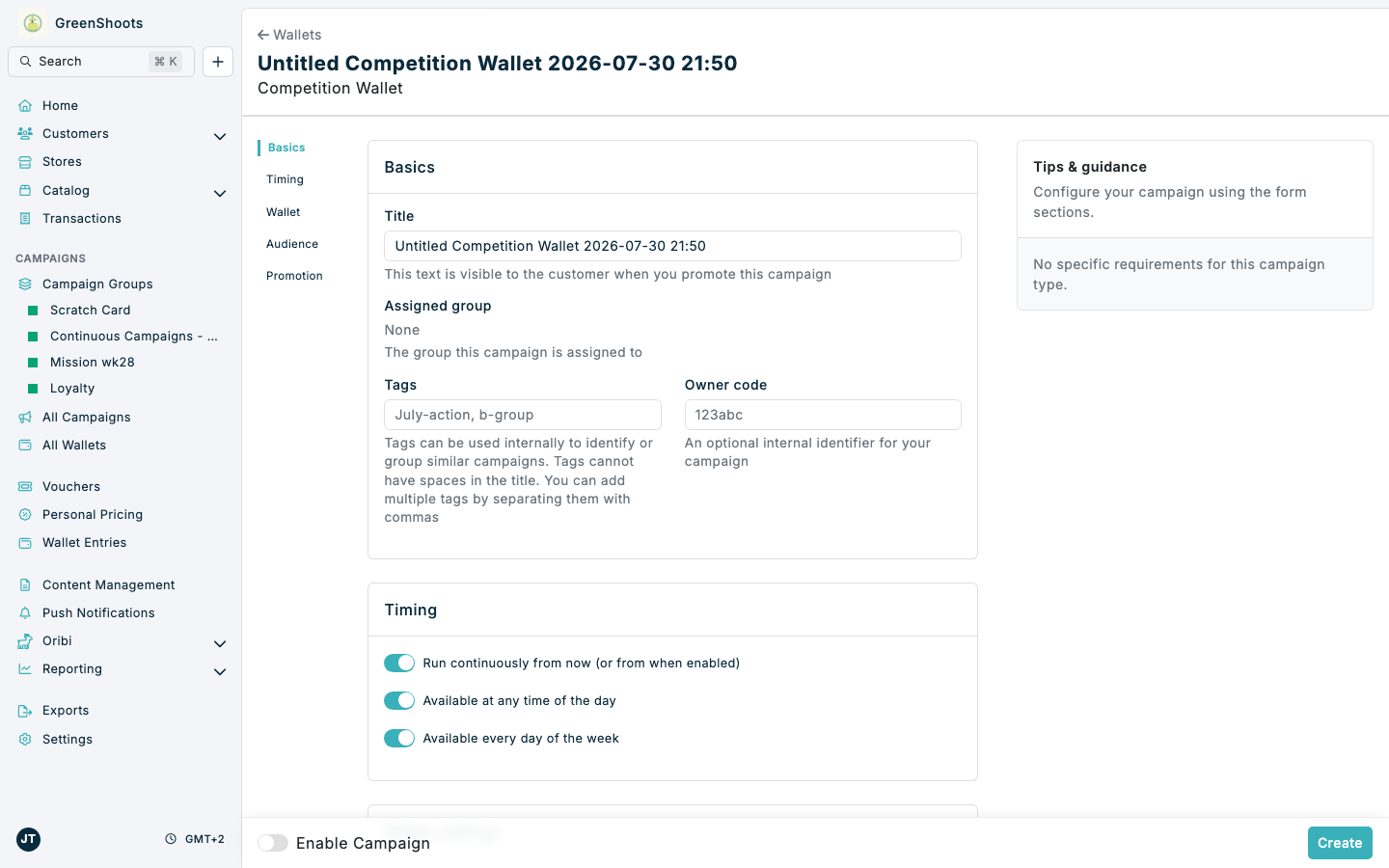
- Open the competition campaign group.
- Click Add campaign.
- Choose Wallet.
- In the wallet type picker, choose Competition Wallet. This wallet stores the entries used for the final draw.
- In Basics, set the wallet Title to something clear, such as
Summer prize entries. - In Wallet settings, set Wallet currency to an entry-style currency, such as Entry.
- If the competition is audience-specific, apply the same audience logic you plan to use on the campaigns that issue entries.
- Turn on Enable Campaign when the wallet is ready.
- Click Create.
Step 3: Add campaigns that contribute entries
- Return to the competition campaign group.
- Click Add campaign.
- Choose Reward.
- Choose the campaign type that matches the customer action you want to reward. For example, choose Matching Item when customers should earn entries for buying assigned products, or Signup when new members should earn an entry.
- Configure the campaign qualification rules. For a Matching Item campaign, this can include Required matching items, assigned GTINs, basket value settings, store targeting, and channel targeting.
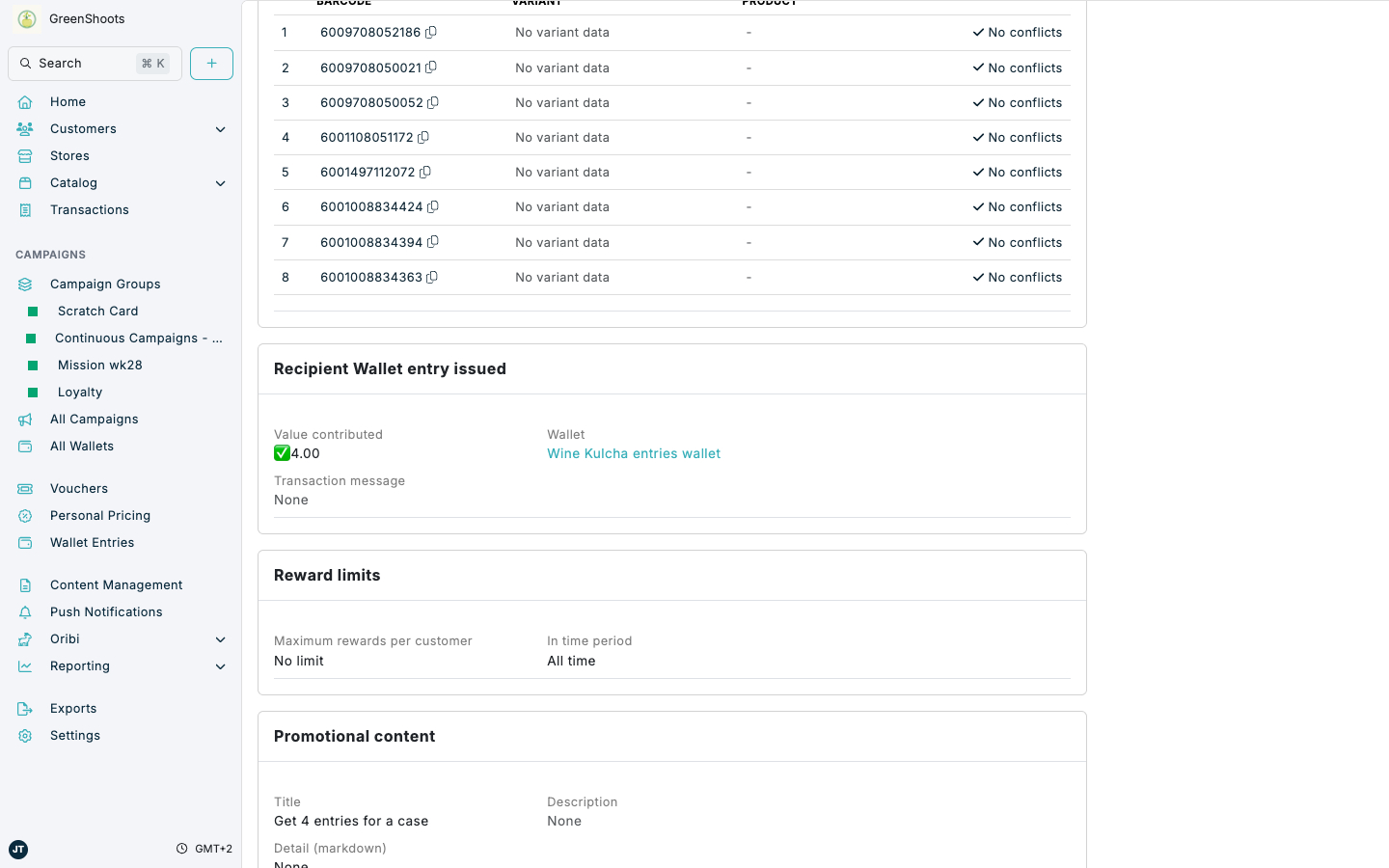
- In Rewards issued, choose Wallet contribution.
- In Wallet to contribute to, choose the Competition Wallet campaign you created for this competition.
- Set Wallet entry amount. Use
1when each qualification should create one entry, or a higher value when a more valuable action should create multiple entries. - Add a Transaction message if the entry should be shown on receipts or returned to an integration.
- Turn on Enable Campaign when the campaign is ready.
- Click Create.
- Repeat these steps for every route to entry. There is no limit to the number of contributing campaigns you can add to the same competition wallet.
Step 4: Review competition performance
- Open the Competition Wallet campaign.
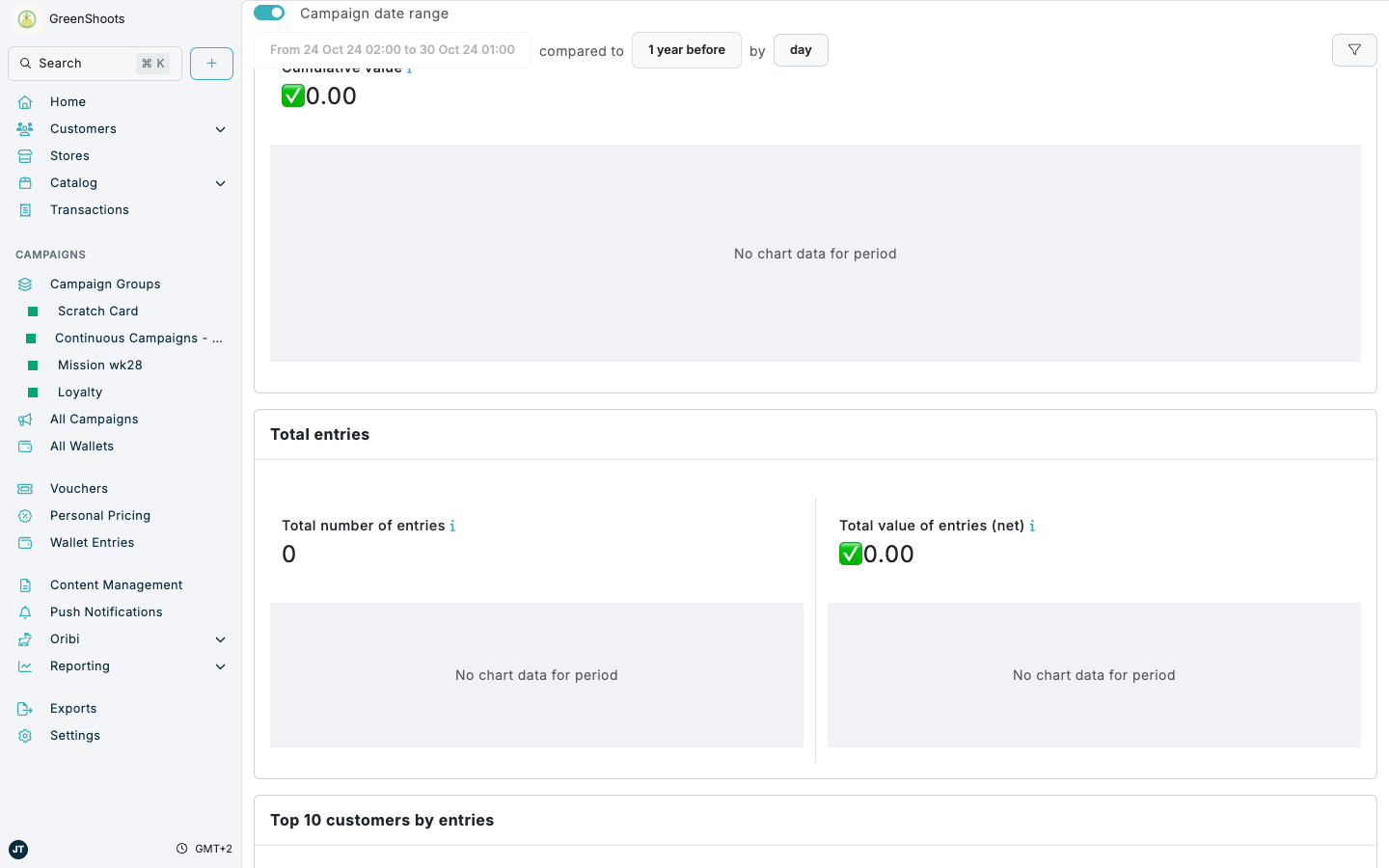
- Use Report to review total entries, entries issued by campaigns, manual entries, and the customers with the most entries.
- Use All entries to inspect individual wallet ledger entries for the competition wallet.
- Open each contributing campaign and use Report to review the behaviour it was responsible for, such as product sales, signup volume, or entries contributed by that specific campaign.
- Use the campaign group Group report when you want to review the group as one campaign package.
Step 5: Show the competition in customer channels
- Open Content Management.
- Open the page that should show the competition, or create a new page for the campaign experience.
- Click Add Zone if the page needs a new area for competition content.
- Add the competition wallet, campaign content, terms content, or supporting promotional content to the zone.
- Review the layout in the customer channel you plan to use, such as an app page or embedded web view.
- Publish the Content Management changes when the competition content is ready.
- If you use Spaaza Embed Elements, render the published page or zone in the relevant app or web surface so customers can see the competition, their entries, and supporting content.
- Test the experience as a customer to confirm entries and participation text appear as expected.
Step 6: Perform the draw
- Wait until the competition period is finished and any required data checks are complete.
- Open the Competition Wallet campaign.
- Click Draws.
- Click Perform Draw.
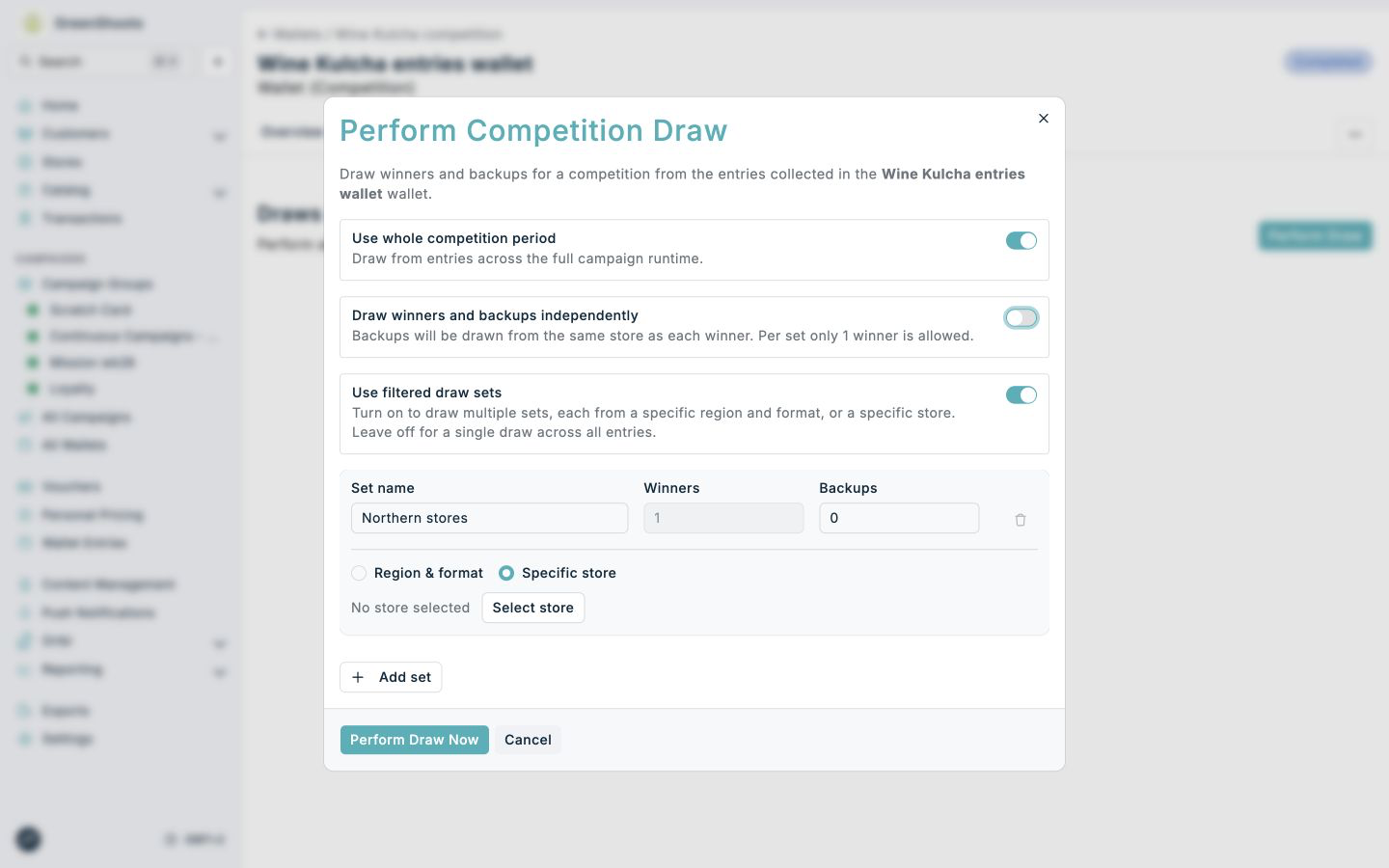
- In Perform Competition Draw, leave Use whole competition period on to draw from entries across the wallet's full active period. Turn it off and set Start date and End date when the draw should use a shorter period.
- Choose how backup winners should be selected with Draw winners and backups independently:
- Leave it on to draw winners and backups independently from all entries eligible for each set.
- Turn it off when every backup winner must come from the same store as the corresponding winner. In this mode, Winners is fixed at
1for each set.
- For one draw across all eligible entries, leave Use filtered draw sets off. Set Winners to the number of confirmed winners required and Backups to the number of alternates required.
- To draw separate groups by location, turn on Use filtered draw sets. For each set:
- Enter a unique Set name that has not been used for an earlier draw of this competition.
- Set Winners and Backups.
- Choose Region & format and select a region, a store format, or both; or choose Specific store and click Select store.
- Click Add set to configure another group of winners in the same draw.
- Review every set, then click Perform Draw Now. A customer selected in one set cannot be selected again in another set in the same draw.
- Wait for the draw to finish on the Draws tab. Click Request Download, then Download file, and store the winners, backup winners, and process log with the other competition records. See Regulatory compliance for competitions for the main draw records to retain.
- If the competition awards prizes in stages or across different locations, repeat these steps to perform another draw. Customers selected as winners or backups in an earlier draw are automatically excluded from later draws of the same competition.
If something looks different
- If Competition Wallet is not available, make sure you opened Add campaign from the group and chose Wallet.
- If the competition wallet is not available in Wallet to contribute to, confirm the wallet is active and that you are configuring a campaign type that supports Wallet contribution.
- If entries are not being created, check the issuing campaign's qualification rules, Wallet entry amount, wallet selection, audience settings, and active dates.
- If customers cannot see the competition in an app or embedded web journey, confirm the Content Management page or zone is published and that the Embed Elements implementation is loading the correct page or zone.
- If the wallet report shows fewer entries than expected, compare Report on the wallet with Report on each contributing campaign to identify which entry route is underperforming.
- If a filtered draw set cannot be submitted, make sure it has a unique Set name and either a Region & format selection or a Specific store.
- If Winners is fixed at
1, Draw winners and backups independently is off. Turn it on if a set needs more than one winner and backups do not need to come from the winner's store. - If the download is not available, wait until the draw has finished. The Draws tab shows the draw status while it is running.