Vouchers

Vouchers in Spaaza represent rights that customers can exchange with a retailer for a defined reward, whether that is a percentage or monetary discount, a free product, or even a non-monetary reward. Each voucher is tied to a campaign that determines its behaviour and redemption conditions. Customers can activate (claim) a voucher, which means it will be applied automatically at checkout, or deactivate (unclaim) it to save it for later. For more about vouchers in Spaaza, see the Vouchers API overview.
In Embed Elements, vouchers are displayed in a dedicated voucher zone. Voucher content (title, description, image, expiry, and notes) is configured on the issuing campaign in Spaaza Console. See Campaign Fields for all available fields.
Voucher List
Each voucher is rendered as a card. Cards can be arranged in a horizontal slider or as a vertical list. Below you can see the different arrangements: horizontal on tablet and desktop, horizontal on mobile, and as a vertical list.
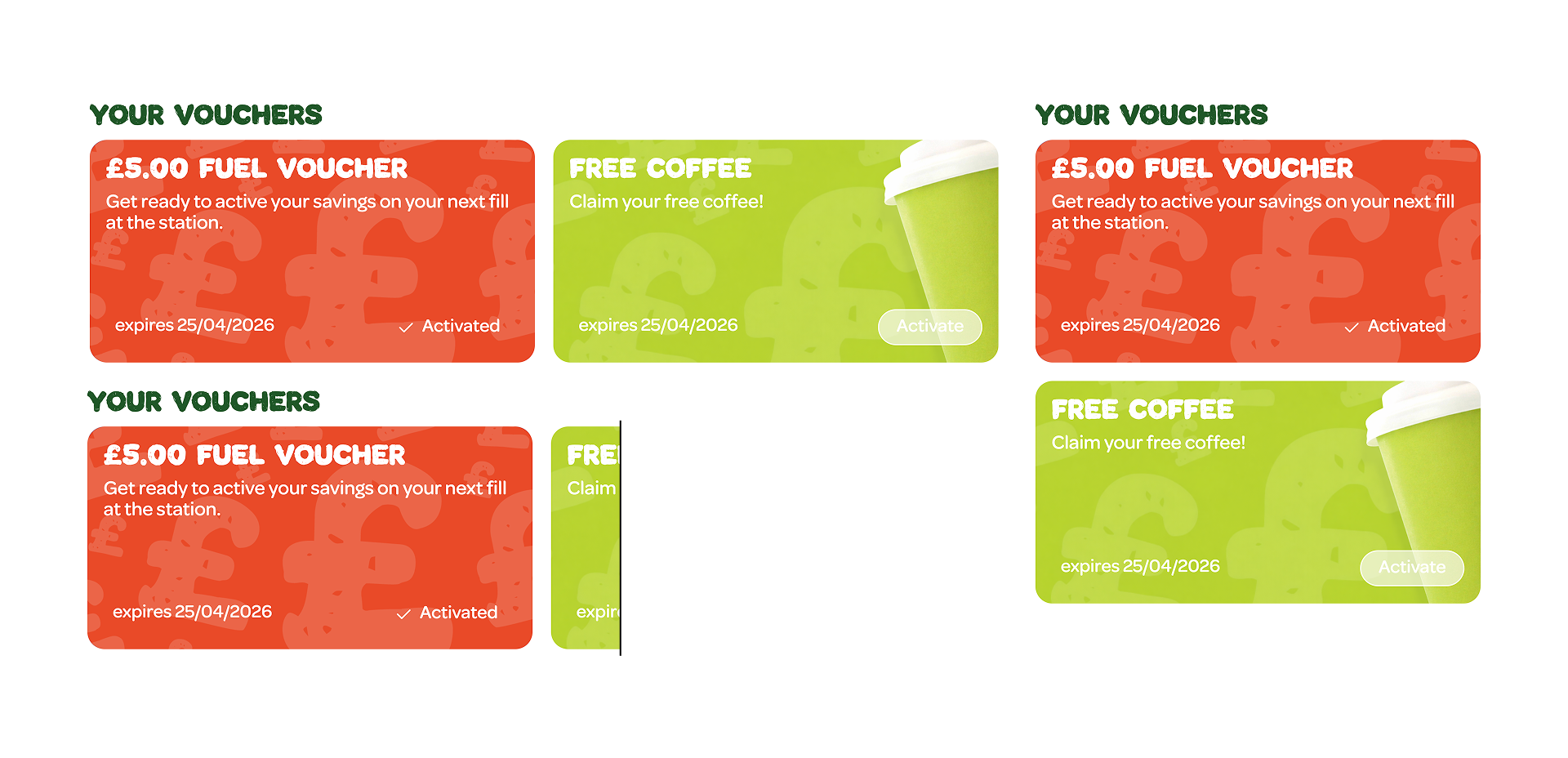
Card Elements
Each voucher card displays the following elements:
| Element | Description |
|---|---|
| Title | Voucher title (max 2 lines by default, truncated with "..." — adjustable via --content-voucher-title-line-clamp). For "Basket Voucher", also called monetary discount voucher types, the value and currency symbol are automatically prepended (e.g., "£5,00 Fuel voucher"). For "Percentage" types, nothing is prepended automatically. See Voucher-Specific Campaign Fields for details on why this is the case. |
| Description | Voucher description (max 2 lines by default, truncated with "..." — adjustable via --content-voucher-description-line-clamp). |
| Expiry date | Formatted expiry date, shown if the voucher has a days_to_expiry configured. |
| Redeemed date | For redeemed vouchers (voucher_status: "redeemed"), the formatted redemption date (voucher_redeemed_datetime) is shown in place of the expiry date. |
| Activate / Deactivate button | Toggles the voucher between claimed (activated) and unclaimed (deactivated) states. Activated vouchers are applied automatically at checkout. Not shown for redeemed vouchers. |
| Background image | The voucher image is displayed as a full card background (background-size: cover, aligned to the right). This means the image scales to fill the card and crops from the left side as the card shrinks. Text is overlaid on top of the image. If no image is set, the configured background color is used. |
Layout Constraints
- Vouchers display in a horizontal slider or vertically in a list
- The card has a 2:1 aspect ratio (width is twice the height) at ideal mobile phone screen width. Below and past that width it will scale down proportionally
- On mobile with the horizontal layout, each card takes approximately 90% of the viewport width, with a peek of the next card visible
- On tablet and desktop, cards snap to a fixed 386px width (max 480px)
Voucher States
| State | Button Appearance | Behavior |
|---|---|---|
| Unclaimed (deactivated) | "Activate" button (secondary style) | Pressing claims the voucher via the claim-voucher API |
| Claimed (activated) | "Activated" button (primary style, solid fill) | Pressing unclaims the voucher via the unclaim-voucher API. The voucher will be applied at checkout automatically. |
| Redeemed | No button | The voucher has already been used. The card renders button-less and shows the redeemed date instead of the expiry date. This is detected automatically from the voucher's voucher_status — no extra configuration is needed. |
Interactions
- Clicking the card emits a
content:selectevent with a voucher summary (id,title,campaign_id). Your application handles the navigation — typically showing the voucher detail page, whosedata:refresh:donethen delivers the full voucher inspaaza_results(see Event System) - Clicking the button triggers
voucher-claimorvoucher-unclaim, handled automatically by the controller; thecontent:action:successevent carries the updated voucher inspaaza_results. Unless the chain has been configured to have auto-active vouchers. Then clicking the button does nothing.
Empty and Loading States
- When there are no vouchers, the zone displays a "No vouchers yet" message
- While voucher data is loading, skeleton placeholder cards are shown
Voucher Detail Page
When a user navigates to a voucher detail view, the detail page displays the voucher card at the top followed by the voucher detail page text below. This is the common format used for campaign detail pages in Spaaza as well.
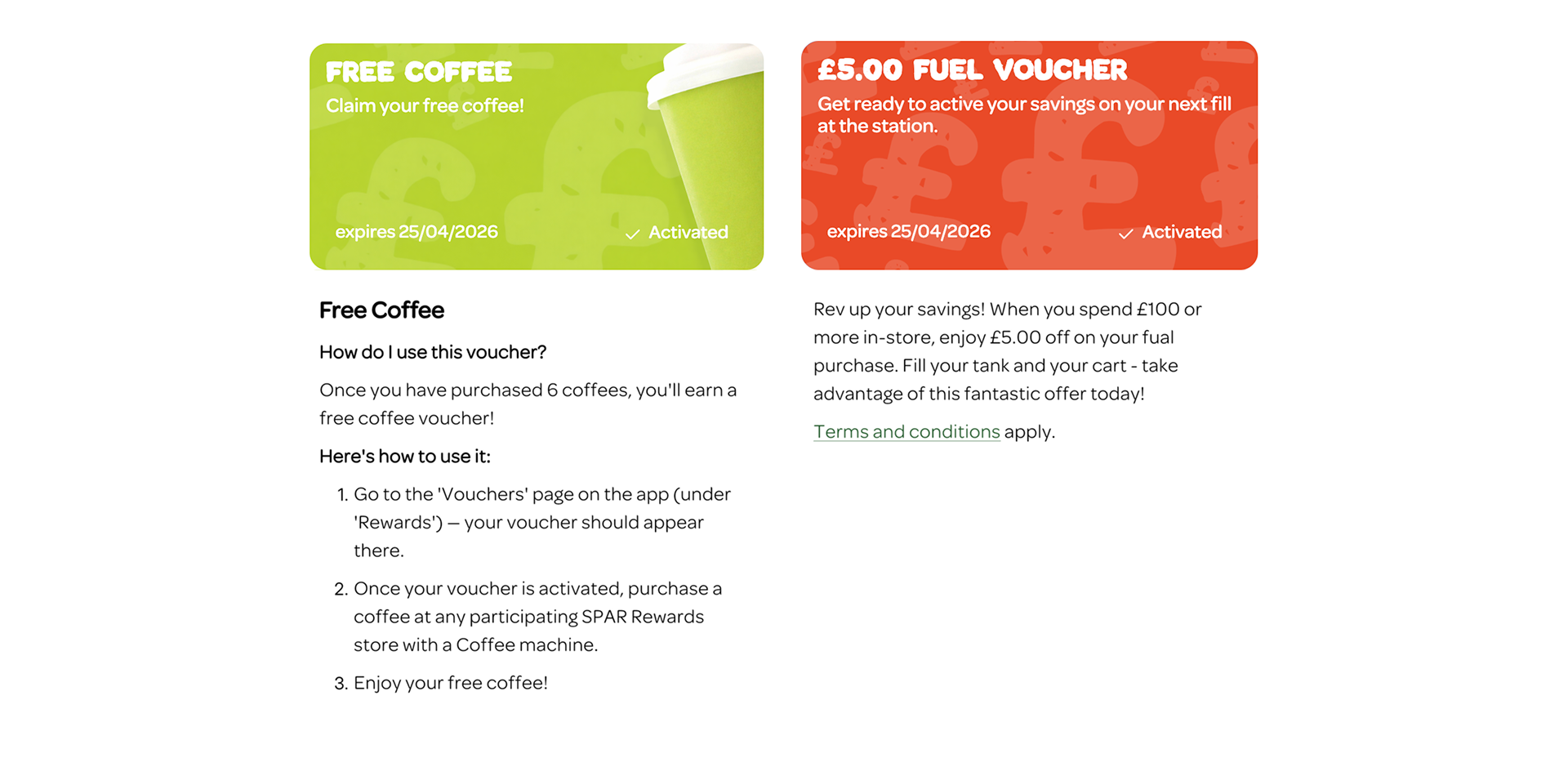
Structure
- Hero section — The same voucher card from the list view, rendered at full width. The activate/deactivate button is visible and functional.
- Voucher detail page text section — The content of the "Voucher detail page text" field, which can be edited under "Vouchers" in the "Promotional content" section of the Campaign form in Console. This field supports markdown formatting.
Issuing Campaign
A voucher's campaign_id refers to the campaign that issued it. When the voucher detail page loads, that issuing campaign is also fetched and announced with a data:refresh:done event (action: 'get-campaign') — the full campaign object arrives in spaaza_results:
action | spaaza_results contains |
|---|---|
get-user-vouchers | The voucher being shown |
get-campaign | { campaign: { … } } — the issuing campaign |
Use this when your application needs campaign-level configuration that is not on the voucher itself — for example the barcode configuration in assigned_barcodes_spend (see Campaign assignments and get-campaign).
See API Results in Events for the payload format.
Supported Markdown in Voucher detail page text
The voucher detail page text field supports the following markdown formatting. See Voucher detail page text in the Content Management documentation for how to edit this field in Console.
- Bold —
**text** - Italic —
*text* - Links —
[link text](https://example.com)(inline links to external websites or hosted PDFs) - Bulleted lists —
- item - Numbered lists —
1. item - Headings —
# Heading,## Subheading
This is useful for displaying Terms & Conditions, redemption restrictions, or other detailed voucher information that you would want a separate page for.
Initializing the Detail View
Pass a voucherId to show the voucher detail page on initialization:
const controller = await initializeSpaazaElements({
  target: '#spaaza-elements',
  config: { ... },
  voucherId: 456
});
Or pass it through the URL using the voucher_id query parameter:
your-page.html?session_key=KEY&user_id=ID&my_price_app_host={MyPrice App hostname}&voucher_id=456
Or navigate to it dynamically in a SPA-style navigation by setting the property on the mounted component:
const detailEl = document.getElementById('spaazaContentPageDetail');
detailEl.voucherid = 456;  // controller reactively fetches voucher data
See Navigation Examples for complete patterns.
Configuration
Where Vouchers Appear
Vouchers are not part of the CMS page structure. Configure where they appear using the customZones option. Each entry is one voucher zone bound to a single page, with an optional filter selecting which vouchers it shows and an optional title:
customZones: {
  vouchers: [
    // active vouchers on top, redeemed below — on the home page
    { page: 'home', index: 1, title: 'Vouchers',          filter: { voucher_status: { not: 'redeemed' } } },
    { page: 'home', index: 2, title: 'Redeemed vouchers', filter: { voucher_status: 'redeemed' } }
  ]
}
See Custom Zones for the full configuration reference (entry fields, VoucherFilter, and the still-supported legacy shape).
Styling
Most of the time, vouchers are issued by Spaaza's campaigns as rewards. Voucher card styling can be configured at two levels:
- Per campaign: In the "Promotional content" section of the Campaign Edit Form in Console: background colour, primary action background, text colour, primary action text, and the voucher background image
- Project-wide defaults: In Console under Settings > Configuration: "Default Campaign Content Settings" and "Default Voucher Settings" (default image fallback)
See Styling Configuration for details.
Font Styling
Just like for any other campaign, the card title and card description font family can be altered through Spaaza Console. Font size can also be adjusted. See Custom Fonts for details.
How many lines the voucher title and description may span before being cut off with an ellipsis is adjustable from host CSS via --content-voucher-title-line-clamp and --content-voucher-description-line-clamp (both default 2). See Styling.
Voucher-Specific Campaign Fields
Voucher content is configured on the issuing campaign in Spaaza Console. See Campaign Fields for the complete list of fields that affect how a voucher is rendered.
Monetary Voucher Titles
For "Basket Voucher" type vouchers, the value and its currency symbol will be automatically prepended to the Voucher title field. For example, if the voucher title field is set to "Fuel voucher" and the voucher value is £5,00, the displayed title becomes "£5,00 Fuel voucher". This is because when customers spend part of a monetary voucher, a new voucher is created for the remaining amount. Since this rest amount is dynamic, it cannot be set as a static voucher title.
For "Percentage" type vouchers nothing is prepended automatically and you would include the full voucher title yourself (e.g. "50% discount" or "Free").