Getting Started
This page covers everything you need to integrate Embed Elements into your application.
1. Get Credentials
Embed Elements supports two authentication methods. Pick one per initializeSpaazaElements() call:
- Session-based auth. A
session_key,user_id, andmy_price_app_host. Obtain via user signup or login. - JWT-based auth. A JWT access token from your identity provider plus
my_price_app_host. See Responsibilities > JWT-based auth for the lifecycle.
See Authentication for the API-side overview. Type reference for both shapes: Controller API > SpaazaAuthConfig.
2. Import
import { initializeSpaazaElements } from 'https://elements-test01.spaaza.com/elem/spaaza-elements.js';
spaaza-elements.js is the controller entry. Calling initializeSpaazaElements() lazily loads the individual web-component bundles from the same /elem/ directory. The examples use the test01 subdomain; the production hostname is elements.spaaza.com.
3. Initialize
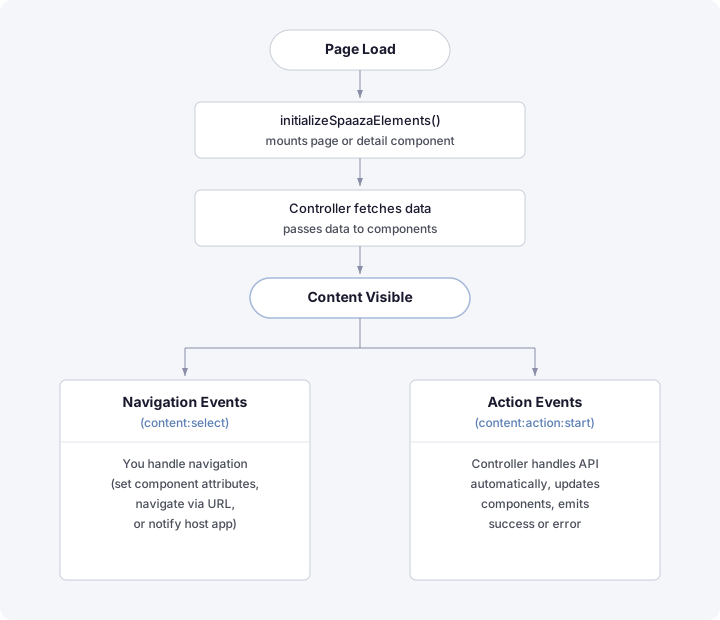
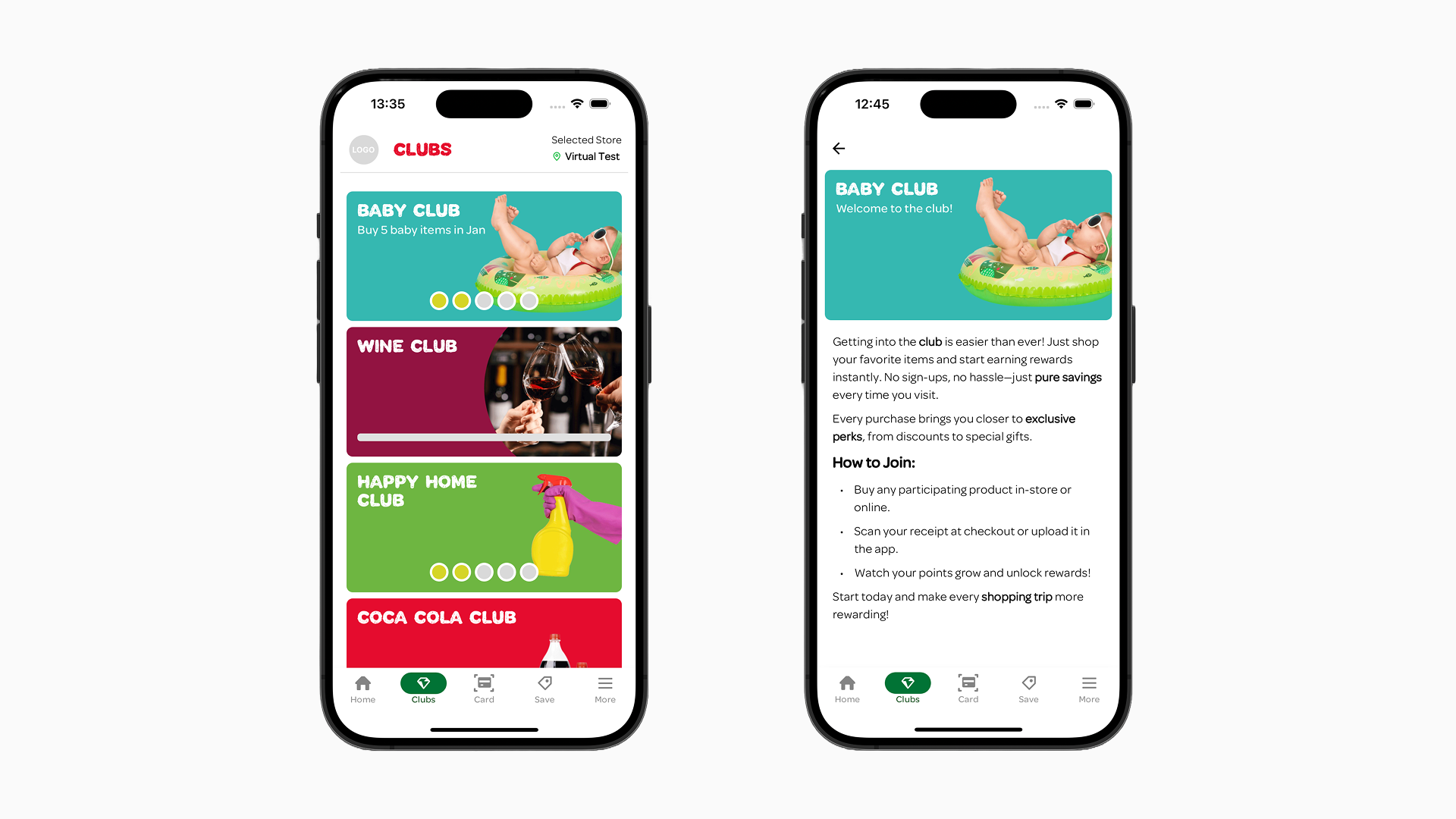
initializeSpaazaElements() mounts web components, fetches data, and handles user actions. The two examples below show how to initialize with either the page or the detail view component. See Bootstrapped DOM Structure for the mounted component tree.
Page View
Displays zones with campaigns, vouchers, and member cards. Use initializeSpaazaElements() with a pageName. The example picks JWT auth when a jwt URL param is present, otherwise falls back to session.
<!DOCTYPE html>
<html lang="en">
<head>
  <meta charset="UTF-8">
  <meta name="viewport" content="width=device-width, initial-scale=1.0">
  <title>Spaaza Elements - Page</title>
</head>
<body>
  <div id="spaaza-elements"></div>

  <script type="module">
    import { initializeSpaazaElements } from 'https://elements-test01.spaaza.com/elem/spaaza-elements.js';

    const params = new URLSearchParams(window.location.search);
    const jwtParam = params.get('jwt');

    // choose either JWT or session auth
    const auth = jwtParam
      ? {
          jwt: jwtParam,
          myPriceAppHost: params.get('my_price_app_host') || '{MyPrice App hostname}'
        }
      : {
          sessionKey: params.get('session_key') || 'YOUR_SESSION_KEY',
          userID: params.get('user_id') || 'YOUR_USER_ID',
          myPriceAppHost: params.get('my_price_app_host') || '{MyPrice App hostname}'
        };

    const controller = await initializeSpaazaElements({
      target: '#spaaza-elements',
      config: {
        origin: params.get('origin') || 'https://{API hostname}',
        auth
      },
      pageName: params.get('name') || 'home',
      componentBaseUrl: 'https://elements-test01.spaaza.com/elem/',  // production: 'https://elements.spaaza.com/elem/'
      customZones: {
        memberCard: [{ page: 'home', index: 0 }],
        vouchers: [{ page: 'home', index: 1, title: 'Vouchers' }]
      }
    });
  </script>
</body>
</html>
Or pass it through the URL — session-based:
your-page.html?session_key=KEY&user_id=ID&my_price_app_host={MyPrice App hostname}&name=home
Or pass it through the URL — JWT-based:
your-page.html?jwt=TOKEN&my_price_app_host={MyPrice App hostname}&name=home
See Responsibilities > JWT-based auth for the JWT lifecycle.
Detail View
Displays a single campaign or voucher in card format on top, with room for extra information below it. Use initializeSpaazaElements() with a campaignId or voucherId. Same auth-picker pattern as Page View.
<!DOCTYPE html>
<html lang="en">
<head>
  <meta charset="UTF-8">
  <meta name="viewport" content="width=device-width, initial-scale=1.0">
  <title>Spaaza Elements - Detail</title>
</head>
<body>
  <div id="spaaza-elements"></div>

  <script type="module">
    import { initializeSpaazaElements } from 'https://elements-test01.spaaza.com/elem/spaaza-elements.js';

    const params = new URLSearchParams(window.location.search);
    const jwtParam = params.get('jwt');

    // choose either JWT or session auth
    const auth = jwtParam
      ? {
          jwt: jwtParam,
          myPriceAppHost: params.get('my_price_app_host') || '{MyPrice App hostname}'
        }
      : {
          sessionKey: params.get('session_key') || 'YOUR_SESSION_KEY',
          userID: params.get('user_id') || 'YOUR_USER_ID',
          myPriceAppHost: params.get('my_price_app_host') || '{MyPrice App hostname}'
        };

    const controller = await initializeSpaazaElements({
      target: '#spaaza-elements',
      config: {
        origin: params.get('origin') || 'https://{API hostname}',
        auth
      },
      // choose either campaignId or voucherId
      campaignId: Number(params.get('campaign_id')) || undefined,
      voucherId: Number(params.get('voucher_id')) || undefined,
      componentBaseUrl: 'https://elements-test01.spaaza.com/elem/'  // production: 'https://elements.spaaza.com/elem/'
    });
  </script>
</body>
</html>
Or pass it through the URL — session-based:
your-page.html?session_key=KEY&user_id=ID&my_price_app_host={MyPrice App hostname}&campaign_id=4911
Or pass it through the URL — JWT-based:
your-page.html?jwt=TOKEN&my_price_app_host={MyPrice App hostname}&campaign_id=4911
Vouchers and Member Cards
Vouchers and member cards are displayed using custom zones. Configure which pages show them and where they appear using the customZones option. See Custom Zones for details.
For a detailed overview of how vouchers are rendered (including card elements, layout constraints, the detail page, and supported markdown), see Vouchers.
Handle Navigation
The controller emits content:select events when users click content. Your application decides what to do. For example, open a detail page, navigate to an internal page, or open an external website. See Navigation for the navigation contract and Navigation Examples for implementation patterns.