Create and edit campaign groups
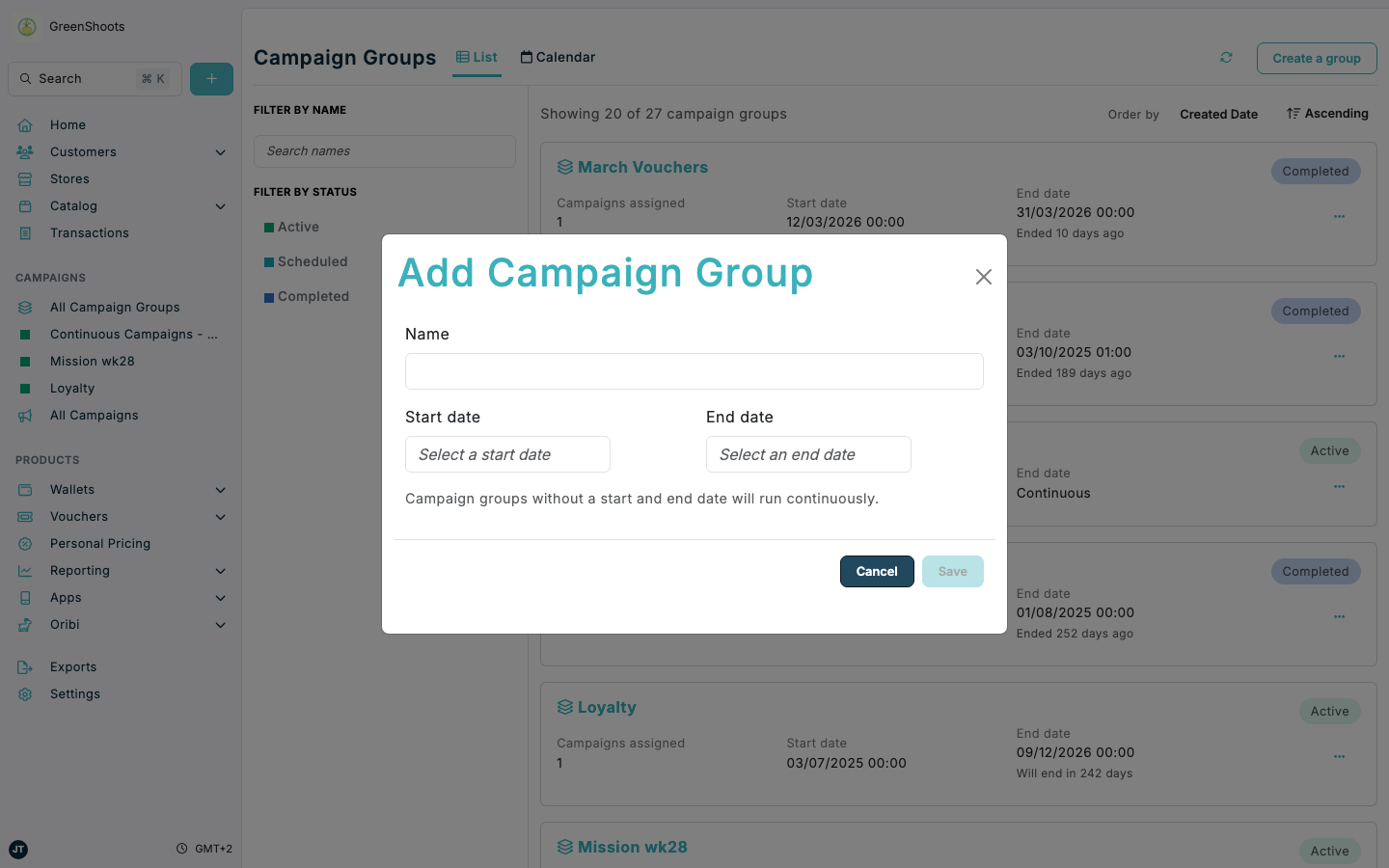
Campaign groups let you organise related campaigns into shared time windows and reporting context.
Expected result
- A new campaign group is created and opens on its Campaigns tab.
- The group shows the timing you set, or Runs continuously if you leave both dates empty.
- You can use the group to add campaigns and review Group report and All barcodes assigned.
Create a campaign group in Console
- Open Campaign groups.
- Click Create a group.
- In Add Campaign Group, enter the group Name.
- Optionally set both Start date and End date.
- Click Save.
- After the group opens, review the available tabs: Campaigns, Group report, and All barcodes assigned.
Edit a campaign group in Console
- Open a campaign group.
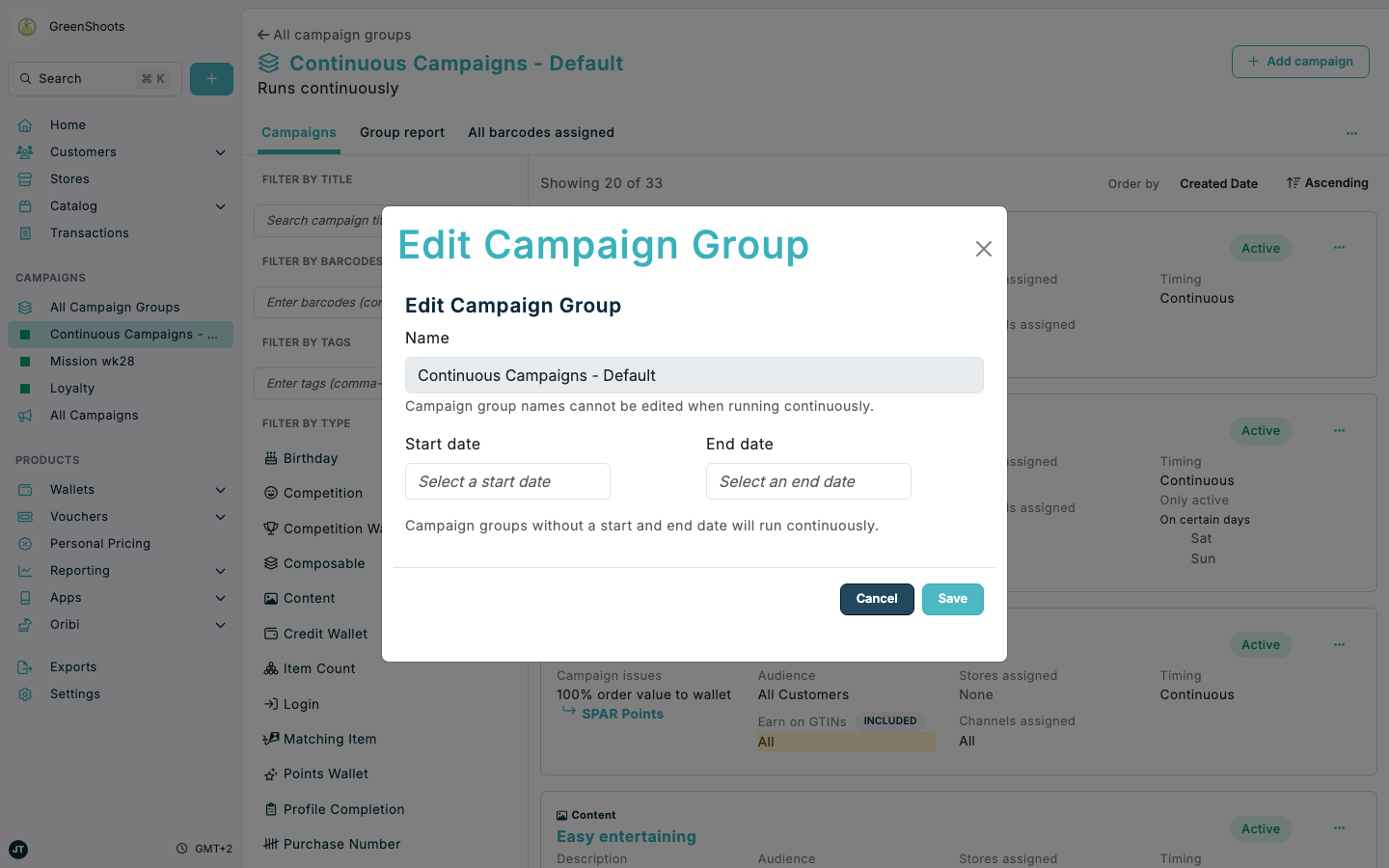
- In group actions, click Edit.
- In Edit Campaign Group, update the timing values you need.
- If the group is already active, or runs continuously without dates, you cannot edit Name.
- If the group has not started yet, you can also update Name.
- Scroll within the dialog if needed, then click Save.
Managing group campaigns
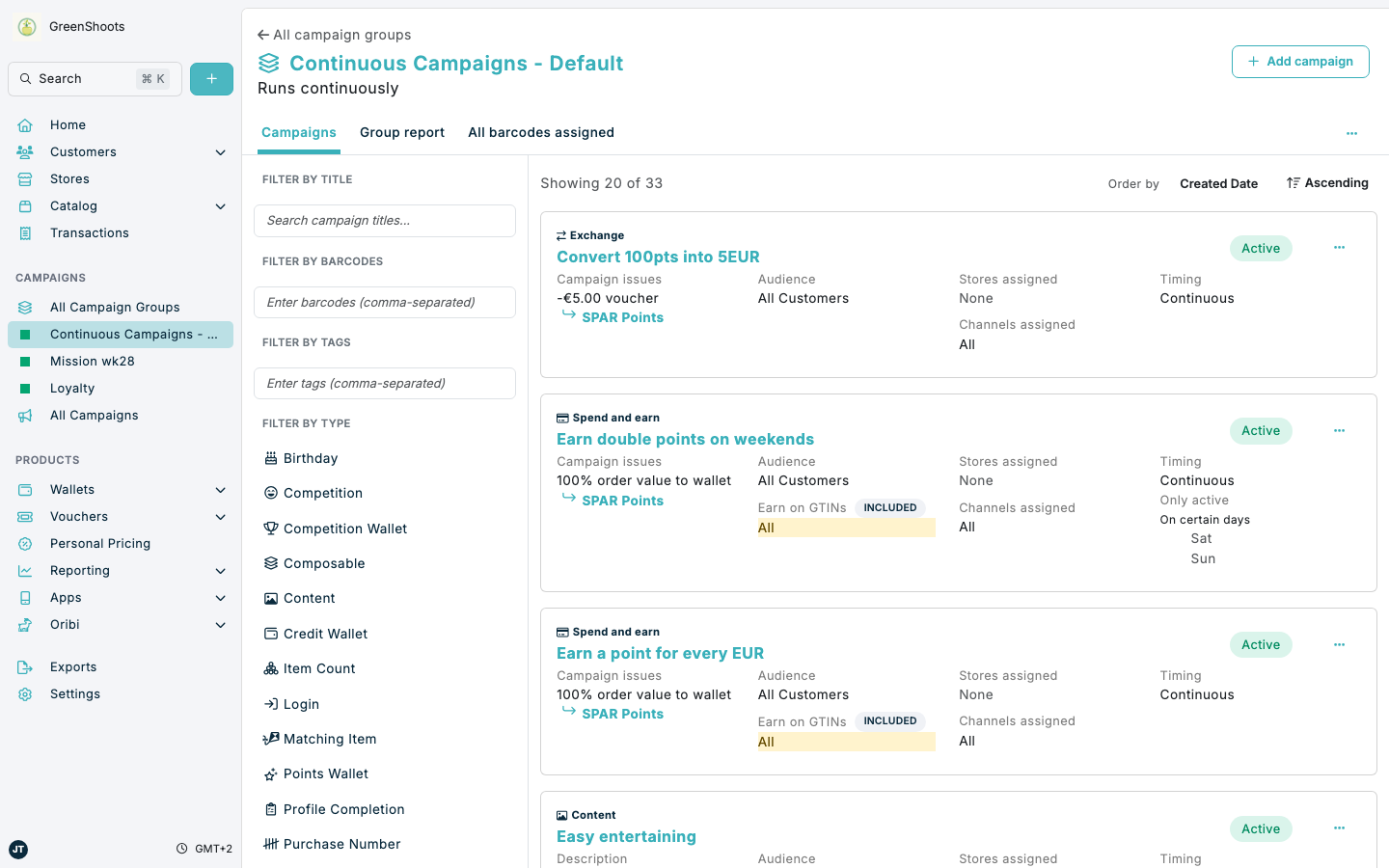
- Open a campaign group.
- Click Add campaign.
- Choose the type of campaign you want to add:
- Reward for incentive campaigns based on purchases or interactions.
- Schedule rewards for fixed-date or recurring reward issuance.
- Wallet for points, entries, or other balance-based programmes.
- Content for targeted content campaigns.
- Continue to the campaign creation flow for the selected option.
If something looks different
- If Save is disabled, make sure you entered a Name for a new group and either set both dates or leave both date fields empty.
- If you cannot edit Name, the group is already active or is running continuously. In that state, update the dates only.
- If you do not see Campaign groups, check that you are in the Campaigns area and open the List view.