Create and edit stores
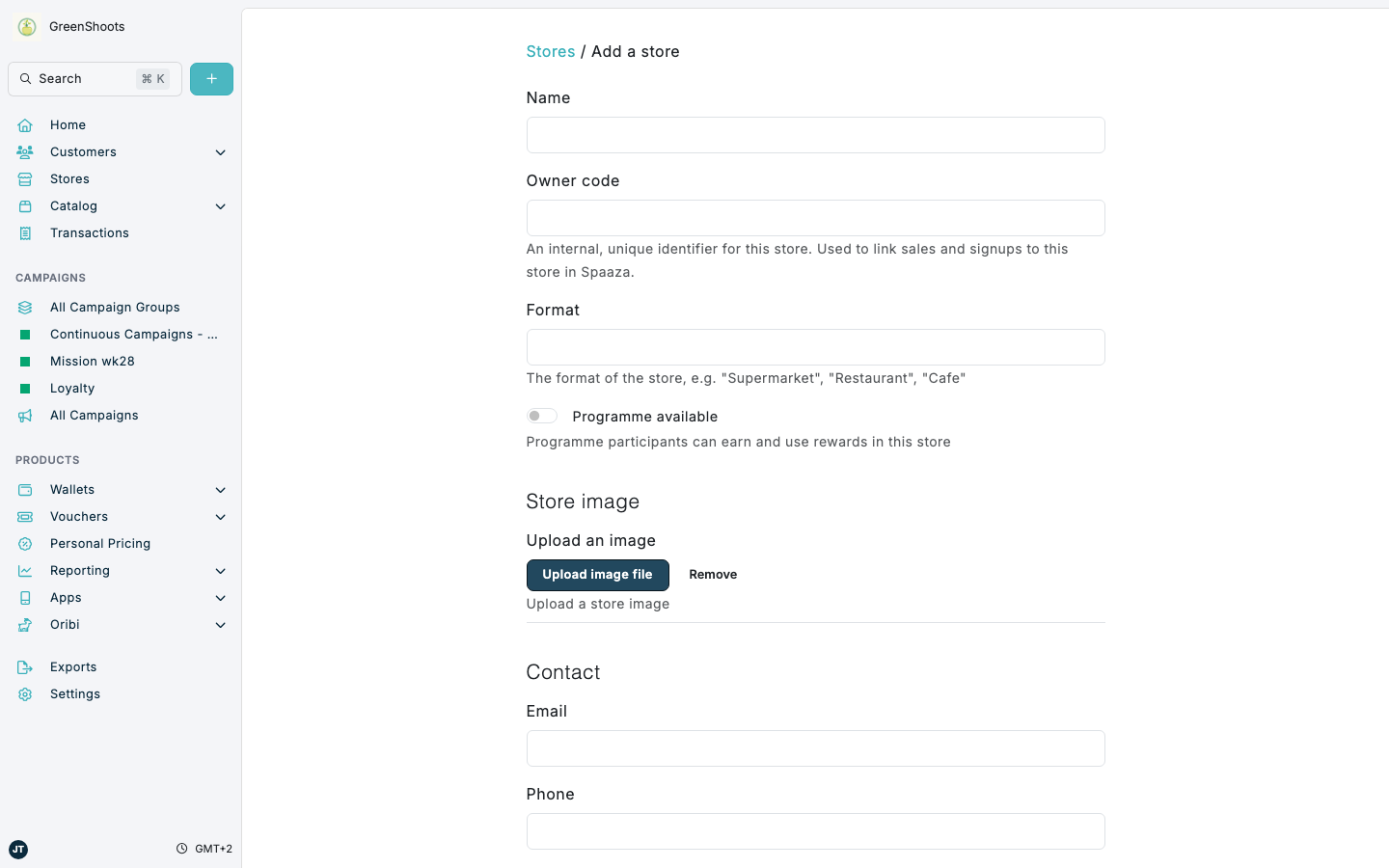
Store records control how transactions, signups, targeting, and reporting are attributed across your locations. Spaaza Console uses the same store form for both creating a new store and editing an existing one.
Expected result
- A store appears in the Stores list with the correct name, owner code, and location details.
- The store opens on its Overview page after you click Save.
- Future transaction, signup, and campaign reporting can use the store details you entered.
Creating and editing stores in Console
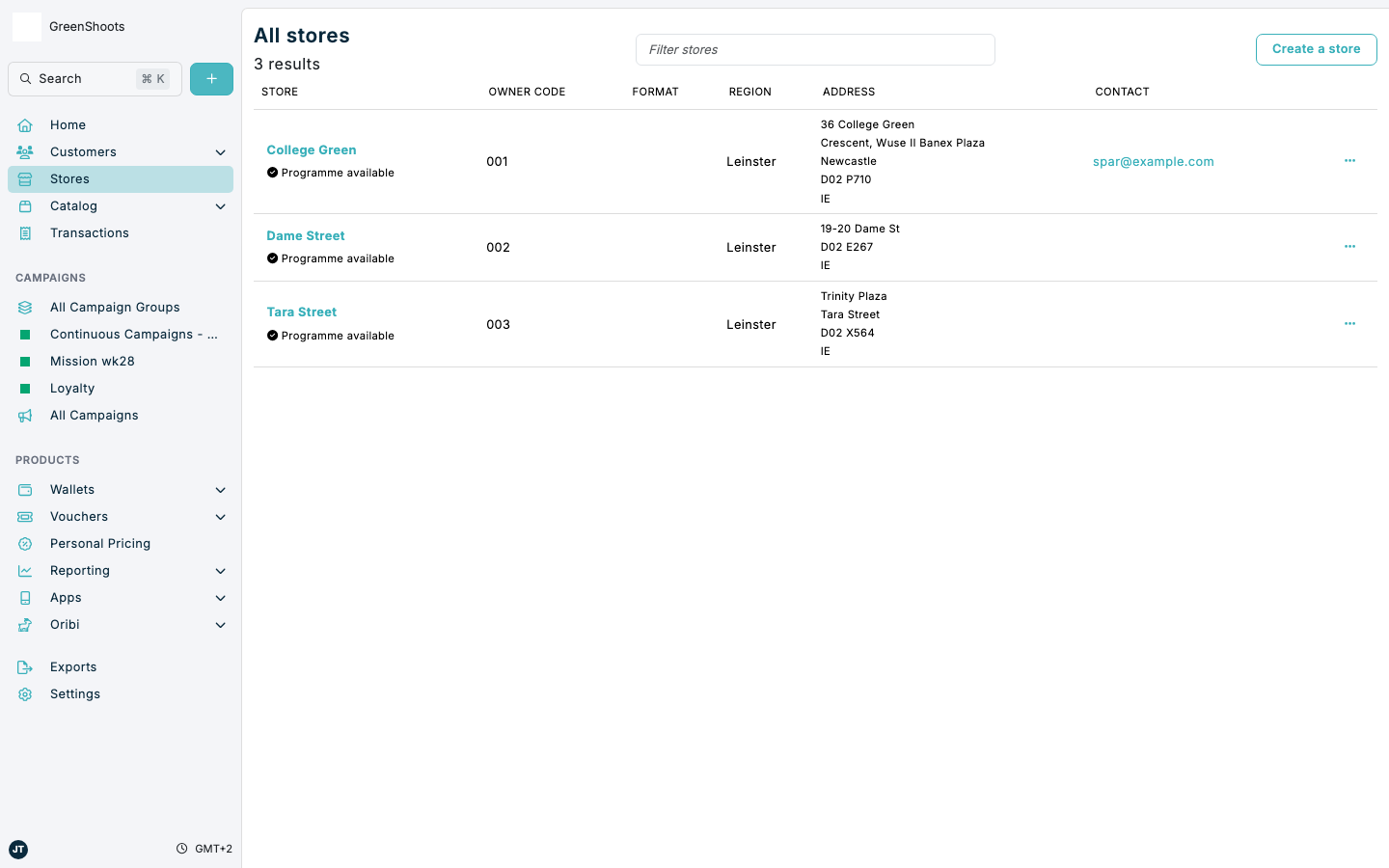
- Open the Stores list.
- To create a store, click Create a store. To edit a store, open the store you want to update from the list.
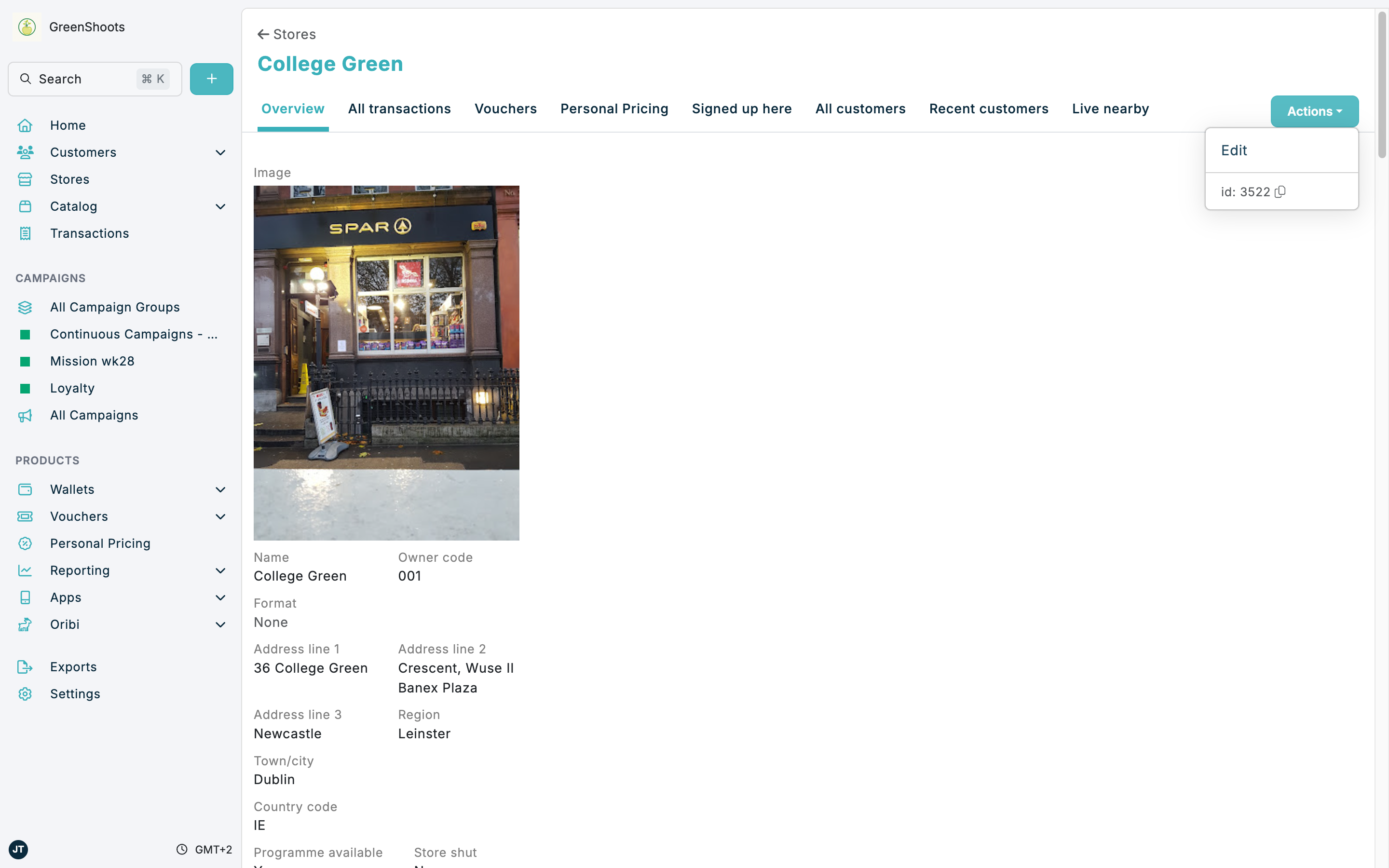
- If you opened an existing store, use Actions and click Edit.
- Complete or update the main store details:
- Name
- Owner code
- Format
- Programme available
- Add or update the optional Store image if you want the store to display an image in Console.
- Review the Contact section and update Email and Phone where needed.
- Complete the Location section with the store address and geographic details:
- Address Line 1
- Address Line 2
- Address Line 3
- Town/City
- Postal code
- Region/State
- Country code
- Latitude
- Longitude
- Google Place ID
- Use valid degree coordinates in Latitude and Longitude if you want the map preview and nearby-store reporting to use the correct location.
- Enable This store is shut if the location should remain on record but is no longer trading.
- Click Save.
After you save, Console returns you to the store Overview page with the latest details.
If something looks different
- If you do not see Create a store, check that you are on the main Stores list rather than an individual store page.
- If you do not see Actions on a store, open the store Overview page first.
- If the map preview does not appear, check that Latitude and Longitude are present and not set to
0.