Manage store formats and regions
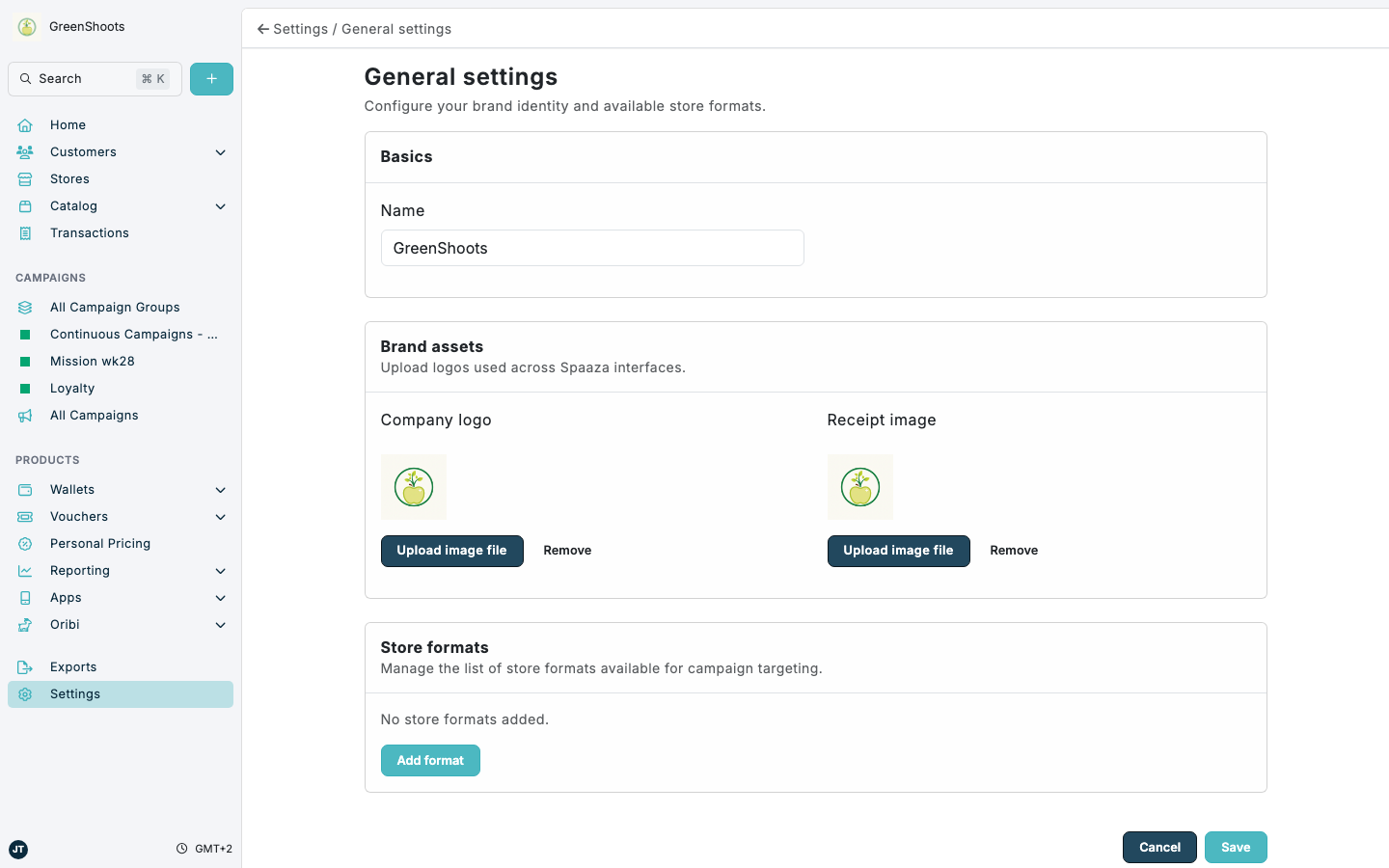
Spaaza Console manages store formats and regions in two different places. Use Store formats to maintain the list of format values available on stores and in targeting, and use Store Groups (Regions) to create and manage region groupings.
Expected result
- You can add or remove store format values from Store formats.
- You can create or update regions from Store Groups (Regions).
- Your format and region values are available for store setup, targeting, filtering, and reporting where supported.
Manage store formats and regions in Console
- Open Store formats.
- Review the current list of available format values.
- Click Add format to open Add Business Format.
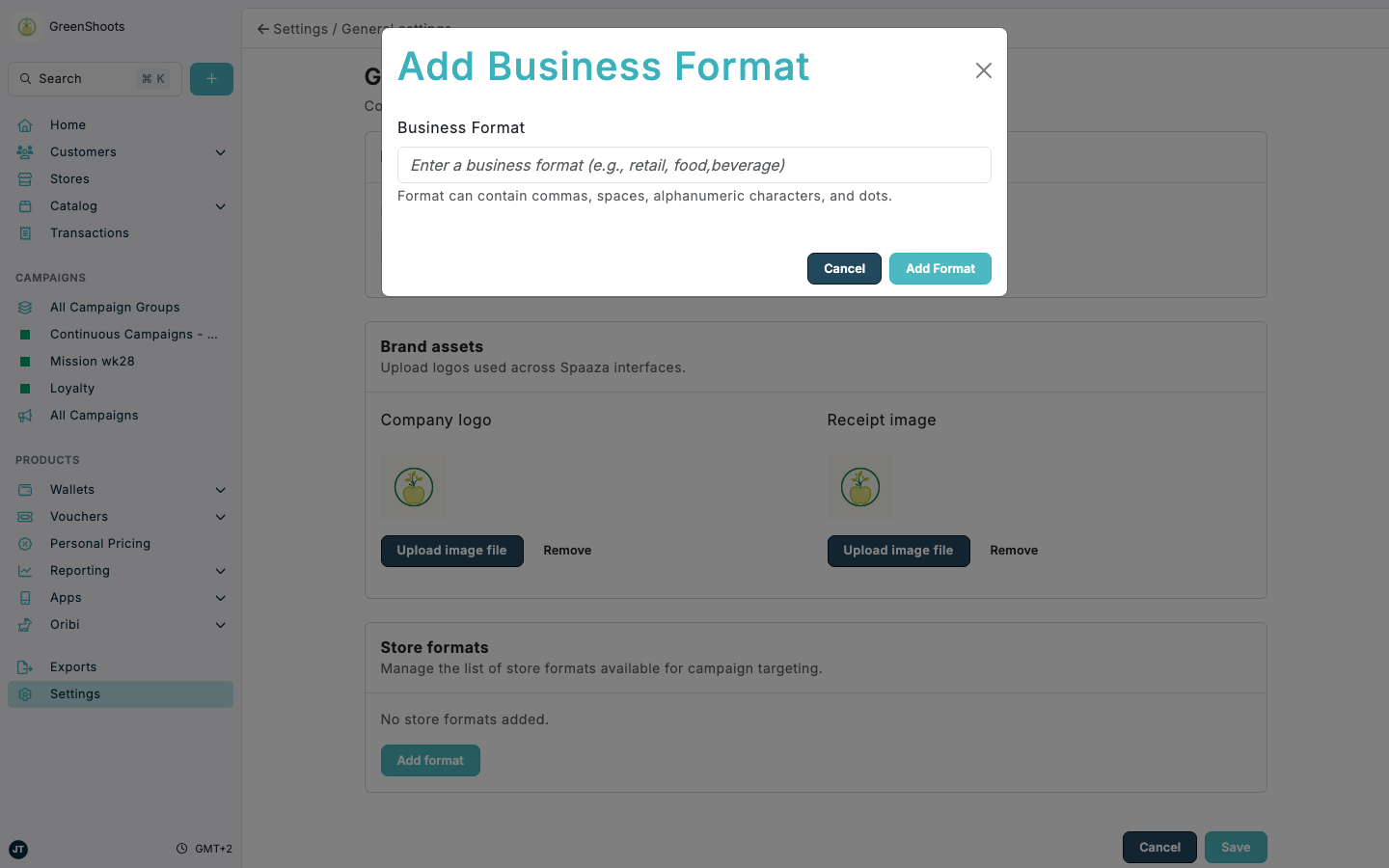
- Enter the new value in Business Format, then click Add Format.
- Use Remove to delete outdated format values you no longer want to offer.
- Click Save to keep your format changes.
- Open Store Groups (Regions) to manage regions.
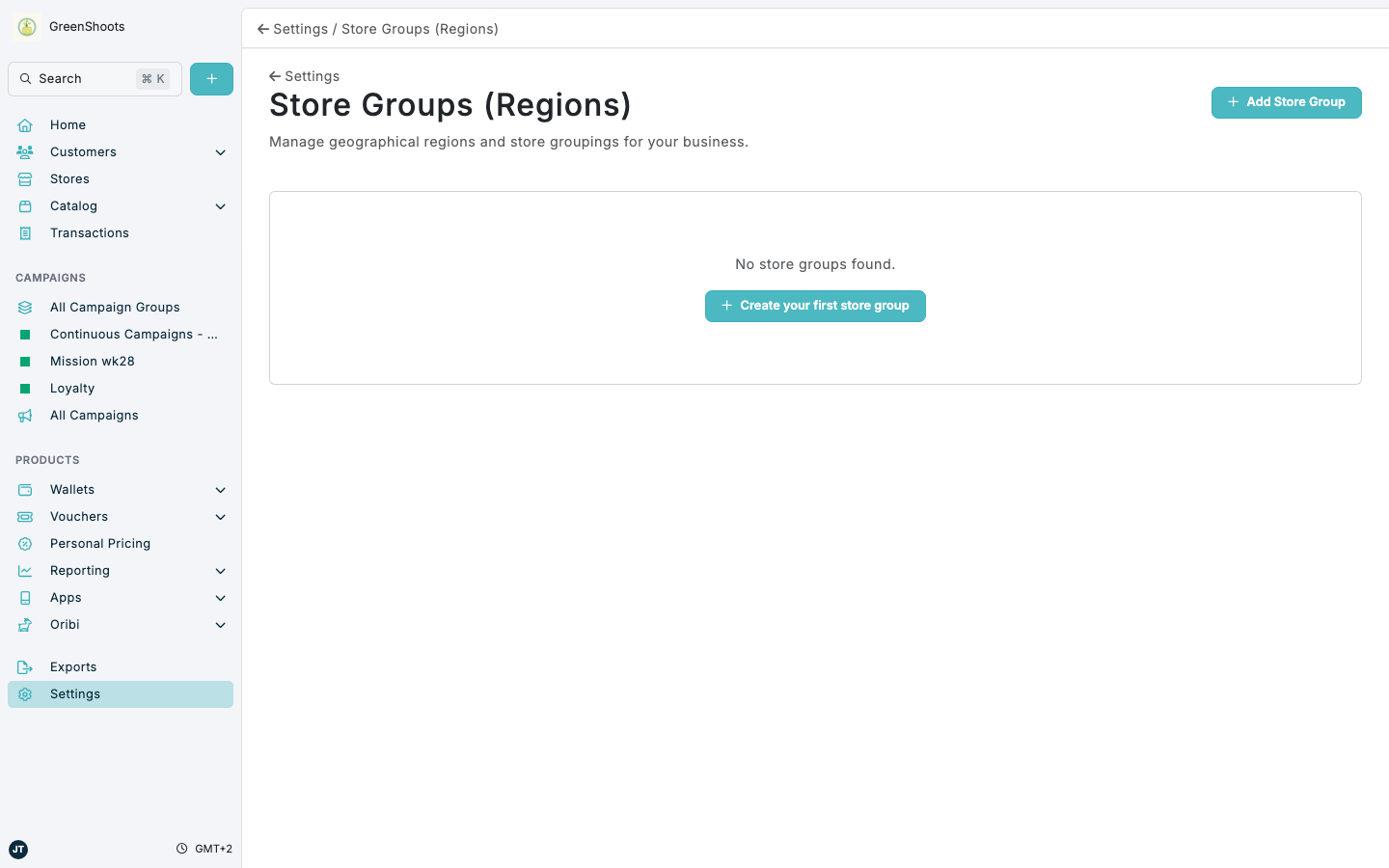
- Click Add Store Group. If no groups exist yet, click Create your first store group instead.
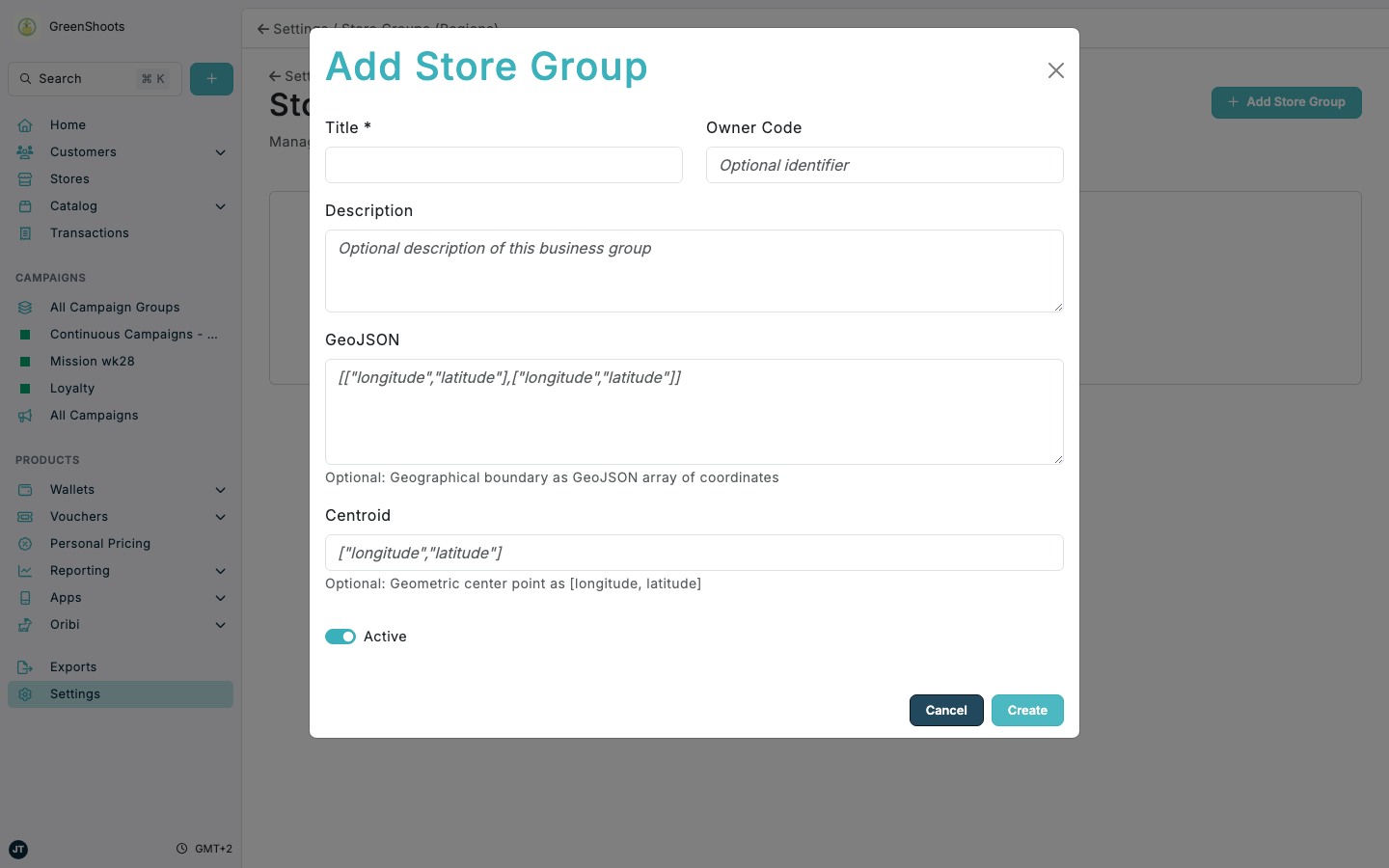
- In Add Store Group, complete Title and add optional values such as Owner Code and Description.
- Add GeoJSON and Centroid when you want the region to include geographic boundary data and a map preview.
- Leave Active enabled if the region should be available immediately, then click Create.
- Open an existing store group later when you need to review it, edit it, or remove it.
If something looks different
- If you cannot find Store formats, check that you opened the Store formats page from Settings rather than General settings.
- If Store Groups (Regions) is empty, use Create your first store group to add the first region.
- If the map preview does not appear, check that your GeoJSON and Centroid values are valid before saving.