Review store reporting and insights
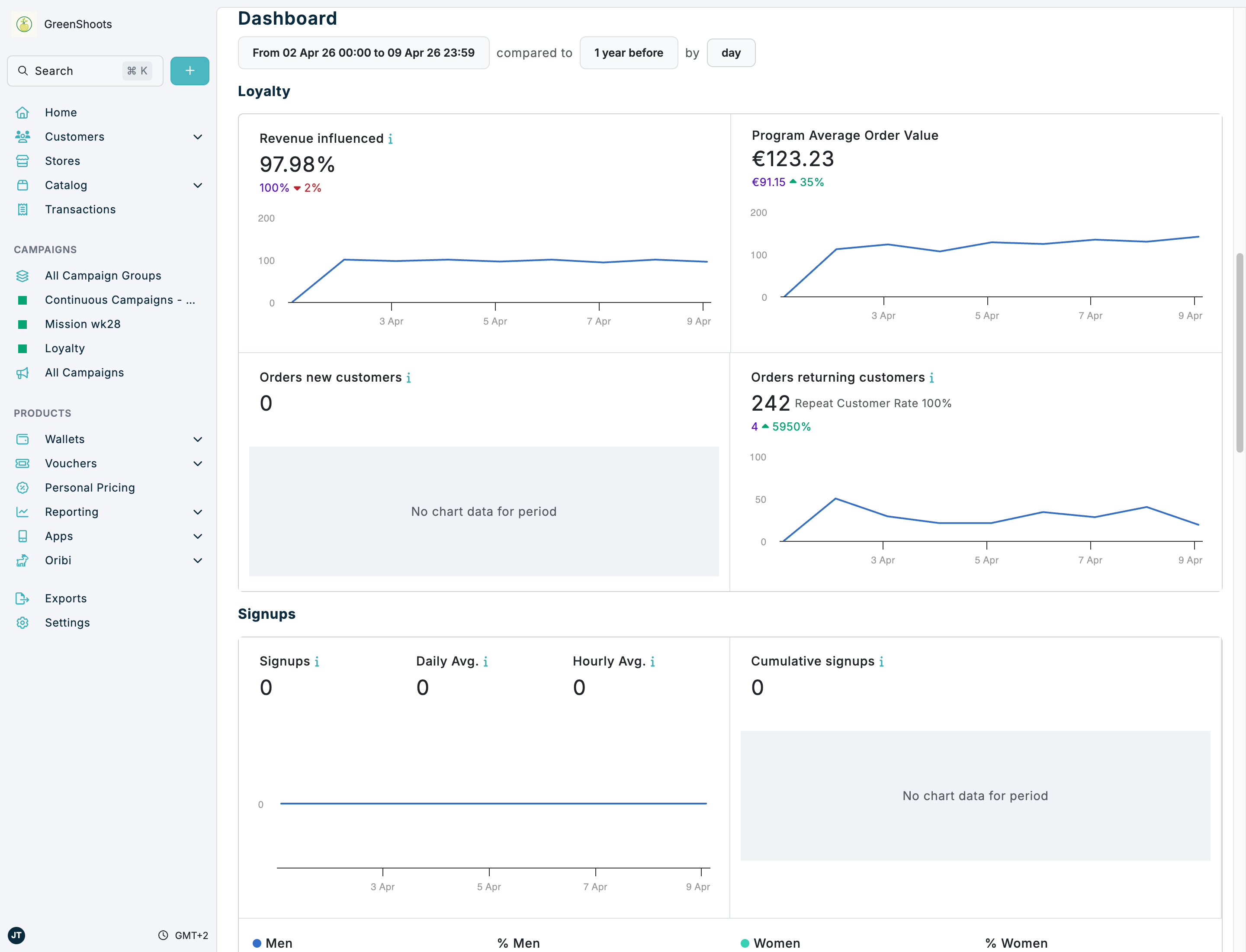
Spaaza Console gives you two main ways to review store performance: each store has its own dashboard on the store Overview page, and businesses with fewer than 100 stores can use the Stores report for side-by-side comparison. The home dashboard and many other analytics pages also support store-level filtering.
Expected result
- You can review KPI trends for one store on that store's Overview page.
- You can compare stores side by side in Stores report when your business has fewer than 100 stores.
- You can filter dashboard and analytics views by individual stores or by region and format when those values are configured.
Review store reporting and insights in Console
- Open Stores and select the store you want to review.
- On the store Overview page, use the date range and comparison controls at the top of the Dashboard.
- Review the store-specific KPI sections such as Loyalty, Signups, Baskets, Top customers, Discount redemptions, and Voucher redemptions.
- When you need to compare stores side by side, open the Stores report.
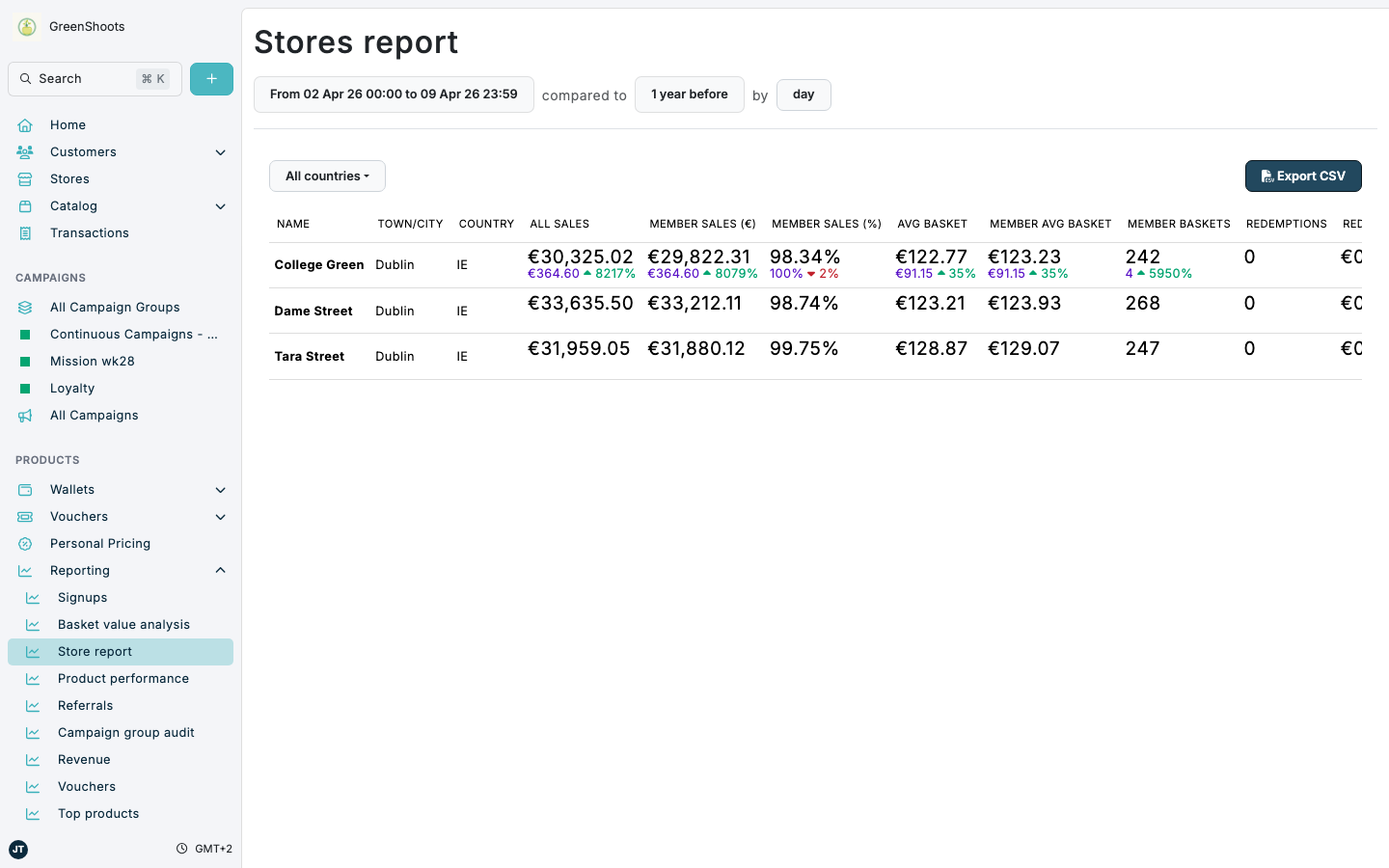
- If your business has fewer than 100 stores, use Stores report to compare locations across the selected period.
- Review KPI columns such as All Sales, Member Sales (€), Member Sales (%), Avg Basket, Redemptions, and Staff Signups.
- Click Export CSV when you need a downloadable comparison extract.
- If your business has more than 100 stores, use Spaaza API or export tools for broader store-to-store comparison outside the on-screen report.
- On the Home dashboard and other analytics pages, click the filter button next to the date controls to open Filters.
- Choose Stores to focus on specific locations, or choose Regions & Formats when your business has store groups or formats configured.
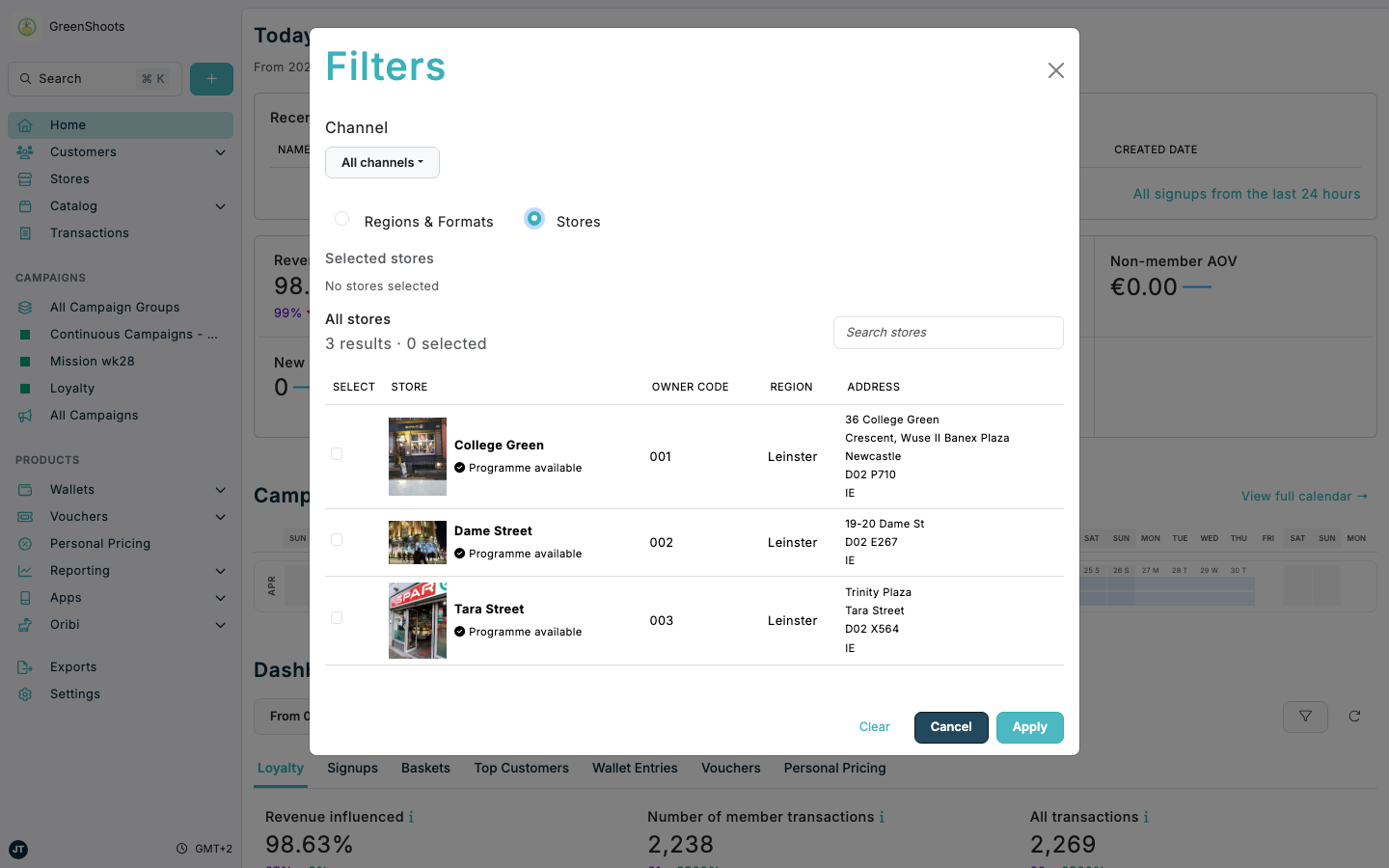
- Click Apply to refresh the dashboard or analytics page with your selected scope.
If something looks different
- If a store dashboard looks empty, check the selected date range and confirm you are on that store's Overview page.
- If Regions & Formats does not show useful values, your business may not have store groups or formats configured yet. Use Stores instead, or add those values in settings first.
- If you need to compare a very large store network, use API or export-based reporting rather than relying on the on-screen Stores report table alone.