Claim an anonymous transaction
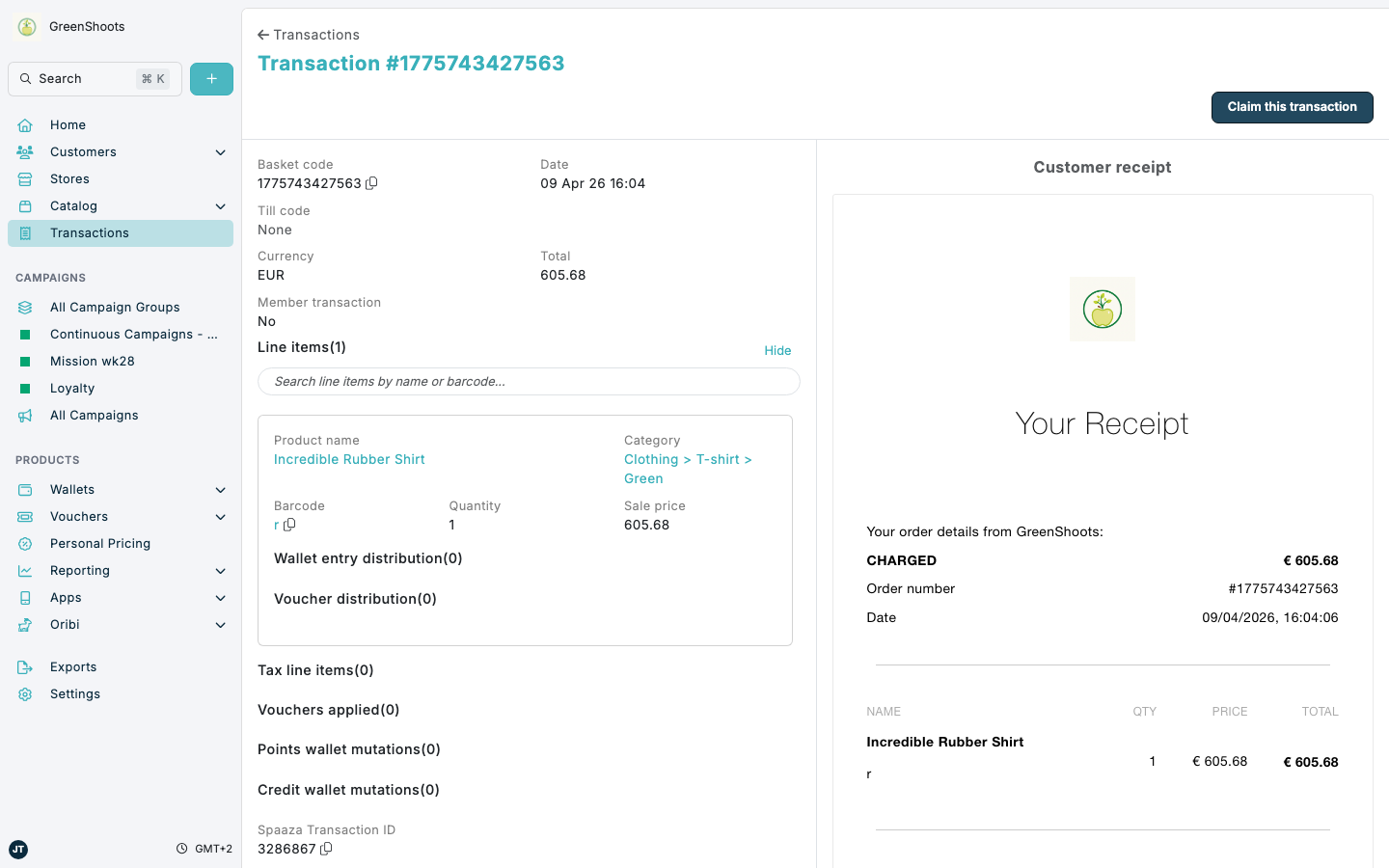
Use the transaction overview page to link an anonymous transaction to the correct customer profile. In some Spaaza UI and API messages this same transaction may be described as a basket.
Expected result
- The transaction is linked to the selected customer profile.
- The linked customer card appears on the transaction overview page.
- Any campaigns that are active at the moment you claim the transaction are evaluated and applied after the claim completes.
Claim a transaction in Console
-
Open the Transactions page.
-
Open a transaction that is not linked to a customer profile yet. On the overview page, confirm there is no customer card and that Claim this transaction is available.
-
Review the transaction details before you claim it so you can match it to the correct customer.
-
Click Claim this transaction.
-
In the claim modal, use Member search to find and select the correct customer.
-
Review the claim warning. The modal may describe the transaction as an anonymous basket, and it also warns that currently active campaigns are applied when the claim happens, not when the original purchase happened.
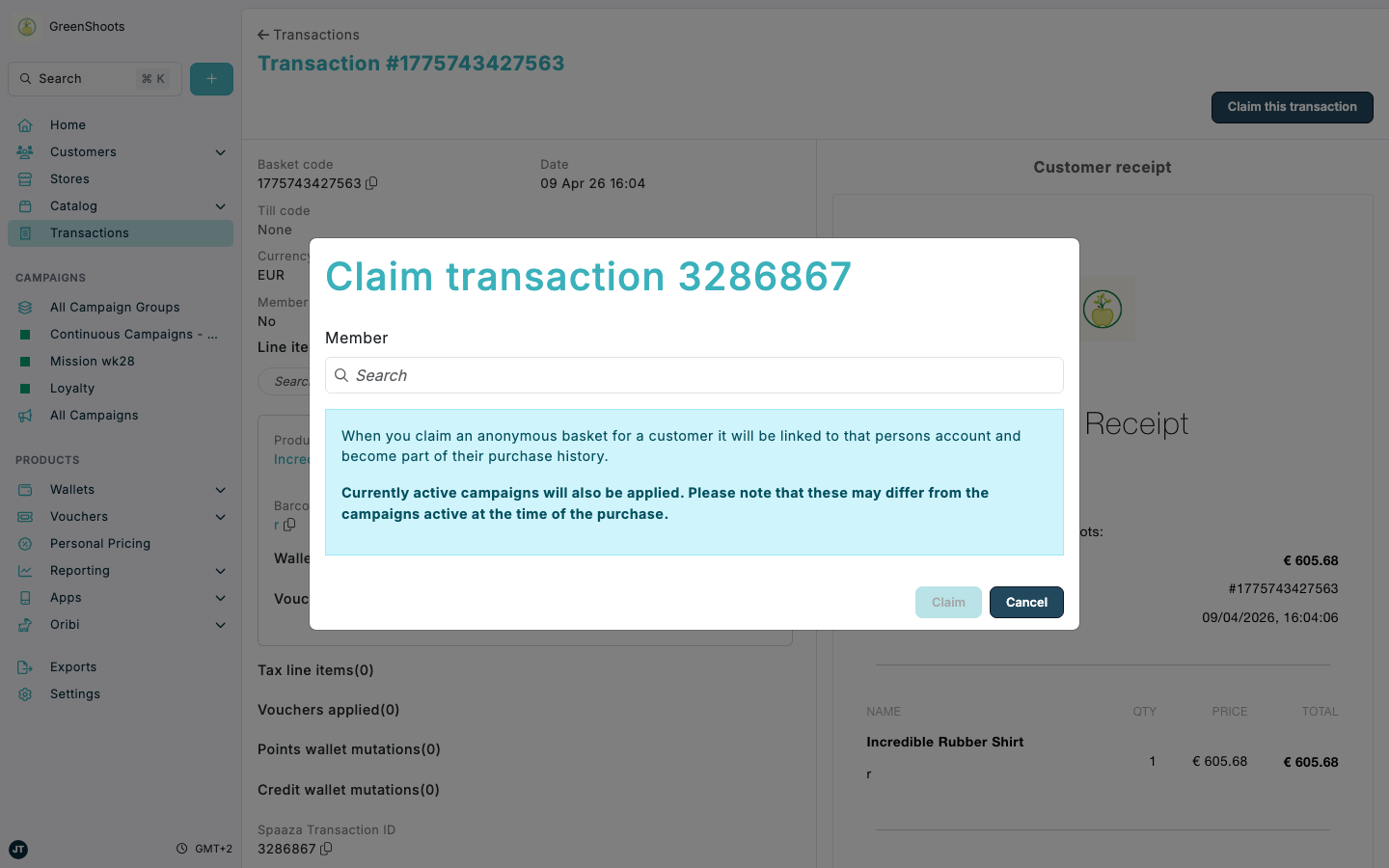
- Click Claim.
- Wait for the claim to finish and for the transaction overview page to refresh.
- Confirm the customer card is now shown on the transaction overview page and that Claim this transaction is no longer shown.
If something looks different
- If you do not see Claim this transaction, the transaction is already linked to a customer profile and cannot be claimed again from this page.
- If the modal warning mentions an anonymous basket, that refers to the same transaction you are viewing.
- If you are unsure which customer to select, stop before clicking Claim. The active campaigns at claim time may differ from the campaigns that were active when the purchase was first made.