Filter transactions
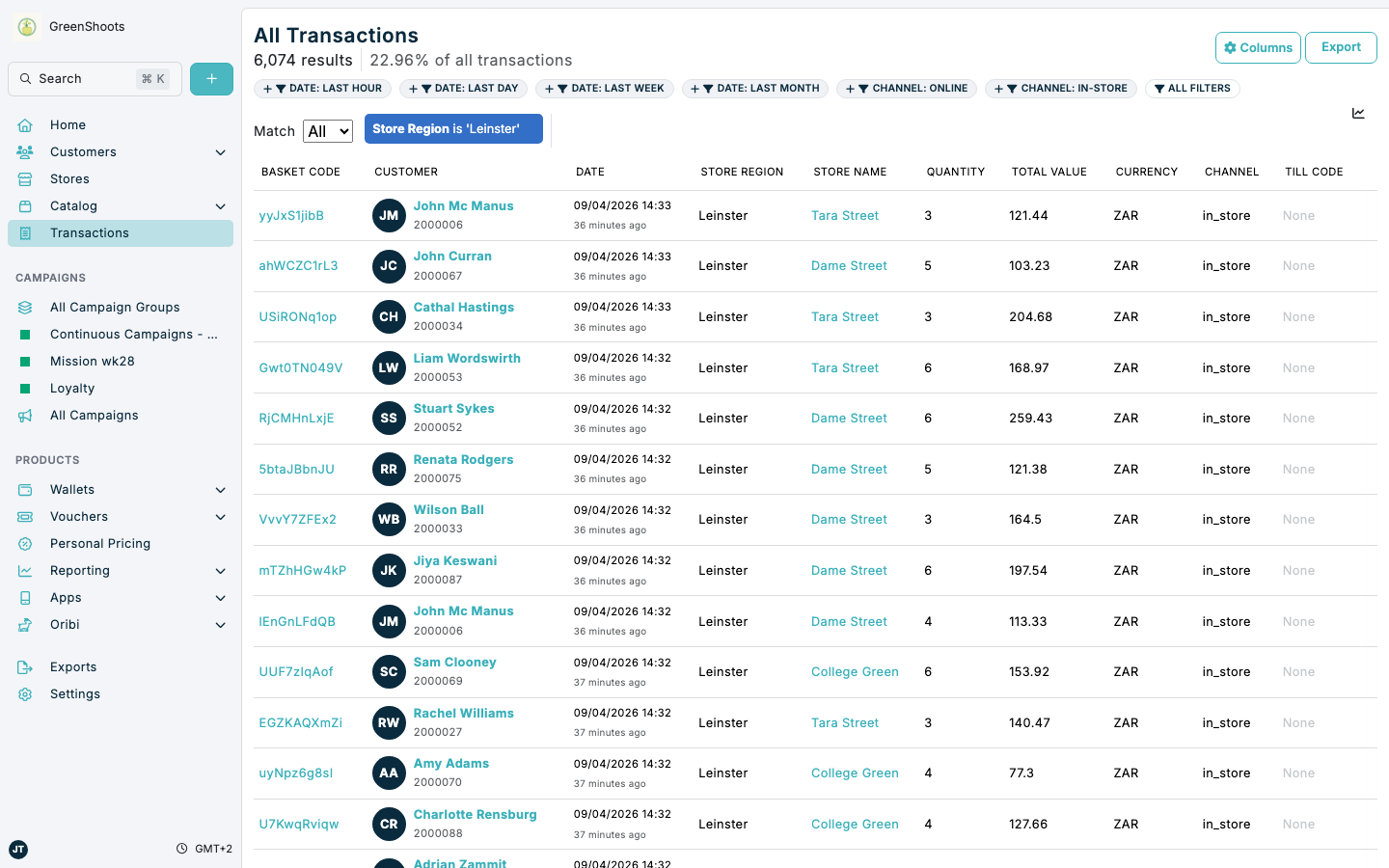
Use transaction filters to narrow large result sets to the baskets, customers, stores, dates, or line-item patterns you need to review. The transactions page includes quick filter shortcuts for common date and channel filters, plus a full filter library when you need more precise rules.
Different filter fields use different controls:
- Date filters offer relative options such as recent time windows, plus absolute date matching and date ranges.
- Number filters let you match exact values or set minimum, maximum, and between rules.
- Text, keyword, and yes/no filters let you match a specific value or check whether a field is empty.
Expected result
- You can browse the available transaction filters from one dialog.
- You can add one or more filter chips and configure each chip with the right operator and value.
- The results count and transactions table update to show only matching transactions.
Filter transactions in Console
- Open the Transactions page.
- Review the quick filters above the table. Use Date: Last hour, Date: Last day, Date: Last week, Date: Last month, Channel: Online, or Channel: In-store when one of those shortcuts matches the result set you need.
- Click All filters to open the full filter library.
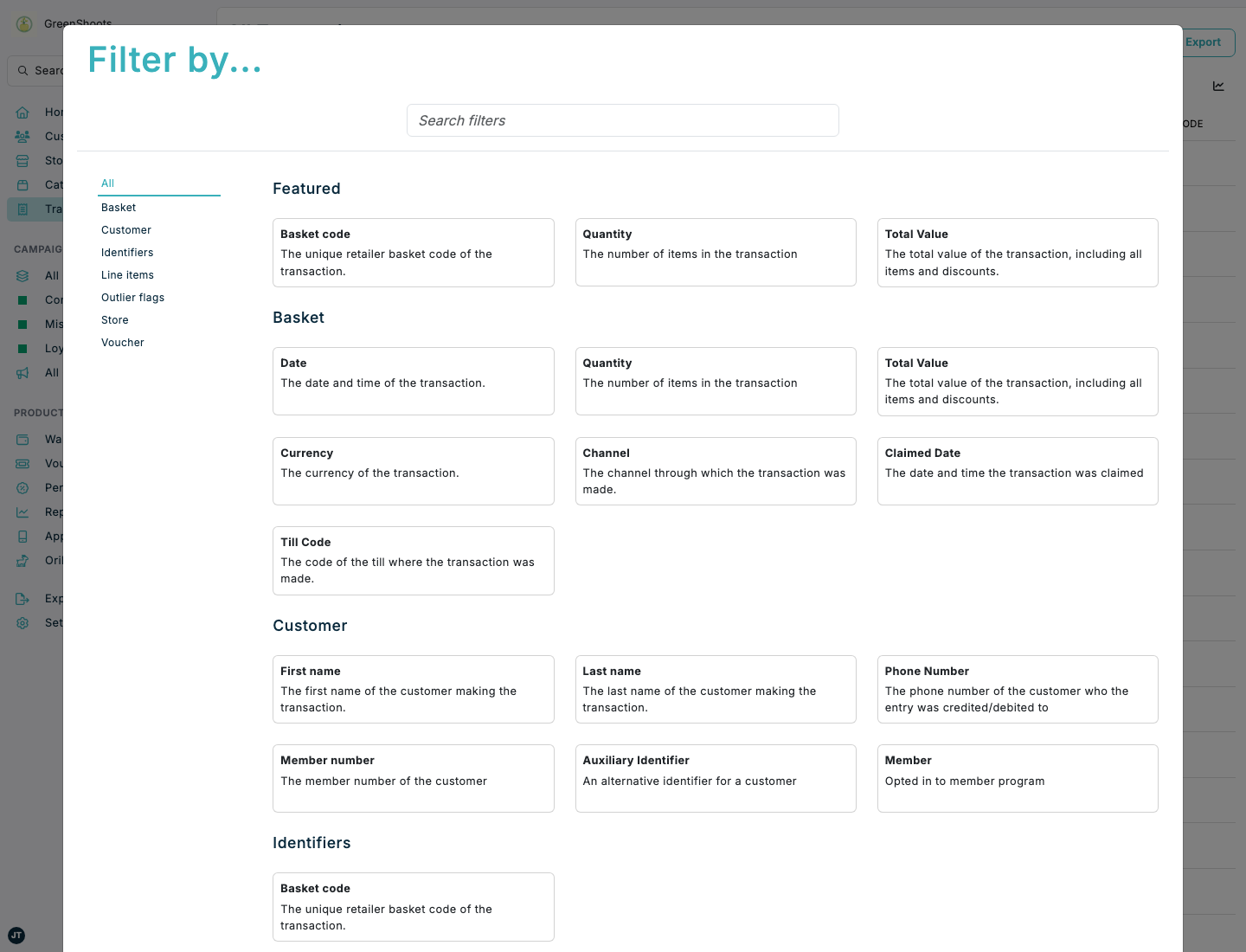
- Search for a field or browse the grouped filters. Transaction filters are organised into sections such as Basket, Customer, Identifiers, Line items, Outlier flags, Store, and Voucher.
- Click the filter you want to add. A filter chip appears above the table and opens its rule editor.
- Choose the operator and enter the value for the rule. For example, you can add Store Region, keep Is, and enter
Leinster.
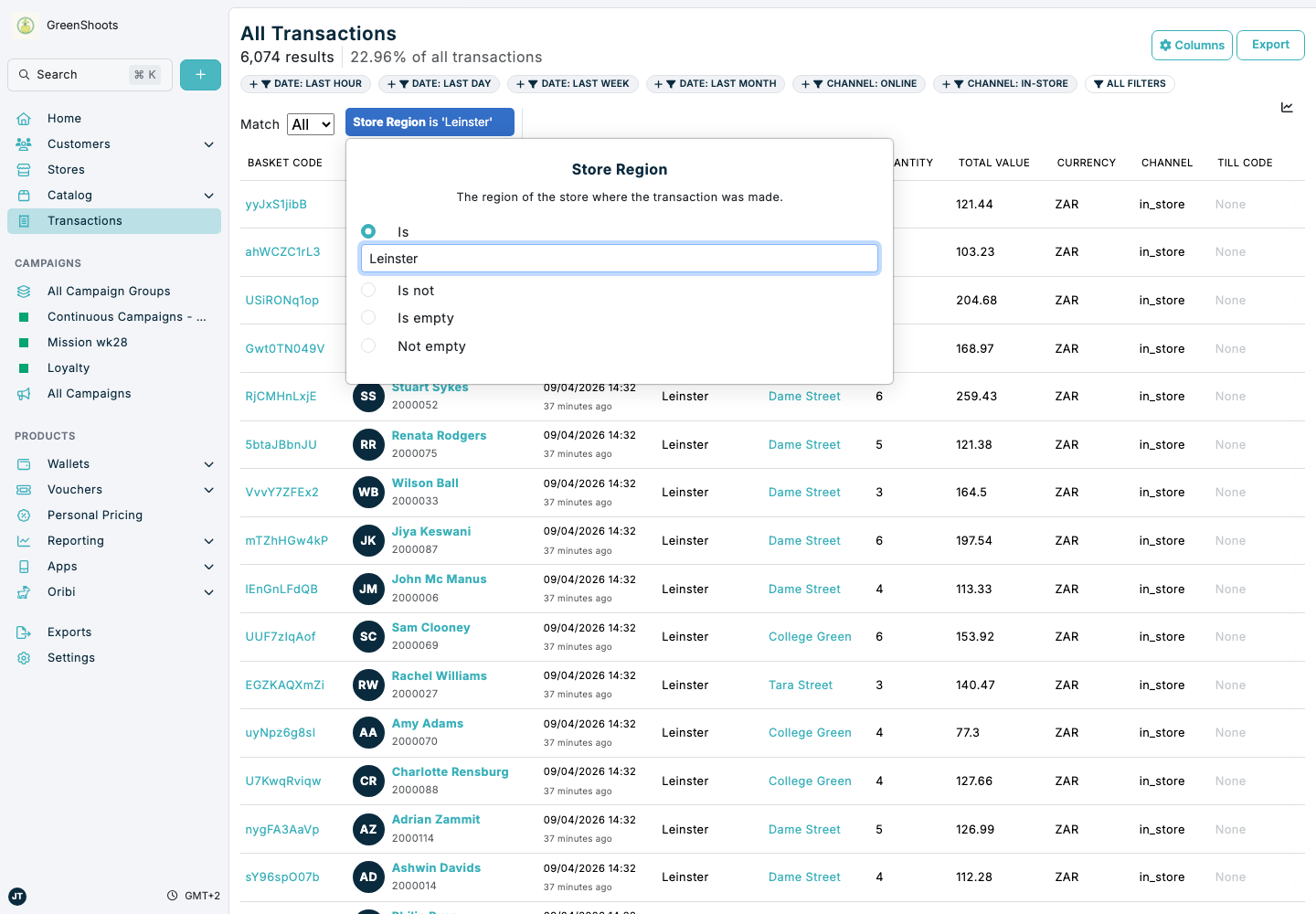
- Set Match All when every rule must be true, or switch to Match Any when a transaction can match any one of the active rules.
- Review the updated results count and table rows. Matching transactions remain in the list and the active filter chip stays visible above the table.
- Click a filter chip again whenever you need to change the operator or value, or click the
xon the chip to remove it. - Optionally click Export to download the filtered transaction set.
If something looks different
- If you do not see the filter you need, click All filters and use Search filters instead of relying only on the quick filter shortcuts.
- If the table does not change after you enter a value, reopen the filter chip and check that the operator and value are both set.
- If you are combining several rules, confirm whether Match All or Match Any reflects the way you want those rules to work together.