View transaction details
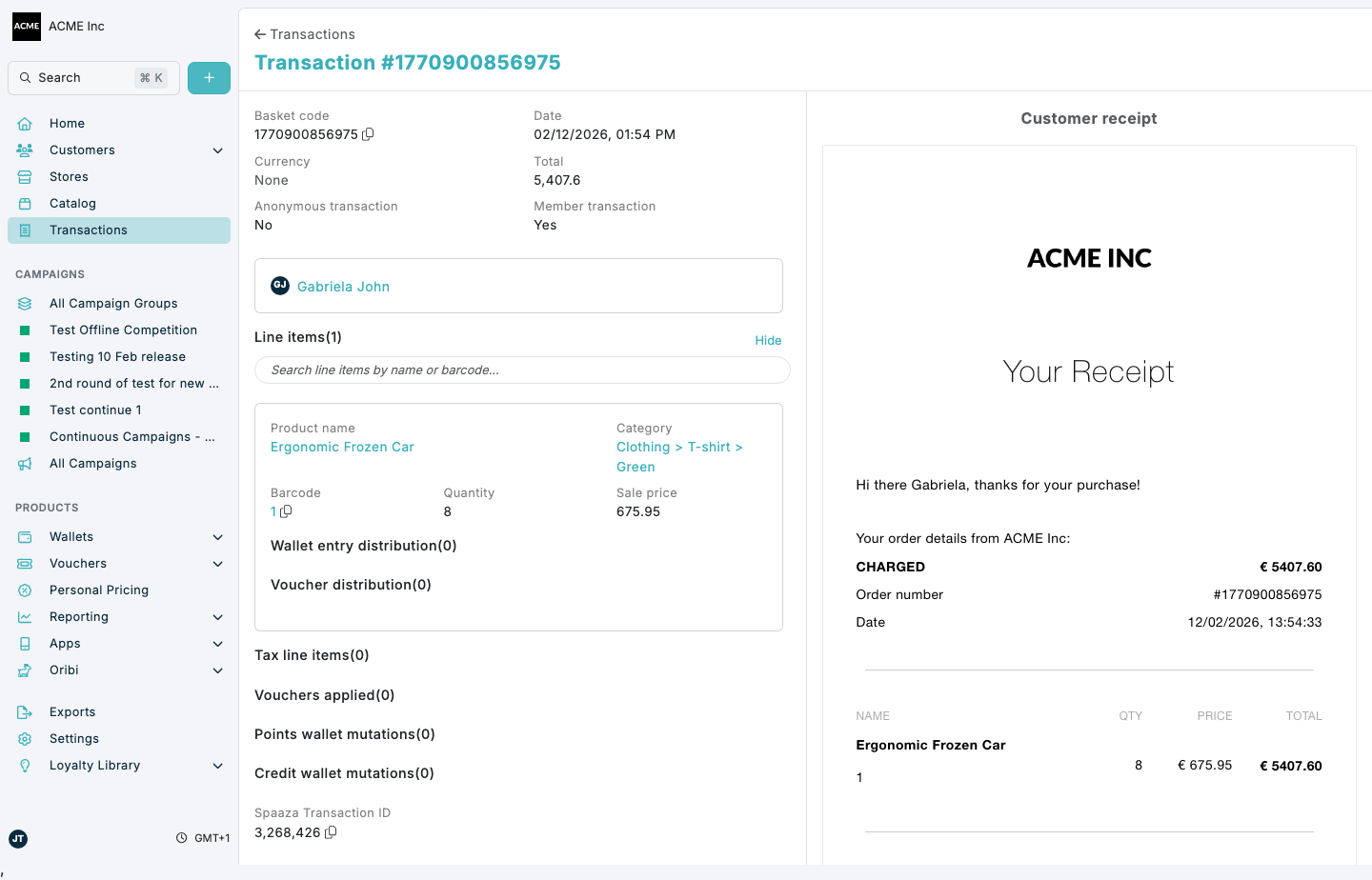
Use the transaction detail page to inspect line items, applied incentives, and attribution to a specific member profile.
Expected result
- The transaction detail page opens for the selected basket.
- You can confirm member attribution, basket totals, and line-item-level data from one view.
- You have enough verified detail to share the Spaaza Transaction ID with support or colleagues.
View a transaction in Console
- Open the Transactions page.
- Click a transaction in the list to open its detail page.
- Confirm the page header shows Transaction #....
- Review Basket code, Date, Currency, and Total.
- Check Anonymous transaction and Member transaction to confirm attribution status.
- Expand Line items and review Product name, Barcode, Quantity, and Sale price.
- Use the line item search box (
Search line items by name or barcode...) to find a specific item quickly. - Review additional sections when relevant: Tax line items, Vouchers applied, Points wallet mutations, and Credit wallet mutations.
- Copy Spaaza Transaction ID when you need to share the exact transaction with colleagues or support.
If something looks different
- Transaction unavailable means you do not have permission to view the transaction, or it does not exist. Check the selected business. Use the back link to return to the transaction list or previous page.
- For Unable to load transaction, click Try again. If the error continues, contact support with the transaction link.
- If a field is empty, verify whether the section has values for that transaction before escalating.