How to create scratch cards
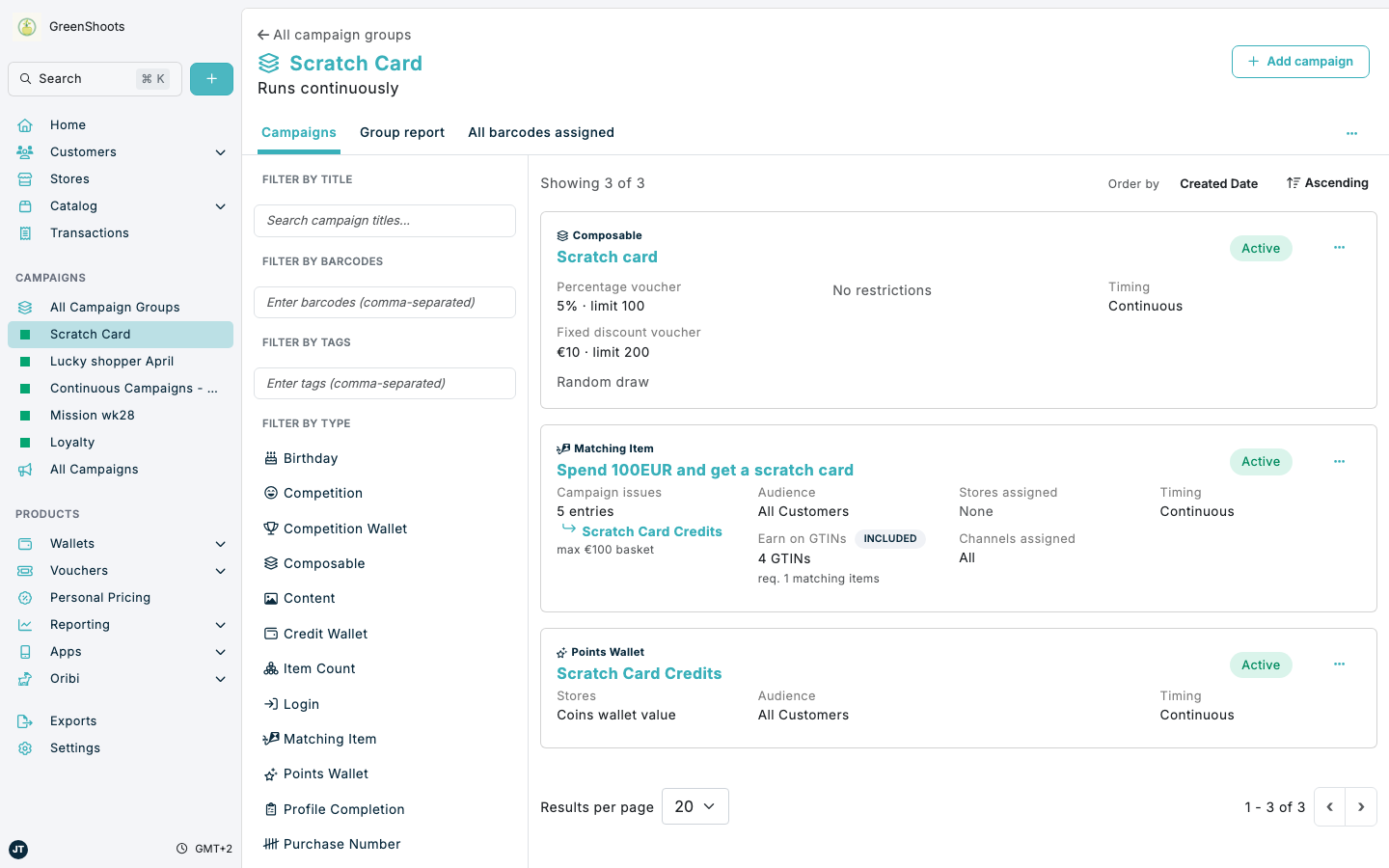
Scratch cards use a campaign group to keep the setup together, a points wallet to hold the available scratch credits, one or more campaigns that issue those credits, and a composable campaign that reveals one prize at random whenever the customer scratches.
Expected result
- You create a campaign group that contains the wallet, the campaign that issues scratch credits, and the composable reward campaign.
- Customers earn scratch credits from a qualifying action such as a spend threshold or a product purchase.
- Spaaza apps or Spaaza Embed Elements can show the composable campaign in a content zone and render one scratch card for each available credit.
Example
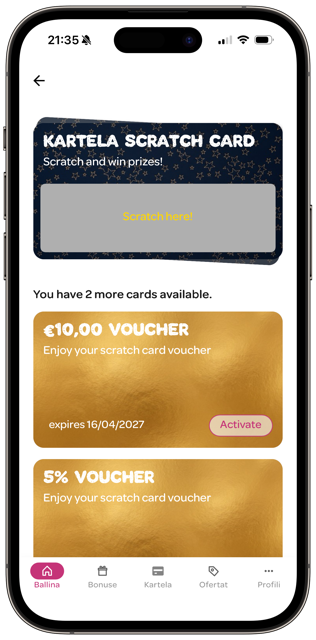
Below is an example of how the scratch-card experience can be rendered in a Spaaza app once the composable campaign has been added to a content zone and the customer has available scratch credits.
Prerequisites
- You can access Campaign groups, campaign forms, Wallets, and Content Management in Spaaza Console.
- You know which customer action should earn a scratch credit.
- You know which rewards should be available in the random draw and how many times each reward may be issued.
- If the scratch card should only be visible for a specific audience, create that audience first in Customer Segments.
Build this solution in Console
Step 1: Create the campaign group
- Open the Campaign groups page.
- Click Create a group.
- In Add Campaign Group, enter the name you want customers and internal teams to use for this scratch-card setup.
- Set Start date and End date if the mechanic should only run for a fixed period. Leave both empty if it should run continuously.
- Click Save.
- Open the new group and confirm it is ready to hold the scratch-card campaigns.
Step 2: Add the points wallet that holds scratch credits
- Open the scratch-card campaign group.
- Click Add campaign.
- Choose Points Wallet.
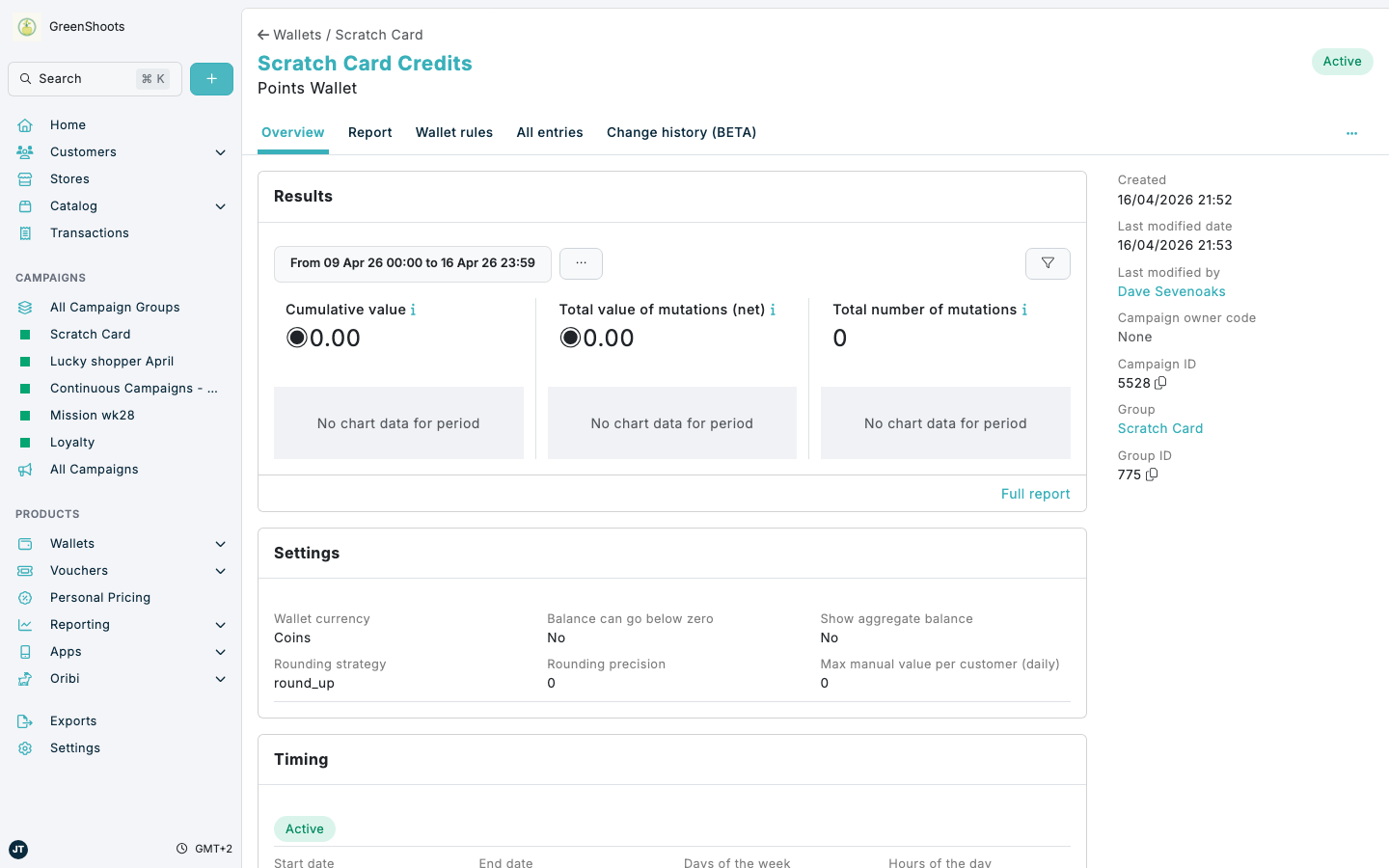
- Set the wallet Title to something clear such as
Scratch Card Credits. - Set Wallet currency to the unit you want customers to see for their available scratches, for example
CreditsorCoins. - If the mechanic is audience-specific, apply the same audience logic you plan to use on the qualifying campaign and the composable campaign.
- Save the wallet campaign.
- Treat one wallet entry as one scratch. If one qualifying purchase should give one scratch card, the contributing campaign should issue
1entry into this wallet.
Step 3: Add the campaign that issues scratch credits
- Return to the scratch-card campaign group.
- Click Add campaign.
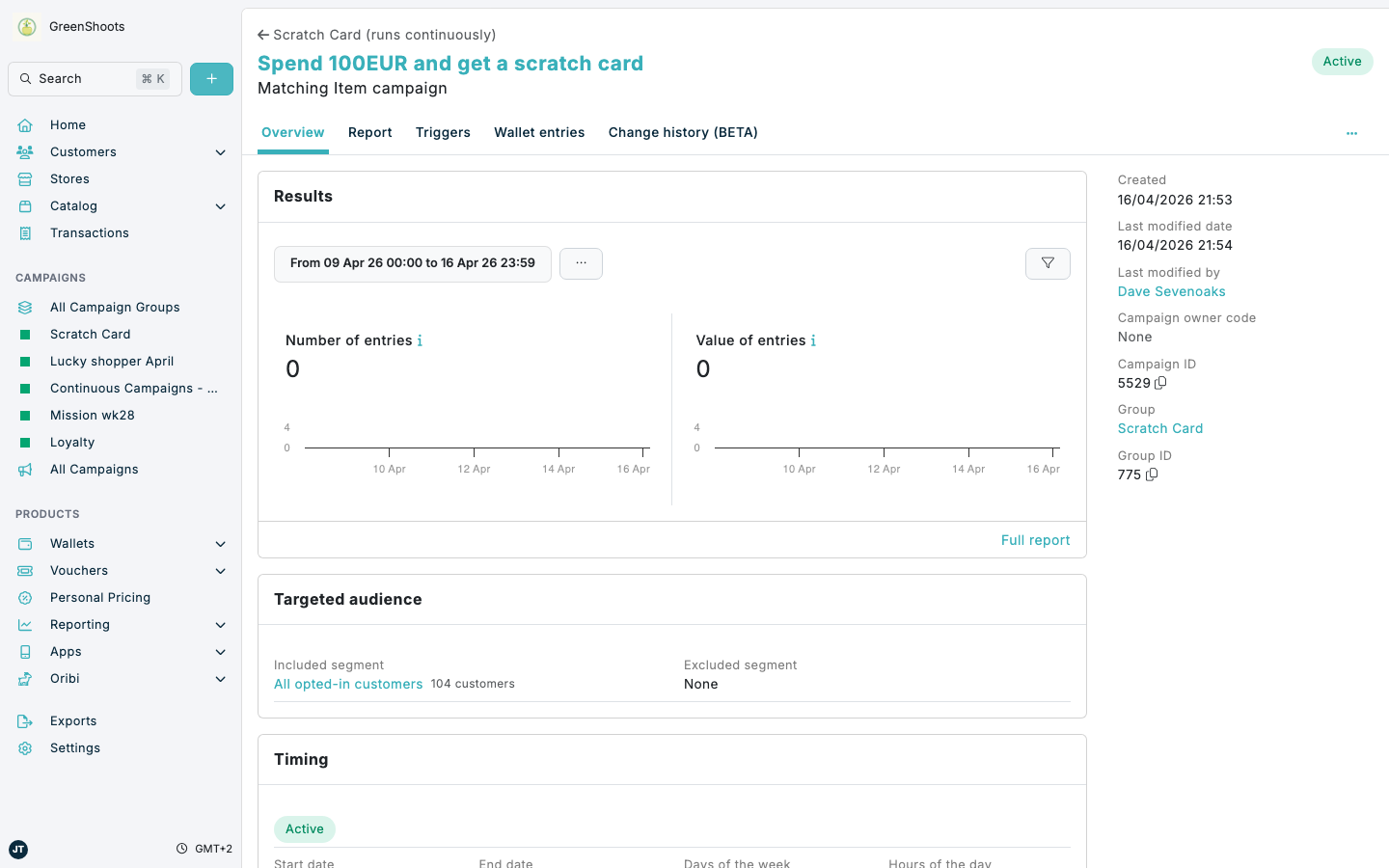
- Choose the campaign type that matches the earn condition you want. In the example shown here, the qualifying campaign is Matching Item.
- Set the campaign Title so the earning rule is easy to understand, for example
Spend 100EUR and get a scratch card. - Configure the qualifying rule. For Matching Item, this can include Required matching items, assigned GTINs, and basket conditions.
- Set the campaign so it contributes entries to the scratch-credit wallet. The campaign overview will later show this as Campaign issues and the selected wallet.
- Select the scratch-credit wallet as the destination and issue the number of entries you want per successful qualification. If one qualifying action should equal one scratch, issue
1entry. If you want a bigger reward burst, issue more than one entry. - Save the campaign and confirm it contributes to the correct wallet.
Step 4: Add the composable campaign that issues the prizes
- Return to the scratch-card campaign group.
- Click Add campaign.
- Choose Composable.
- In Basics, set the campaign Title customers should see when the scratch card is promoted.
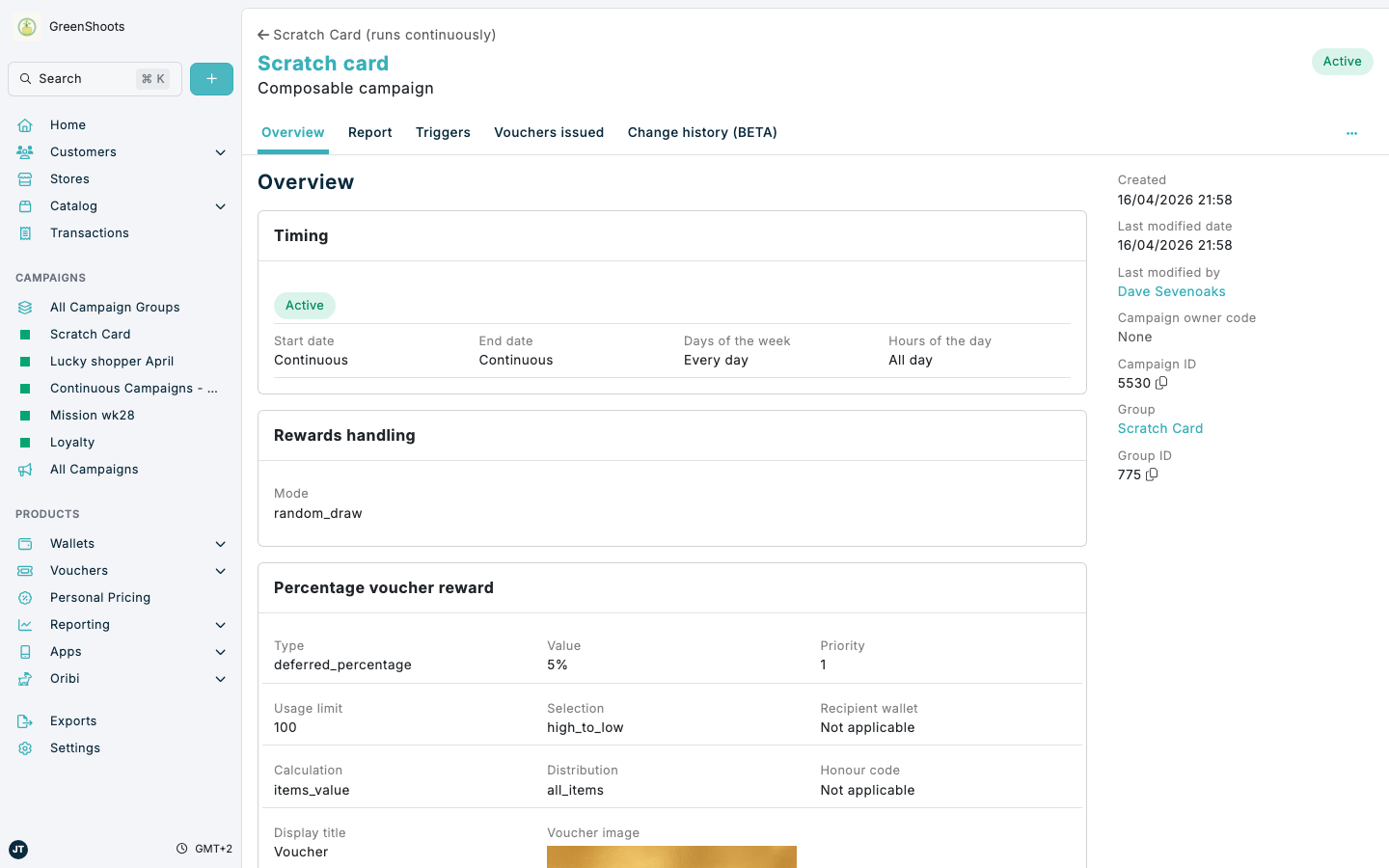
- In Rewards handling, choose Random draw.
- In Usage cost, turn the restriction on, select the scratch-credit wallet in Wallet campaign, and set Cost to
1if one credit should equal one scratch. - In Reward methods, click Add reward for each prize you want to include in the scratch-card pool. If the prize pool contains multiple rewards, especially a long prize list, use Import from CSV and follow Importing reward methods for composable campaigns.
- For every reward method, set the reward details and a Usage limit. The Usage limit is the number of times that specific reward may still be issued.
- (Optional) To limit where a prize can be spent, add a redeem restriction to that reward method: a redeem assigned group for specific product barcodes (
basket_item), Business for specific stores, store formats, or store regions, or Currency. These restrictions shape the awarded voucher and are checked when the customer redeems it, so a scratch-card prize can be locked to where it is valid. If nothing in the redemption basket matches, the voucher applies to nothing rather than the whole basket. - Save the composable campaign and confirm the overview shows Rewards handling with
random_draw.
Step 5: Show the scratch card in apps or Embed Elements
- Open Content Management.
- Open the page where the scratch-card promotion should appear, or create a dedicated page for it.
- Click Add zone and choose the layout that best fits the promotion.
- Click Add Zone.
- Click the zone button that starts with + Add item to and add the composable scratch-card campaign to that zone.
- Click Publish all changes.
- Confirm the promoted item opens the scratch-card experience in your Spaaza app or Embed Elements implementation.
Trigger the same mechanic through the API
If you are building a custom front end, you can trigger the scratch-card interaction through the interact-campaign endpoint. This is the same interaction pattern used for composable campaigns with random_draw behaviour. The prize logic stays in Spaaza; your front end only needs to present the scratch interaction and call the endpoint for each scratch attempt.
For the API model behind this setup, see the Composable campaign API reference.
If something looks different
- If customers earn credits but do not see a scratch card, confirm the composable campaign was added to the correct content zone and published in Content Management.
- If customers can see the scratch card but cannot play, check that the composable campaign is Active and that the customer has balance in the scratch-credit wallet.
- If customers can keep scratching without using credits, verify Usage cost is enabled on the composable campaign, that Wallet campaign points to the scratch-credit wallet, and that Cost is set correctly.
- If customers can scratch but no meaningful prizes are issued, review the reward methods and confirm each Usage limit still has capacity.