How to create stamp cards
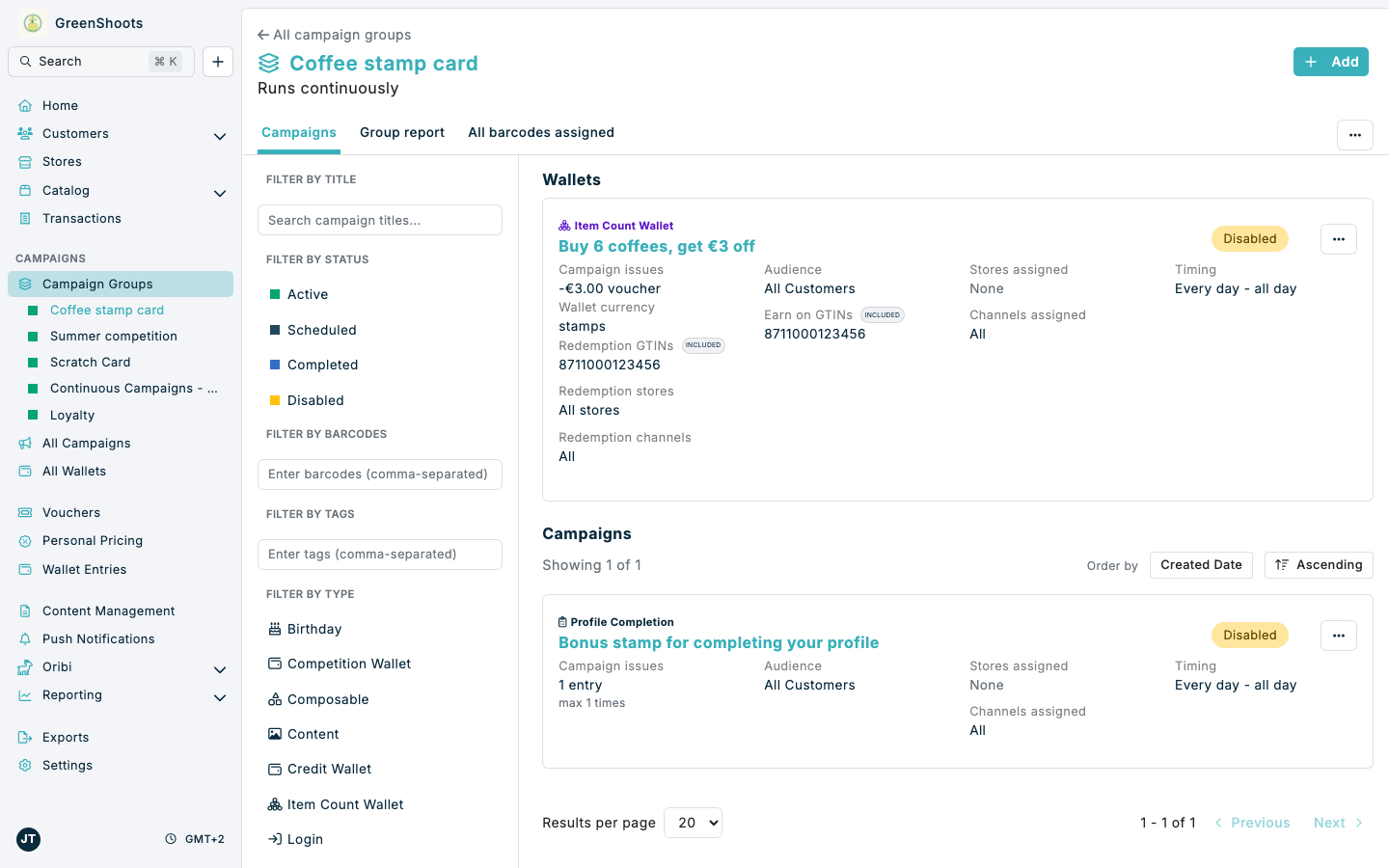
Use an Item Count Wallet for a self-contained stamp card. The wallet stores stamp entries, adds stamps when customers buy qualifying products, and issues a reward when they reach the target. You can optionally add other campaigns that issue bonus stamp entries into the same wallet.
Expected result
- Customers earn stamps when they buy products assigned to the Item Count Wallet.
- The wallet shows progress toward a target and can issue a reward when the target is reached.
- The card can reset and repeat after completion.
- Optional campaigns can issue additional stamp entries for other customer behaviours.
Prerequisites
- You can access Campaign groups and create campaigns in Spaaza Console.
- You know the GTINs for the products that should earn stamps.
- You have decided the stamp target, completion reward, audience, stores, channels, and campaign timing.
- Your point of sale, webshop, or app sends the qualifying GTINs and item quantities to Spaaza.
Build this solution in Console
Step 1: Create a campaign group
- Open the Campaign groups page.
- Click Create a group.
- Enter a name such as Coffee stamp card.
- Add Start date and End date if the card should only run for a defined period. Leave both empty for a continuous stamp card.
- Click Save and open the new group.
The group controls the overall timing and keeps the wallet and any optional bonus campaigns together.
Step 2: Add the Item Count Wallet
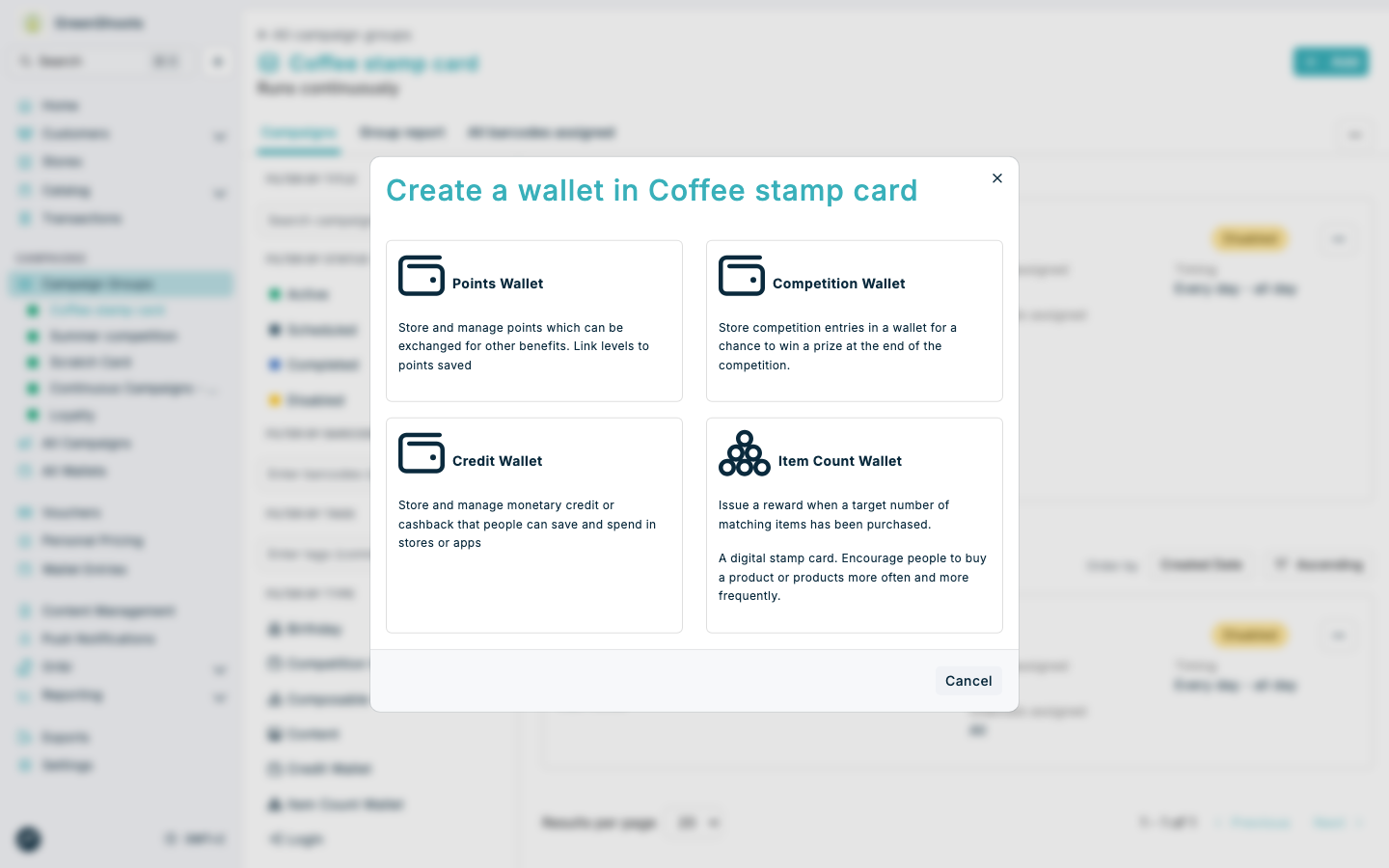
- In the campaign group, click Add.
- Choose Wallet.
- Select Item Count Wallet.
- In Basics, enter a customer-facing Title, such as Buy 6 coffees, get €3 off.
- Review Timing, Channel and store targeting, and Audience so the wallet applies to the intended customers and purchases.
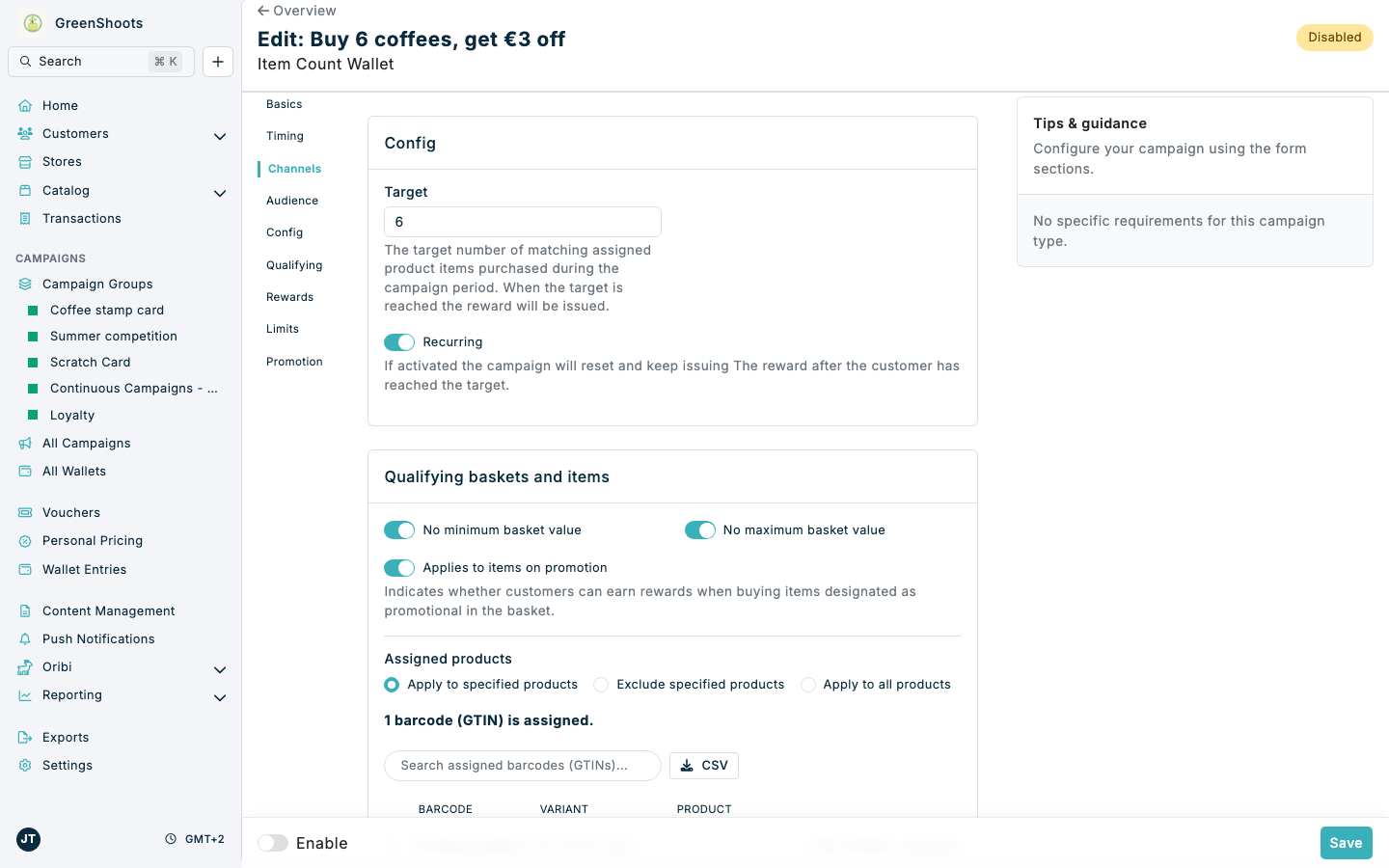
- In Config, set Target to the number of stamps required. The example uses 6.
- Turn on Recurring if the card should reset after the reward is issued and let the customer start another card.
Step 3: Choose which purchases add stamps
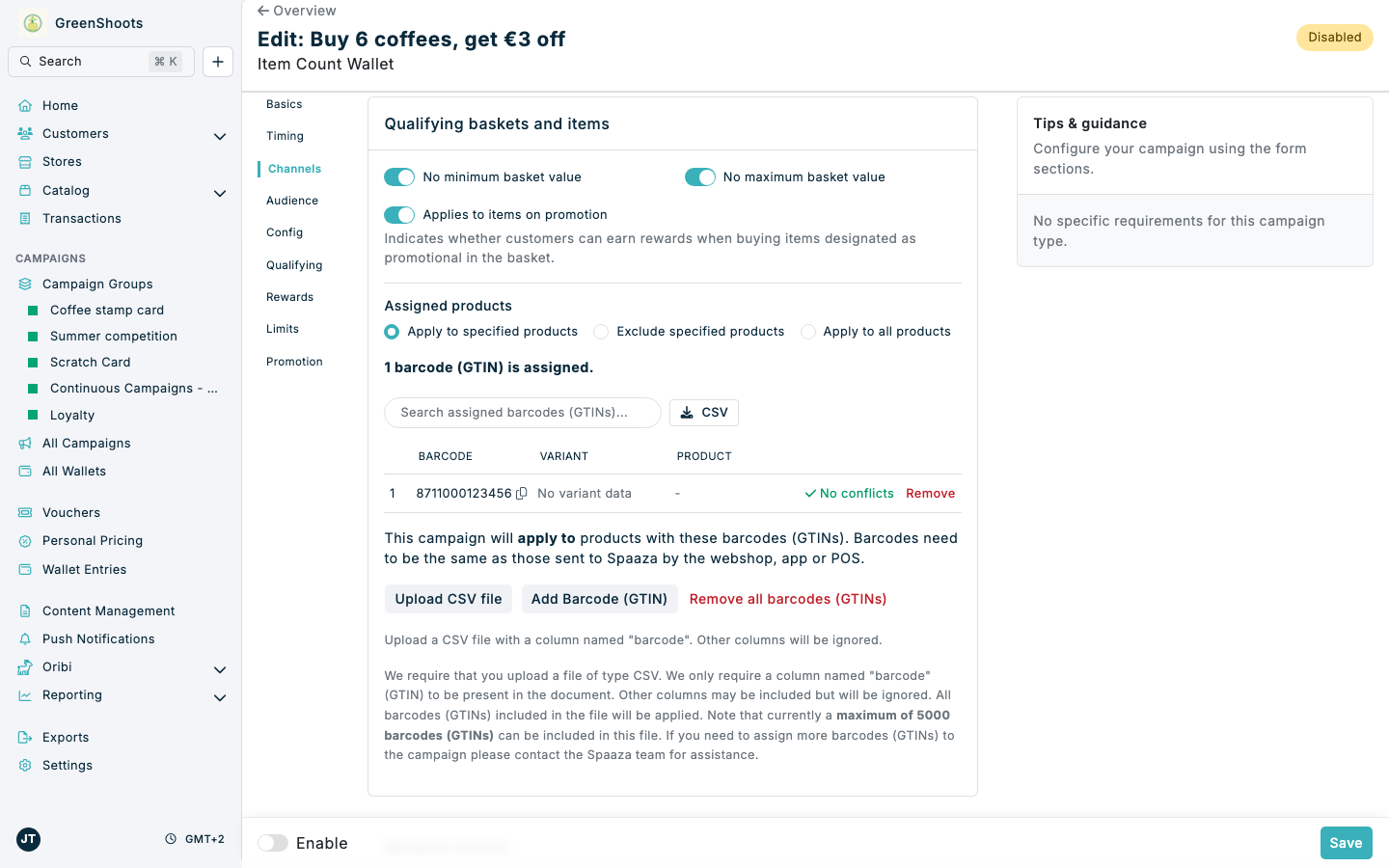
- Open Qualifying baskets and items.
- Under Assigned products, select Apply to specified products.
- Click Add Barcode (GTIN) and add each coffee or other product that should earn stamps. Use the CSV upload when you have a longer product list.
- Decide whether purchases of promotional items should qualify and review any minimum or maximum basket settings.
Each matching item purchased contributes to the customer's stamp progress. The barcode must match the value sent to Spaaza by the sales channel.
Step 4: Configure the completion reward
- Open Rewards issued.
- Choose the reward type. For example, select Basket voucher and enter a Voucher value of €3.
- Add customer-facing voucher text, expiry settings, redemption channels, stores, and product restrictions as required.
- Review Reward limits and any promotional content used by your app or Spaaza Embed Elements.
- Leave Enable off while you review and test the setup, then click Create.
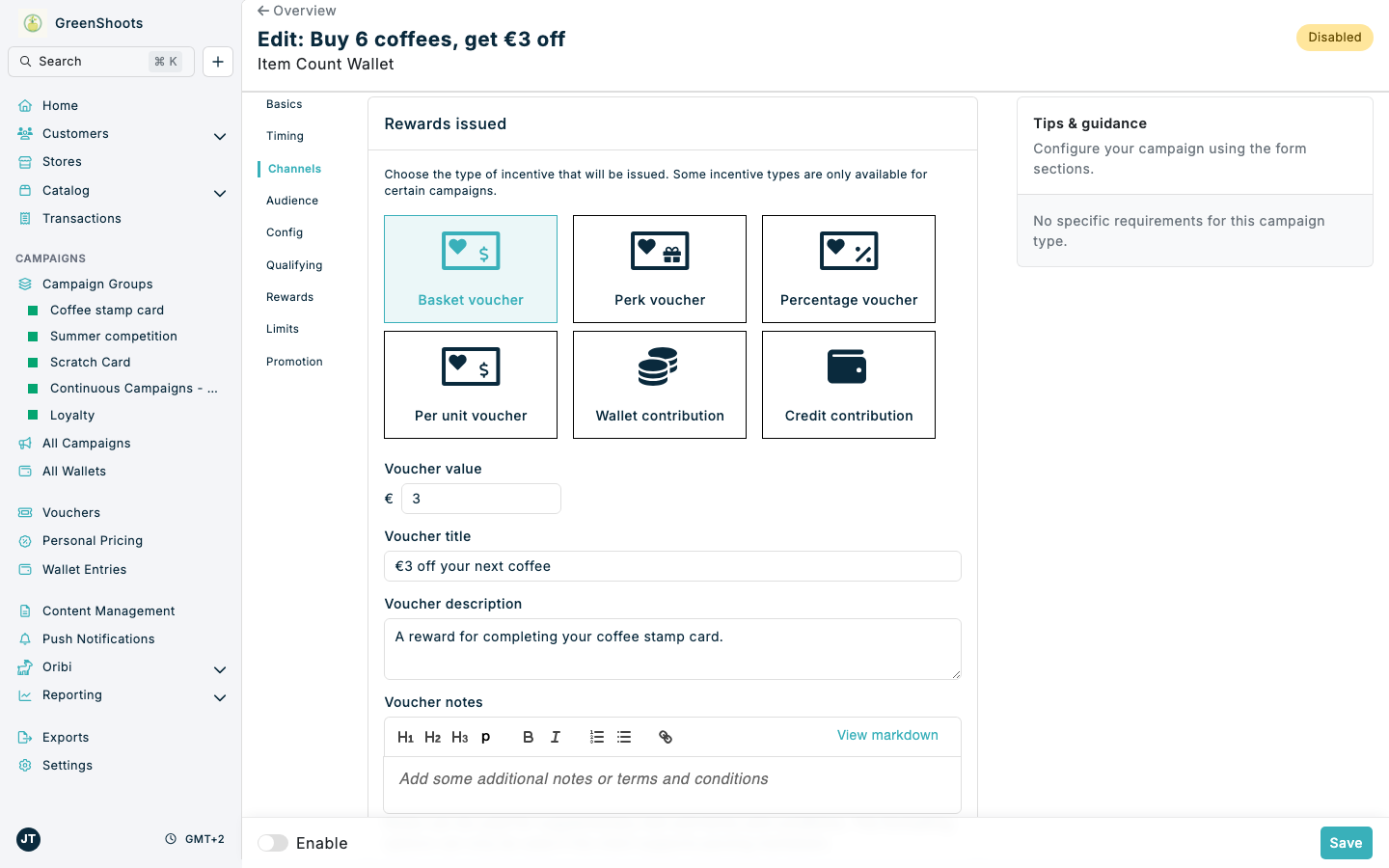
The stamp card is now complete. The Item Count Wallet itself both receives the purchase progress and checks whether the customer has reached the reward target.
Step 5: Optional — issue bonus stamps from another campaign
You can use another campaign when you want a separate behaviour to add stamp entries. The example below gives one bonus stamp when a customer completes their date of birth.
- Return to the stamp-card campaign group and click Add.
- Choose Reward, then select a non-composable campaign type that supports wallet rewards, such as Profile Completion, Signup, or Matching Item.
- Configure the campaign trigger. For Profile Completion, select the profile fields the customer must complete.
- In Rewards issued, choose Wallet contribution. This is the Console reward method used to issue wallet entries.
- Under Wallet to contribute to, click Choose wallet, select the Item Count Wallet, and click Select wallet.
- Set Wallet entry amount to the number of bonus stamps to issue. The example uses 1.
- Set Maximum rewards per customer and its period so the bonus cannot be earned more often than intended. The example uses 1 in All time.
- Keep the campaign disabled while testing, then click Create.
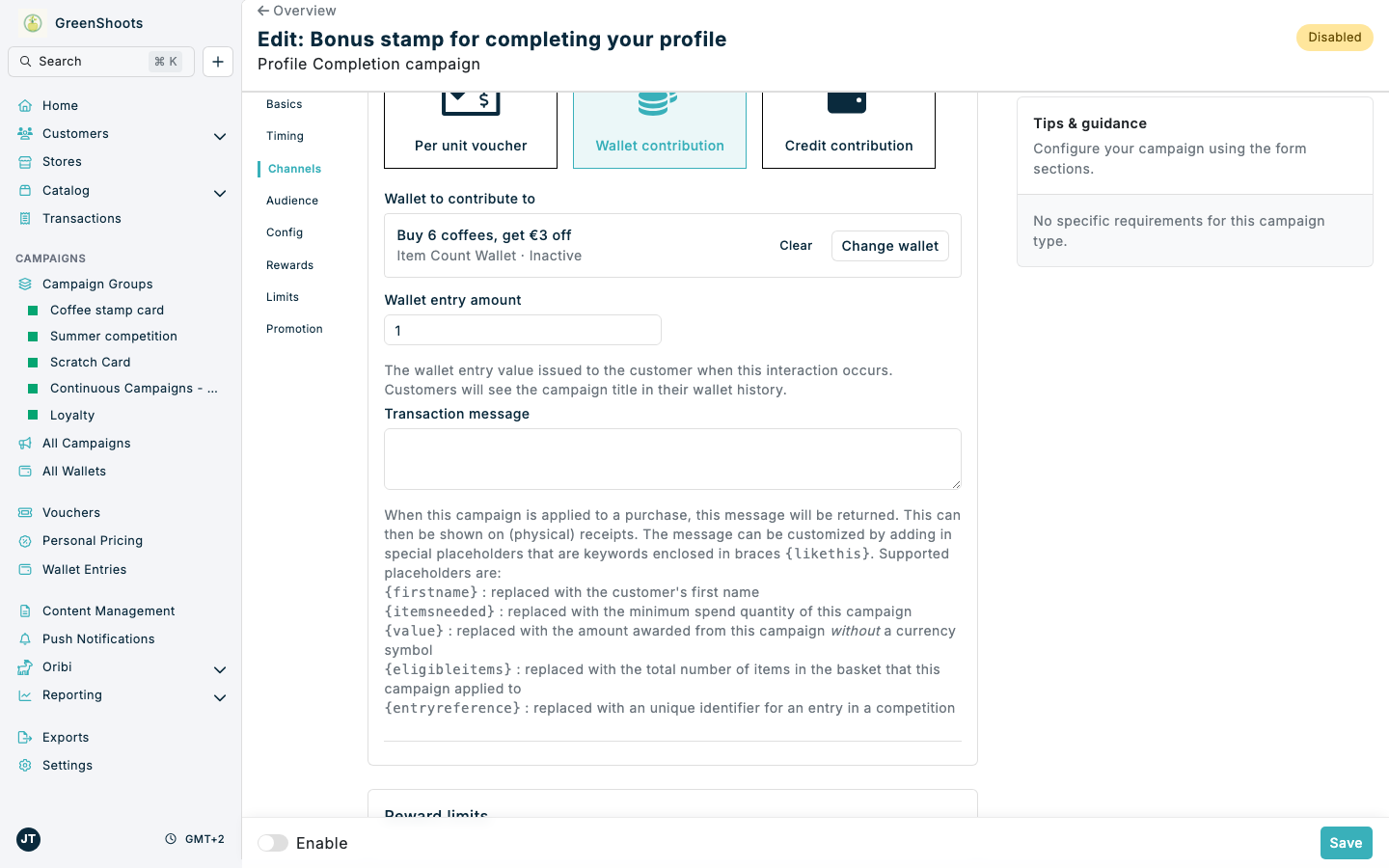
Composable campaigns currently show Item Count Wallets as unavailable recipient wallets. Use a non-composable campaign when you need to issue bonus stamp entries into an Item Count Wallet.
Step 6: Review, test, and enable the stamp card
- Return to the campaign group and confirm the wallet and any bonus campaigns appear together.
- Check that every campaign uses the intended group timing, audience, stores, and channels.
- Use a test customer and submit a transaction containing a qualifying GTIN. Confirm the customer's wallet gains the expected stamp entry.
- Test the target threshold and confirm the completion reward is issued.
- Test each bonus campaign separately and confirm it adds entries to the correct Item Count Wallet.
- Enable the wallet and bonus campaigns only after the complete customer journey has been checked.
If something looks different
- If purchases do not add stamps, check that the wallet is enabled and that the incoming GTIN, quantity, timing, audience, stores, channels, and promotional-item settings all match the wallet configuration.
- If the Item Count Wallet is missing from Choose wallet, change the status filter to include the wallet's current status and clear any title filter.
- If an Item Count Wallet is visible but unavailable, confirm that you are configuring a non-composable campaign. Composable campaigns cannot currently issue stamp entries to this wallet type.
- If the reward is not issued at the target, check Target, Recurring, the reward configuration, and any reward limits.
- If bonus stamps are issued too often, reduce Maximum rewards per customer and choose the correct time period.
For more wallet detail, see Creating and editing wallets and Issuing wallet entries through campaigns.