Create and edit wallets
Use a campaign group when you need to create a new wallet, and use All wallets when you need to review or update existing wallets. Wallets in Spaaza are configured as wallet campaigns. Item Count and Spend Target campaigns are shown as wallets because their customer progress is held as wallet entries.
Expected result
- You can choose the wallet type you want to create.
- You can review the main wallet settings before you save.
- You can reopen an existing wallet and update its settings later.
Create and edit wallets in Console
- Open Campaign groups.
- Open the campaign group where the wallet should live, or click Create a group and create a new campaign group first.
- In the campaign group, click Add campaign.
- Select Wallet.
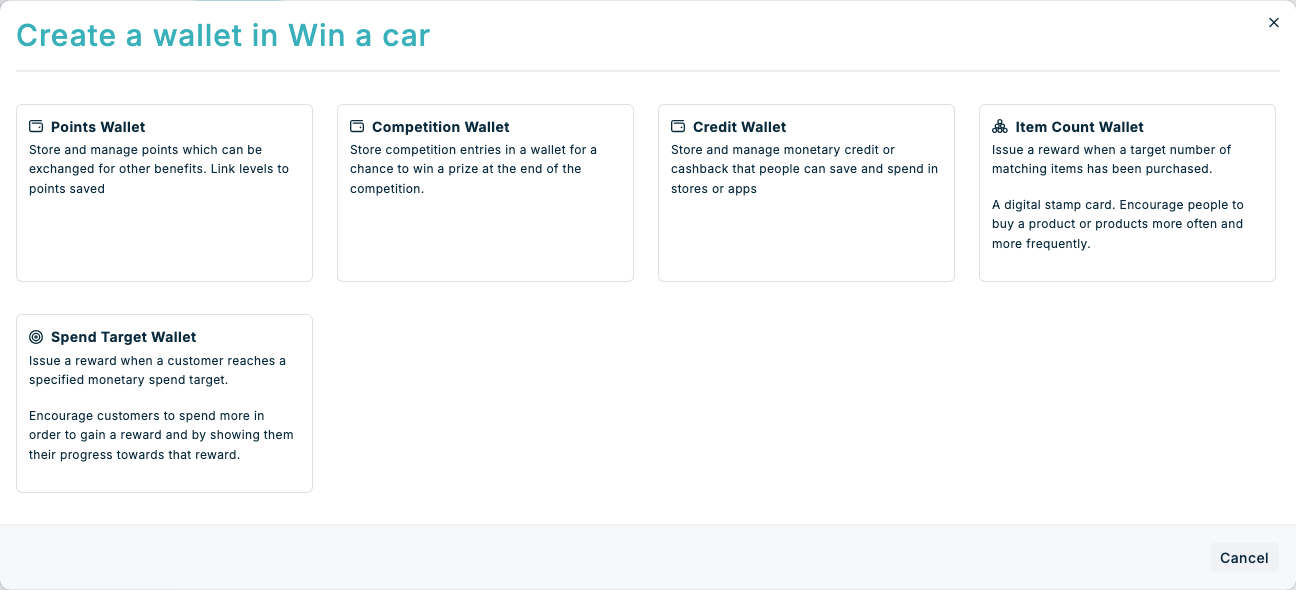
- In Create a wallet, choose the wallet type you want to use:
- Points Wallet for points-based loyalty balances.
- Competition Wallet for competition or entry-based balances.
- Credit Wallet for monetary credit or cashback balances.
- Item Count Wallet for a digital stamp wallet that rewards a customer after a target number of qualifying items.
- Spend Target Wallet for tracking monetary progress towards a spend target and issuing a reward when the target is reached.
- In Basics, enter the wallet Title and any other basic settings you need for the wallet.
- In Timing, set the active period when the wallet should be available if you do not want it active immediately.
- For Points Wallet, Competition Wallet, or Credit Wallet, open Wallet settings and review the wallet controls that apply to your setup:
- Max manual value per customer daily
- Wallet currency
- Rounding strategy
- Rounding precision
- Allow balance to go below zero
- Return balance in API responses.
- For Item Count Wallet, configure the stamp target in Config, the eligible products in Qualifying, and the reward issued when the target is reached in Rewards issued. The customer’s progress is the stamp-wallet balance, and other non-composable campaigns can also issue stamp entries to this wallet.
- For Spend Target Wallet, configure the monetary target and recurrence in Config, then configure qualification and the reward issued when the target is reached. Customer support teams can adjust this progress manually, but other campaigns cannot contribute entries to a Spend Target Wallet yet.
- If you are creating a Credit Wallet, also review Wallet display currency and Display multiplication factor.
- Turn on Enable Campaign when the wallet is ready to use.
- Click Create.
- To edit an existing wallet later, open it from All wallets, use Actions to enter edit mode, update the relevant fields, then click Save.
If something looks different
- If you do not see Create a wallet, make sure you opened Add campaign from a campaign group and selected Wallet.
- If Wallet display currency is not shown, confirm that the selected wallet type is Credit Wallet.
- Item Count Wallet and Spend Target Wallet use campaign qualification and reward sections instead of the conventional Wallet settings section.
- If you need to control who reaches a level in a points program, use Managing levels after the wallet is created.