Manage levels
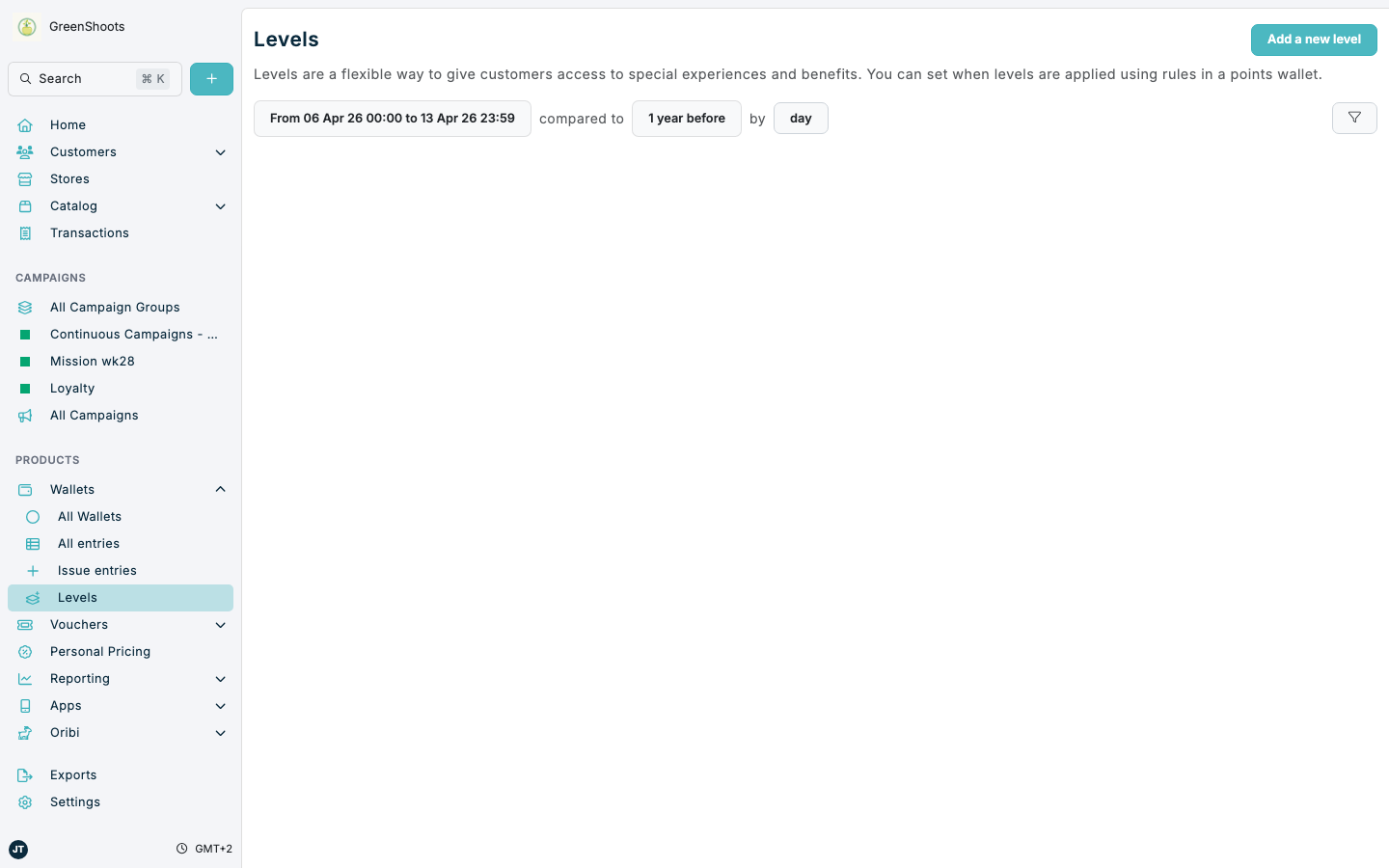
Use Levels when you want to define the tiers used by a points-based loyalty programme. Levels are managed separately from the wallet itself, but they are designed to work with points wallets and the rules that move customers between levels.
Expected result
- You can review the current levels and their configuration details.
- You can add a new level or update an existing level.
- Each level has the name, description, rule behaviour, and signup setting you choose.
Manage levels in Console
- Open Settings, then click Levels in Configuration.
- Review the existing level cards. For each level, you can see details such as Loyalty level priority, Can be set by rules, and Set level at sign up.
- Click Add a new level to create a level.
- In Add a new level, enter Level name.
- Add a Description.
- Turn on Allow level to be set by rules when the level should be assigned automatically through loyalty rules.
- If the level can be set by rules, enter a Priority order value when you need to compare it against other levels.
- Turn on Set level on signup if new customers should start at this level.
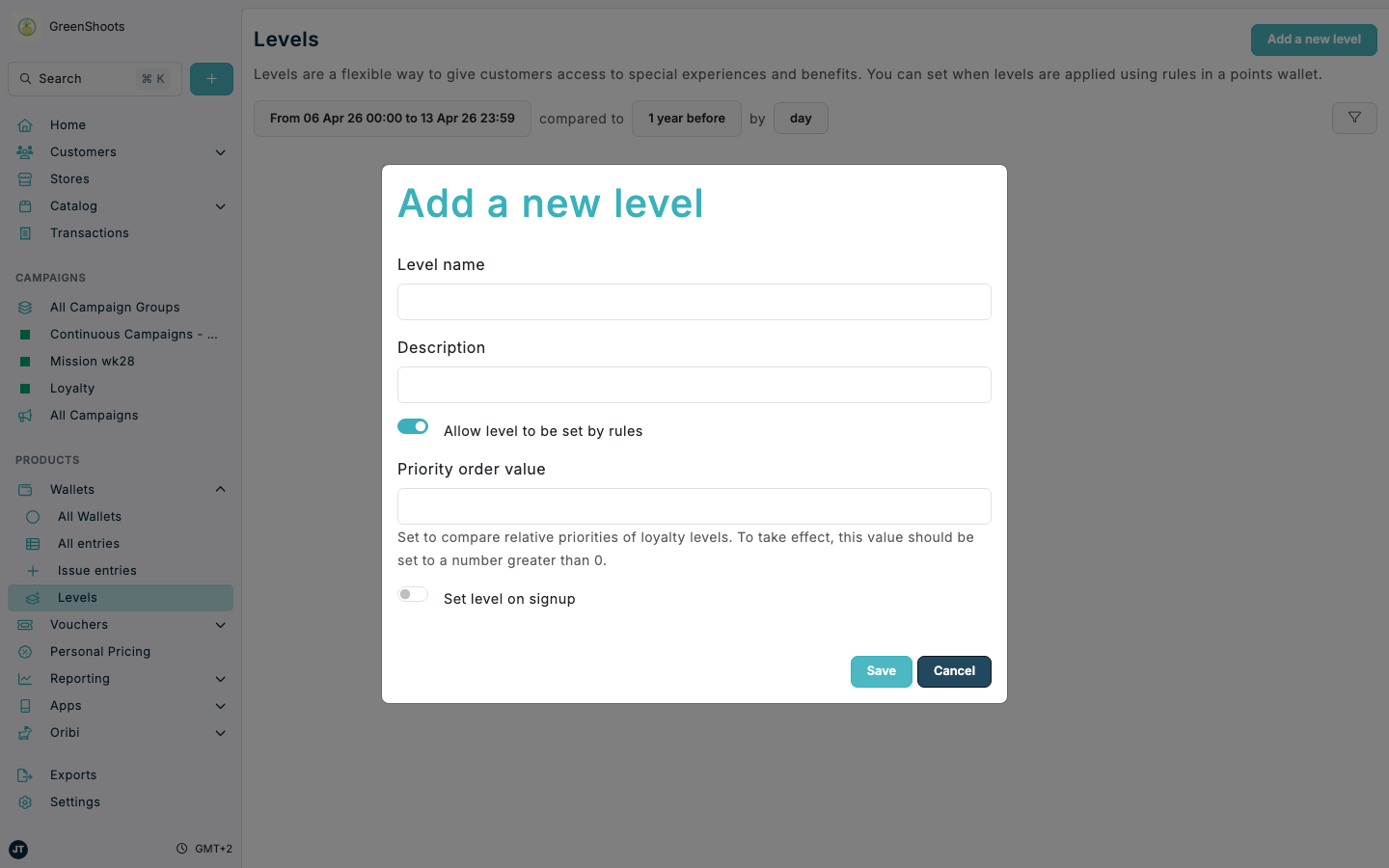
- Click Save.
- To edit an existing level, open the actions menu on the level card, click Edit level, update the settings, then click Save.
If something looks different
- If Add a new level is not available, check that a base loyalty programme is configured in your account.
- If Priority order value is hidden, first turn on Allow level to be set by rules.
- If you need customers to move between levels automatically, make sure the related points wallet rules are configured after the level is created.
- If you need to review how many customers are in each level, or how many joined each level over time, open the Levels report.