Create and edit customers
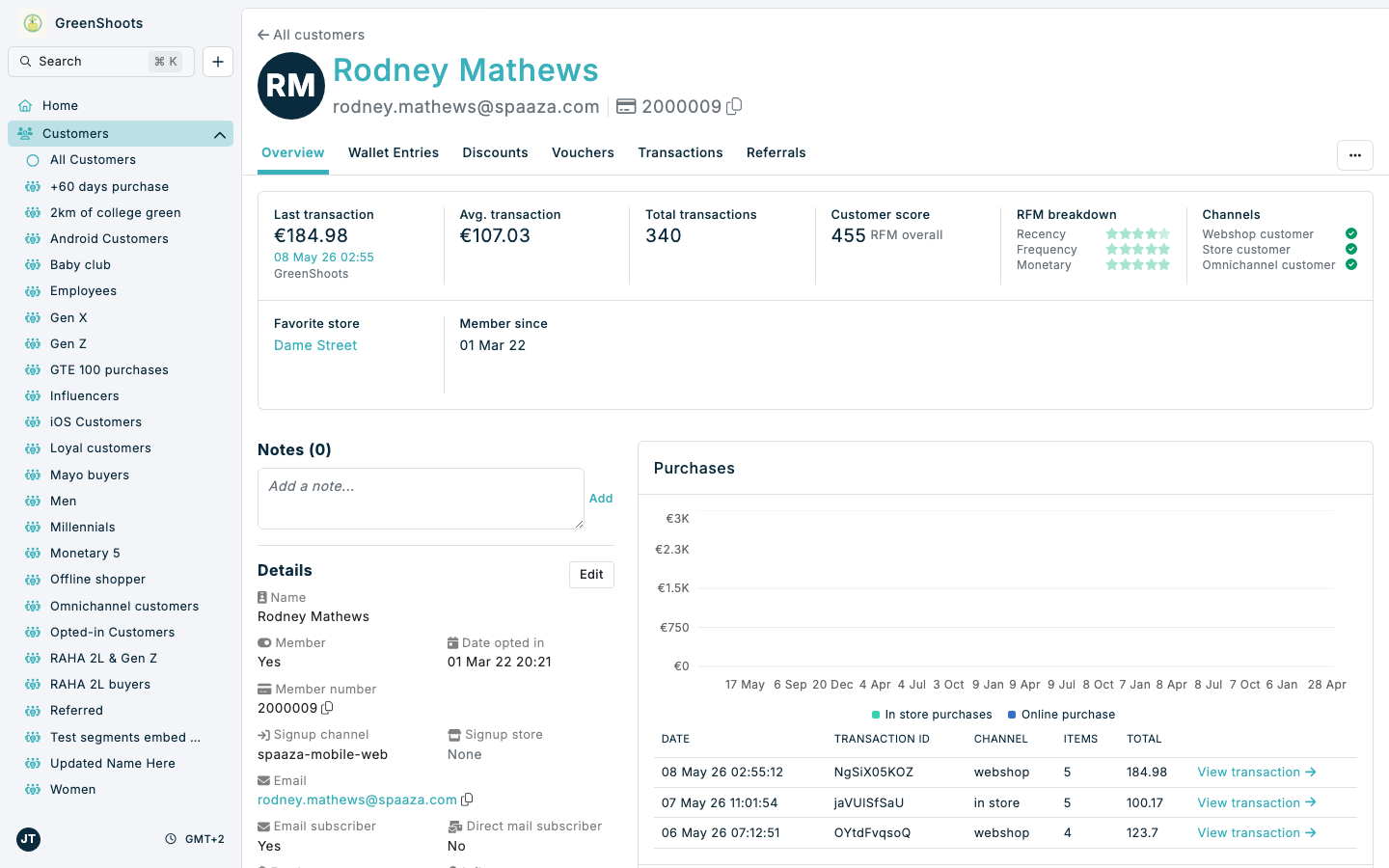
Use the Customers area to add new profiles and keep existing customer details up to date from one place in Spaaza Console.
Expected result
- After creating a customer, Console opens that customer profile on the Overview page.
- The top of Overview summarises transaction activity, customer score, RFM breakdown, channels, favourite store, and membership date. The page also brings together Notes, Details, Purchases, Wallets, and Available vouchers.
- After editing a customer, the saved values are visible in the profile Details section.
Create and edit customers in Console
Create a customer
- Open the All Customers page.
- Click Create a customer. On smaller screens, open Actions and select Create a customer.
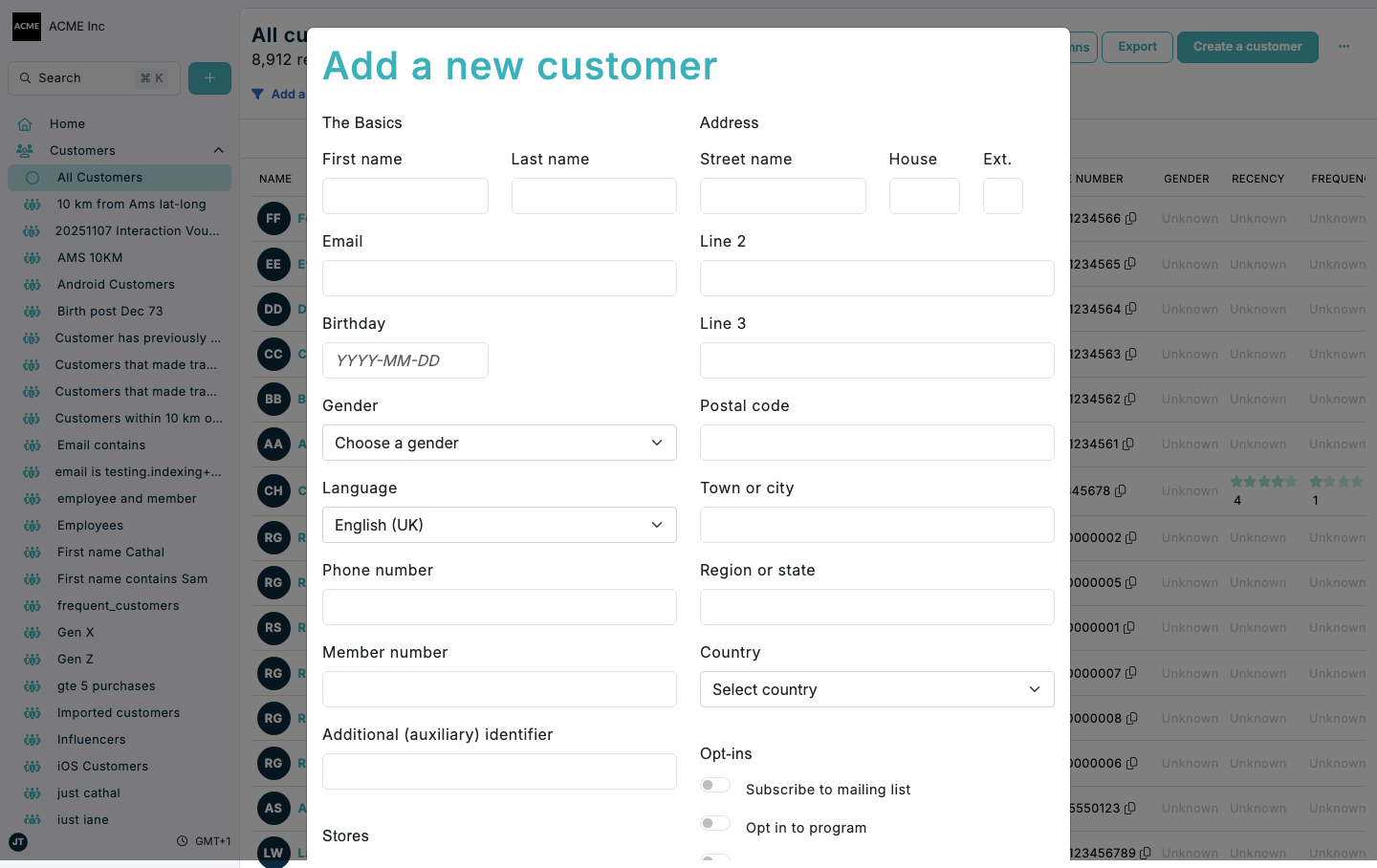
- In Add a new customer, complete First name, Last name, and Email.
- (Optional) Complete additional sections such as Address, Stores, Employee, Influencer, and Opt-ins.
- Click Save.
- Confirm Console opens the new profile at
/customers/customer/.../overview.
Edit an existing customer
- Open the All Customers page.
- Select a customer name to open their profile.
- On Overview, find Details and click Edit.
- In Update details, update the fields you need.
- Click Save.
- Review the updated values in Details on the Overview page.
If something looks different
- If Create a customer is not visible, verify you are on
/customers/segment/all, check Actions on smaller screens, and confirm you have permission to manage customers. - If Edit is not visible, open Overview and look beside the Details heading.
- If Save does not complete, check that First name, Last name, and Email are filled in.
- If profile changes are not visible after saving, refresh the page and confirm you opened the correct customer record.