Review a customer's purchased products
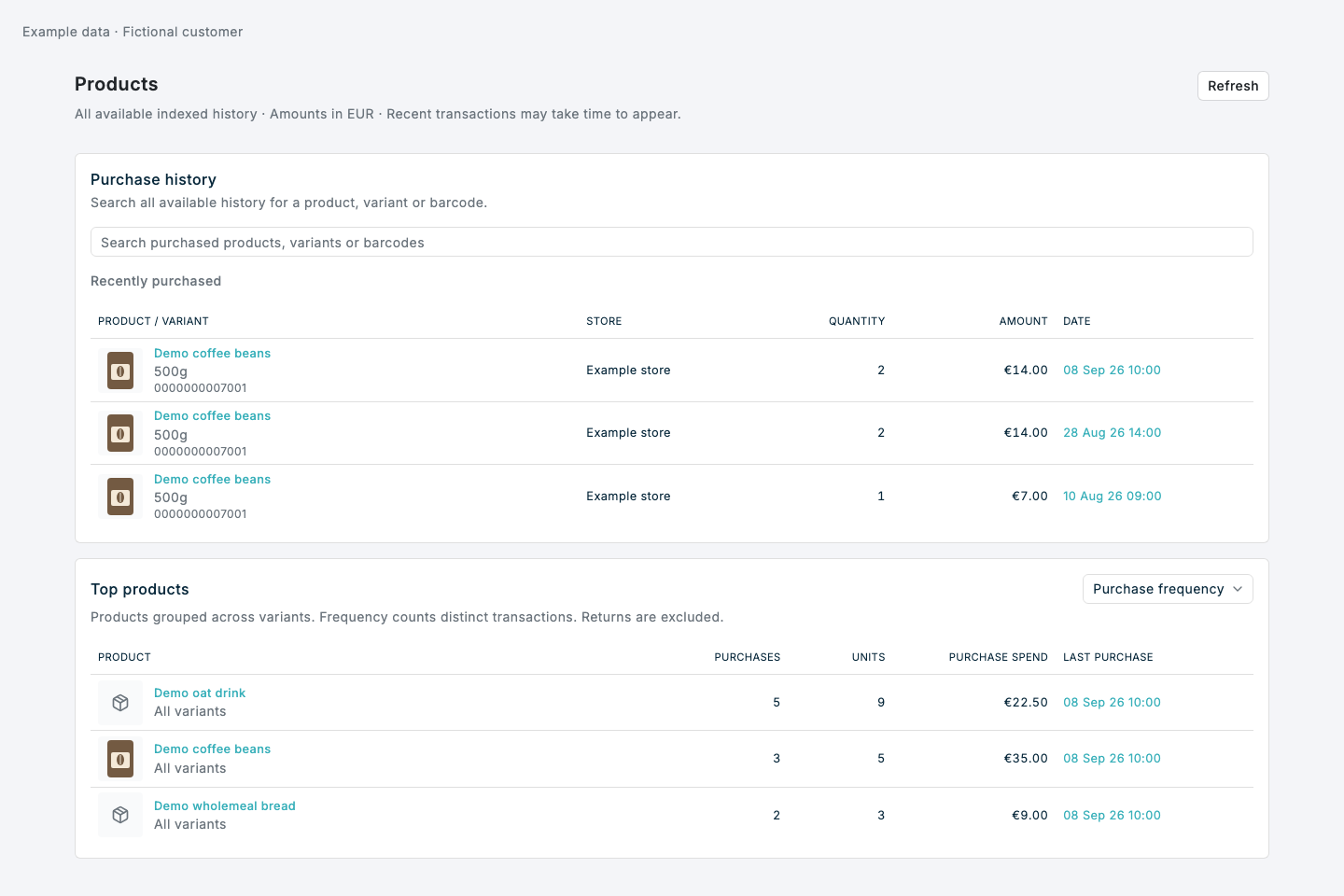
The Products tab shows recent purchases, top products, and purchase history for one customer. Your account needs analytics permission for the selected chain.
Open purchased products in Console
- Open the All Customers page.
- Select a customer.
- Select Products beside Transactions.
- Review Recently purchased and Top products.
Search and top products always cover all available indexed history for this customer in the selected chain. The Purchase history card initially shows Recently purchased.
Find a product or variant
- In Purchase history, enter a product name or barcode in Search purchased products, variants or barcodes.
- Select a suggestion from Product or Variant.
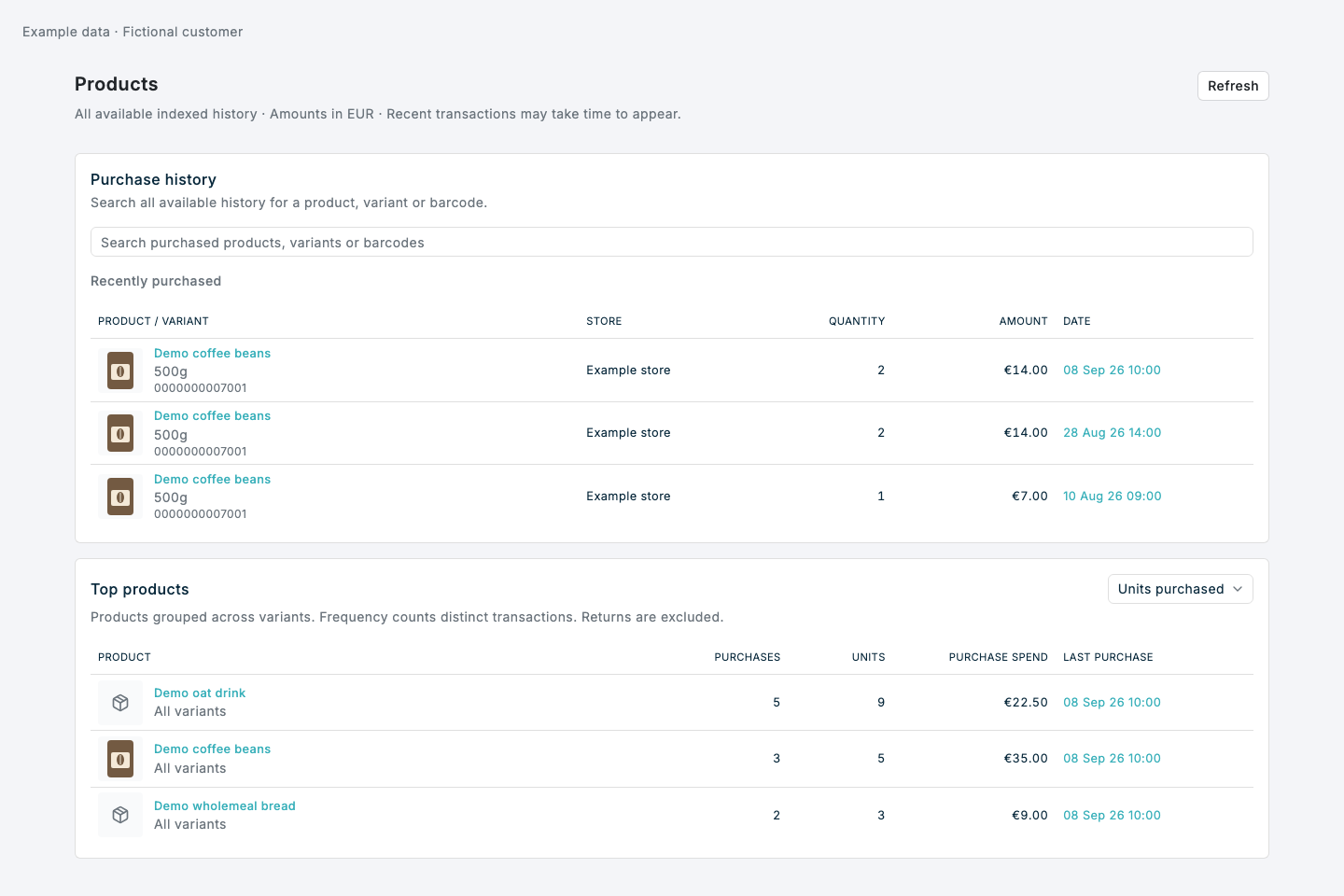
- Review the purchase totals, Purchases over time histogram, and Search results.
- Select a purchase’s Date to open its transaction details. The Store column shows where the purchase was made.
- Select Customer products to return to the same search.
A Product selection includes purchases across its variants. A Variant selection includes only that variant.
Press Enter to search recorded item names, product names, variant names, product codes, and barcodes. You can also select the History suggestion. Use the arrow keys and Enter to choose a highlighted suggestion. It can find historical items without a current catalogue entry.
For an exact barcode lookup, select the Barcode suggestion. Leading zeroes remain part of the barcode.
Product names in the purchase tables open that product's history. The variant link beneath a product opens the variant's history.
Compare top products
- Find Top products below the purchase history.
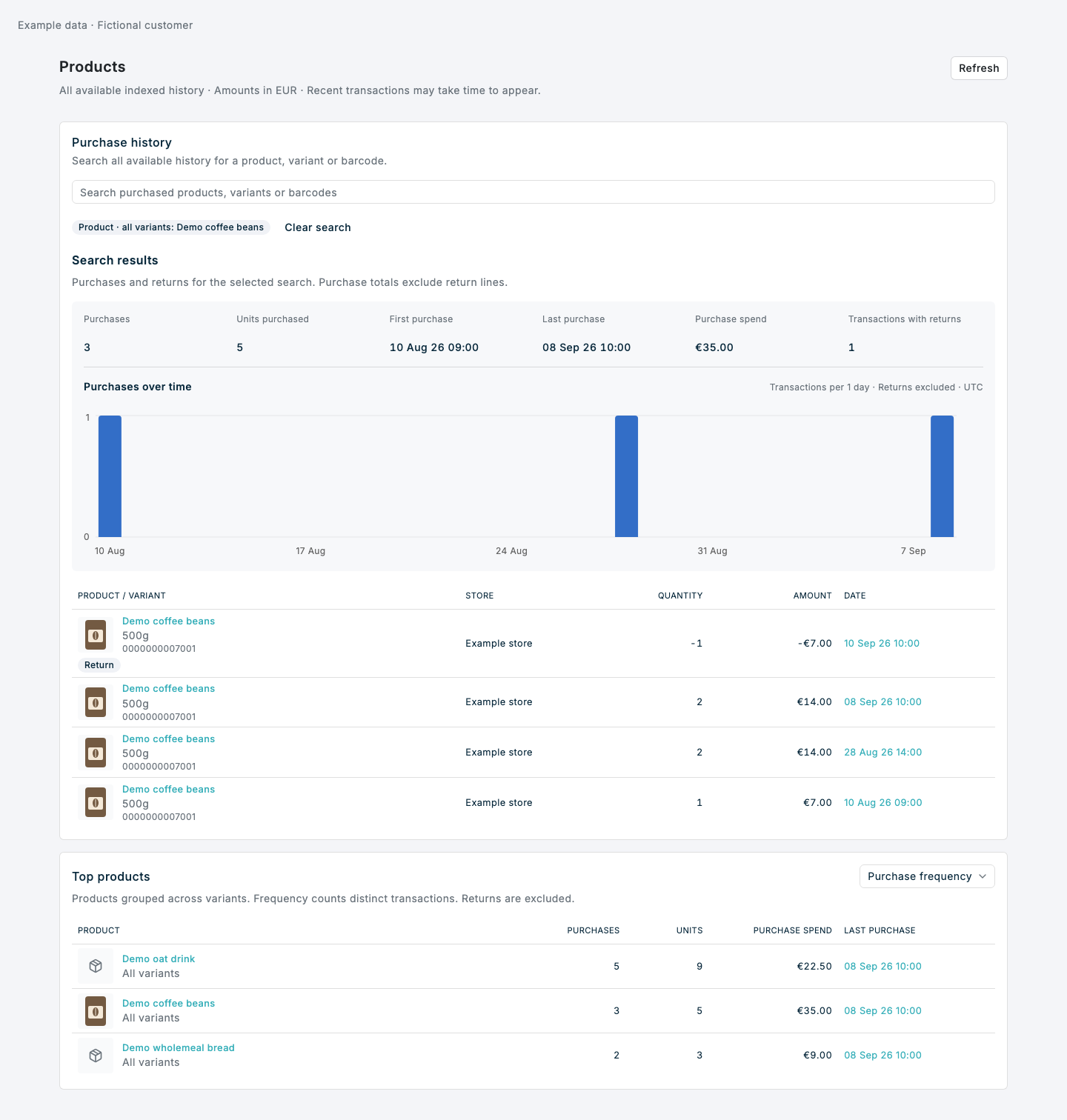
- Select Purchase frequency, Units purchased, or Purchase spend from the ranking selector.
- Select a product name to review its purchase history.
- Select its Last purchase date to open that transaction.
Purchase frequency counts transactions that contain the product. Multiple lines for the same product in one transaction count as one purchase.
Both tables show a product thumbnail when an image is available. Top products combine variants of the same product and show All variants beneath the name. Purchase lines without a linked catalogue product remain searchable but do not enter this ranking.
Return to recent purchases
- Select Clear search to return to Recently purchased.
- Select Load more transactions to see older transactions in the current results.
- Select Refresh to check for newly available purchases.
Read purchases over time
The histogram appears with the totals after a search. Each bar counts distinct purchase transactions in that time interval, across all available history. Multiple matching lines in one transaction count once. Returns are excluded.
The interval adjusts automatically to the customer's purchase history and is shown above the chart. Hover over a bar to see its date and purchase count. Loading more transaction rows does not change the histogram or totals.
Dates use the Console format, for example 11 Sep 26 14:30, in the active reporting timezone. The chart uses the same timezone, with shorter dates on its axis.
Understand totals and returns
- Purchases, Units purchased, and Purchase spend exclude return lines.
- Matching history includes returns with a Return label.
- Transactions with returns counts transactions with matching return lines.
- A return does not remove the original purchase from the purchase totals.
- All amounts on this page use prices converted to the chain currency, shown at the top of the page. Line amounts are converted unit price × quantity. The original currency remains available on the transaction.
- Transactions in different original currencies can be compared using converted amounts. If converted prices are missing, the affected spend is shown as — and spend ranking is unavailable.
Expected result
The customer's recent purchases and top products are visible. After selecting a product or variant, review its purchase totals, histogram, and matching transactions. Select a purchase date to open the transaction and Customer products to return to the same search.
If something looks different
- If Products is missing, check your analytics permission for the selected chain.
- Recent transactions can take time to appear. Refresh checks again.
- No purchases found in indexed history does not prove that the customer has never bought the item.
- An incomplete ranking includes a message. Search for a specific product to see its full purchase history.
- A temporary loading failure shows Try again. It does not show an empty history as a successful result.
- If your session has expired, sign in again. If access is denied, check analytics permission and the selected customer and chain.
- A rejected request shows its reason and an error code. Check the search selection; contact support with that code if it persists.
- For a transaction with more than 50 matching lines, select the purchase date or the Open transaction link to see the complete transaction.