Create and edit products
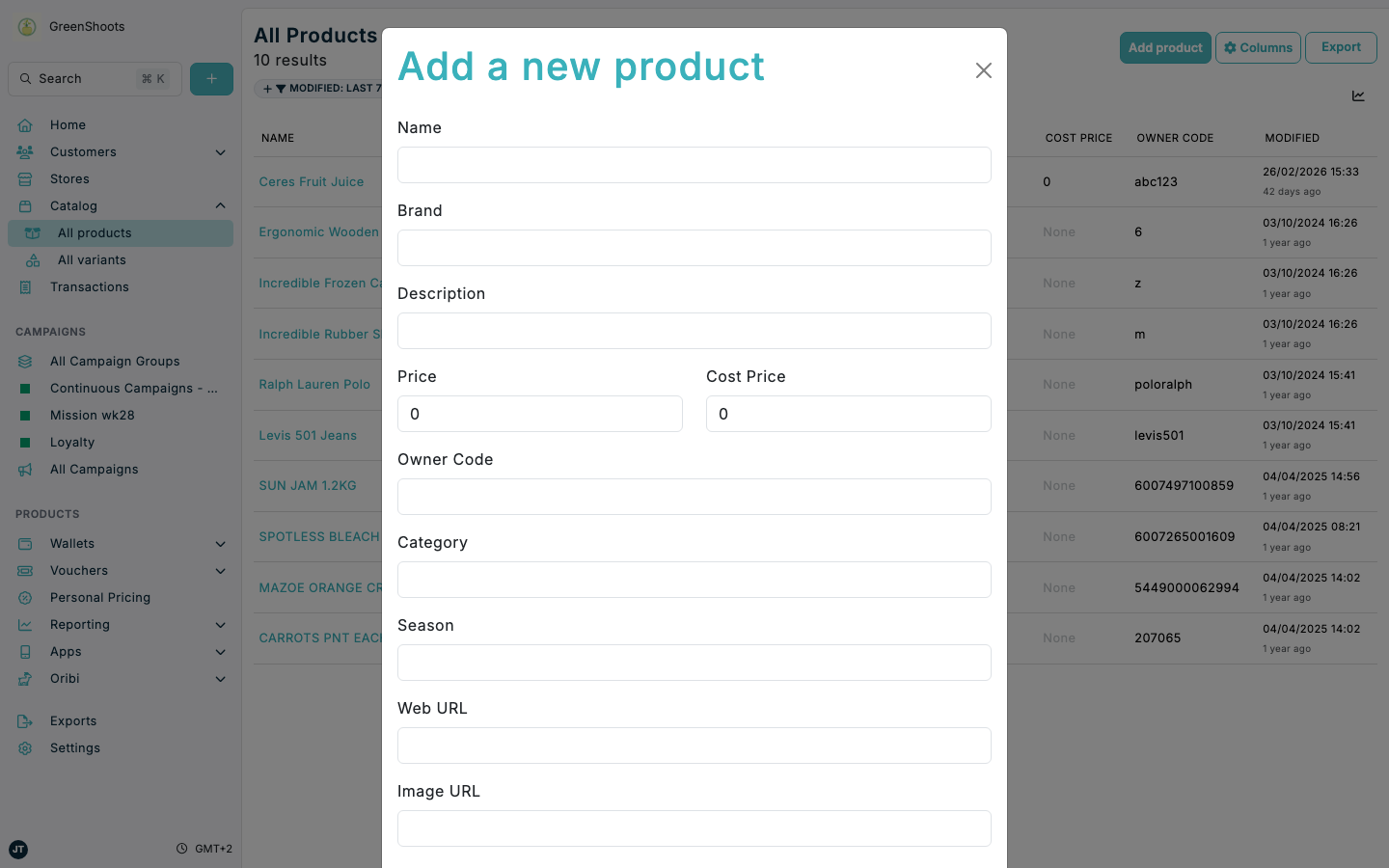
Use the product workflow when you need to add or update the parent catalog record for an item. Product records hold the shared details that sit above any linked variants.
Expected result
- Confirm the product opens on a URL ending in
/view/overview. - You can create a new product from the Products tab in Catalog.
- You can reopen an existing product and update it through Edit.
Create and edit products in Console
- Open Catalog, then select the Products tab.
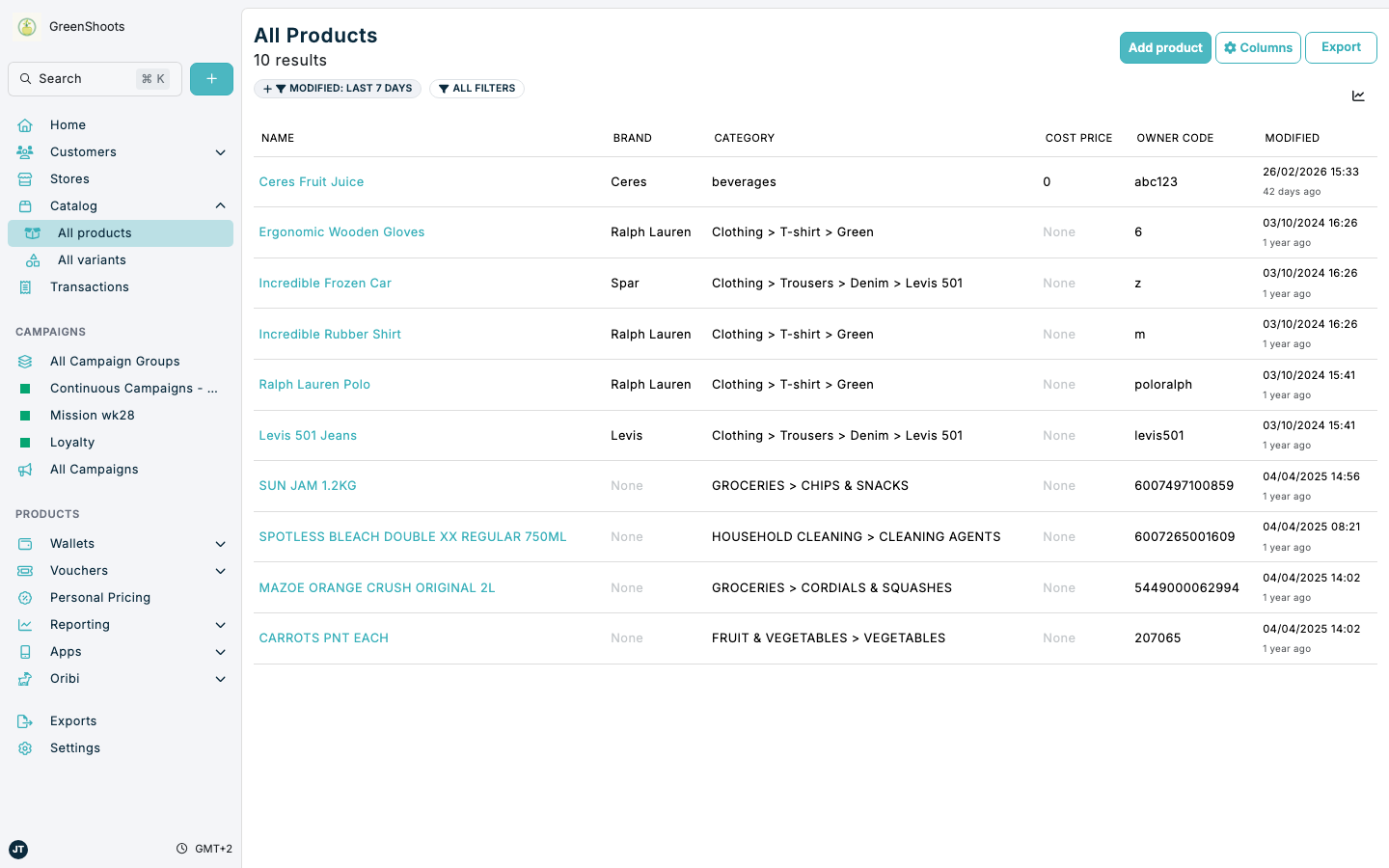
- Click Add product to open Add a new product.
- Complete the main product fields such as Name, Brand, Description, Price, and Owner Code.
- Add any optional fields you need, such as Category, Season, Web URL, Image URL, and Cost Price.
- Click Save. Confirm the product opens on its Overview page and the URL ends in
/view/overview. - To edit an existing product, open it from All Products, open the actions menu, and click Edit.
- Update the product details in Edit product, then click Update.
If something looks different
- If the product you need is missing from All Products, clear any active filters before searching again.
- If Add product is not visible, check that you are on the main All Products list rather than inside one product record.
- If the product does not save as expected, review key fields such as Name, Price, and Owner Code before trying again.