Create and edit variants
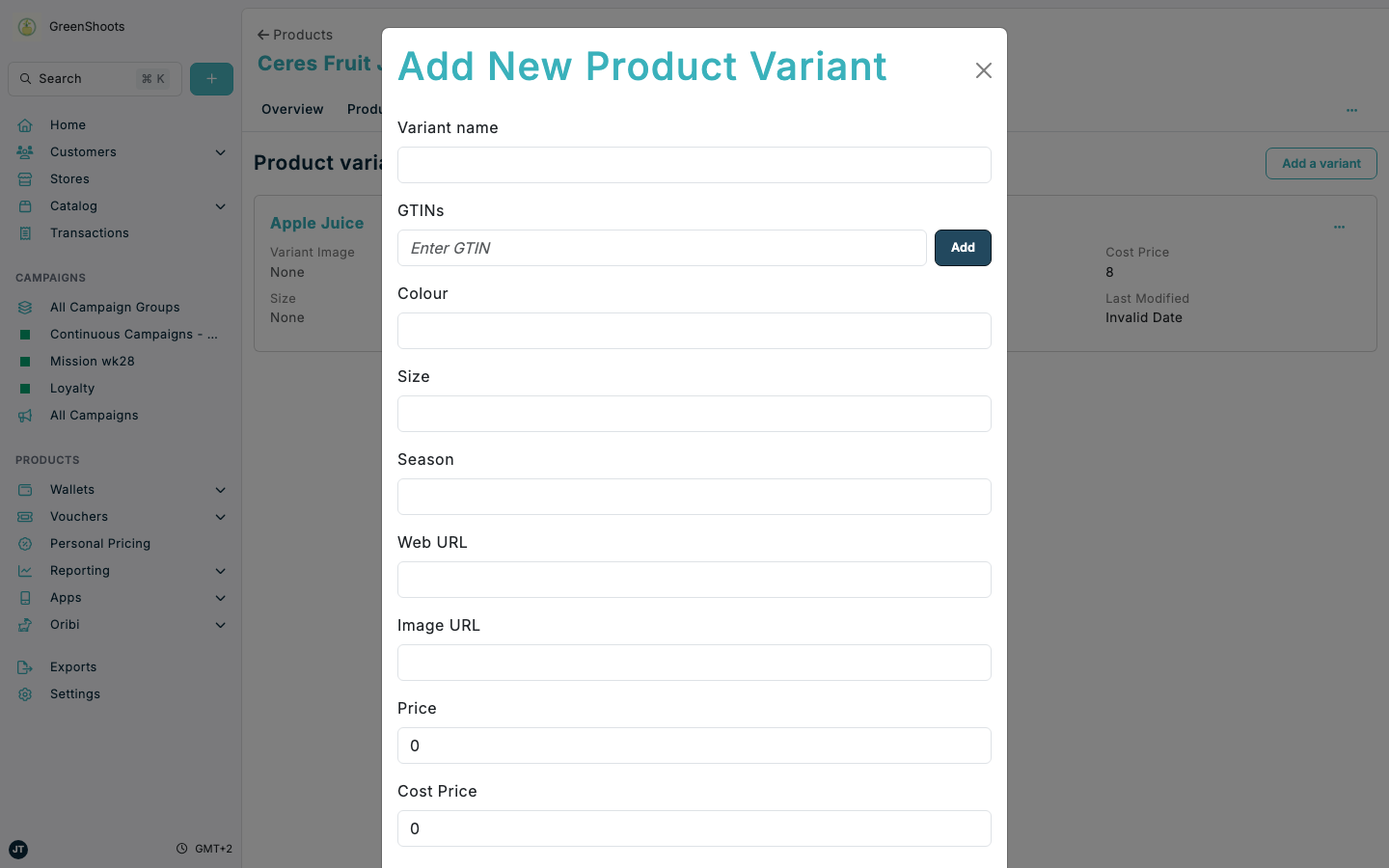
Use variants to manage the specific sellable versions of a product, including GTINs and any variant-level attributes. Variants are always created inside a parent product.
Expected result
- You can add a new variant from a product's Variants tab.
- The new variant appears in the product's variant list after saving.
- You can reopen an existing variant from its actions menu and update it.
Create and edit variants in Console
- Open Catalog, select the Products tab, then open the parent product.
- Open the product's Variants tab.
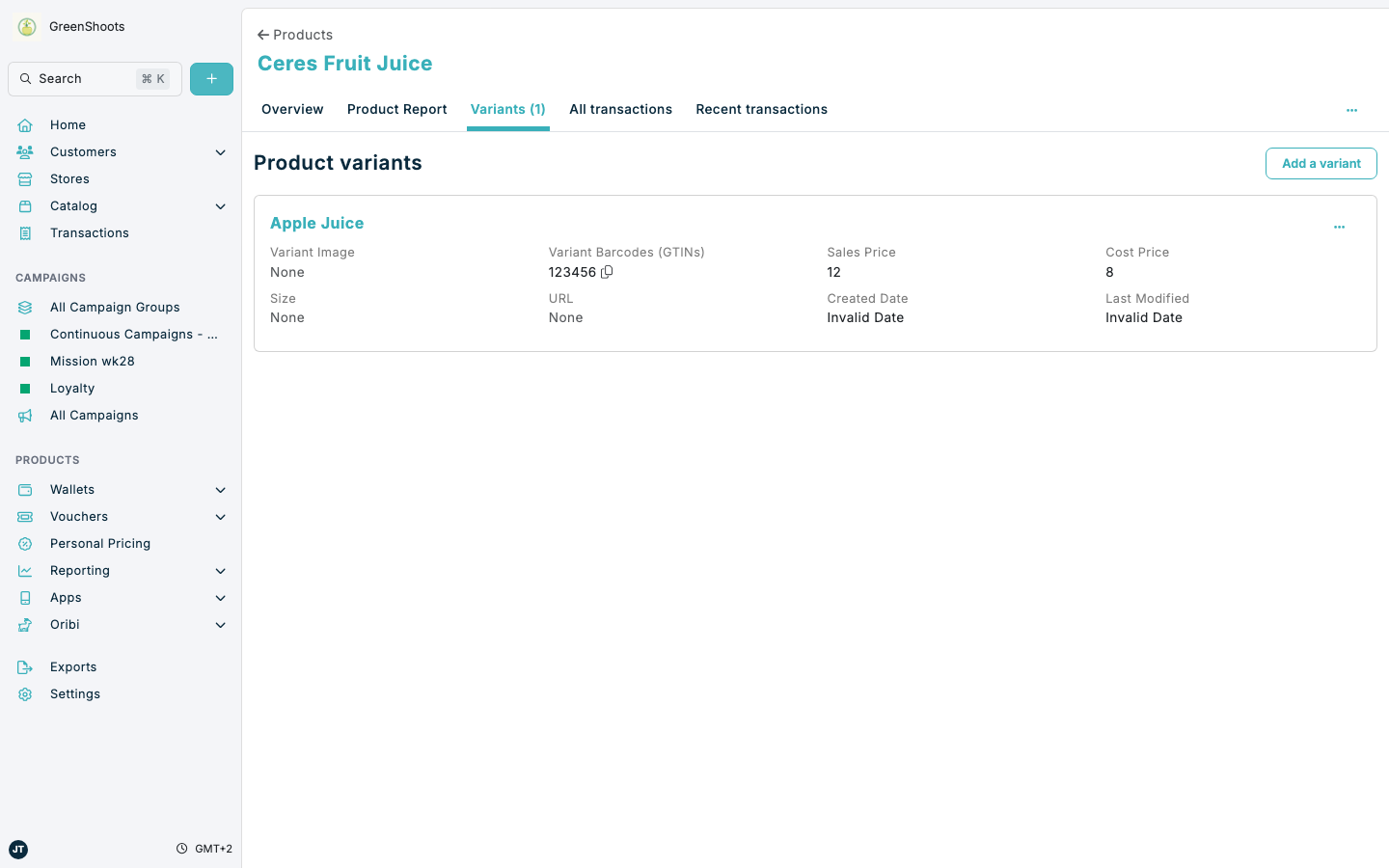
- Click Add a variant to open Add New Product Variant.
- Enter the Variant name and add one or more GTINs.
- Complete any additional fields you need, such as Colour, Size, Web URL, Image URL, Price, and Cost Price.
- Click Save to add the variant to the product.
- To edit an existing variant, use the variant's actions menu and click Edit Variant.
- Update the variant details in Edit Product Variant, then click Update.
If something looks different
- If you cannot add a variant, confirm you opened a product first. Variants are not created from the global All variants list.
- If the variant is missing after saving, refresh the Variants tab on the parent product and check the GTIN value you entered.
- If Edit Variant is not available, open the variant card's actions menu instead of the parent product actions menu.