Import Personal Pricing campaigns from CSV
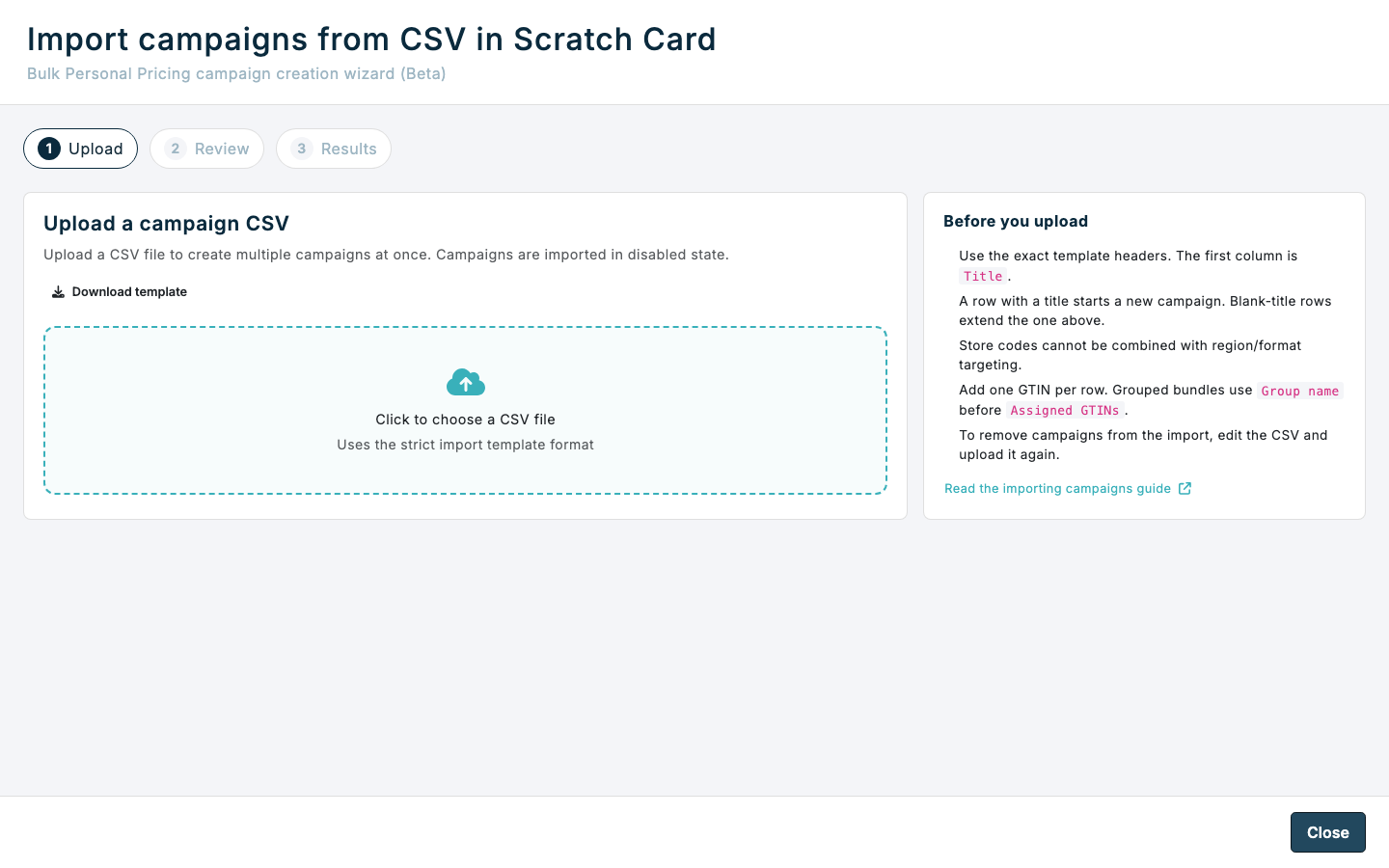
Use the campaign CSV importer when you need to create several Personal Pricing campaigns from one file. The importer uses a strict template, validates the rows before import, and creates campaigns in a disabled state so they can be reviewed before they are enabled.
Download the Personal Pricing campaign import template CSV
Expected result
- The CSV file uses the required template headers and supported Personal Pricing campaign type values.
- You can review the parsed campaigns and validation messages before anything is created.
- Imported campaigns are created in disabled state and can be opened for final review.
Import Personal Pricing campaigns in Console
- Open Campaign Groups.
- Create a new group or click on an existing group
- Click Add in the group, then choose Reward to open the campaign selection dialog.
- In the Personal Pricing Discounts section, click Import campaigns from CSV.

- Click Download template, or use the template linked above, and use that file as the starting point for your import.
- Enter one campaign on each row that has a Title in the first column. Add Subtitle and Description if needed. Use blank-title rows directly underneath it when you need to add more channels, stores, GTINs, or barcode group rows for the same campaign.
- Use the campaign type reference below to choose the correct Campaign Type value and required fields.
- Save the file as CSV. Choose CSV UTF-8 when your spreadsheet application offers it. Console also reads the common Western European Windows CSV encoding used by Excel, including accented characters such as
ë. - Return to the wizard and choose the CSV file.
- In Review, check the parsed campaigns, including Subtitle and Description, and fix any validation messages by editing the CSV and uploading it again.
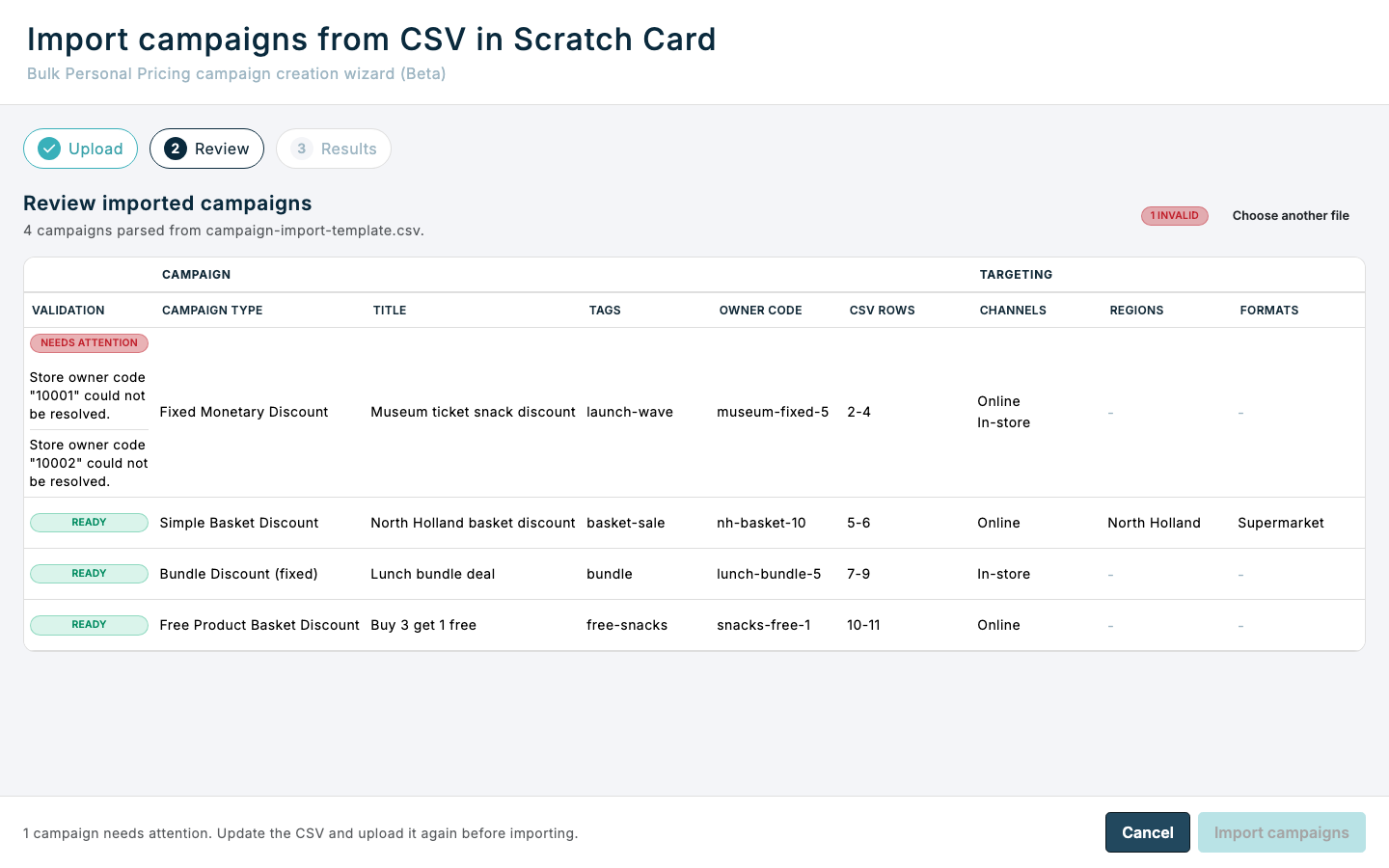
- Click Import campaigns.
- Open each created campaign and review the configuration before turning on Enable Campaign.
Optional subtitle and description
Use Subtitle for a campaign subtitle and Description for its longer description. Both fields are optional for all supported campaign types. You can leave the cells blank or omit either column. Existing CSV files without these columns still work.
Enter the text on the campaign's title row. Leave these fields blank on continuation rows, or repeat the same text. Different text for the same campaign causes a validation error.
Descriptions can contain commas, quotes, and line breaks. When you export from a spreadsheet, the application adds the CSV quoting. If you edit CSV directly, enclose these values in double quotes and write a quote inside the value as two double quotes.
Campaign type reference
Use the exact Campaign Type values shown here. The campaign titles match the titles used when you create or review these campaign types in Console.
| Campaign title | Campaign Type | How to fill the campaign-specific fields |
|---|---|---|
| Simple Basket Discount campaign | basket | Use flat GTINs in Assigned GTINs, one GTIN per row, when products are assigned. Discount must be a decimal between 0 and 1; for example, 0.15 means 15% off. |
| Fixed Monetary Discount Campaign | fixed_monetary_discount | Use flat GTINs in Assigned GTINs, one GTIN per row. Discount is the monetary amount discounted per matching item. |
| Free Product Basket Discount Campaign | free_product | Use flat GTINs in Assigned GTINs, one GTIN per row. Enter Required matching items and Free item quantity. Leave Discount blank. |
| Simple Bundle Campaign | product_combo_price | Use flat GTINs in Assigned GTINs, one GTIN per row. Enter Required matching items and set Discount to the fixed bundle price. |
| Fixed Price Bundle Discount Campaign | meal_deal | Use barcode groups. Set Discount to the fixed bundle price. |
| Monetary Discount Bundle Discount Campaign | meal_deal_monetary_discount | Use barcode groups. Set Discount to the monetary bundle discount. |
| Per Unit Discount Campaign | quantity_unit | Use flat GTINs in Assigned GTINs, one GTIN per row. Discount is the monetary discount per unit. |
Flat GTIN campaigns
Flat GTIN campaigns use Assigned GTINs without Group name. Add one GTIN per row. Use blank-title continuation rows below the campaign row when you need to assign more than one GTIN.
Flat GTIN campaign types are:
basketfixed_monetary_discountfree_productproduct_combo_pricequantity_unit
Example:
Title,Campaign Type,Required matching items,Free item quantity,Group name,Assigned GTINs,Discount
Buy 3 get 1 free,free_product,3,1,,SKU-SNACK-1,
,,,,,SKU-SNACK-2,
Barcode group campaigns
Barcode group campaigns use Group name before Assigned GTINs, with one Assigned GTINs value per row. Set Group name on the first row of each group. Leave Group name blank on the following rows that add more GTINs to the same group.
Barcode group campaign types are:
meal_dealmeal_deal_monetary_discount
For barcode group campaigns:
- A group must be started before grouped GTINs are added.
- A group cannot be reopened after another group has started.
- Each grouped row must contain exactly one GTIN in Assigned GTINs.
- Supplier funding is read per group from the row that starts the group.
- Required matching items can be left blank. When it is blank, it defaults to the number of groups. When it is entered, it must equal the number of groups.
Example:
Title,Campaign Type,Required matching items,Group name,Assigned GTINs,Discount,Supplier funding
Drink and snack bundle,meal_deal,,Drink,5449000009067,5,1.00
,,,,5449000258953,,
,,,Snack,7612345678901,,0.50
If something looks different
- If Import campaigns from CSV is not visible, check that you are creating a campaign from the Personal Pricing Discounts section.
- If the wizard rejects the file before review, confirm that the CSV still uses the exact downloaded template headers.
- If text already contains the replacement character
�before upload, return to the original source data and export it again. The original character cannot be recovered from�. - If a row is invalid, edit the CSV and upload it again. The wizard does not edit campaign rows directly.
- If you need to change imported campaigns after they are created, open each campaign from the import results or from All campaigns and edit it there.