View and filter promotions applied
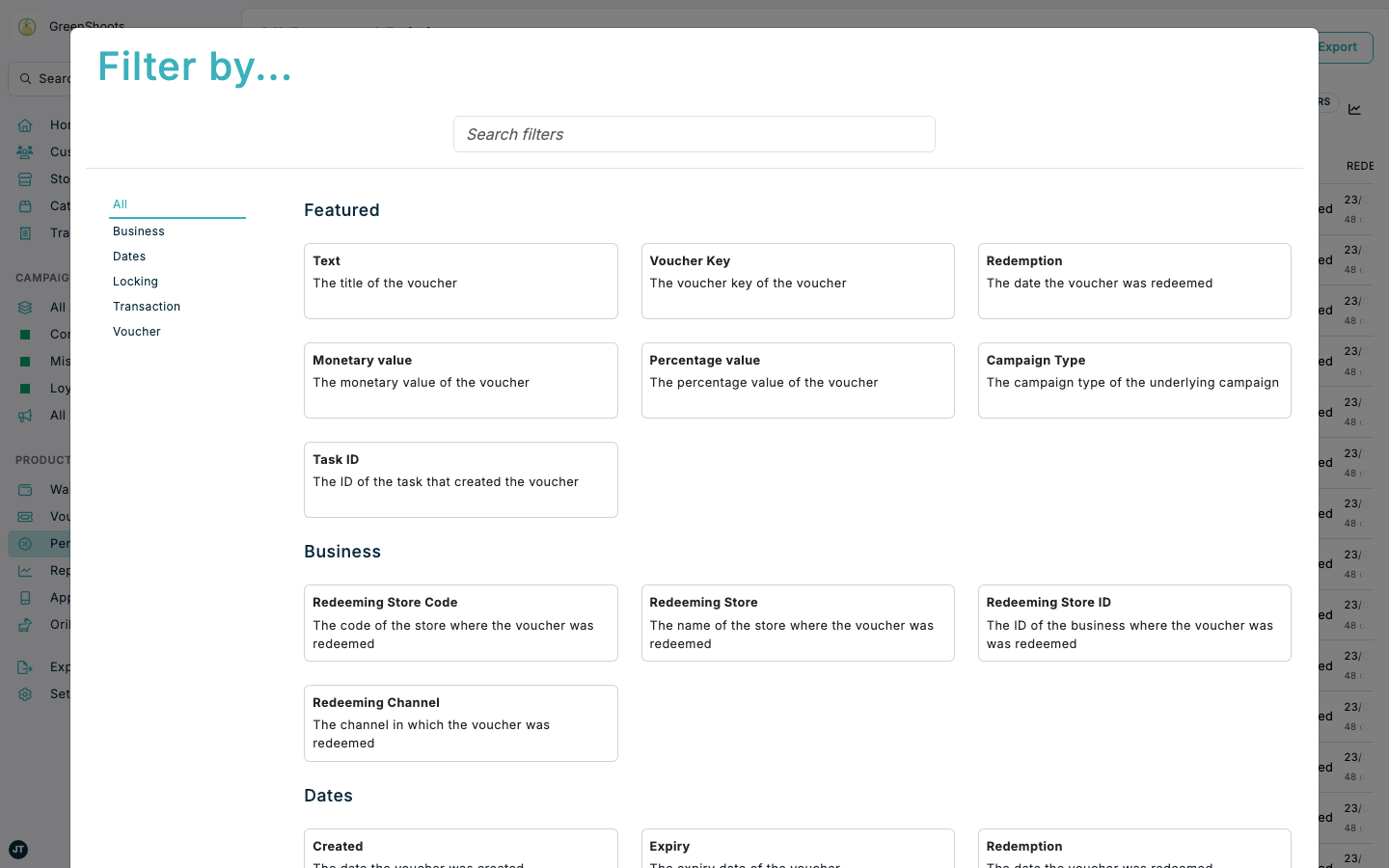
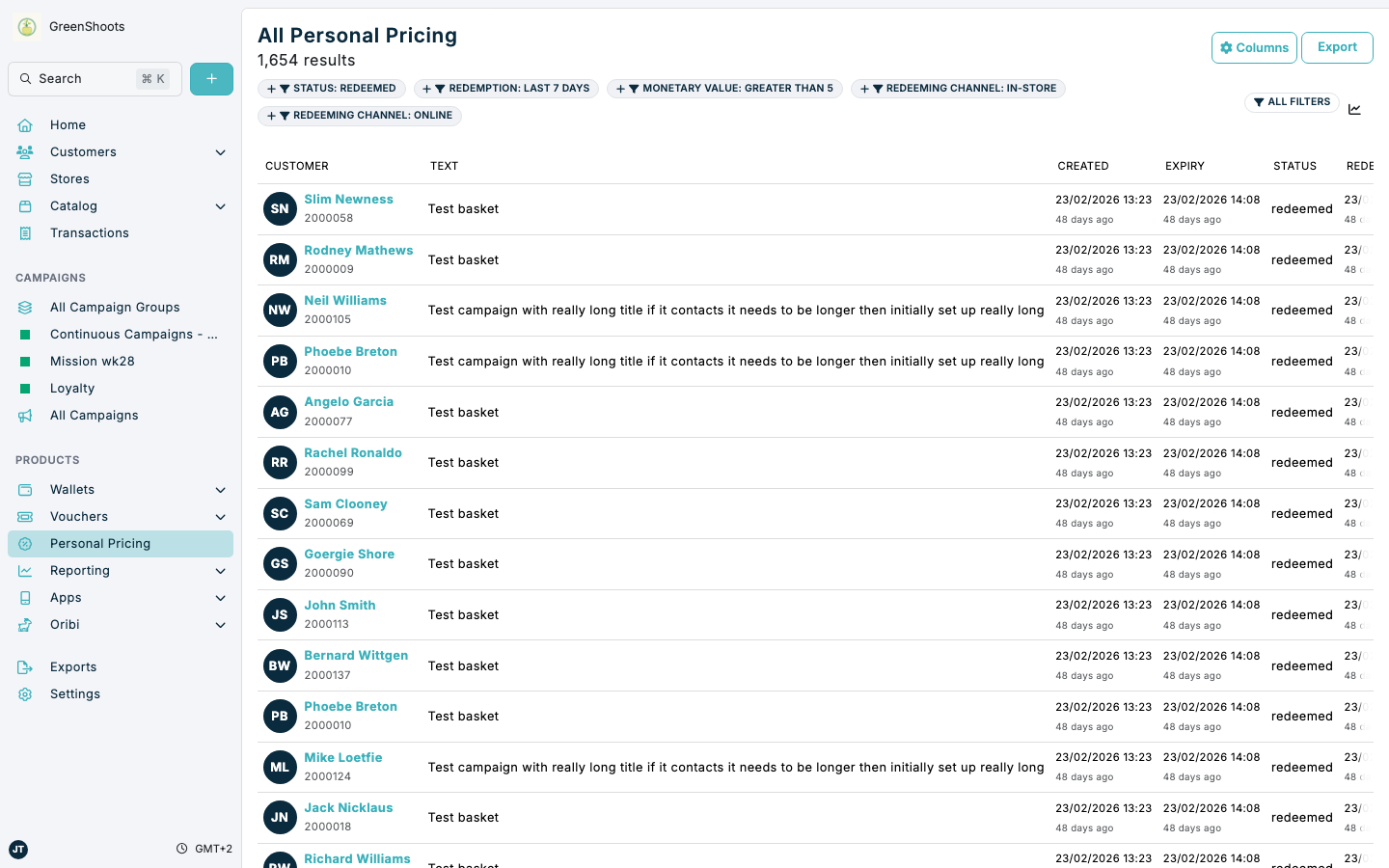
Use Personal Pricing filters when you need to narrow the applied-discount list to the records you want to review, export, or troubleshoot. The same filter pattern is available on the main All Personal Pricing list, in a campaign's Discounts applied tab, and on a store's Personal Pricing page.
Different Personal Pricing filters use different controls:
- Status and date filters such as Status, Created, Expiry, and Redemption help you focus on a time window or state.
- Discount value filters such as Monetary value and Percentage value help you isolate particular types of discounts.
- Source and redemption filters such as Campaign, Campaign ID, Redeeming Store, Redeeming Channel, and Redeeming Transaction help you trace where a discount was applied.
- Customer and task filters such as First Name, Last Name, User ID, and Task ID help you review a specific customer or import run.
Expected result
- You can add Personal Pricing filters from the full filter library.
- Active filter chips show the rules currently applied to the list.
- The results count and table update to match the rules you apply.
View and filter promotions applied in Console
- Open All Personal Pricing or another Personal Pricing list that is already scoped to a campaign or store.
- Click All filters.
- Use Search to find the field you want, or browse the filter groups shown in the modal.
- Add the filter you need. Common Personal Pricing filters include Status, Redemption, Monetary value, Percentage value, Campaign, Campaign ID, Redeeming Store, Redeeming Channel, Redeeming Transaction, First Name, Last Name, User ID, and Task ID.
- Choose the operator and enter the value for the rule.
- Add more filters if needed. When several rules are active, use Match All if every rule must be true or Match Any if a record can match any one of the rules.
- Review the updated results count and rows in the table.
- Click a filter chip again whenever you need to change it, or click the
xon the chip to remove it.
If something looks different
- If you do not see the field you need, use All filters and search by name instead of relying on the featured filter cards.
- If a campaign or store page already shows locked chips such as Campaign ID or Redeeming Store ID, those are part of the page scope and are expected.
- If the list is empty, review whether Match All or Match Any matches the way you want several rules to work together.