Export vouchers
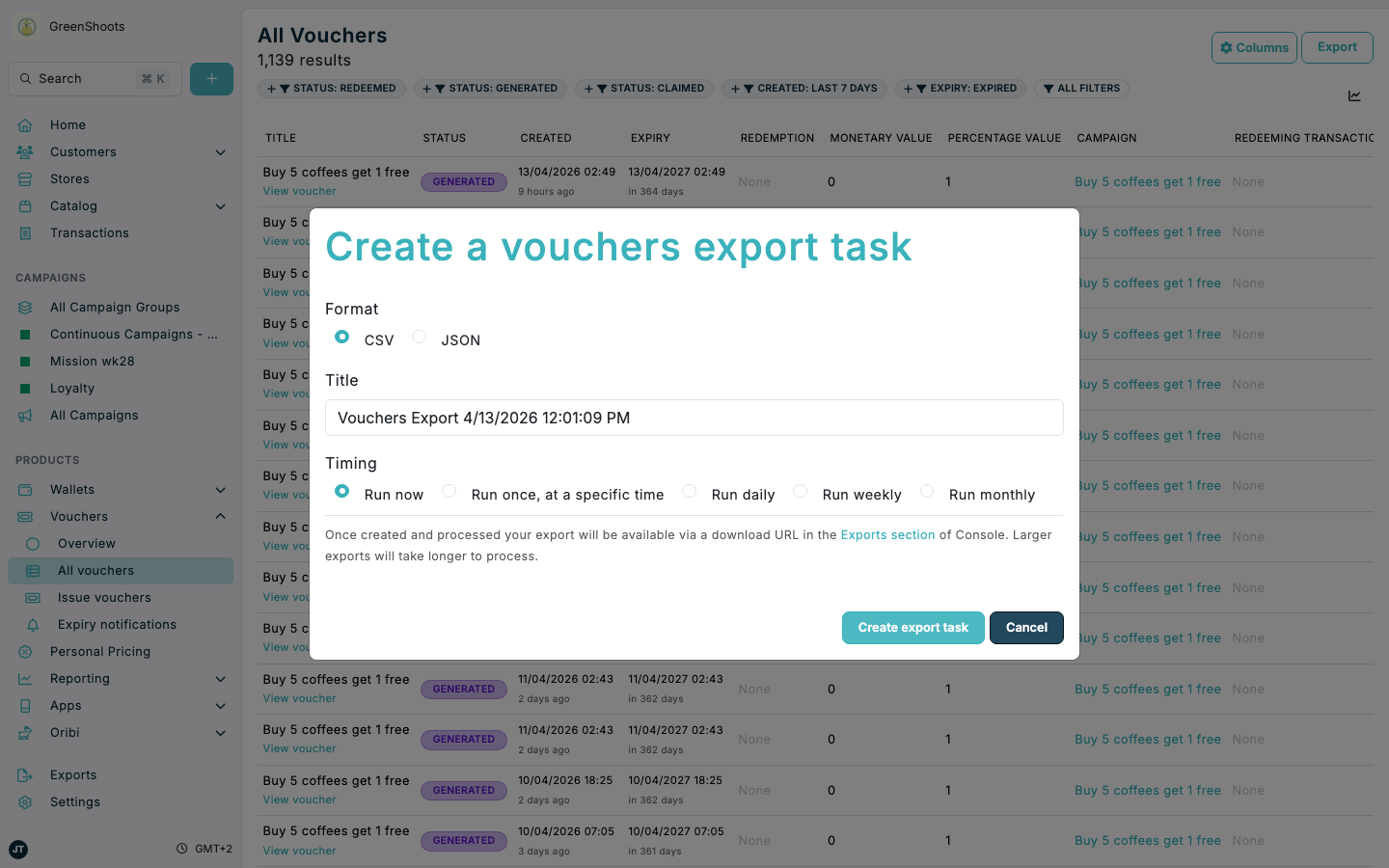
Export the exact voucher set shown in your current voucher list when you need a file for analysis, operations, or downstream processing. Voucher exports use the current filters on the page, so you can export all vouchers or a filtered subset.
Expected result
- You can open the voucher export task form from a voucher list.
- You can choose the export format and timing for the export.
- The export becomes available from the Exports section after the task is processed.
Export vouchers in Console
- Open All vouchers or another voucher list that already matches the records you want to export.
- Apply any voucher filters you want to include in the export.
- Click Export.
- In Create a vouchers export task, choose the Format you want to use: CSV or JSON.
- Review the Title and change it if needed.
- In Timing, choose when the export should run. You can use Run now, Run once, at a specific time, Run daily, Run weekly, or Run monthly.
- Click Create export task.
- Use View exports in the confirmation message, or open the Exports section, and download the finished export when it is ready. A green dot also highlights Exports in the main navigation.
Where you can export voucher lists
The same Export action is available on voucher lists opened from:
- All vouchers
- A campaign page in Vouchers issued
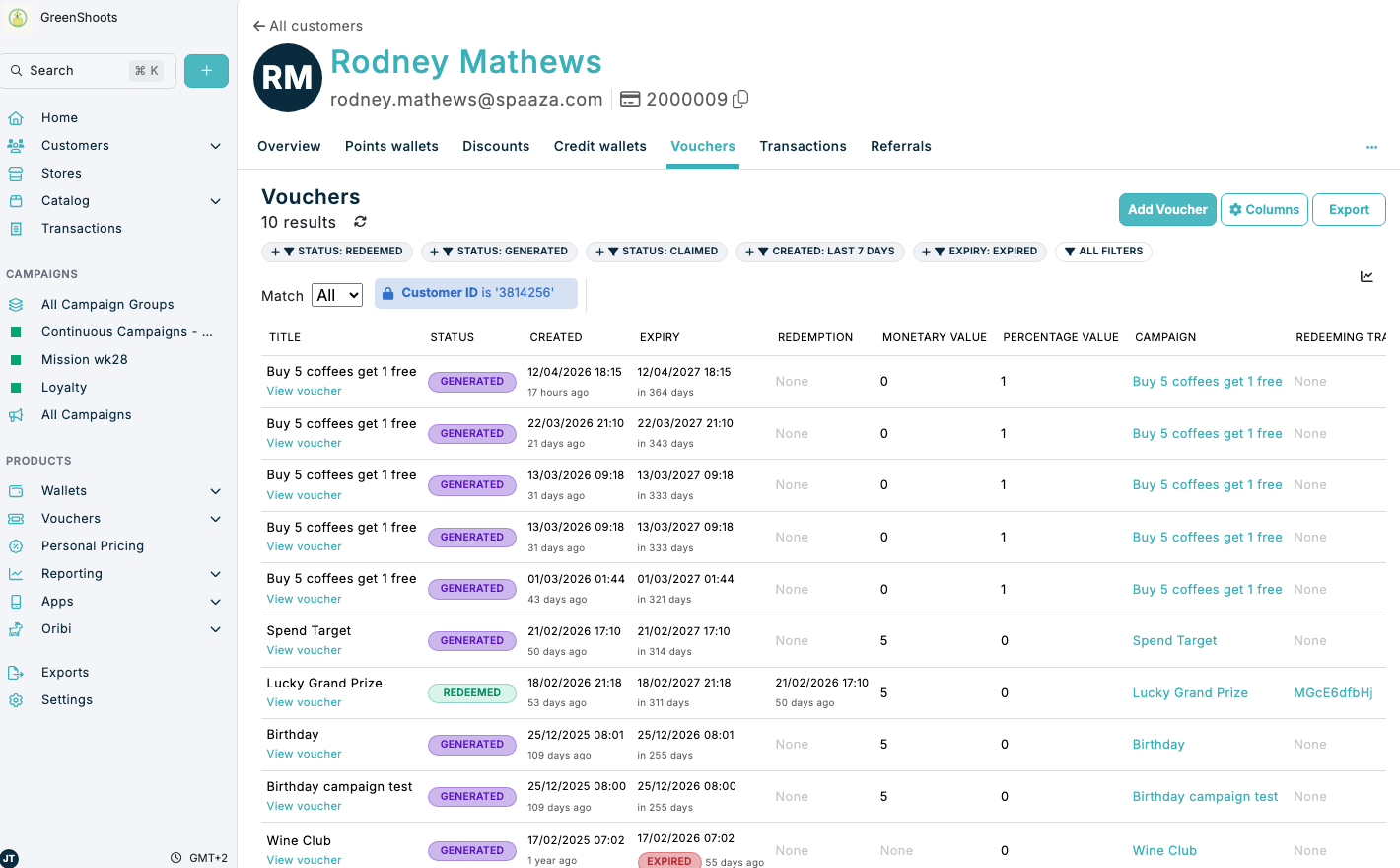
- A customer profile in Vouchers
- A store page in Vouchers
If something looks different
- If the export contains too many or too few vouchers, return to the voucher list and review the active filter chips before you create the export task.
- If the export is not available immediately, open Exports and wait for the task to finish processing.
- If you need a recurring voucher export, choose one of the scheduled timing options in Timing instead of Run now.