Issue vouchers to a single customer
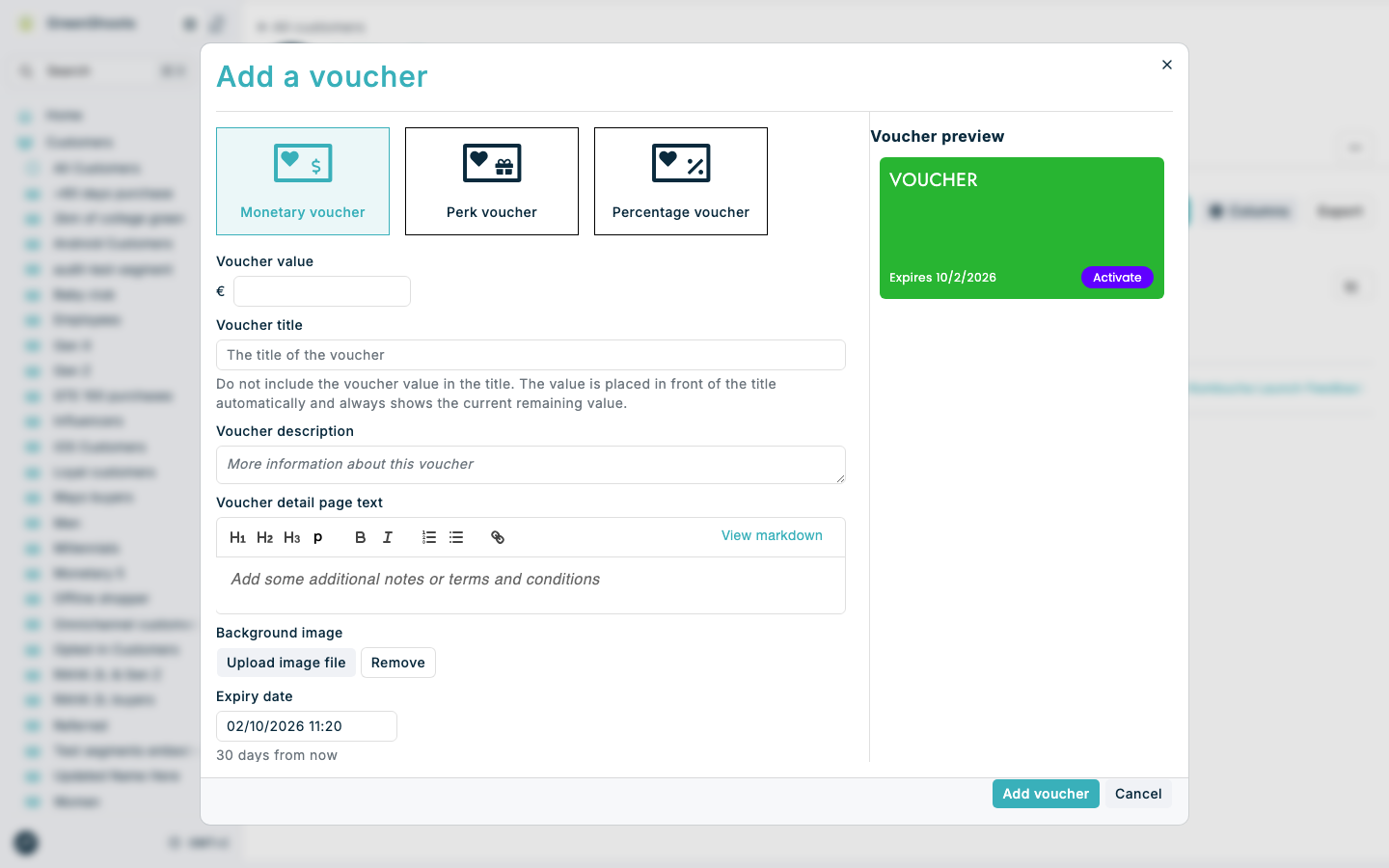
Use the customer profile when you need to add a voucher manually for one person. This is useful when you want to grant an individual customer a voucher directly instead of issuing it through a campaign or scheduled task.
Expected result
- You can review the Add a voucher form before you save the voucher.
- The voucher is added directly to the selected customer.
- The voucher appears in that customer’s voucher list with the type, value, and expiry settings you chose.
Issue vouchers to a single customer in Console
-
Open the customer you want to update in Customers.
-
Open Vouchers in the customer navigation.
-
Click Add Voucher.
-
In Add a voucher, choose the voucher type you want to add: Monetary voucher, Perk voucher, or Percentage voucher.
-
Complete the voucher fields. Depending on the type, set Voucher value, Voucher title, Voucher description, Voucher detail page text, Background image, and Expiry date. For a monetary voucher, do not include the value in Voucher title. The value is placed in front of the title automatically and always shows the remaining value.
-
If you are adding a perk voucher, enter the Third party code. If you are adding a percentage voucher, set the Percentage discount.
-
Review the Voucher preview beside the fields to confirm the voucher content looks right for that customer. It updates as you type.
-
Click Add voucher.
-
Wait for the customer’s vouchers list to refresh, then review the new voucher in Vouchers.
For a Percentage voucher, enter a Percentage discount greater than 0 and no more than 100. Enter 20 for a 20% discount. Enter 100 for a 100% discount.
If something looks different
- If Add Voucher is not visible, check that you are on the individual customer’s Vouchers page and that you have permission to manage vouchers.
- If the voucher type fields do not match what you expect, choose a different voucher type first in Add a voucher.
- If the new voucher does not appear immediately after saving, refresh the customer page and open Vouchers again.