Review voucher reporting
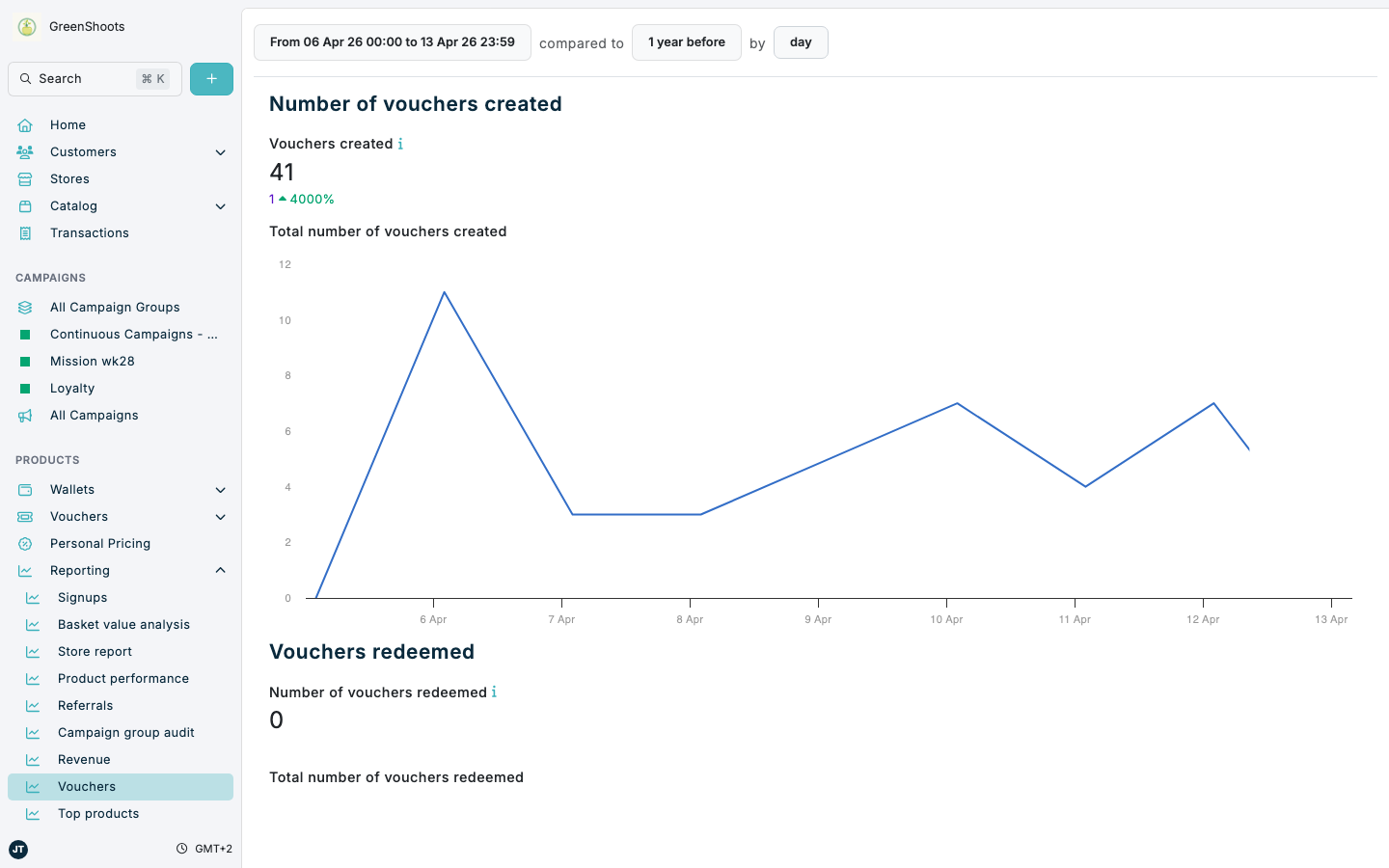
Voucher reporting is available in several Console views. Use the voucher list when you need individual voucher records, the Vouchers report when you need trends over time, and dashboard views when you need campaign, home, or store summaries.
Expected result
- You know which Console view to use for voucher lists, trend reporting, and dashboard summaries.
- You can apply the date controls in the Vouchers report to change the reporting period.
- You can review the all-time generated, claimed, and redeemed status split for all vouchers.
- You can review voucher issuance and redemption reporting at all-voucher, campaign, home, and store level.
Review voucher reporting in Console
- Open All vouchers when you need a list of generated vouchers. For record-level filtering and list views, follow View and filter issued vouchers.
- Open the Vouchers report when you need voucher reporting over time instead of individual voucher records.
- Click the date range button that starts with From ... to ..., choose the reporting period, then click Apply.
- Optional: click the comparison control next to compared to, choose the comparison period, then click Apply.
- Optional: change the interval with Hour, Day, Week, or Month.
- Review Number of vouchers used and Value of vouchers used for the dashboard redemption summary, then review Number of vouchers created for issued voucher volume, Vouchers redeemed for redeemed voucher counts and value, and Vouchers expired for expired voucher counts and value.
- Open a campaign that issues vouchers and click Report when you need campaign-specific voucher reporting. Use Summary for Vouchers issued, Redemptions by time of week, product performance for products that earn vouchers, product performance for redemption products, and All vouchers issued by status. Use Basket context for redemption-focused charts, Channel performance for store and product sales breakdowns, and Price and mechanics for redemption-product price mechanics when the campaign has redemption product assignments.
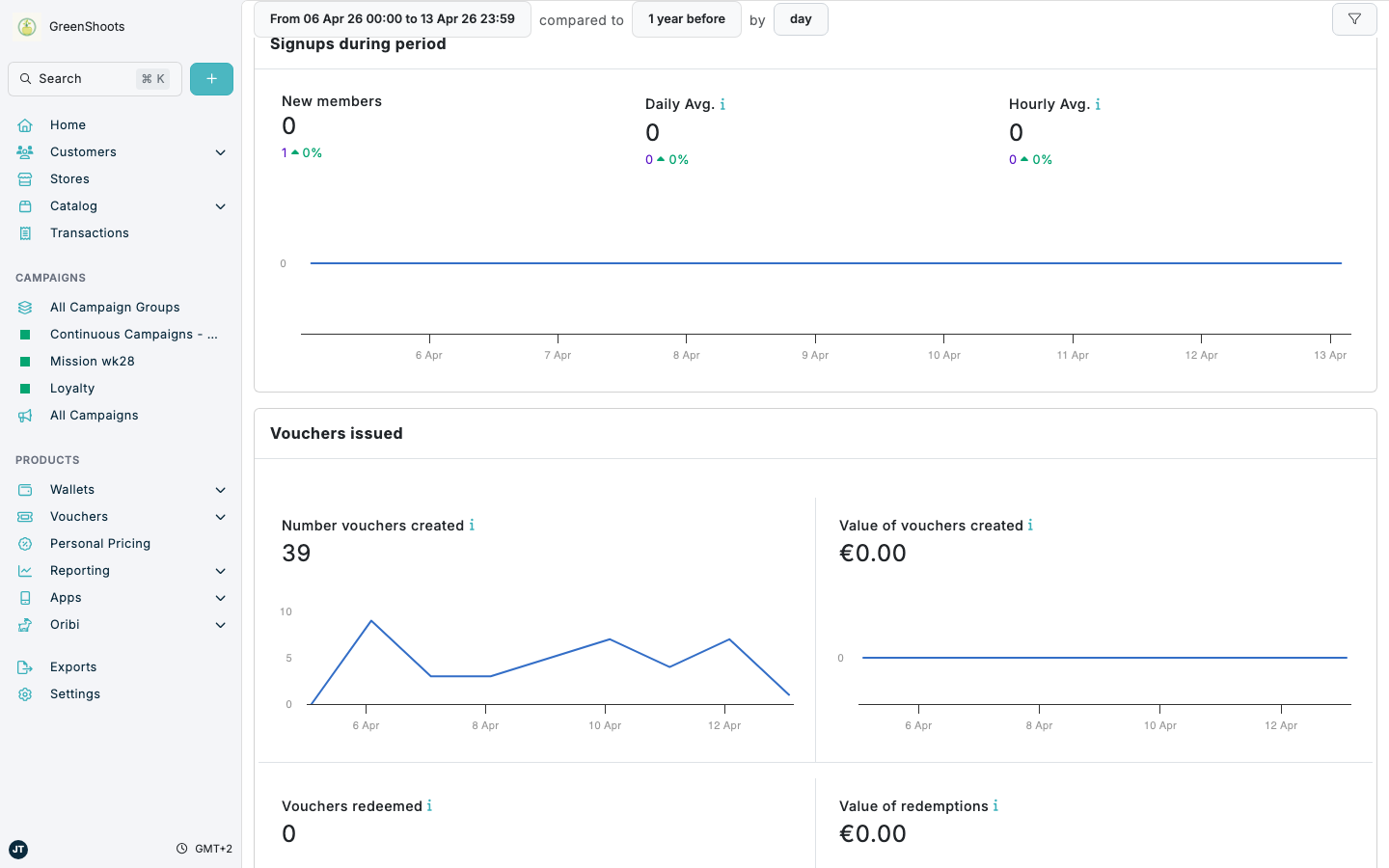
- Open the home page dashboard and switch to the Vouchers section when you need an overall redemption summary across the platform. This dashboard shows Number of vouchers used and Value of vouchers used.
- Open a store and click Overview when you need store-level voucher reporting. Review Voucher redemptions for Number of vouchers used, Number of redemptions, and Value of vouchers used.
If something looks different
- If you need to filter individual vouchers by campaign, customer, code, status, or store, use the voucher list instead of the analytics report.
- If a campaign report does not show product-performance cards in Summary, confirm that the campaign has assigned earn or redemption barcodes. If it does not show redemption-product cards in Price and mechanics, confirm that the campaign has redemption product assignments.
- If a dashboard section is empty, expand the date range and confirm that vouchers were issued or redeemed in that period.
- If comparison or interval controls are hidden on a smaller screen, open the date control and use the expanded filter layout.