Issue vouchers through campaigns
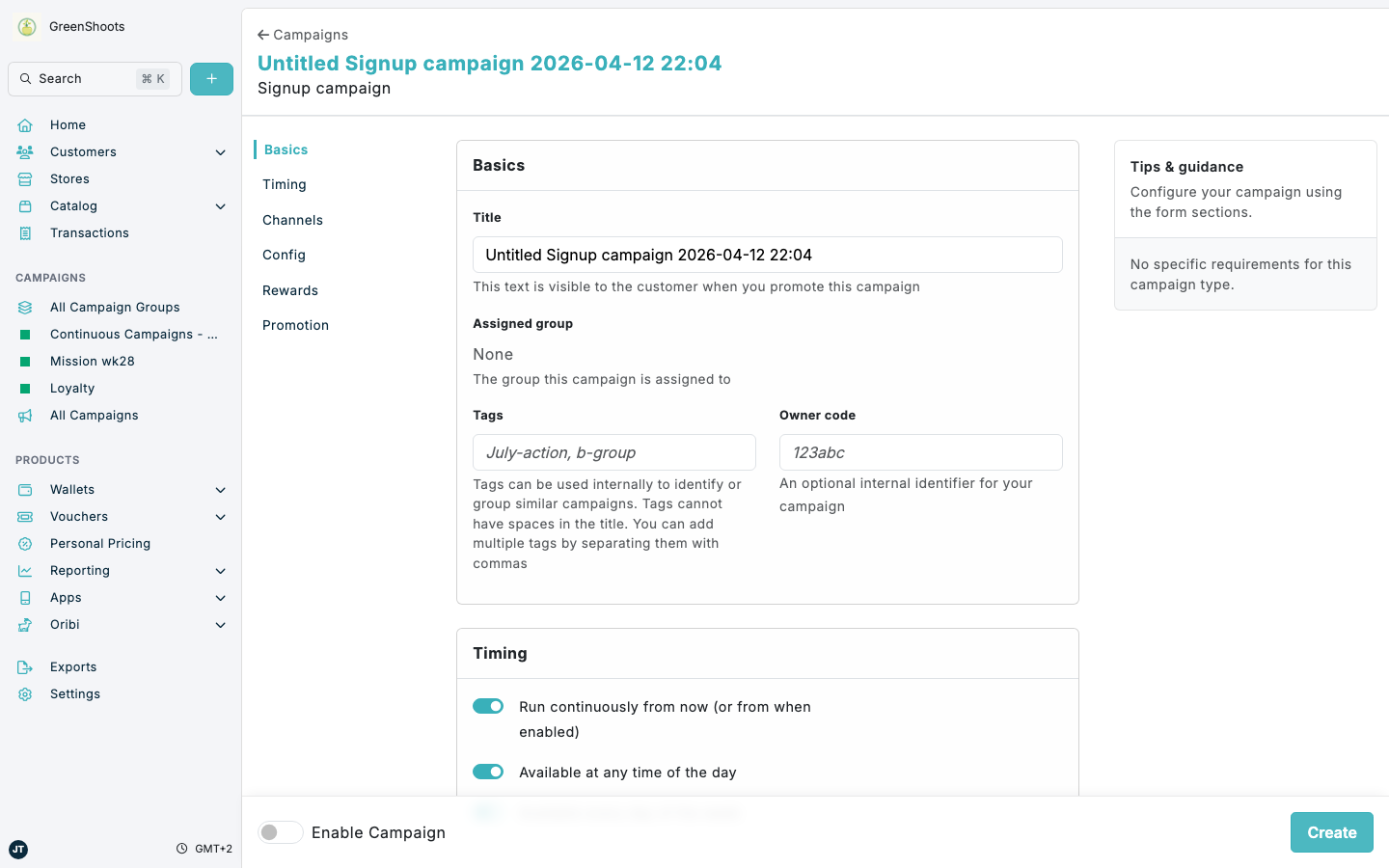
Use campaigns when you want Spaaza to issue a voucher automatically after a customer meets the qualification rules for a campaign. Many campaign types include a Rewards issued section where a voucher can be selected as the reward method.
Expected result
- You can review the voucher reward configuration in Rewards issued before you save the campaign.
- The voucher is issued automatically when the campaign qualification criteria are met.
- The issued voucher uses the reward settings you configure, such as value, expiry, and claim state.
Issue vouchers through campaigns in Console
- Open Campaign groups.
- Open the campaign group where the voucher reward campaign should live, or click Create a group and create a new campaign group first.
- In the campaign group, click Add campaign.
- Select Reward.
- In Create a campaign, choose a campaign type that supports voucher rewards, such as Spend Target, Signup, Birthday, Referral, or Profile Completion.
- In Basics, enter a Title.
- Configure the qualification sections for the selected type. Depending on the campaign, this can include Timing, Config, Basket qualification, or Audience. These settings determine when a customer qualifies for the reward.
- In Rewards issued, choose the voucher type you want to issue. Available options can include Basket voucher, Perk voucher, Percentage voucher, or Per unit voucher.
- Complete the voucher fields. Depending on the voucher type, set Voucher value or Percentage discount, then add Voucher title and Days to expiry. For monetary vouchers, do not include the value in the title; it is placed in front of the title automatically.
- Optional: for Percentage voucher, turn off No maximum discount amount and enter Maximum basket discount to cap the discount the voucher can apply to one basket.
- Optional: configure where and how the voucher can be redeemed with fields such as Barcodes of items that this voucher can be used on, Channels voucher can be spent in, Stores voucher can be spent in, No minimum basket value, and No maximum redeemable items when those controls are relevant.
- Optional: set Reward priority and decide whether to turn on Allow redemption on promotional items.
- In Promotional content, scroll to Vouchers and add the Voucher description, Voucher detail page text, and a voucher Background image when the default voucher image should not be used. The Content preview shows the voucher card as customers will see it.
- Turn on Enable Campaign.
- Click Create.
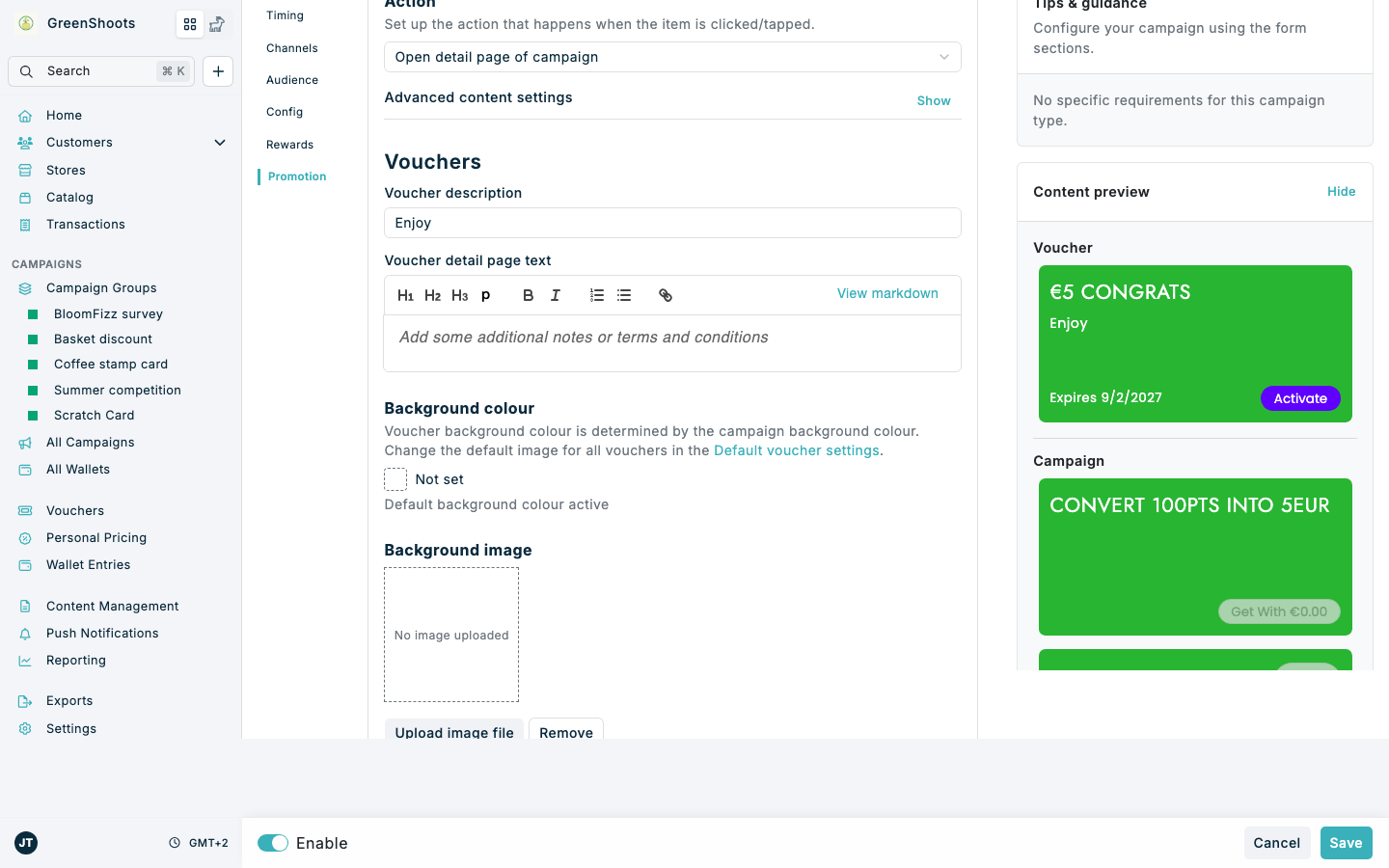
For a Percentage voucher, enter a Percentage discount greater than 0 and no more than 100. Enter 20 for a 20% discount. Enter 100 for a 100% discount.
If something looks different
- If you do not see Create a campaign, make sure you opened Add campaign from a campaign group and selected Reward.
- If you do not see voucher options in Rewards issued, the selected campaign type may not support voucher rewards. Go back and choose a different campaign type.
- If some voucher settings are hidden, select a voucher type first in Rewards issued.
- If you do not see Vouchers in Promotional content, select a voucher reward first. Composable and referral campaigns configure voucher content in Rewards instead.
- If you need to issue vouchers to a fixed list of customers at scheduled times, use a Scheduled rewards campaign instead of a standard campaign.