Manually claiming and redeeming vouchers
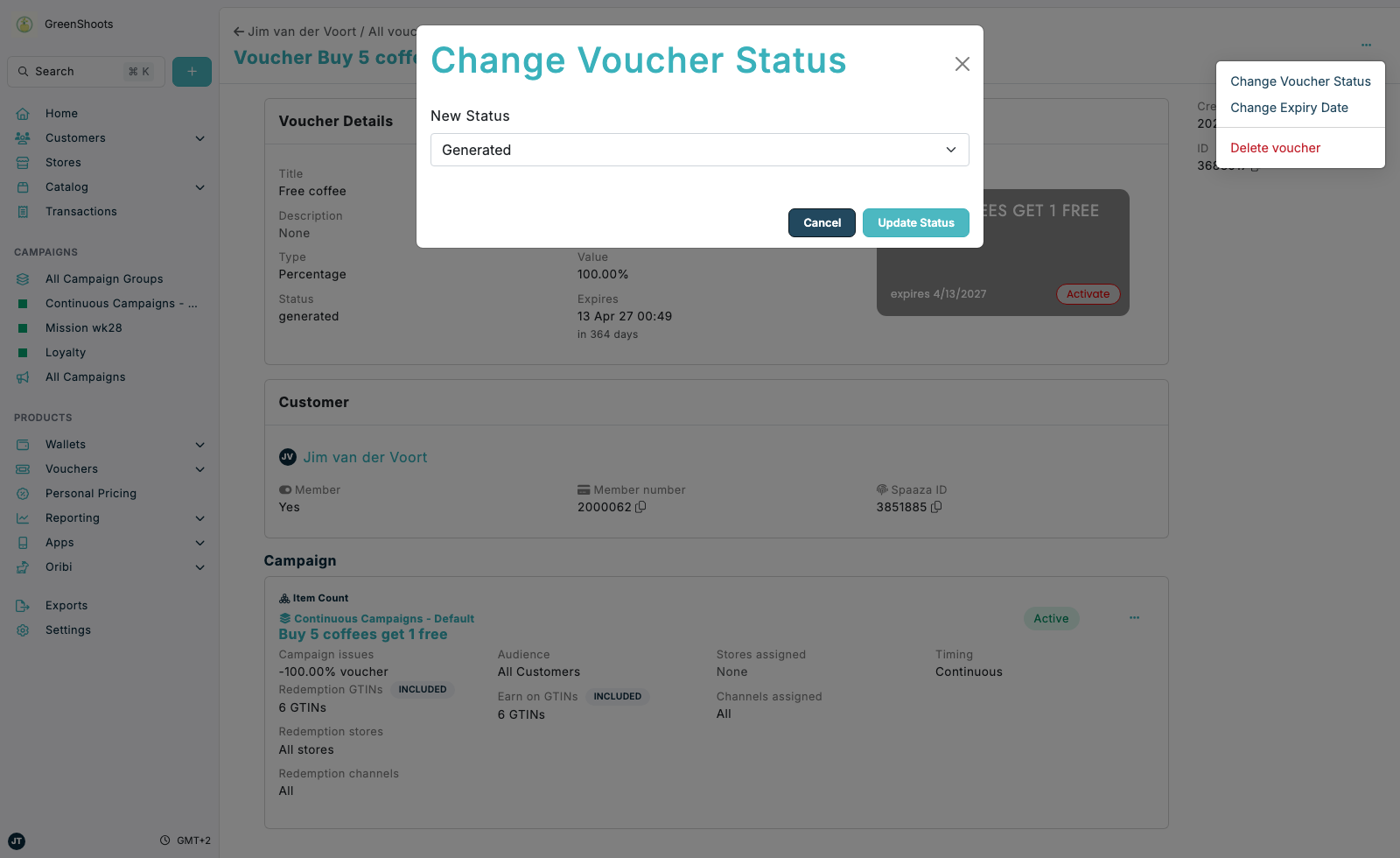
Use the voucher detail page when you need to update the lifecycle of an issued voucher by hand. This is useful when support or store staff need to move a voucher between Generated, Claimed, and Redeemed without waiting for the normal customer flow.
Expected result
- You can open the voucher record and review its current Status.
- You can update the voucher to Generated, Claimed, or Redeemed in Change Voucher Status.
- The updated status is visible on the voucher record after you save the change.
Manually claim or redeem a voucher in Console
- Open All vouchers in Vouchers.
- Find the voucher you want to update, then click View voucher.
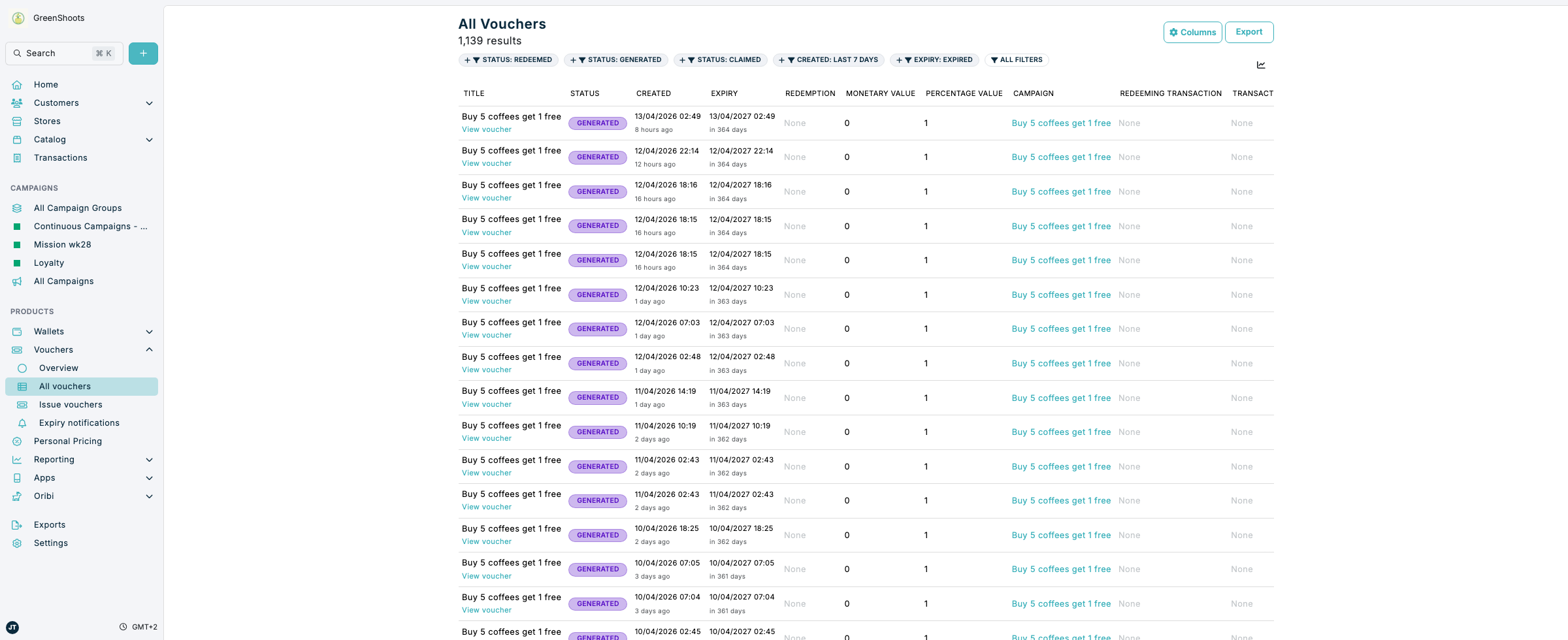
- Review the current Status in Voucher Details.
- Open the actions menu in the top-right corner of the voucher page, then click Change Voucher Status.
- In Change Voucher Status, choose the status you want to apply:
- Claimed to manually activate the voucher.
- Redeemed to mark the voucher as used.
- Generated to return the voucher to an unclaimed state.
- Click Update Status.
- Review the updated Status on the voucher page.
- If you set the voucher to Redeemed, review the Redemption section that appears on the voucher record.
If something looks different
- If View voucher is not visible from All vouchers, check that you are signed in with permission to view voucher records.
- If Change Voucher Status is not available, refresh the voucher page and open the actions menu again.
- If you want to redeem a voucher from the actions menu instead, remember that Redeem voucher is only shown for vouchers that are already in the Claimed state.