View and filter issued vouchers
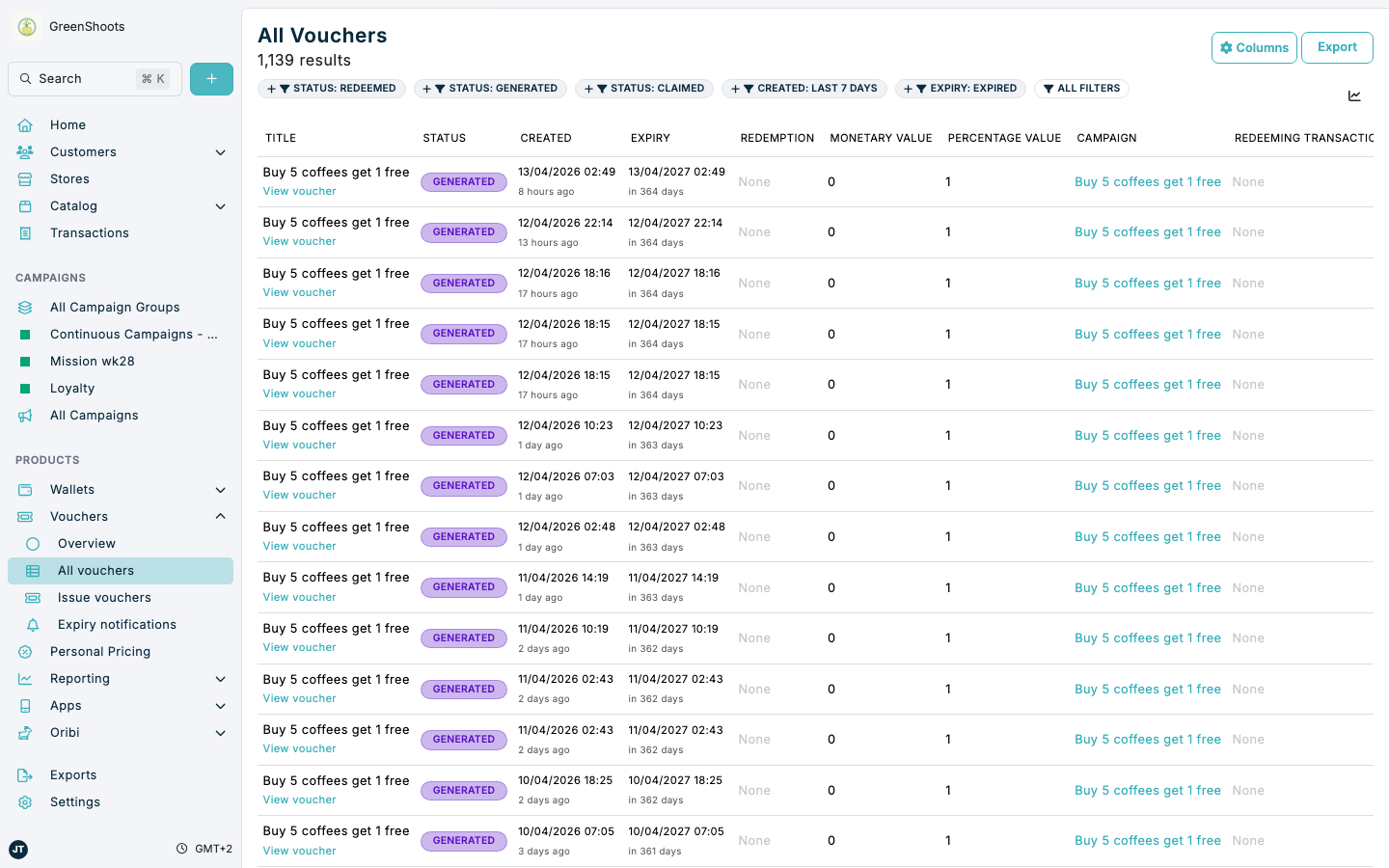
Use voucher filters when you need to narrow a voucher list to the records you want to review, redeem, export, or troubleshoot. The same filter pattern is used across the main voucher list and voucher lists opened from campaign, customer, and store pages.
Different voucher filters use different controls:
- Quick filters such as Status: Redeemed, Status: Generated, Status: Claimed, Created: last 7 days, and Expiry: Expired add a ready-made rule.
- Text and ID filters such as Campaign ID, Customer ID, and Redeeming Store ID match a specific voucher context.
- Redeeming Store ID takes a numeric store ID. Redeeming Store takes a store name with is or is not; these two filters do not offer contains.
- Date filters such as Created date, Expiry date, and Redeemed let you filter by relative time, exact dates, or date ranges.
Expected result
- You can add voucher filters from the quick shortcuts or the full filter library.
- Active filter chips show the rules that are currently applied to the voucher list.
- The results count and voucher table update to match the rules you apply.
View and filter issued vouchers in Console
- Open All vouchers.
- Review the quick filters above the table. Click Status: Redeemed, Status: Generated, Status: Claimed, Created: last 7 days, or Expiry: Expired when one of those shortcuts already matches the list you need.
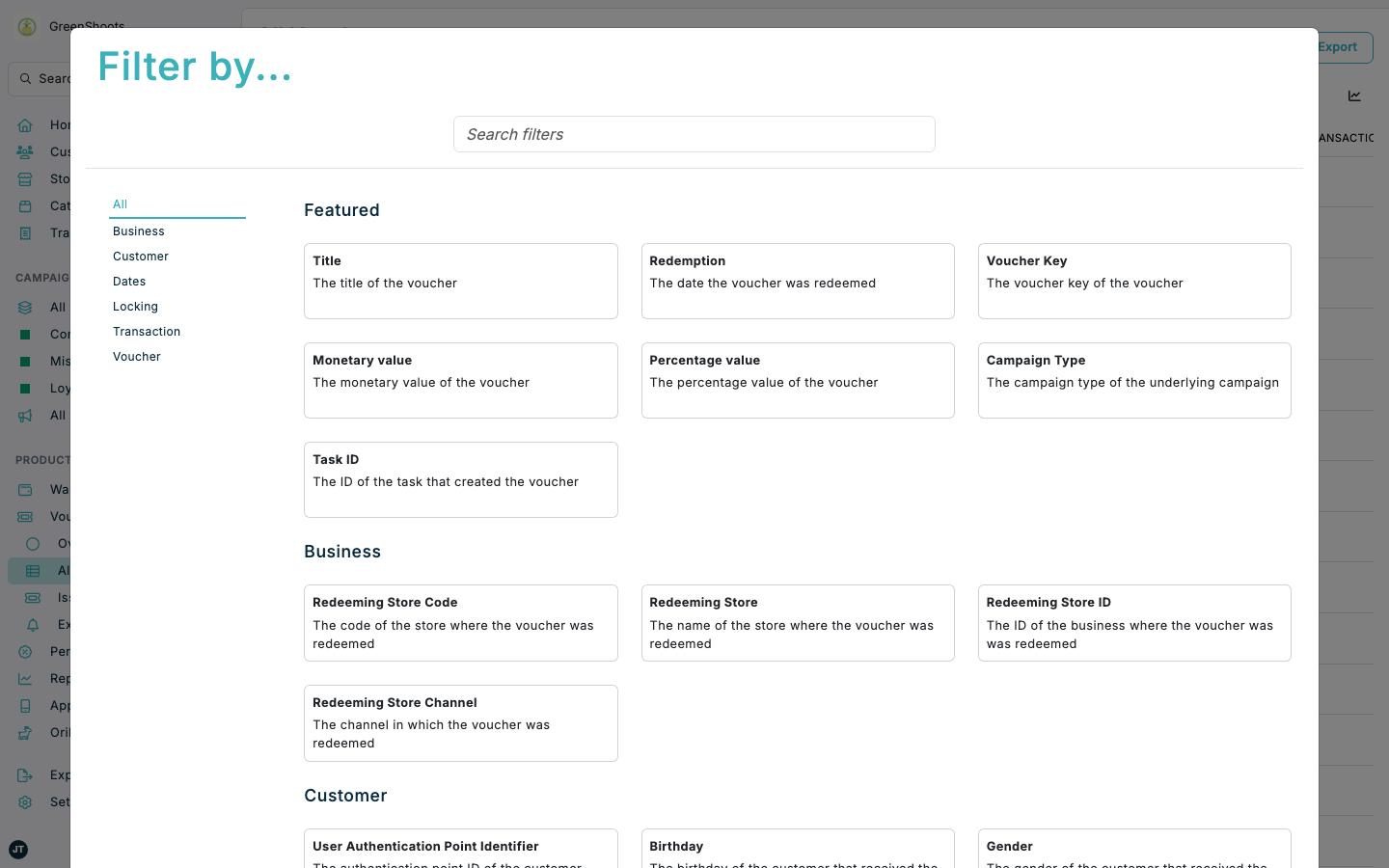
- Click All filters when you need the full filter library.
- Add the filter you want to use. Common voucher filters include Campaign ID, Customer ID, Created date, Expiry date, and Redeemed.
- Set the operator and value for the rule. For example, you can use Created date for a recent time window or Customer ID to show vouchers for one customer.
- Add more filters if needed. When more than one rule is active, use Match All if every rule must be true or Match Any if a voucher can match any one of the rules.
- Review the updated results count and voucher rows. The active filter chips stay visible above the table so you can see the current rule set.
- Click a filter chip again whenever you need to change it, or click the
xon the chip to remove it.
Where the same voucher filters are available
The same filtering pattern is also used in context-specific voucher lists:
- On All vouchers.
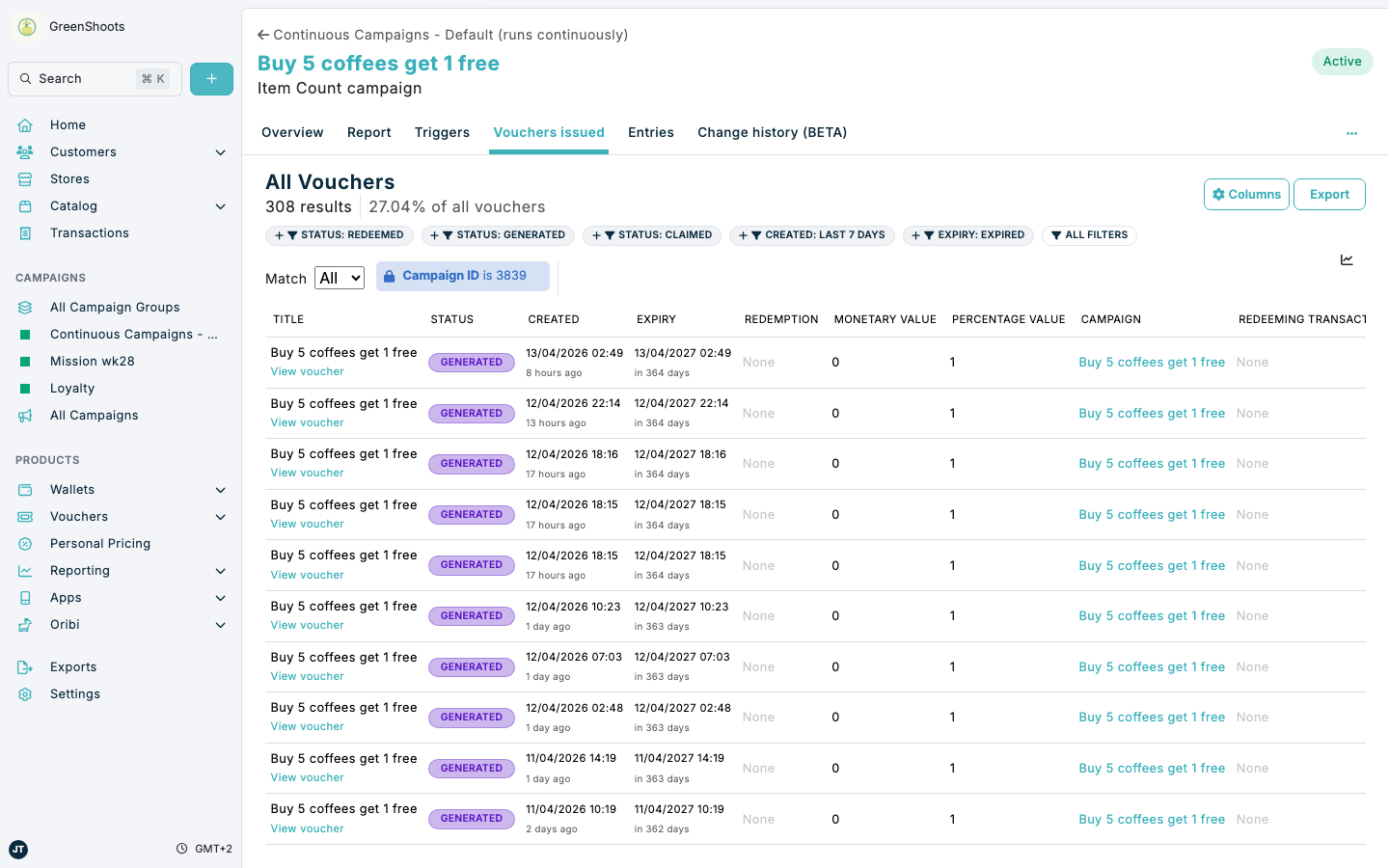
- On a campaign page in Vouchers issued, where a locked Campaign ID rule is already applied.
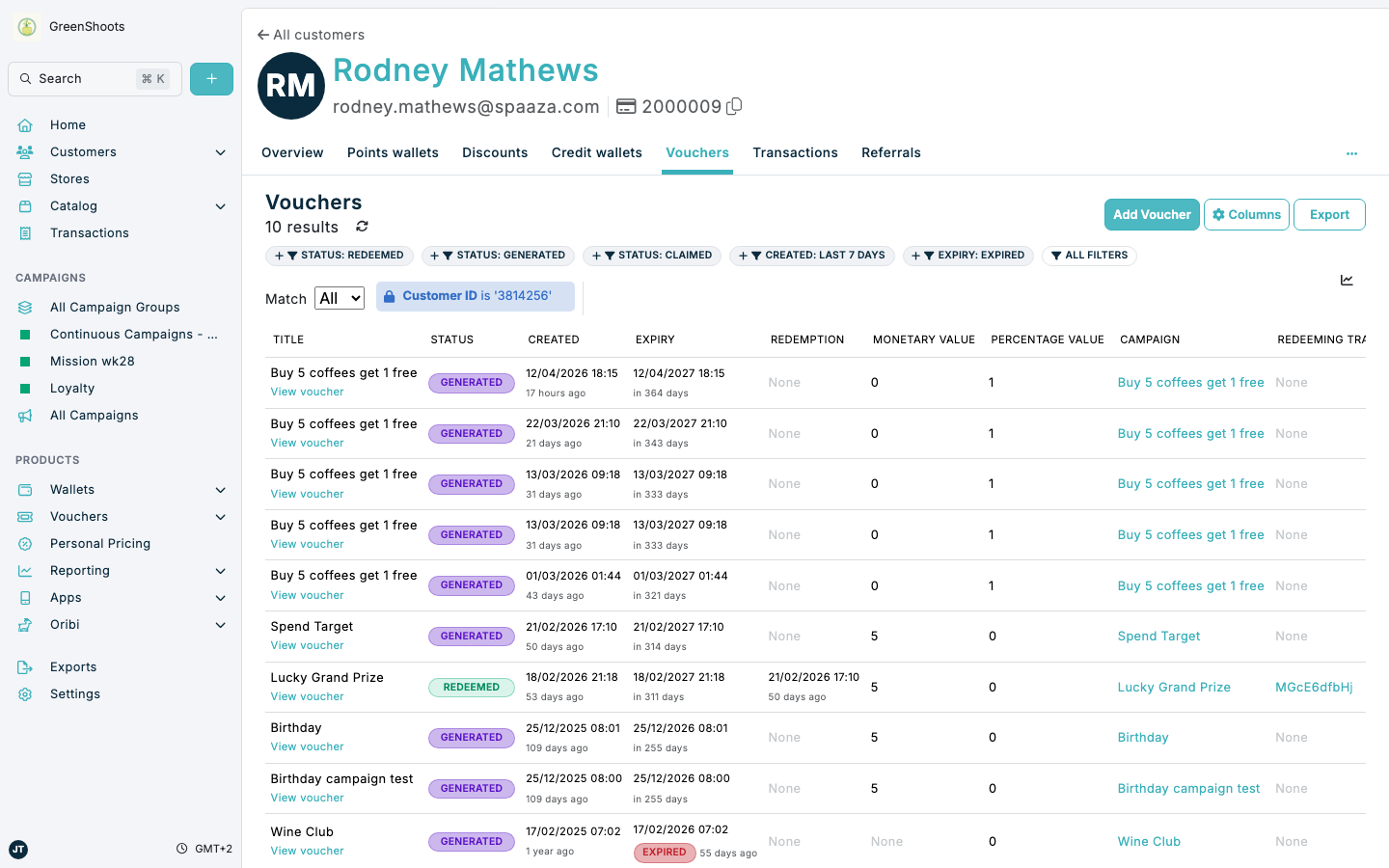
- On a customer profile in Vouchers, where a locked Customer ID rule is already applied.
- On a store page in Vouchers at
/#/stores/store/<store-id>/voucher-redemptions, where a locked Redeeming Store ID rule is already applied.
If something looks different
- If you do not see the filter you need, click All filters and use Search filters instead of relying only on the quick shortcuts.
- If your voucher list is already opened from a campaign, customer, or store page, expect to see a locked context chip such as Campaign ID, Customer ID, or Redeeming Store ID.
- If the result set is unexpectedly empty, review whether Match All or Match Any matches the way you want several rules to work together.