Managing content
In this section, we highlight the most important aspects of managing content. Managing content happens in the “Content management” section under “Apps” in the main menu of the Spaaza Console. Content configured here is displayed across both the mobile app and Embed Elements.
- Preview in Console
- Adding Campaigns
- Managing Pages
- Zone content setup
- Managing Unpublished Changes
- Styling Configuration
Previews in Console
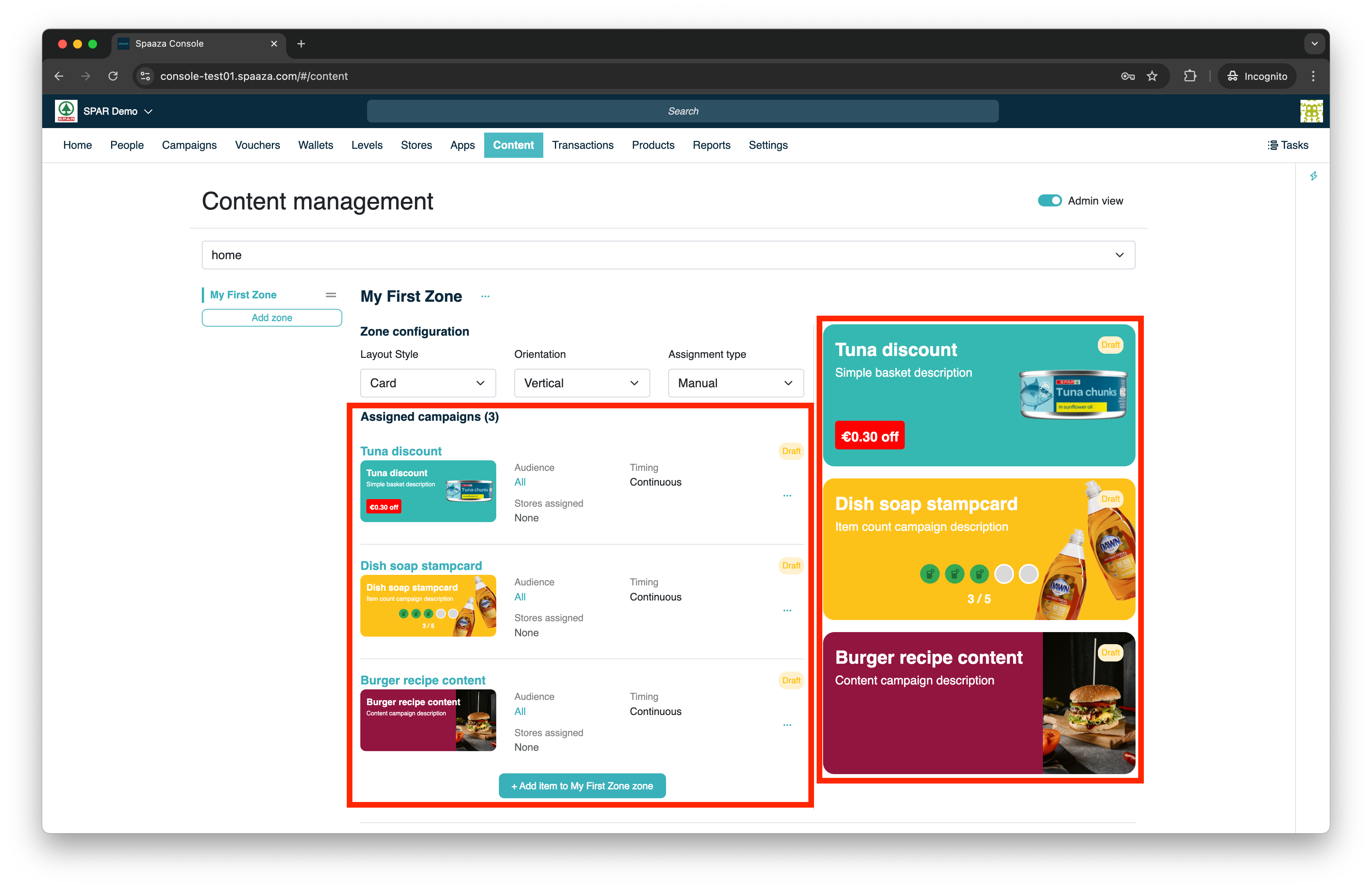
The Zone Content Preview, displayed on the left, shows the Items within a Zone. It also provides relevant information about the added Item (Campaign) such as Audience, Timing, and Stores assigned. You can also see if a Campaign is Scheduled, Draft, or Active.
The full preview, displayed on the right, shows the layout of the Zones and Zone Items as they would appear. When the “Admin view” is toggled off, you see only this preview.
Because both the channels and the content management system are continuously evolving, this preview might differ slightly from the actual display. We always advise testing how content looks visually in the actual channel or environment.
By clicking on the three dots (“…”), you can view the Campaign (is wrapped withing the Item), edit the Campaign, or remove the current content Item from the Zone.
IMPORTANT
- Rest assured, deleting a Item does NOT delete the Campaign itself, as Zone Items and the actual Campaign are managed separately.
- Campaign Items with a status OTHER than “active” are NOT visible to end users.
Content and full preview:
Adding Campaigns
Campaigns can be added as Content Items in the Content Management System. Start by creating and reviewing the Campaign’s you have set up in Spaaza’s Console. When in the Content Management section of console.
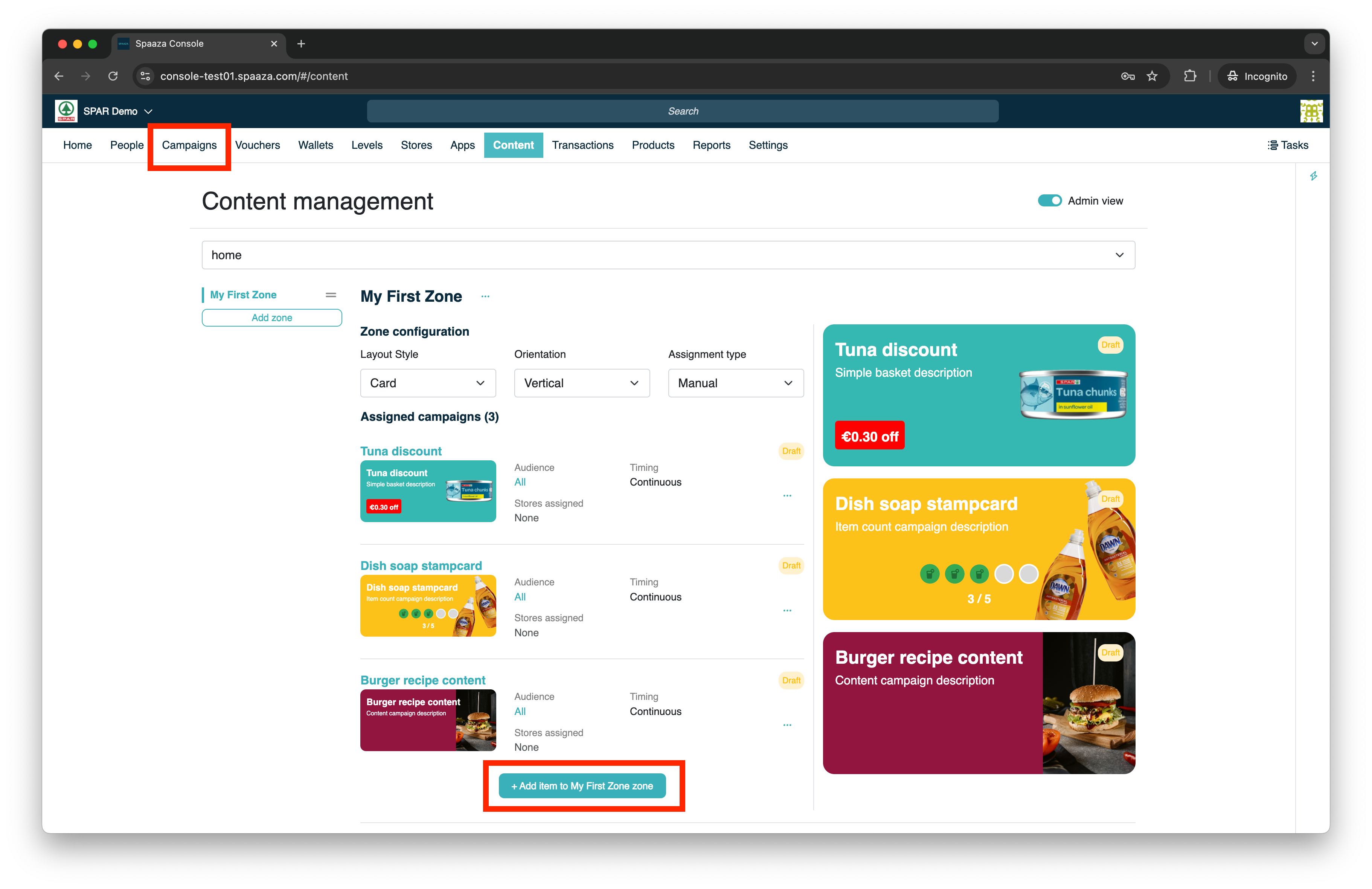
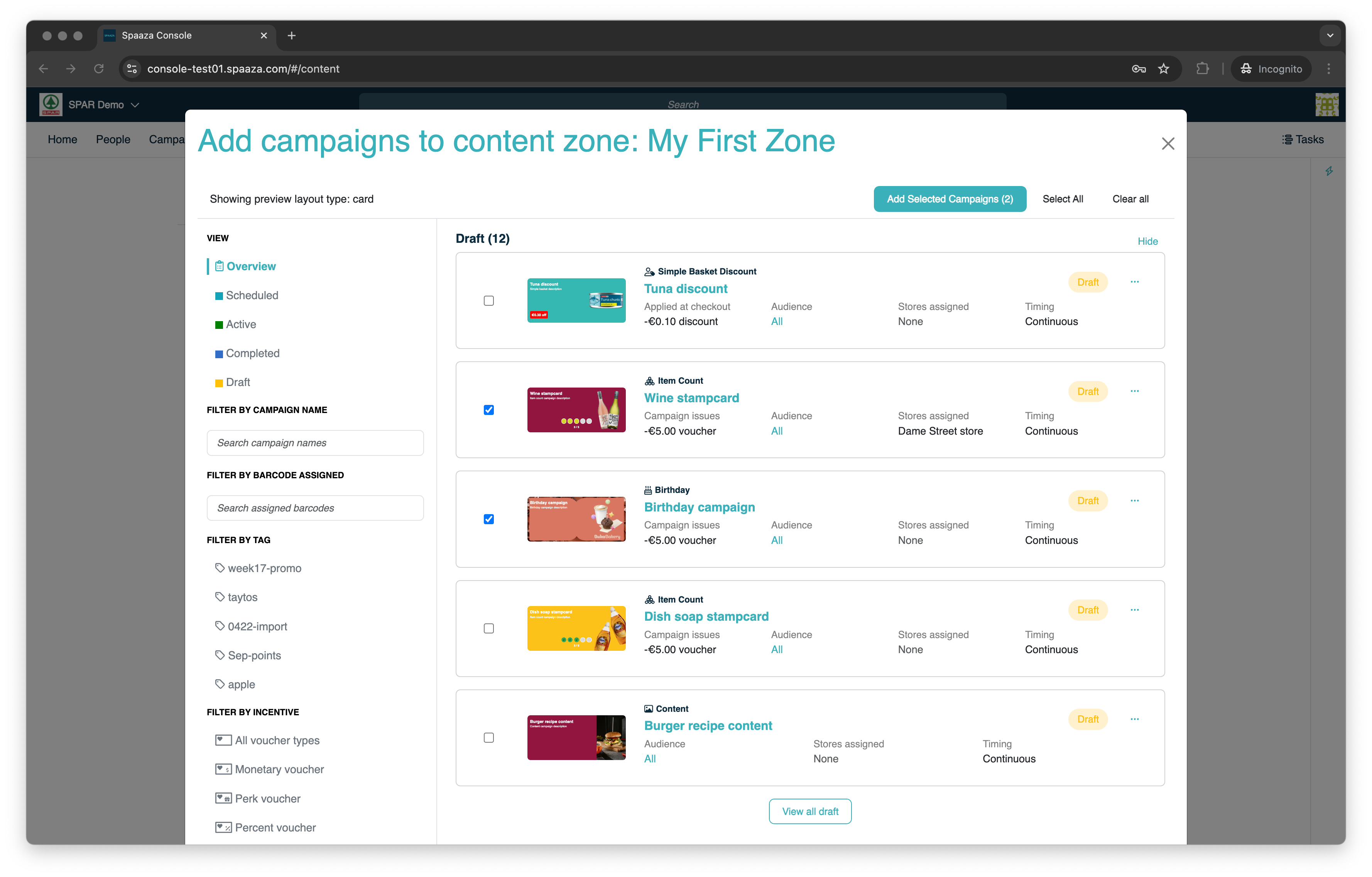
When you click the “Add Item to ZONE NAME Zone” button in the Zone content preview, you will see a similar overview that allows you to add Campaigns to a Zone.
While in this overview you can do the following:
- Filter Campaigns by Status, Name, Barcode, Tags, Incentive, Campaign Type, or Content Type
- Add active Campaigns or add Campaigns that are scheduled to go live in the future (or are in draft)
- Add multiple Campaigns/content as Items to a Zone at once (or keep it to one only)
Altering Campaign
If you want to change something from a Campaign you set up as Content Item in the Content Management System click the three dots (“…”) and “Edit campaign”. A new browser tab will open with the form to edit this campaign.
Accessing Campaign overview & add Campaign content screen:
Add Campaign content screen:
Managing Pages
You are able to Create, Edit and Delete pages.
- Create page: click the “Create page” button, a modal will open in which you can configure your new page.
- Edit page: click the three dots (“…”) next to the main page selector of your currently selected page.
- Delete page: click the three dots (“…”) next to the page selector (with the page you want to delete selected) and click delete. You will be asked to confirm that you want to delete the page and its zones.
For a page you can configure:
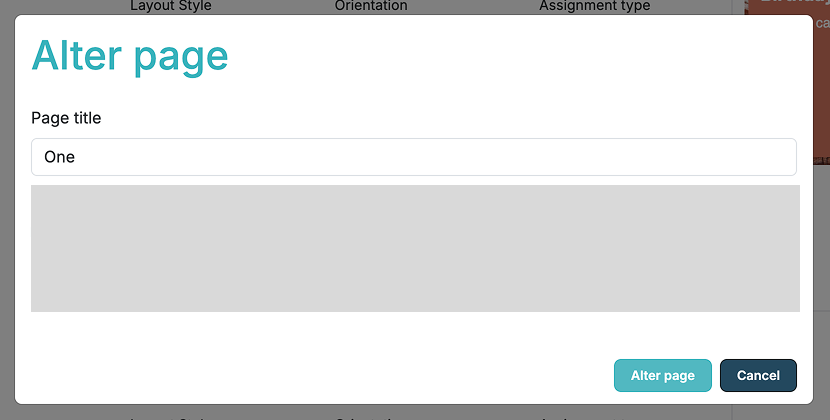
- Page title: this will be the title of the Page displayed to end users.
Mobile App
The mobile app comes with three standard pages: “Home”, “Rewards”, and “Deals”. These are restricted pages whose titles can only be changed by Spaaza on initial configuration. They cannot be deleted because they are used in the mobile app.
Pages can be accessed by the user through the main navigation menu, navigation tabs on the “Deals” page, or by tapping on an Item that has been configured to point to a page (see Item Actions).
On initial creation of a page, a page ID is set. This Page ID is not shown to end users but is important as a reference for debugging. The ID can be found when you click the three dots (“…”) alongside the Page Selector.
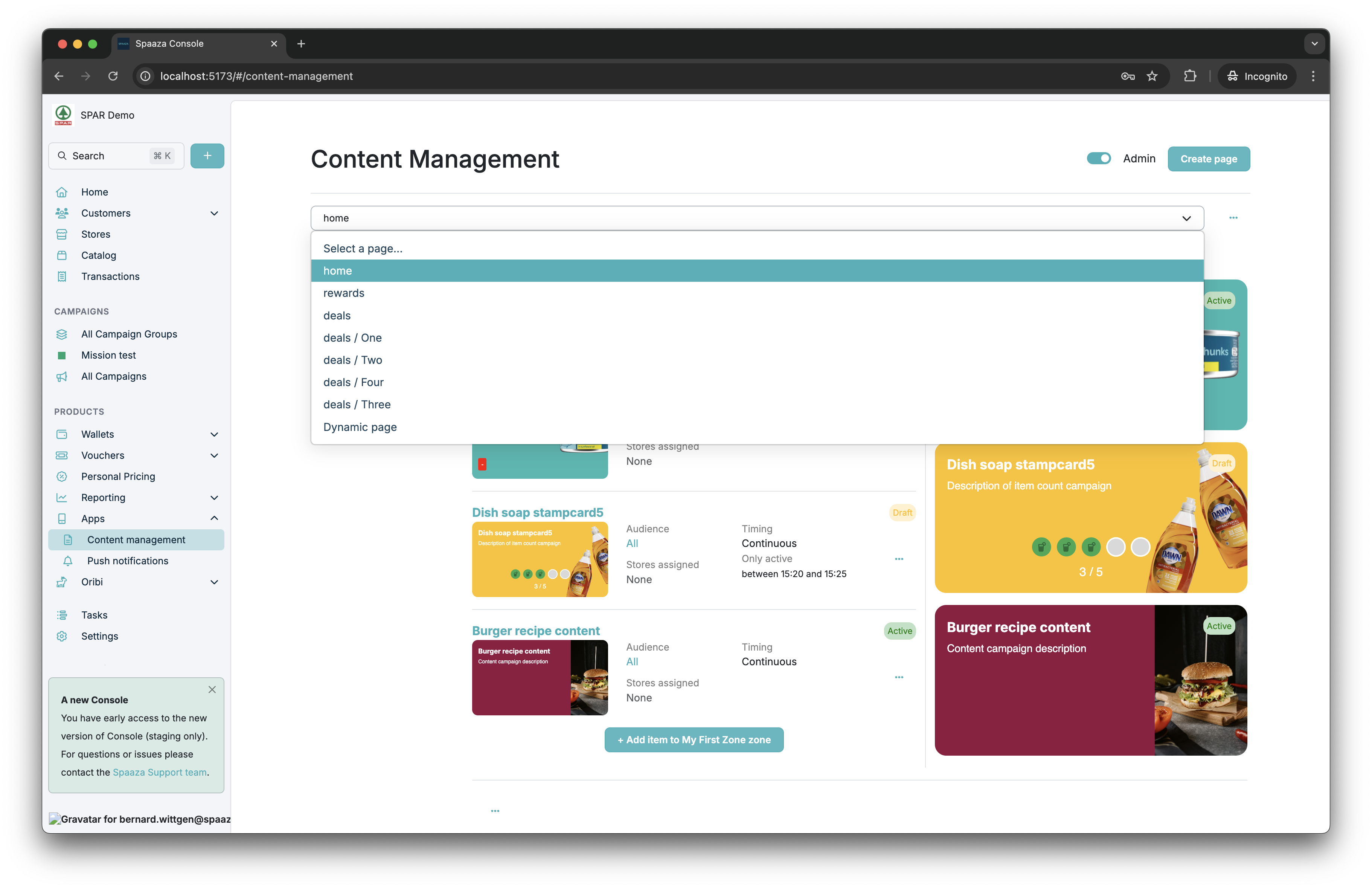
Page selection
Alter / create page modal
Creating Categories
Pages can be used to group campaigns and content into categories. For example: seasonal promotions, partner offers, or themed campaigns. Within Spaaza these are referred to as “Clubs”.
Items on other pages can be configured to link to these category pages, allowing users to browse grouped content. See Item Actions for how to set up these links.
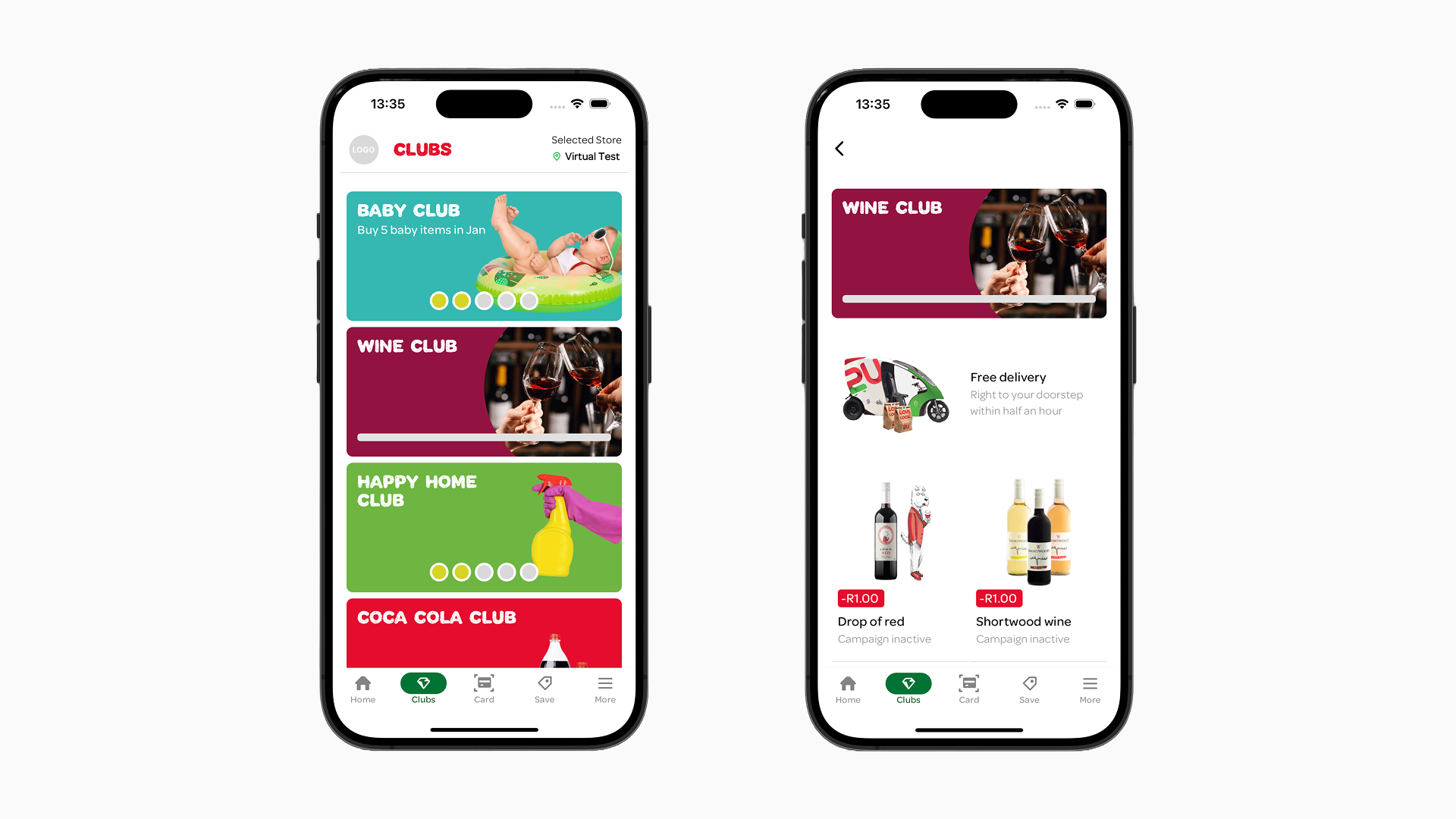
It is also possible to set up “Missions”, where multiple individual Campaigns contribute to bigger rewards. Contact Spaaza for more information about this.
Navigation Tabs
Mobile App
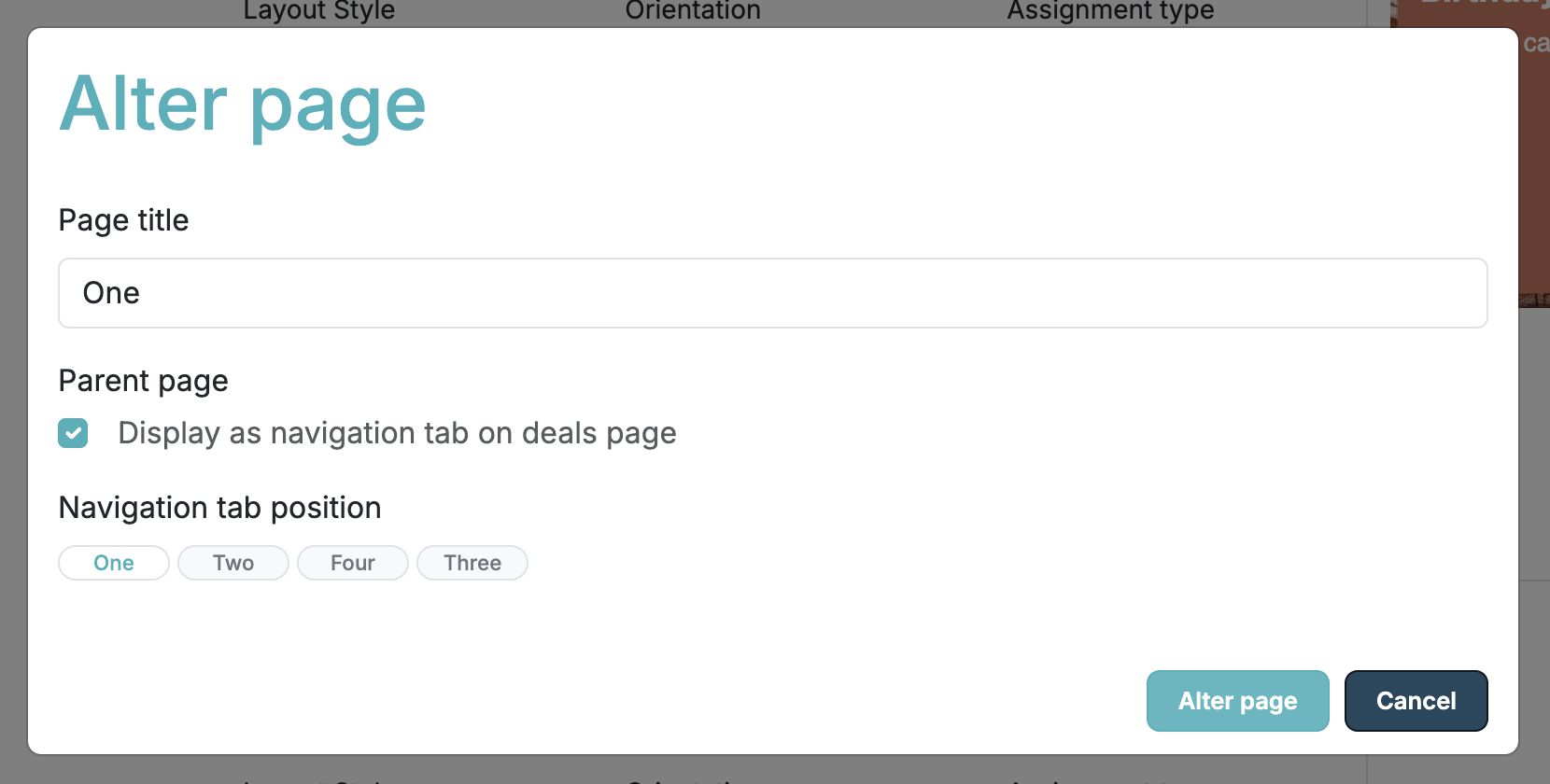
When a page has a parent, it appears as a navigation tab on the parent page. This allows you to create a tabbed structure where users can switch between related content sections. Currently, navigation tabs are only supported on the “Deals” page. When you assign the “Deals” page as parent of another page, that child page will show up as a navigation tab at the top of the “Deals” screen.
deals / beverages
- If there is no content found within a child page, its navigation tab will not be visible.
- You can only edit the position of a child page while inside the page edit modal, by dragging the active tab in the “Navigation tab position” preview.
Alter / create page modal
Deals page preview example
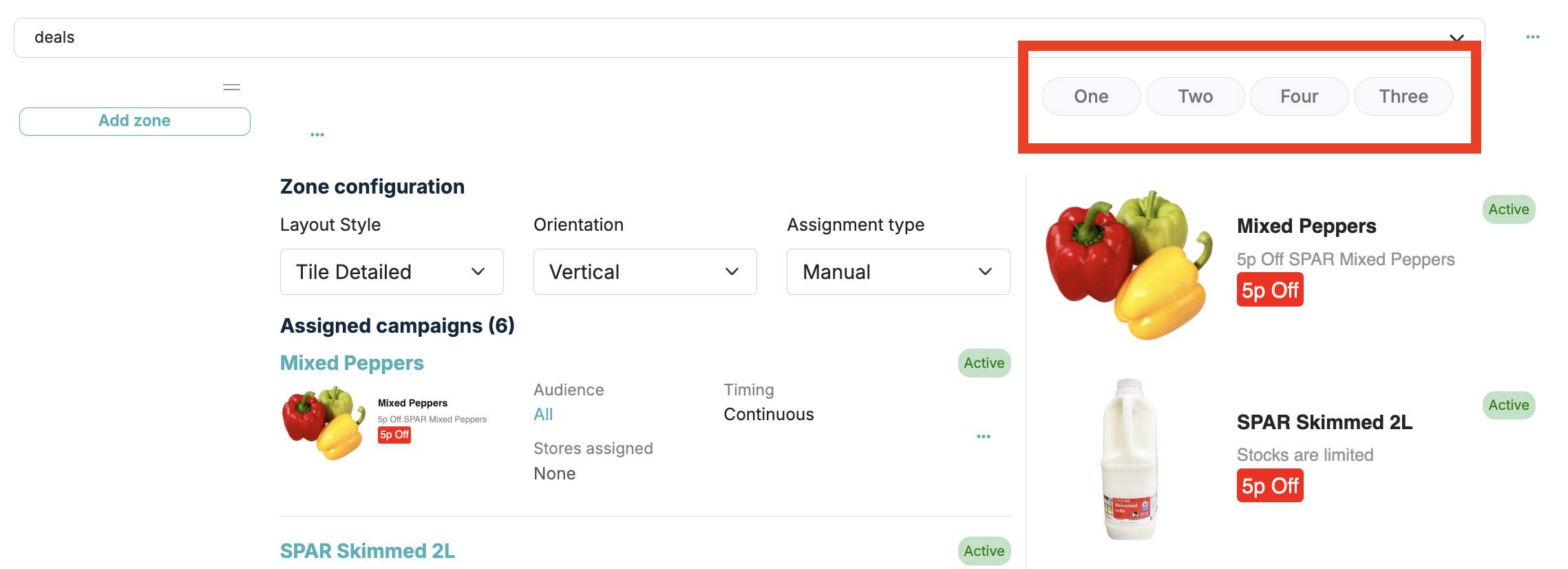
Deals page example
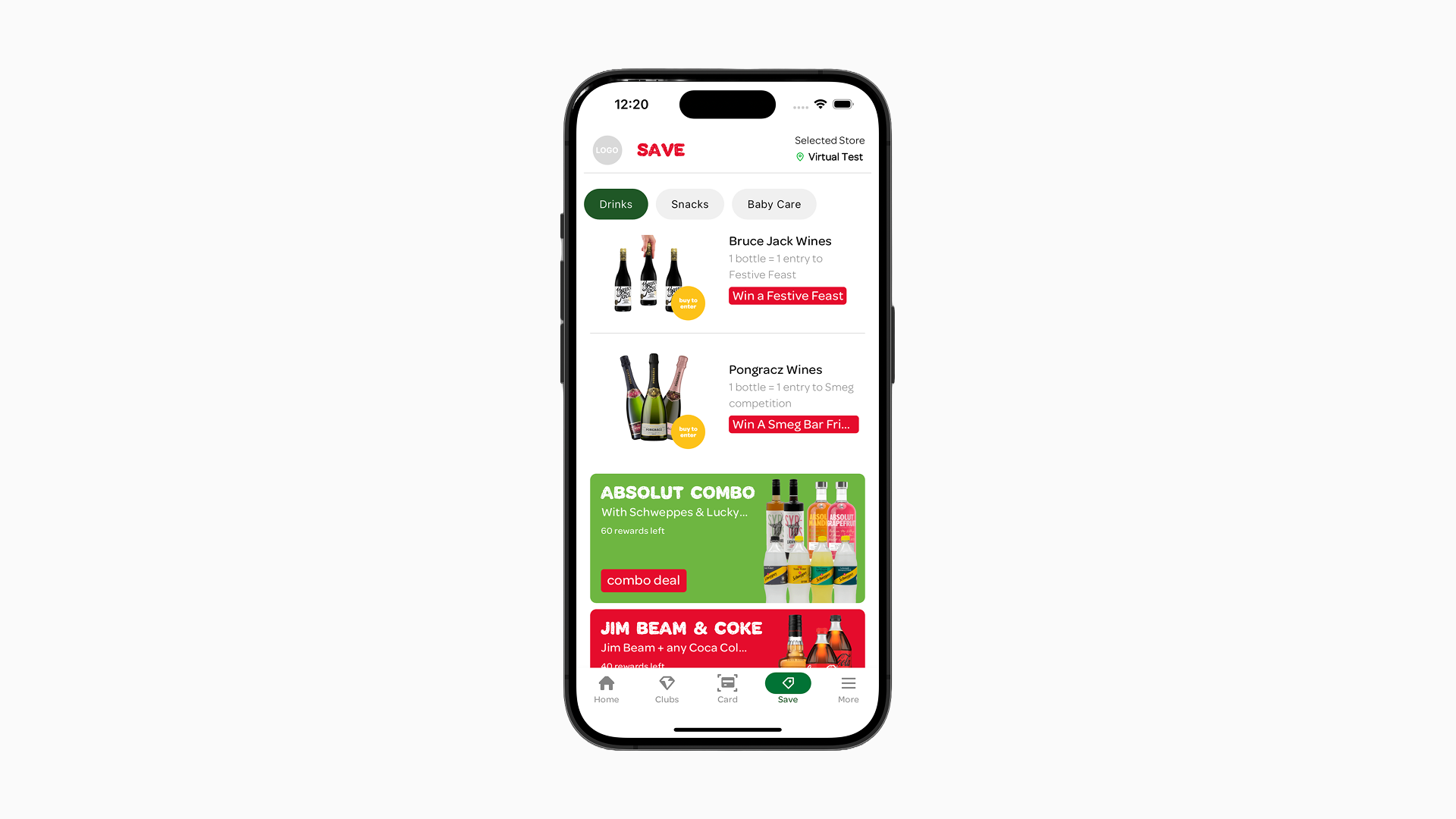
Zone content setup
The content management system is available through the main menu “Apps” > “Content Management”. Below is a step-by-step walkthrough on how to display content.
After completing this walkthrough, we recommend experimenting with different combinations of layout styles and orientations of the Items within the Zones.
Mobile App
Use the “pull-to-refresh” feature inside the app after you have made your changes to see how they are reflected.
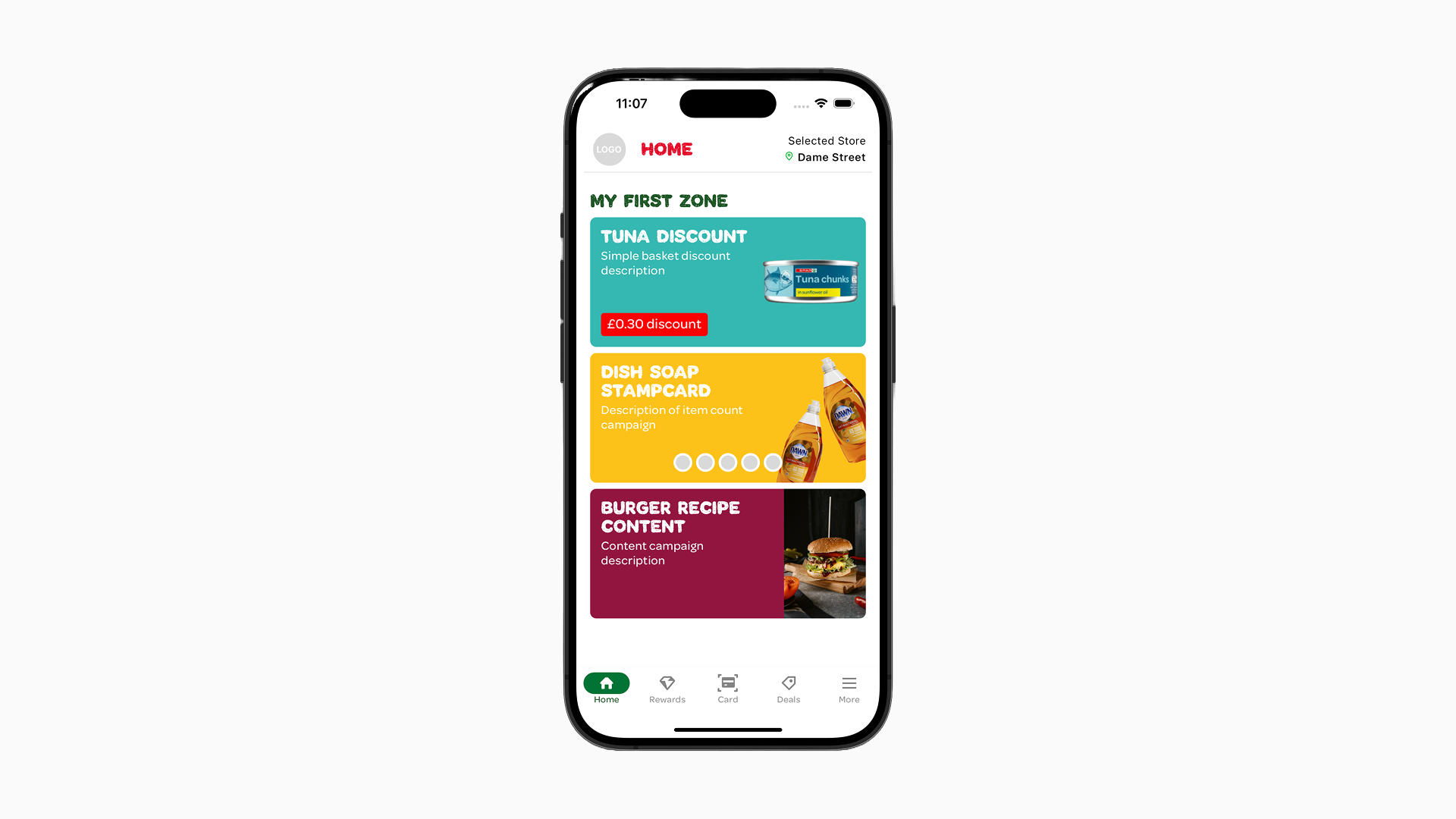
Example of setting up content zones
1. Select the page you want to configure content for from the main page selector dropdown.
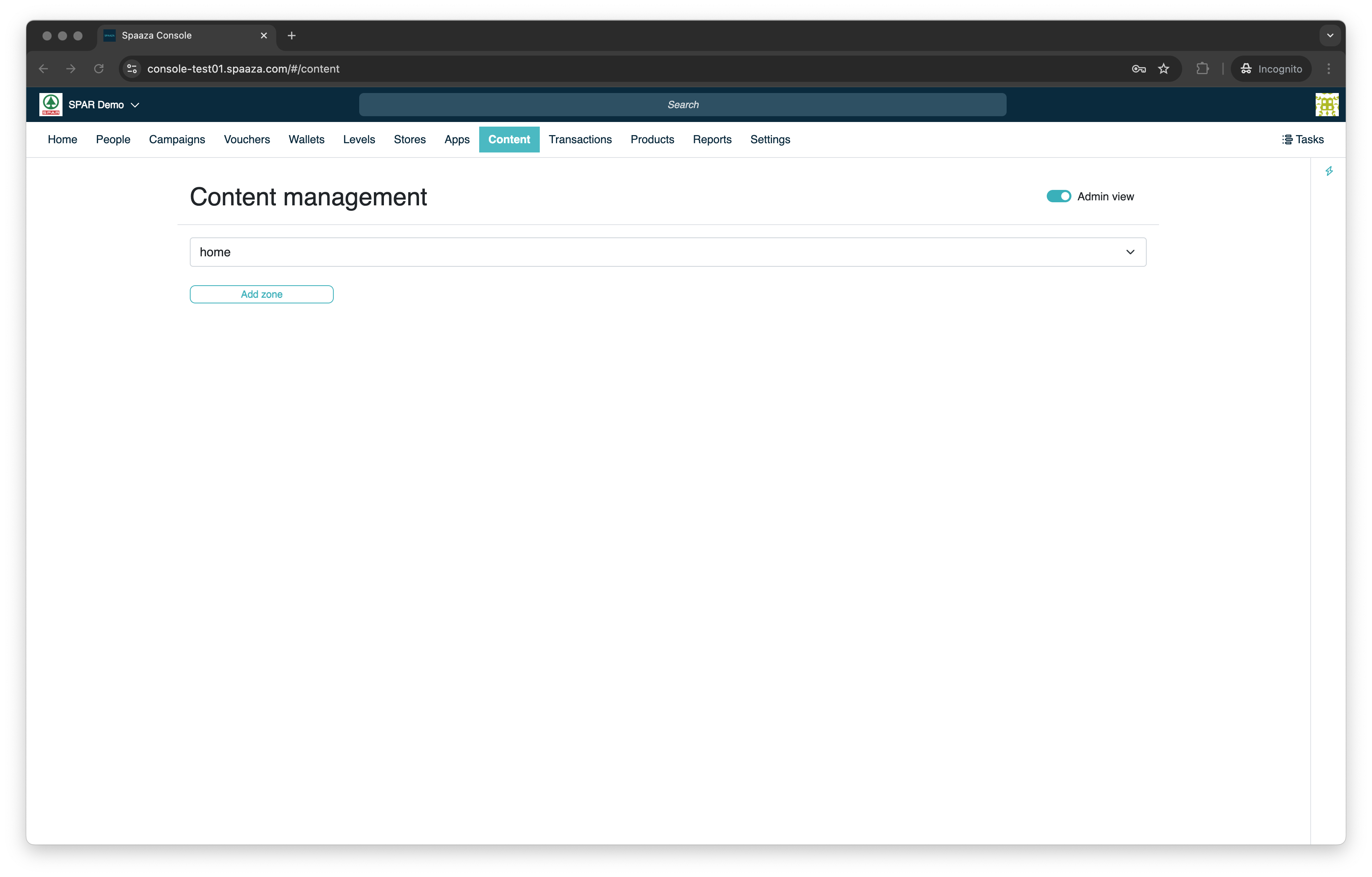
2. Click the “Add Zone” button to add a Zone to the selected page & name the Zone using the “Name” input field (or leave it blank if you do not want a zone title to display).
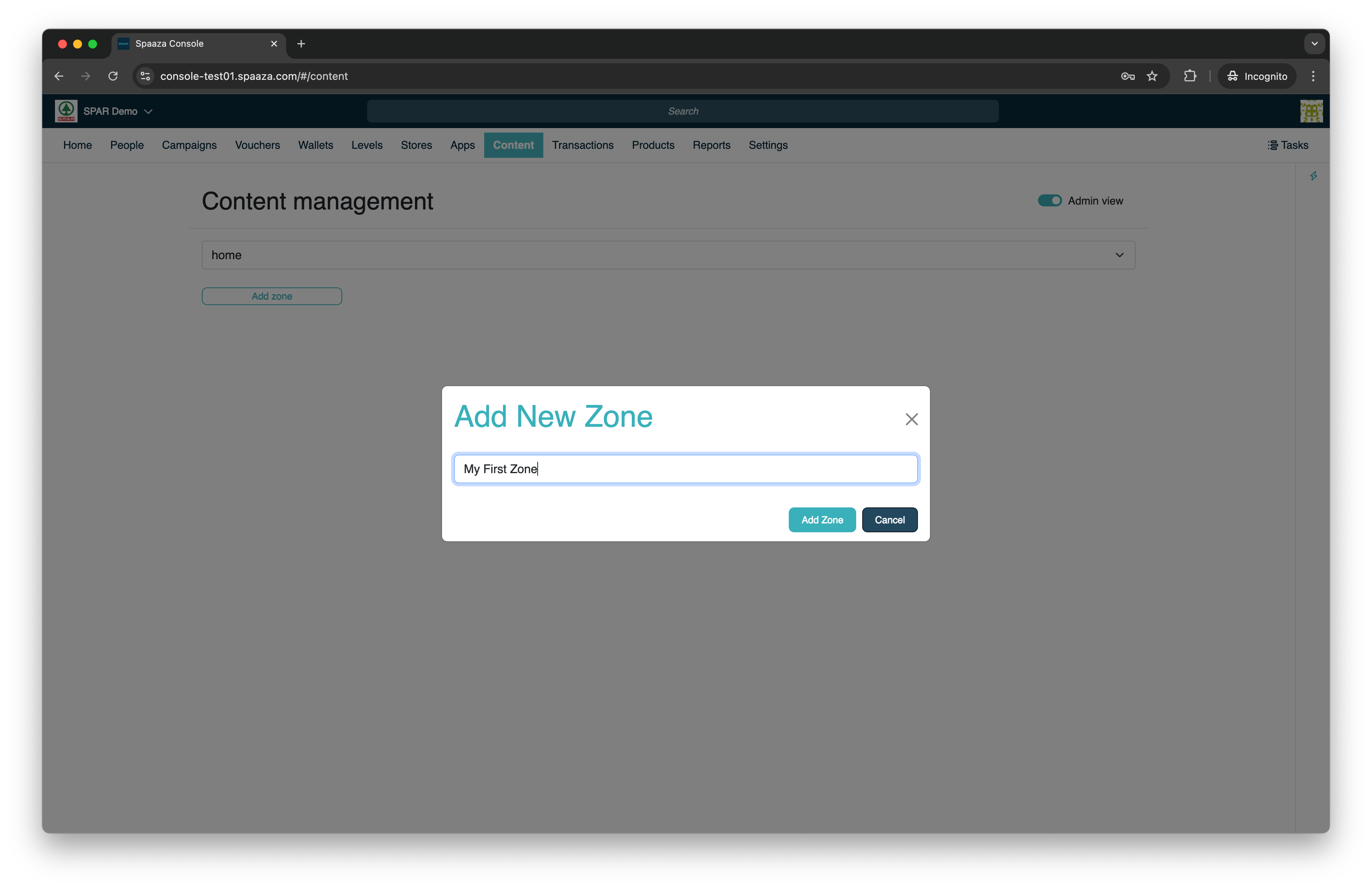
3. Click the “+ Add Item to Zone” button.
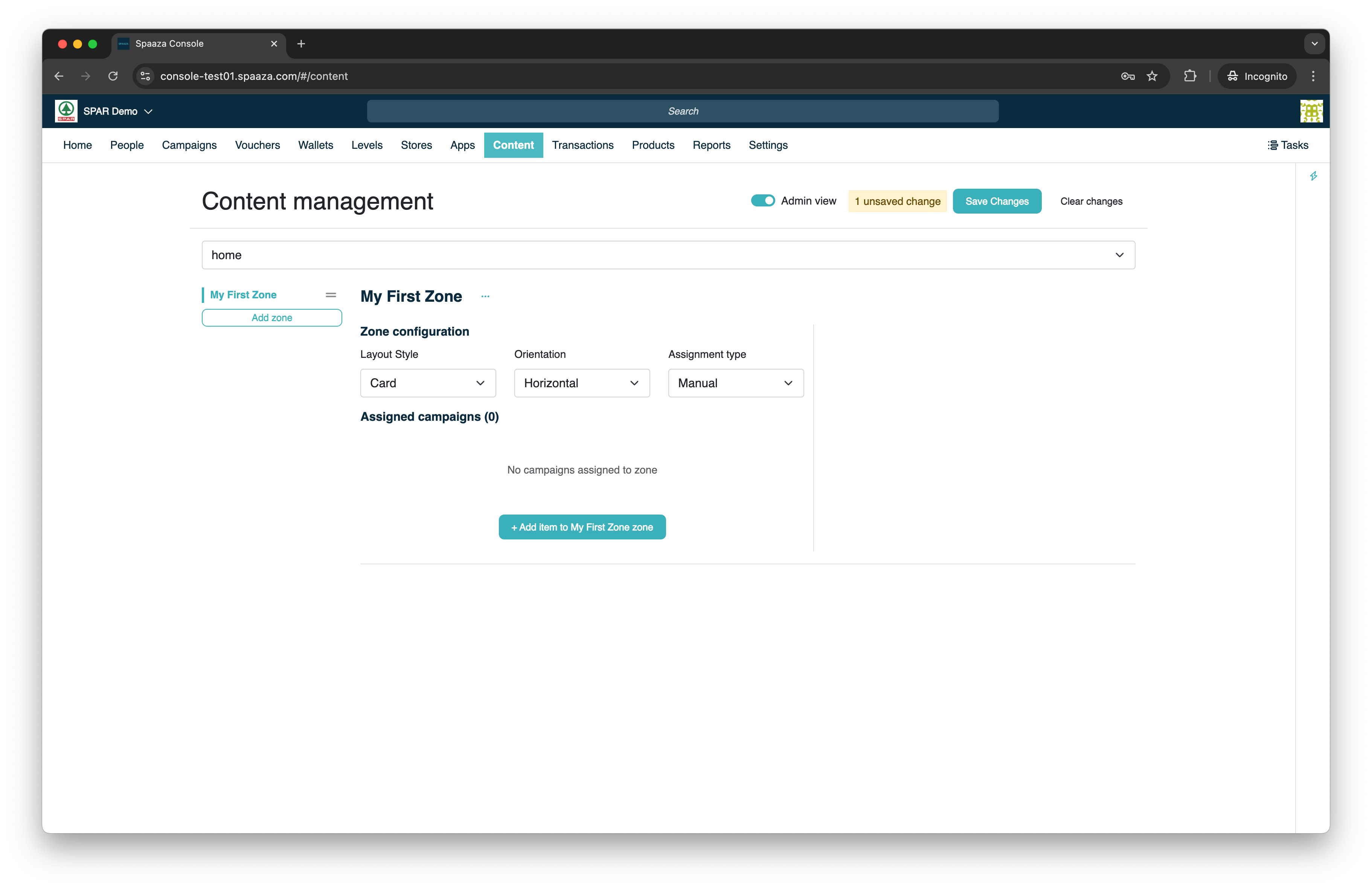
4. Now the Campaign overview will open, select three Campaigns you wish to add as Items to the Zone using the checkboxes.
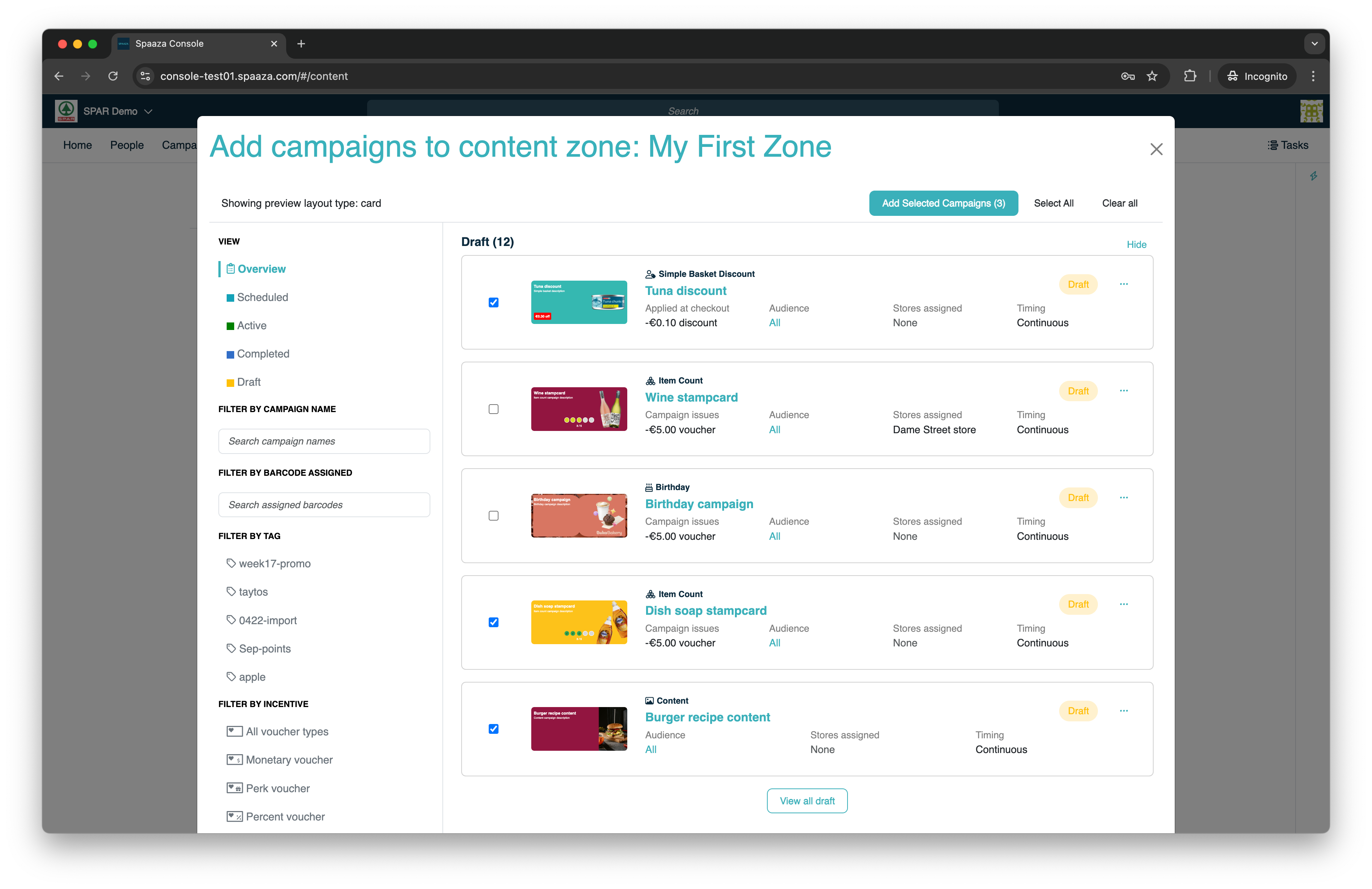
5. Click the “Add selected Campaigns” button.
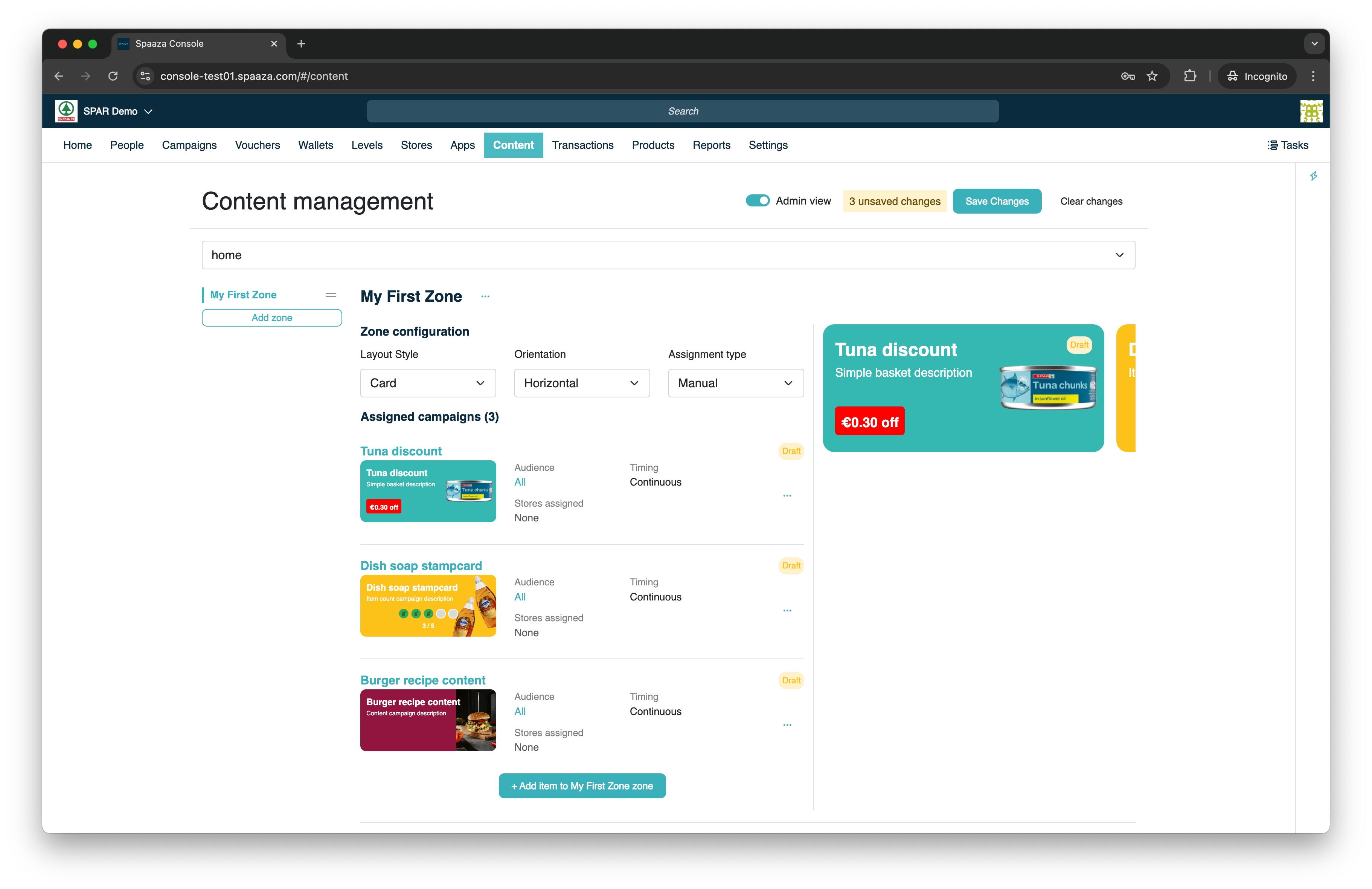
6. Leave the Layout Style on “Card”, set the Orientation to “Vertical” and leave the Assignment type on “Manual”
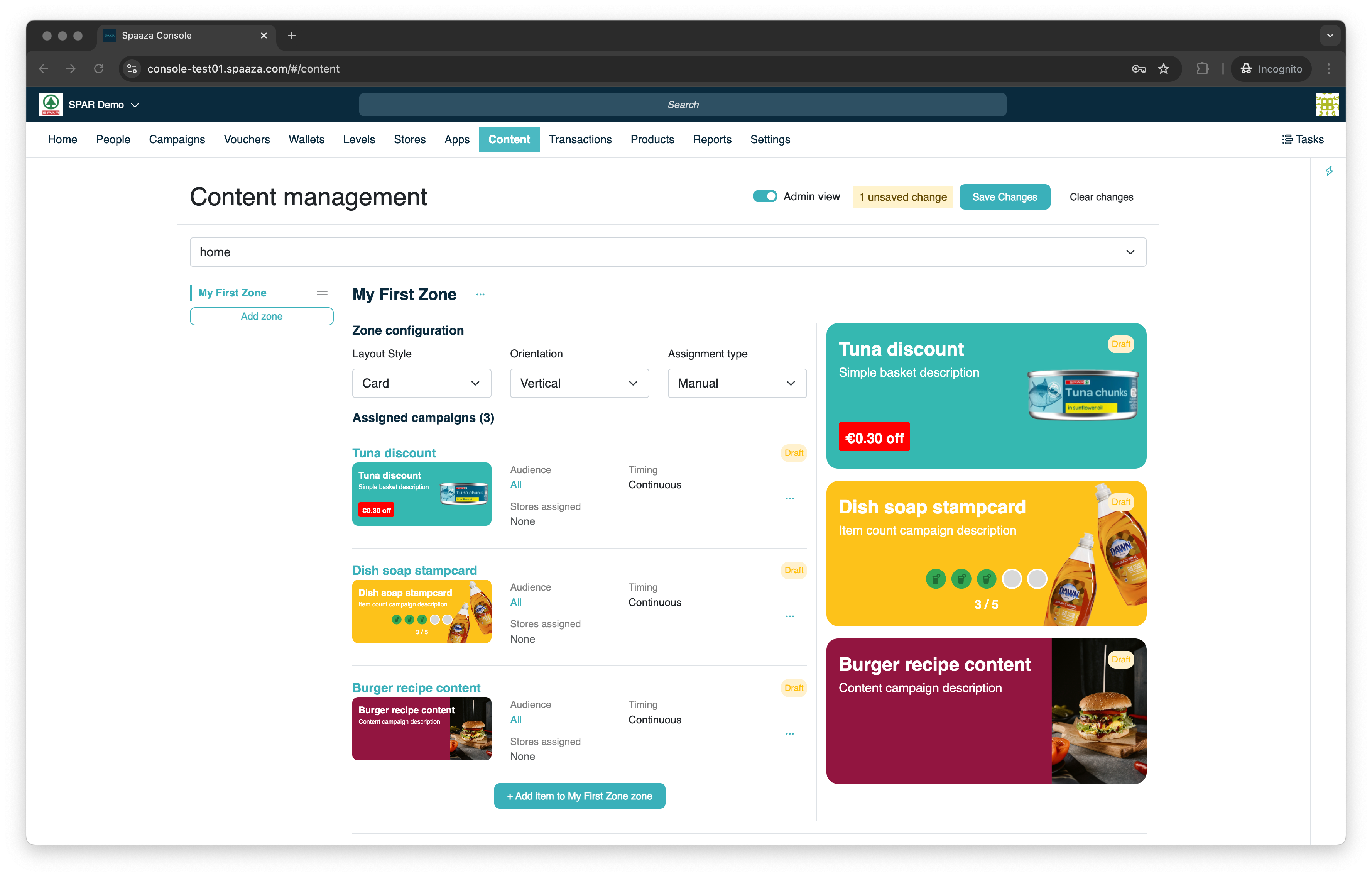
7. Click the “Publish all changes” button. Now your changes are published.
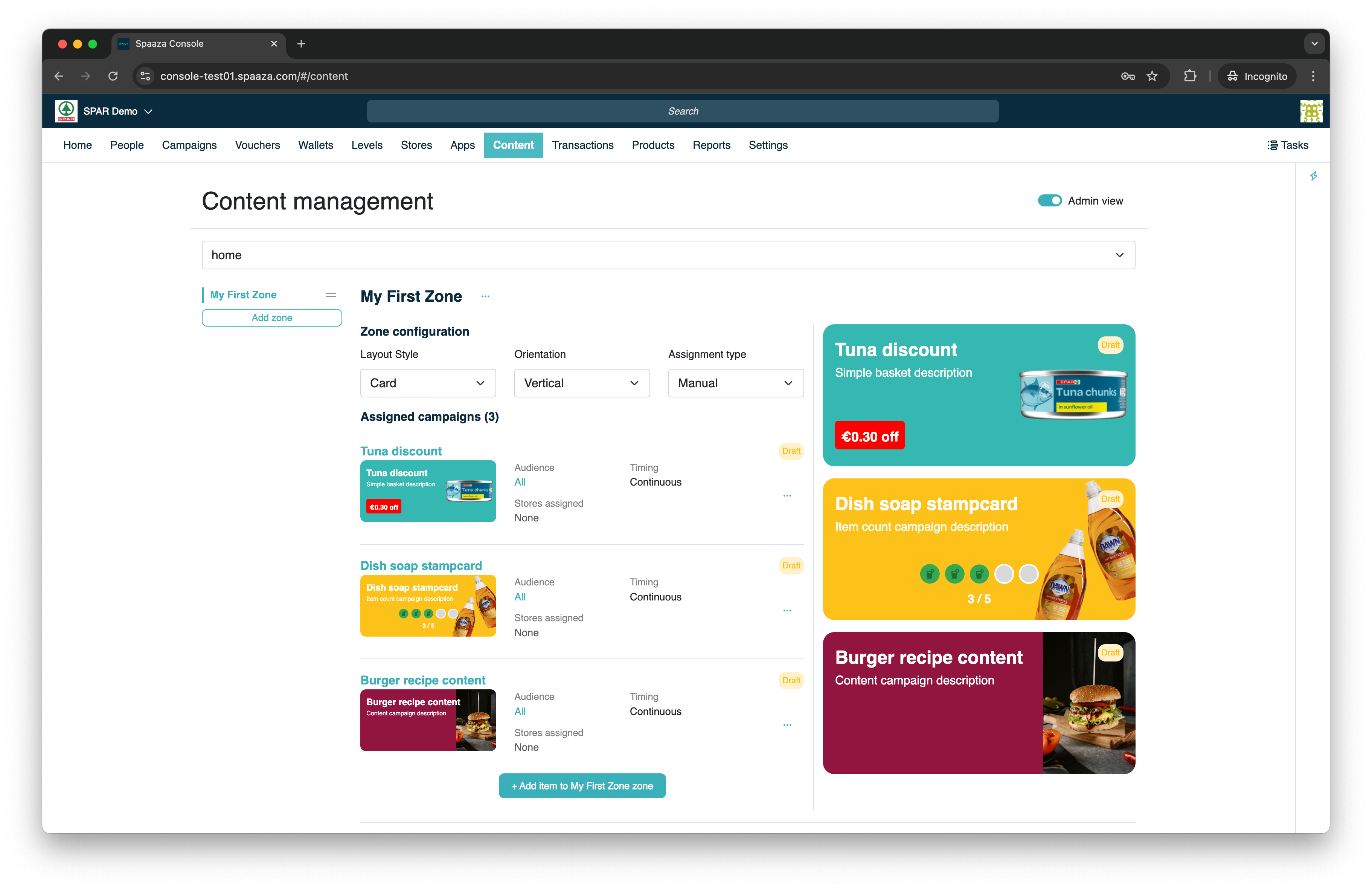
8. Refresh the corresponding screen to see the changes.
Mobile App
Use “pull down” to refresh the corresponding screen inside the app.
Embed Elements
Reload the page or call the controller’s refresh method.
Managing Unpublished Changes
When you add or modify Zones, Zone layout and Items, “x unpublished change(s)” will appear next to the “Publish all changes” button. This indicates the amount of unpublished changes you have open across all pages.
When saving your changes these will be published and end users will be able to see the one’s that are targeted at them and are active.
Besides saving all changes you can also: “Clear all changes” across all pages. When you access the three dots (“…”) when you have a certain page active you can click “Clear unpublished in x page”, which will clear all change within that one specific page you have.
When you have open changes you can safely navigate other pages within Spaaza’s website and return to those later on without being wary of loosing them. You are even able to retrieve them after you close the browser tab.
However, it is advised to save/publish your changes regularly. Unsaved changes to content of your pages is saved in local storage of the browser.
Styling Configuration
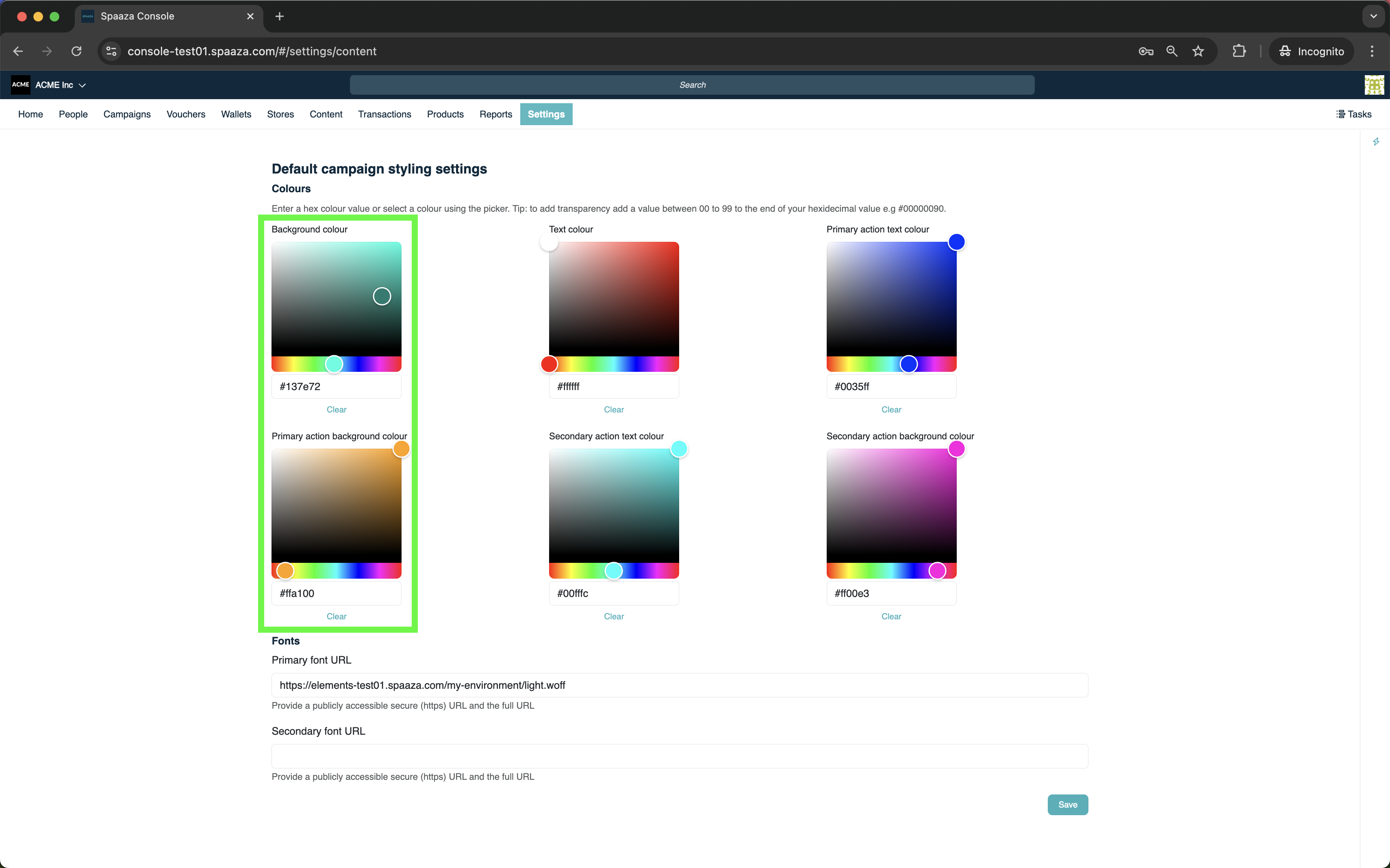
Styling is first determined by what is configured on the individual Campaign Edit Form (see Campaign fields). The settings below serve as fallback defaults when no styling has been set on the Campaign.
In the Spaaza Console’s “Settings” tab in the main navigation of the Spaaza Console, then under “Configuration” and “Default Campaign Content Settings” section, you can configure some styling properties that will effect the display across both the mobile app and Embed Elements.
Currently, you are limited to the user of: “Background Color”, “Primary Action Background Color”, “Text Color” and “Primary Action Text Color”.
- Background Color: This is the color that will be used as the background for any “Card” Layout Type Item if no image and/or background image has been set in the Campaign/Voucher edit form.
- Primary Action Background Color: This is the color of the button or the label that some Content Items have (depending on the Campaign Type).
- Text color: when set, this will change the text color of any content that appears on “Card” and “Banner” Layout Type Item’s. The colors are limited to either black or white. Any value entered will evaluate to either black or white dependant on the brightness of the color chosen.
- Primary Action Text Color: when set, this will change the text color of the button or the labels.
Default Campaign Content Settings:
In Spaaza Console’s “Settings” menu, under “Configuration” and “Default voucher settings” section, will find options to configure voucher styling.
Currently, you are limited to the use of: “Default image”.
- Default image: You are able to configure the images of vouchers on campaign basis. If you want to just use one image for all yours vouchers then you can set it here. Take note, any vouchers set on a specific campaign will override this default voucher image fallback.
Mobile App
There is also styling that needs to be configured manually by a developer during the initial setup of the mobile app. See the Mobile App Onboarding section.
Embed Elements
Additional styling can be done via CSS custom properties. See the Embed Elements documentation.