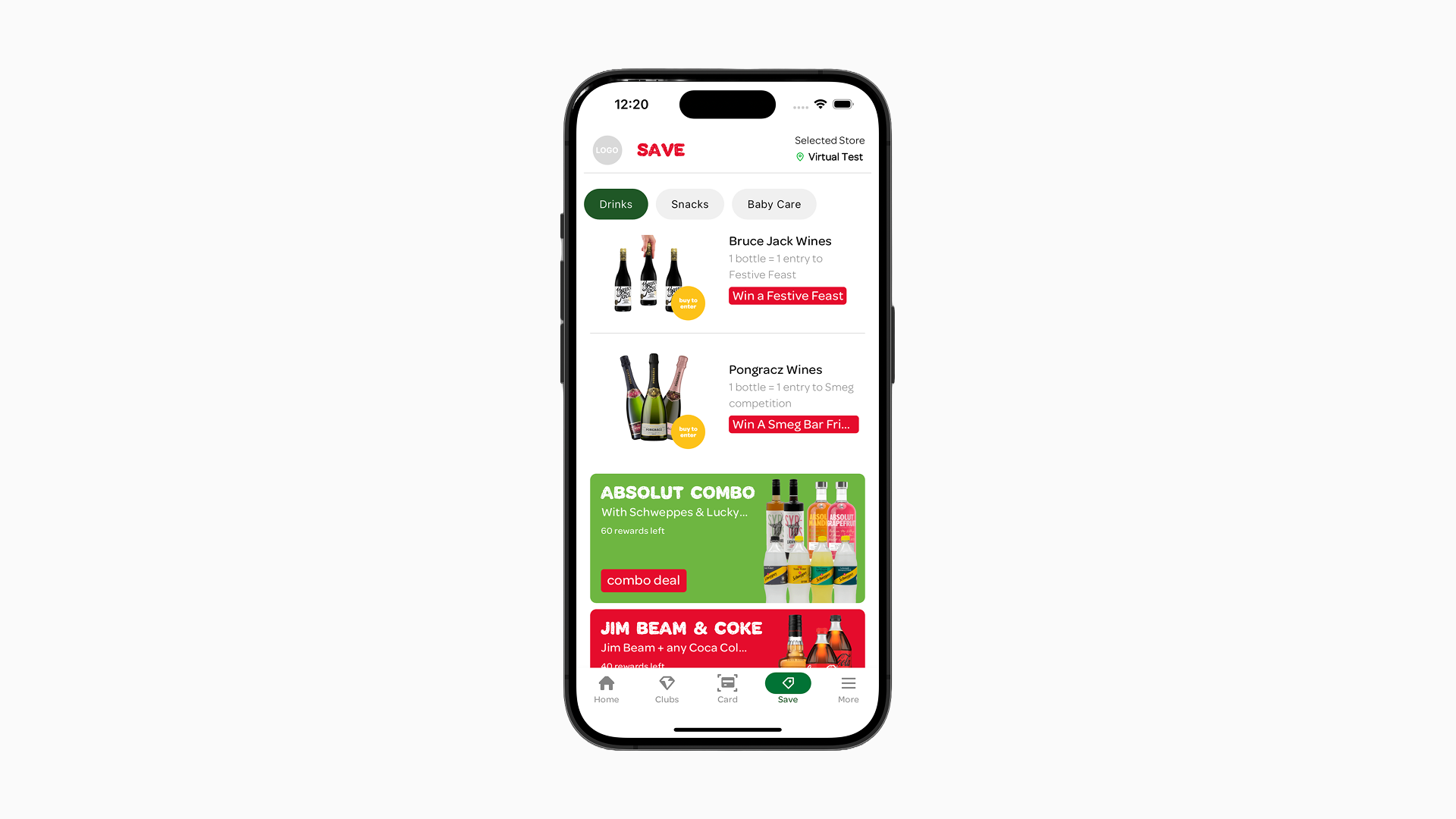
Navigation & Deals Page
Navigating to pages
Pages can be accessed by the user through:
- Main navigation menu of the app
- Navigation tabs on top of the page (currently limited to the “Deals” page). See Deals Page below.
- By tapping on an item, the target page will open instead of the default detail page.
This last option makes it possible to group campaigns and content together on a custom page. For example: seasonal promotions, partner offers, or other themed campaigns. To read more about how to set this up, visit Action: Navigate to internal page (grouping content).
Deals Page
The “Deals” page currently has a special status. On it you can create navigation tabs that will show up at the top of the screen in the mobile app. The “Deals” page is the parent. You can create and configure other pages to be child of this page. The children pages show up as navigation tabs on the top of the “Deals” page.
IMPORTANT
- If there is no content found within the page the navigation tab item will not be visible.
- You can ONLY edit the position of the child page, by dragging the active tab in the “Navigation tab position” preview.
Deals page preview example
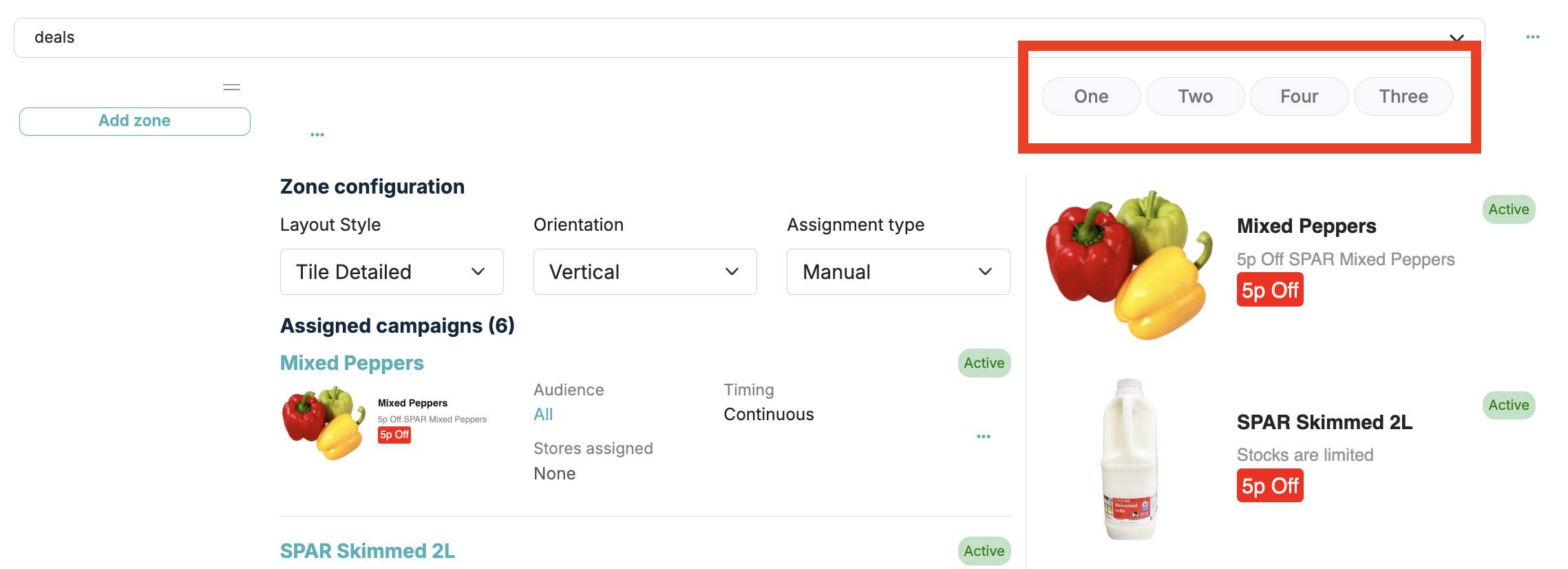
Deals page example